Many users out there on the internet are looking for different methods to download and install the CH340G driver. The CH340G hardware chip is used for USB signal-to-serial signal conversion. It is important to install the correct drivers for it to work properly. It is important to install and keep the drivers, which are not buggy or faulty, so that your system is not affected by the same.
And if you need to learn more about the methods for CH340G driver download and CH340G driver installations, then you must read the article thoroughly. These chips and drivers work the same with the CH340G drivers for Windows 7 and newer versions but with more advanced features.
With this guide, you will learn more about the methods you can use for the CH340G driver download and the troubleshooting methods for the same.
What is a CH340G driver?
A CH340G driver is a software program to communicate easily with all the hardware components. And for that, this software uses a USB-to-serial chip that transmits signals. With the help of this software, you can also easily upload code using the Arduino IDE without even using a separate programmer.
And to use this software, you need a CH340G driver to download, which is accurate and updated. For the CH340G driver for Windows 7, you can only connect these chips with some of the compatible drivers only. Therefore, it is very important for you to install and manage the correct drivers.
What Is the Need for CH340G Driver Installs?
Now you must be wondering why you need CH340G driver installs; we’ve got your back. Without these drivers, your system will not even recognize the chip.
And the main reason that you need a CH340G driver is to establish and maintain better communication for the connected device. Now let us find what the most used and basic ways are for a CH340G driver for Windows.
How to Download and Install CH340G Driver for Windows
To download and install the CH340G driver for Windows, you can easily use the official website or the settings options on your Windows. Here are some of the most basic and easy to use methods to download the CH340G driver for Windows 11 or any model.
Method 1: Use Official Website
The most basic and the first method that you can use is to download and install this CH340G driver for your system. And here is a complete guide for you to download and install the CH340G driver from the official website.
Step 1: Open the official and valid website for the CH340G drivers.
Step 2: Look for the link to download the driver you want to install.

Step 3: Now click on the file you just have downloaded. And follow all the instructions appearing on the screen and install the CH340G driver.
If you are unable to download and install the CH340G driver, you can also use Device Manager to download and install the driver.
Method 2: Use Device Manager
Another method that you can use to install the CH340G driver for Windows 11 is the device manager option in your system.
Step 1: Right-click on the start button on the leftmost corner of the taskbar. Now select the ‘Device Manager’ option.
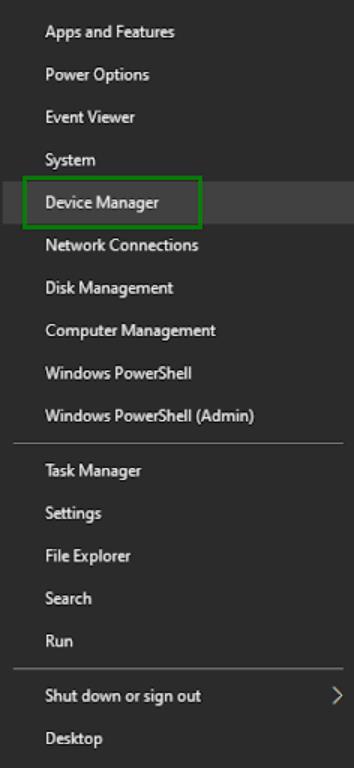
Step 2: And in the next window, go to the ‘Universal Serial Bus Controllers’ and expand the menu once.
Step 3: Search for the CH340G driver, right-click the CH340G driver, and then click Update driver.
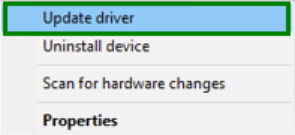
Step 4: And for the next window, select the ‘Search automatically for drivers’ option, and next, follow all the instructions appearing on your desktop.
Step 5: After you complete all the steps appearing, make sure you reboot your system once.
It is also very important to keep your drivers up to date to make sure that it runs smoothly, and you are getting all new and advanced features as well. Therefore, here is a complete step-by-step guide for you to perform a CH340G driver update.
Also know: How to Download and Update AMD X570 Chipset Driver
CH340G Driver Updates
To update the CH340G driver for Windows 10, 11, or any other Windows version, you can simply use the Windows settings. Using the latest driver updater, for every CH340G driver update, you are getting a more advanced and refined version of this chip to work smoothly for the communication.
Method 1: Windows Update
And these are the steps for you, the CH340G driver, to update your system.
Step 1: Search for ‘Settings’ on your system or open using the ‘Windows + I’ keys to open the settings of your system.
Step 2: Go to the ‘Windows Updates’ option.
Step 3: Now select the ‘Check for Updates’ option.
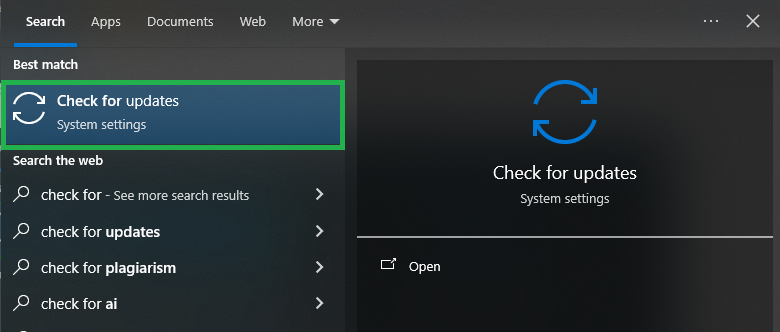
Step 4: After you install all the necessary updates, restart your system once.
Method 2: Using Win Riser
You can also use the Win Riser automatic driver updater to update the necessary CH340G driver for your system. Its real-time updater will provide you with all the necessary notifications to automatically update the drivers. Also, the updates get scheduled with proper scans for better system health.

You just need to install the Win Riser automatic driver update, and it will scan your device thoroughly for all the outdated and junk drivers. Then, after completing the scan, you can see all the updates you need to install on your system. This makes it very easy to install the CH340G driver updates in a timely manner.
Frequently Asked Questions (FAQs)
Q1. What is a CH340G driver, and what is the need for CH340G driver installs?
Ans. The CH340G driver is software to maintain stable communication between hardware components. And after using this chip, you can easily assign a virtual COM.
Q2. What are the basic ways to download and install the CH340G driver?
Ans. The most basic ways to download and install the CH340G driver are using the official website or the device manager in your system.
Q3. How to make sure that the CH340G driver you have installed is correct or not?
Ans. To make sure that the CH340G driver you have installed is correct or not you need to check for the COM & LPT ports sections. You must find a USB-serial CH340 with COM3 and COM4 port numbers.
That was all about the CH340G driver and what the methods are to install and download the CH340G driver for Windows 10 in your system. All these methods are used with a few basic, easy steps only. And for every CH340G driver update, you are getting a more advanced and refined version of this chip to work smoothly for the communication.