Think of the fun you’re having gaming with your friends. Then out of the blue, the Discord app closes itself. Your voice chat drops, your friends can no longer hear you. And when you try to open the app, it crashes.
Sounds frustrating, right?
Discord crashes can be frustrating during your gameplay and could cut off meaningful dialogue. However, you don’t need to be a computer whiz to fix the issue. There are several quick adjustments that might be enough to get back on track.
So today, in this article, you will learn the eight easiest methods to resolve the discord crashing issue on your Windows PC. Read them all and check if the issue is solved or not. If you are searching for discord crash solutions, these steps can help you begin with simple fixes.
What Causes Discord to Crash on Windows?
- Existing/invalid stored data may be corrupting the app, causing it not to work properly.
- Your current installed version of Discord could be buggy.
- Graphics processing problems. Some PCs have difficulties with Discord’s graphics acceleration.
- Audio device conflicts like if the sound settings aren’t compatible with your device, then you may experience crashes during calls.
- Faulty keyboard shortcuts, as specific custom key combinations, can cause problems.
- Old Windows drivers, in which system drivers that are no longer current, can cause issues with Discord.
- The test features may have bugs, which might cause you to not function correctly.
- Your computer may be running other applications that could conflict with Discord.
Understanding the cause can help you choose the right solution. Start with the easiest fixes before trying more advanced steps.
8 Methods to Fix Discord Crashing on Windows PC
Method 1: Close Discord and Open It Again
Sometimes, Discord crashes because of a temporary glitch. Restarting the app is the easiest fix to try before moving on to other solutions, especially when discord crash happens without warning.
- Press Ctrl + Shift + Esc to open Task Manager.
- Find Discord under the Processes tab.
- Select Discord and click End task.
- Close Task Manager.
- Open Discord again from the Start menu or desktop shortcut.
Once Discord reopens, check if it works properly. If it still crashes, try the next method.
Method 2: Turn Off Hardware Acceleration
Discord may sometimes struggle with graphics processing, especially when you are gaming and running multiple applications. This can lead to a discord crash if your PC has trouble handling visual effects.
- Open Discord.
- Click the gear icon beside your profile to access User Settings.
- Find the Appearance or relevant graphics settings section.
- Look for Hardware Acceleration.
- Turn the feature off if the option is available.
- Restart Discord and test it again.
Restart Discord and check if the issue is resolved. If not, move on to the next fix.
Also know: Best Discord Alternatives and Similar Software to Use
Method 3: Clear Discord’s Temporary Files
Over time, Discord temporary files may become corrupted and cause unexpected crashes. Clearing the cache can help the app run smoothly again and reduce discord crash problems.
- Close Discord completely through Task Manager.
- Press Windows + R to open the Run window.
- Enter %appdata%\discord and press Enter.
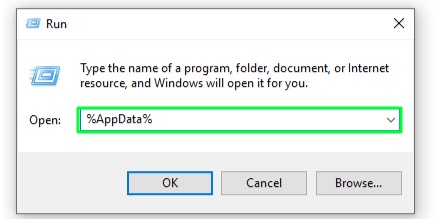
- Open the Cache folder.

- Delete the files inside it.
- If present, repeat the process for Code Cache and GPUCache.

- Launch Discord again.
Open Discord again and see if it works normally. If the problem continues, try adjusting the audio settings.
Method 4: Switch to Legacy Audio Mode
Switching to Legacy mode may help resolve certain audio compatibility issues when a discord crash happens during voice chats or calls.
- Open Discord and enter User Settings.
- Select Voice & Video.
- Find the Audio Subsystem
- Change the setting to Legacy.
- Confirm the change if prompted.
- Restart Discord and test your microphone.
Join a voice channel and test your microphone. If Discord still crashes, check your keyboard shortcuts.
Method 5: Remove Custom Keyboard Shortcuts
Custom keybinds make gaming more convenient, but certain shortcuts may cause unexpected issues and trigger a discord crash during normal use.
- Open Discord’s User Settings.
- Find the Keybinds section.
- Review your custom shortcuts.
- Remove the shortcuts you created.
- Restart Discord.
- Test the app during normal use.
Restart Discord and use it as usual. If the crashes continue, check for Windows updates.
Method 6: Update Windows and Device Drivers
Keeping your system updated may help prevent unexpected crashes. If Discord crashes on pc after updates are delayed, installing Windows and driver updates can improve stability.
- Press Windows + I to open Settings.
- Select Windows Update.
- Click Check for updates.
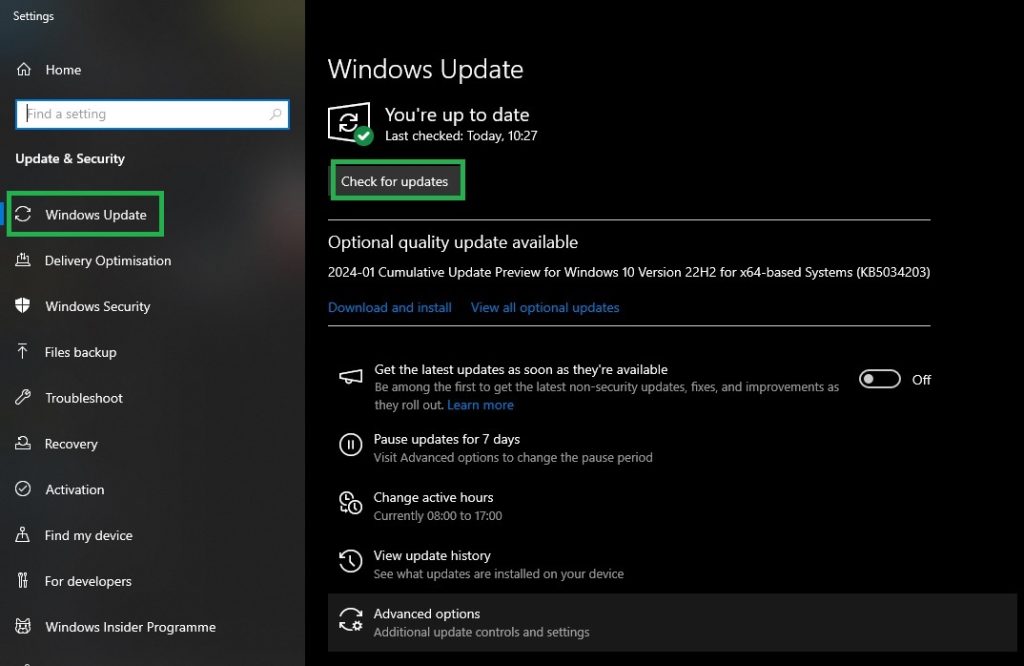
- Install available updates.
- Restart your computer.
After restarting your PC, open Discord and test it. If the issue remains, try disabling experimental features.
Also know: How to Use a VPN in Incognito Mode
Method 7: Disable Experimental Features
New or experimental features may occasionally contain bugs that affect Discord performance. Turning off recently enabled options can help identify the cause, especially if Discord crashes on pc after a new setting is enabled.
- Open Discord Settings.
- Review any experimental options you recently
- Turn off those options if Discord provides a switch.
- Restart the application.
- Check whether the crashes continue.
Check whether Discord runs without crashing. If nothing changes, reinstalling the application may be your next option.
Method 8: Reinstall Discord
Step 1: Uninstall Discord
- Press Windows + R.
- Type appwiz.cpl and press Enter.
- Find Discord in the installed programs list.
- Select it and click Uninstall.
- Follow the instructions on your screen.
Step 2: Restart your computer
Save your work and restart Windows. This helps close any remaining processes linked to the old installation.
Step 3: Install Discord again
- Visit the official website at https://discord.com/download.
- Download the Windows version.
- Run the installer.
- Sign in and check whether the app works correctly.
Once the installation is complete, open Discord and test it again. Reinstalling the app gives you a fresh installation and may resolve persistent problems, including cases where Discord crashes on pc again and again.
Frequently Asked Questions
Q1. What causes your Discord to keep crashing on your PC?
The reasons for this can be corrupt cache files, outdated driver, software conflict, bugs in the application, and more. Make sure you close the app completely first and clean its cache files if Discord crashes on pc during regular use.
Q2. Can I fix Discord crashes without reinstalling it?
Yes. You should try restarting Discord, turning off Graphics Acceleration, clearing Temporary Files and Updating Windows in order to fix the problem when Discord crashes on windows.
Q3. Will deleting the Discord cache get rid of my account?
No, your Discord account or server memberships are not deleted when deleting temporary cache files, and you may be required to log in again in certain circumstances. This is also safe to try when Discord crashes on windows due to damaged cache data.
Q4. Why does Discord crash during voice calls?
Audio driver errors, wrong sound settings, sound card problems, or a faulty microphone can cause Discord crashes on windows during voice calls. Switch to Legacy audio and update the sound driver.
Discord crashes on windows can be annoying, but several easy solutions can get you back in the game. Begin by closing the application, then clear cache files, check for Windows updates, or even reinstall the software. Be sure to test each time.