There are various users reporting complaints regarding errors like the Intel wireless AC 9560 keeps disconnecting or losing Wi-Fi from their system after a Windows update. And after some research, they got to know that the soul reasons behind Intel wireless AC 9560 driver 160 MHz not working errors are that the Intel AC 9560 is not working properly or the Intel wireless AC 9560 driver is not working. So, if you are also one of these users, then you have reached your solution.
To resolve these kinds of errors, the first thing that a user tries to do is to uninstall and reinstall the AC 9560 driver; however, there are more ways for the same. There are some tiny initial workarounds that you must keep in mind before you step into these huge solutions.
With this guide, you will understand all the primary reasons behind this error and all the various ways through which you can fix the same on your system.
Reason Behind Intel Wireless AC 9560 Not Working
But what could be the main reason behind the wireless AC 9560 not working is the first question that strikes your head. There are some common workarounds that a system must consider avoiding this error, and if they do not, then only you face Intel Wireless AC 9560 not working on all kinds of errors.
- Windows Update: Many times, the Intel Wireless AC 9560 keeps disconnecting because of the outdated and faulty Windows updates. These update-related conflicts can easily trigger various compatibility errors in the device. To fix this, you might need to reinstall the ac-9560 driver once.
- Power Management: If the Intel AC 9560 Wi-Fi is not working, then it must be a result of Windows not being able to save the power card. This failure in power management in the card is the main reason behind the error code 10 occurring.
- OEM Customization: The AC 9560 is heavily dependent on the OEM drivers, and if the Intel wireless AC 9560 driver is not working, then it must be a failure in the initialization of these drivers. To avoid these kinds of issues, you must get some good free driver updater for Windows.
- Heavy Loaded: The Intel wireless AC 9560 keeps disconnecting because the adapter might be heavily loaded or is facing heavy GPU usage. Because of all the heavily loaded operations running on the system, you can face the issue of dropping out.
- Hardware Failure: When you try to uninstall and reinstall the AC 9560 driver, there are some physical issues your device is facing. Physical issues like broken wires, antennas, damaged cables, or even a loose M.2 CNVi card, all causes create Intel AC 9560 not working issues.
Let us now look at the different ways to fix the Intel wireless AC 9560 adapter without a working error.
How to Fix Intel Wireless AC 9560 Adapter Not Working
There are different ways to resolve the Intel wireless AC 9560 driver 160 MHz not working error like reenable the Intel AC-9560 driver or even reinstall these drivers. Here are some of those methods mentioned for you that you must consider using.
Method 1: Internet Connection
There are many laptops that have wireless connectivity to the Ethernet or any kind of internet connection you have. And there are still lots of laptops that still need a hardware switch to toggle on to connect to the internet. That is why it is important to make sure in the very first place whether you need this direct connectivity or the switch-on/off way.
Also know: How to Fix This Copy of Windows Is Not Genuine
Method 2: Reenable the Intel AC-9560 Adapter
If you need to fix the issue of the Intel wireless AC 9560, keep disconnecting repeatedly on your system. Then you must try to re-enable the adapter in your device once. And to do so, here are the steps that you need to follow:
Step 1: Open the ‘Run’ dialog box, and for that, press the ‘Windows + R’ keys on your keyboard.
Step 2: Then type ‘devmgmt.msc’ and then click on the ‘OK’ button

Step 3: Now to reenable the Intel AC-9560 driver, you need to first disable it once. For that, double-click on the ‘Network Adapter’ option and then right-click on the Intel Wireless-AC 9560.
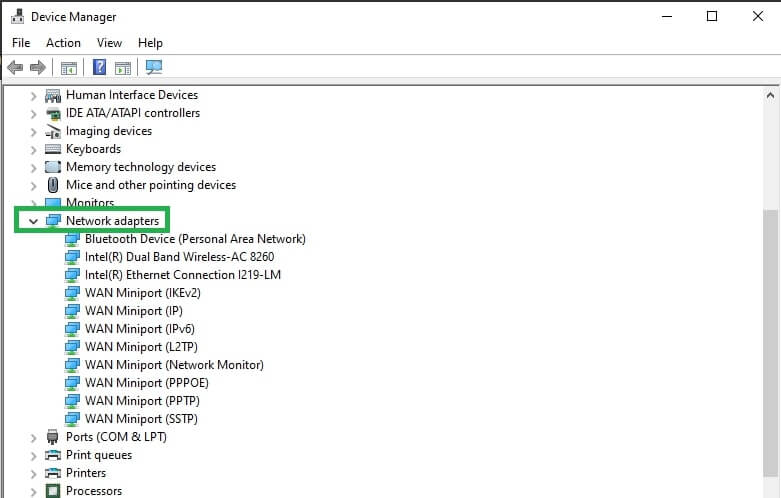
Step 4: Click on the ‘Disable Device’ option and then restart the system once.
Now, you have to follow these steps once again to enable the AC-9560 adapter in your system.
Method 3: Reinstall AC 9560 Drivers
The most convenient method to use when you are confused about resolving the error for the Intel wireless AC 9560 keeps disconnecting repeatedly in your system. To reinstall the entire AC-9560 driver. For that, you need to uninstall the driver first and then install it in your system once again.
And these are the required steps for you to uninstall the driver first:
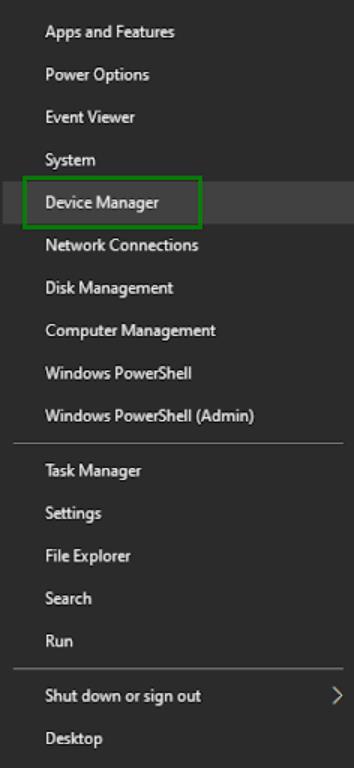
Step 1: Open the Winx menu, and for that, press ‘Windows + X,’ and from the drop-down menu, select the ‘Device Manager’ option.
Step 2: Open the network adapter option and look for the Intel wireless AC-9560.
Step 3: Click on the ‘Uninstall Device’ option from the drop-down menu.

Step 4: Now select the delete the driver software for this device checkbox and then click on the ‘Uninstall’ option.
Step 5: As the last step, you need to restart the system once.
Also know: Two Finger Scroll Not Working Windows 11/10? Here’s How to Fix It
Method 4: Toggle WLAN Auto Configuration Services
If the Intel wireless AC 9560 adapter is not working after trying all these methods, then you can simply try to start WLAN Auto Configuration Services. And here are the steps for you to WLAN auto configuration services if the Intel wireless AC 9560 keeps disconnecting repeatedly:
Step 1: Go to the search bar in your Windows and search for the ‘Services’ option.
Step 2: Click on the ‘Services’ icon and open the manager window. Then look for the WLAN Auto configuration option from the menu.
Step 3: Double-click and open the ‘Properties’ window for the WLAN Auto configuration. And set the startup type to automatic.

Step 4: And then make sure to click on the ‘Start’ button to start the service.
Frequently Asked Questions (FAQs)
Q1. Should I uninstall all the drivers if the Intel wireless AC 9560 adapter is not working?
Ans. There is no need to uninstall all the drivers if the Intel wireless AC 9560 adapter is not working. You can simply just use the recommended OEM-customized drivers and make sure to keep all the drivers up to date.
Q2. What error code is 10 for the Intel wireless AC 9560 adapter?
Ans. The error code 10 is the hardware failure for the Intel wireless AC 9560 adapter to initialize. It is mainly triggered by the broken cables and antennas and even the power state of the devices.
Q3. What are those primary commands that you can use to fix if the adapter is stuck?
Ans. All primary commands that you use to fix if the adapter is stuck could be
- ipconfig / flushdns
- netsh winsock reset
If your Intel Wireless AC 9560 keeps disconnecting repeatedly in your system, then these were the main solutions you must try. And the most basic and first thing that you need to make sure of is the Wi-Fi or internet connection at your workplace. It can be resolved if you reinstall the ac-9560 driver once, but it is not the first thing you should try.