While working on the system, many times the taskbar helps you in a lot of crucial ways. With the taskbar you can access all the applications running in the background, tasks managed currently, view all the notifications, and switch to the desktop as many times as you want.
All these tasks can be done in just a few clicks, but there are times when you need to conceal the taskbar from the screen. And there are still lots of users who believe that in Windows 11 the taskbar won’t hide. You can hide the taskbar in Windows 11 very easily in a few steps only.
You just needed the right guidance to work with, and here we are with the most basic methods to use to hide the taskbar in Windows 11 in different ways. With this guide, you will understand different ways to learn how to minimize the taskbar in Windows 11 or also how to hide the taskbar.
Ways to Hide the Taskbar in Windows 11
If you still think that the Windows 11 taskbar won’t hide, then you must read this entire article thoroughly to understand all the methods for the same. With the most basic and easy methods, you will understand how to hide it in a few steps.
Let us now look at those methods by which you can easily hide the taskbar in Windows 11.
Method 1: Windows 11 with No Taskbar Using Settings
If in Windows 11 the taskbar won’t hide directly, you need to set up some of the settings in your system. Here is a complete guide that you can use to hide the taskbar in Windows 11 using the system settings.
Step 1: Open the ‘Settings’ of the system.
Step 2: Then go to the ‘Personalization’ option from the left pane of the screen.

Step 3: And from the right menu, select the ‘Taskbar’ option.
Step 4: In the taskbar menu, select the ‘Automatically hide the taskbar’ option.
Also know: Update Windows Security Signatures Manually Windows
Method 2: Hide the Taskbar in Windows 11 with Command Prompt
You can also try to hide the taskbar in Windows 11 using the command prompt. It is also one of the easiest ways to hide the taskbar in Windows 11, because all you need is to just put some command in the prompt window.
Step 1: Press ‘Windows + R’ to open the ‘Run’ dialog box and then type the ‘cmd’ command and press ‘Ctrl + Shift + Enter.’
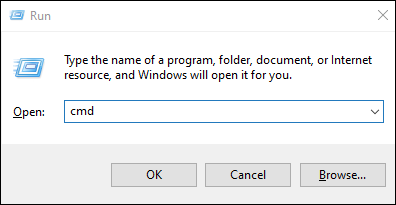
Step 2: Then in the command prompt, paste this interface: ‘PowerShell -command “& {$p=’HKCU: SOFTWARE\Microsoft\Windows\CurrentVersion\Explorer\StuckRects3’; $v= (Get-Item Property -Path $p). Settings; $v [8] = 3; &Set-Item Property -Path $p -Name Settings -Value $v; &Stop-Process -f -Process Name explorer}”
And then hit the ‘Enter’ button.
That is how you can easily hide the taskbar in Windows 11. And if you want to undo the settings, you just made them using the command prompt. Then use the following command:
‘PowerShell -command “& {$p=’HKCU: SOFTWARE\Microsoft\Windows\CurrentVersion\Explorer\StuckRects3’; $v= (Get-Item Property -Path $p). Settings; $v [8] = 2; &Set-Item Property -Path $p -Name Settings -Value $v; &Stop-Process -f -Process Name explorer}”
Method 3: How to Minimize Taskbar in Windows 11 Using Registry Keys
Another method to use to hide the taskbar in Windows 11 is to use the registry keys in your system. For Windows 11 with no taskbar, you need to set the low-level settings for the Windows registry of the hierarchical database.
Step 1: Press the ‘Windows + R’ keys to open the ‘Run’ dialog box.
Step 2: And then type the ‘regedit’ command and press ‘Ctrl + Shift + Enter’ to open it.
Step 3: In the window, navigate to ‘HKEY_CURRENT_USER\Software\Microsoft\Windows\CurrentVersion\Explorer\Advanced’ this path.
Step 4: On the rightmost pane of the window, right-click anywhere on the empty space. Then, from the drop-down menu, select the ‘New’ option.

Step 5: Go to DWORD (32-bit) Value and then add the name to DWORD AutoHideTaskbar.
Step 6: Now select the DWORD you just created, and to hide the taskbar, you need to set the ‘Value Data’ value to 1.

Step 7: Now you need to restart the system to apply all the changes you have just made.
In Windows 11, you can also set a shortcut key on your keyboard to easily hide the taskbar by just pressing some keys on your keyboard. It is one of the easiest ways to hide the taskbar quickly if you don’t want to follow a complete process.
Method 4: Set Keyboard Shortcut Key
One more method, which is the quickest of all, is to hide the taskbar in Windows 11 using the shortcut keys you set in your system. If you use this method to hide the taskbar, then you just need to press some keys on your keyboard.
The following are the steps that you can use to hide the taskbar automatically by setting up some of the keyboard shortcuts.
Step 1: Set up the auto-hide taskbar shortcut on your Windows 11, using the methods mentioned earlier in this guide.
Step 2: Then right-click on the auto-hide taskbar shortcut you just made. And from the drop-down menu, click on the ‘Properties’ option.
Step 3: Go to the shortcut tab in the key box and press ‘H’ on your keyboard. You are using this for a ‘Ctrl + Alt + H’ hotkey.
Step 4: Click on the ‘Apply’ to save all the changes you just made.
Step 5: Then press ‘OK’ and close the window.
Also know: How to Pin Your Favorite Contacts to the Taskbar on Windows PC
Frequently Asked Questions (FAQs)
Q1. Why am I unable to hide the taskbar in Windows 11?
Ans. You are unsuccessful in hiding the taskbar in Windows 11 because you might have selected the incorrect settings for the auto-hide feature. Or you have not selected the ‘automatically hide the taskbar’ option to conceal the taskbar.
Q2. Is it possible to set the taskbar at any corner of the screen other than the bottom of the screen?
Ans. For Windows 11, no taskbar can be set to any other corner of the screen other than the bottom. Microsoft has locked the Windows 11 taskbar; however, you can change its position to left or center only.
Q3. Can I change all these settings officially?
Ans. To manage and review all the display settings in your system, you can always use the Microsoft Support Taskbar Guide. It is easier with this guide to manage all the settings related to your system and display.
These were the main and most basic answers you can keep in mind to the query of ‘How to minimize the taskbar in Windows 11?’ To hide the taskbar in Windows 11, you also need to keep the low-level settings for the OS of your system. All these methods are easy to use by everyone and can be done in a few easy steps. And for Windows 11, no taskbar can be shifted to any other part of the screen other than the left and center of the screen.