Are you having trouble with your Windows 11 PC? Well! In this case, booting up in Windows 11 Safe Mode might be the perfect solution!
So, what exactly is Safe Mode in Windows 11, and how to start Windows 11 in Safe Mode?
Safe Mode is a unique diagnostic mode that loads only the necessary components of your system to assist you in troubleshooting a variety of problems. This makes it easier to identify and fix issues by temporarily disabling third-party programs and drivers.
When you think your computer might be infected with malware, you frequently choose to boot into Windows 11 Safe Mode. In Safe Mode, you can access important tools such as the Control Panel to delete harmful software without risking it running in the background and causing more harm.
Malware is sometimes challenging to control in regular mode, but this secure setting of Windows 11 Safe Boot Mode makes cleanup easier.
In this article, we will explore what Safe Mode in Windows 11 is, why it’s useful, and guide you step-by-step on how to start Windows 11 in Safe Mode. So, let’s dive in.
What is Safe Boot in Windows 11?
Windows 11 Safe Mode is a special boot option that helps you troubleshoot problems by starting your computer with just the necessary services and drivers.
When you encounter issues like unexpected crashes, slow performance, or software conflicts, Windows 11 Safe Boot mode can be a lifesaver. When your computer restart in Safe Mode in Windows 11, Windows runs in a minimum setting that enables you to diagnose and fix problems without the interference of other applications or drivers that might be causing trouble.
While in Safe Boot in Windows 11, you’ll see a simplified version of your desktop, which might look a bit different than usual, but don’t worry! This is normal.
From here, you can run repairs, uninstall recent updates or software, or perform virus scans to help get your system back on track. When your computer restart in Safe Mode in Windows 11, it can make your Windows 11 experience smoother and more reliable.
It is also crucial that you know how to start Windows 11 in Safe Mode. Let’s proceed to know how you can do that.
How to Start Windows 11 in Safe Mode
Safe Mode helps you troubleshoot problems by loading just the basic drivers and services. Let’s look at two simple ways to start Safe Boot in Windows 11. We will start with the easiest method. This way, you can fix issues with your computer more effectively.
Method 1: Through the Start Menu
- Start by clicking on the ‘Windows Start’ menu.
- Next, find the ‘Power’ button at the bottom right of the window. Three options will appear: Restart, Shut down, and Sleep.
- Simply click “Restart” while holding down the “Shift” key to restart your computer.

Proceed with the remaining steps in the “Continue to Safe Mode” section below.
Also know: Best Ways to Stop a Laptop from Overheating
Method 2: Using Windows 11 Advanced Startup
- Open the “System” menu. To accomplish this, select “Settings” from the “Windows Start” menu (or you can navigate straight there by simultaneously hitting the “Windows key + i”).
- The first option will be “System,” so you need to be in the correct menu. Navigate to “Recovery” and select it.

- Select “Restart now” next to “Advanced Startup.” Before continuing, a pop-up window prompting you to save your work will show up. Windows 11 will reboot in the following step, so save anything you need to.
- Select “Restart now.”
Proceed to Windows 11 Safe Mode.
After finishing any of the steps from the options above, you’ll see the first screen shown below. Follow these steps to open Windows 11 Safe Boot Mode:
- Click on “Troubleshoot” to access recovery options.
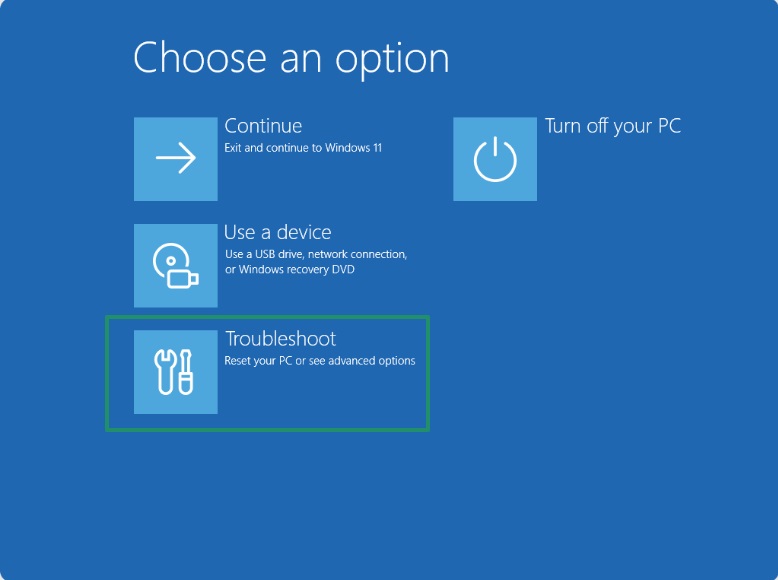
- Select “Advanced options” for more tools.

- Click on Startup settings to modify how Windows starts.
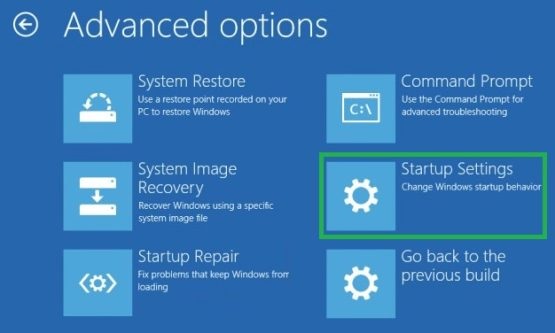
- Finally, click on “Restart” to apply the changes. This will help you get to the desired startup mode you need.

After that, you can use the corresponding keys to select from options displayed on the screen. To get your computer restart in Safe Mode on Windows 11, press “4” or “F4.” The words “Safe Mode” will appear in each of the four corners of the display, letting you know when you’re in Safe Boot of Windows 11.
Also know: Check PC Performance with PC Speed Test Tools
How to Exit Windows 11 Safe Mode
When you’re done using Safe Mode in Windows 11, you can easily return to normal mode by restarting your computer. Typically, this process works well, but if it doesn’t, you can follow these steps to turn off Windows 11 Safe Boot Mode using the Run command:
- To open the Run dialog box, press both the Windows key and R.
- Enter “msconfig” in the field and press OK. This will open the System Configuration window.
- Open the System Configuration screen and select the “Boot” tab. Look for the option labeled “Safe boot.” Make sure to uncheck this box.
- Click on Apply and then OK to save your changes.
- When prompted, click on Restart. Your computer will reboot and load Windows 11 in its normal mode.
Following these steps should help you exit Safe Boot in Windows 11 and restore full functionality to your Windows 11 system.
Frequently Asked Questions
Q1. What is Safe Mode in Windows 11?
Safe Mode is a special diagnostic mode that starts your computer with only the essential services and drivers. It helps you troubleshoot issues by preventing third-party software and drivers from running, which makes it easier to identify and fix problems like crashes or slow performance.
Q2. How to start Windows 11 in Safe Mode?
You can start Safe Boot in Windows 11 through two main methods:
- Through the Start Menu: Click the Start menu, press and hold the Shift key, and select “Restart.” Then, follow the prompts to reach Safe Mode.
- To use Advanced Startup, navigate to Settings > System > Recovery and select “Restart now” from the Advanced Startup menu. Follow the steps to access Windows 11 Safe Boot Mode.
Q3. How do I go back to normal mode after leaving Safe Mode?
To exit Windows 11 Safe Mode, just restart the computer, and it should boot back into normal mode. If it doesn’t, press the Windows key + R, type “msconfig,” proceed to the Boot section, uncheck the “Safe boot” option, apply the changes, and restart the computer. This will return you to normal operating mode.
Starting Windows 11 in Safe Mode is a straightforward process that can help troubleshoot various issues by setting up only necessary services and drivers. Whether you access Windows 11 Safe Mode through the Settings menu, a system restart, or the login screen, it provides a valuable environment for identifying and resolving problems. By following the outlined steps, users can effectively navigate to Windows 11 Safe Boot Mode and ensure their system runs smoothly.