Yamaha Steinberg USB driver is software that helps with low-latency audio and MIDI communication between a PC and compatible Steinberg or Yamaha hardware, for example, audio interfaces. Through the Yamaha Steinberg audio interface, you can record studio-grade sound on your laptop or PC. When connected to a computer, it is excellent for professional-level recording.
However, without an appropriate Yamaha Steinberg USB driver downloaded and installed, the Yamaha Steinberg audio interface can encounter issues such as no sound on playback.
Hence, you must ensure the driver is correctly downloaded, installed, and up-to-date at all times. This article guides you through downloading, installing, and updating the Yamaha Steinberg USB driver to unlock the full potential of this audio interface. Before going into the details of how to download, install, and update the driver, here’s a quick overview of the latest driver to ensure you download and install the correct driver.
Latest Yamaha Steinberg USB Driver Details
Supported OS: (Intel) Windows 10 64-bit / Windows 11
(ARM) Windows 11 24H2 or later
Latest Version: V2.1.11
Supported Hardware: Yamaha MGX series, URX series, URX-C series, UR-MK3 series; Steinberg AXR4U, UR-C series, IXO series
CPU Requirements: (Intel) Intel Core i-series multicore processor 2 GHz or faster, or AMD equivalent processor
(ARM) Qualcomm Snapdragon X Plus or equivalent processor
Memory Required: 2 GB or more
Disk Space Needed: 100 MB or more
Now that you are familiar with the driver and its system requirements, you can follow the guide below to download, install, and update the driver.
How to Download, Install, and Update the Yamaha Steinberg USB Driver
You can use the official website, Windows Update, or Device Manager, depending on your convenience, to find, download, and install the up-to-date Yamaha Steinberg USB driver for Windows 11, 10, or older versions.
Method 1: Download and install the latest Yamaha Steinberg USB driver from the official website
The official website of the manufacturer is among the most reliable driver sources. Below is how to download the latest and most compatible driver for Yamaha Steinberg USB from its official website.
- Unplug the Yamaha Steinberg product.
- Navigate to the official Yamaha Steinberg USB driver download page.
- Read the Software License Agreement.
- Click Yes, I agree.

- Click the button to download the zip file.

- Save the file to an accessible location on your PC.
- Extract the downloaded file on your computer using a WinRAR extractor.
- Double-click the driver file and follow the instructions that appear to install the driver.
- Lastly, restart your computer to let the new driver take effect.
Also know: How to Fix USB Composite Device Driver Error on Windows
Method 2: Update Windows to get the latest Yamaha Steinberg USB driver for Windows
Windows updates, in addition to fixing system performance issues and patching security loopholes, download and install the updated drivers for various devices. Hence, you can download and install a Yamaha Steinberg USB driver update through Windows Update. Here is how.
- Click the Start button.
- Type Check for updates or Windows Update in the search bar.
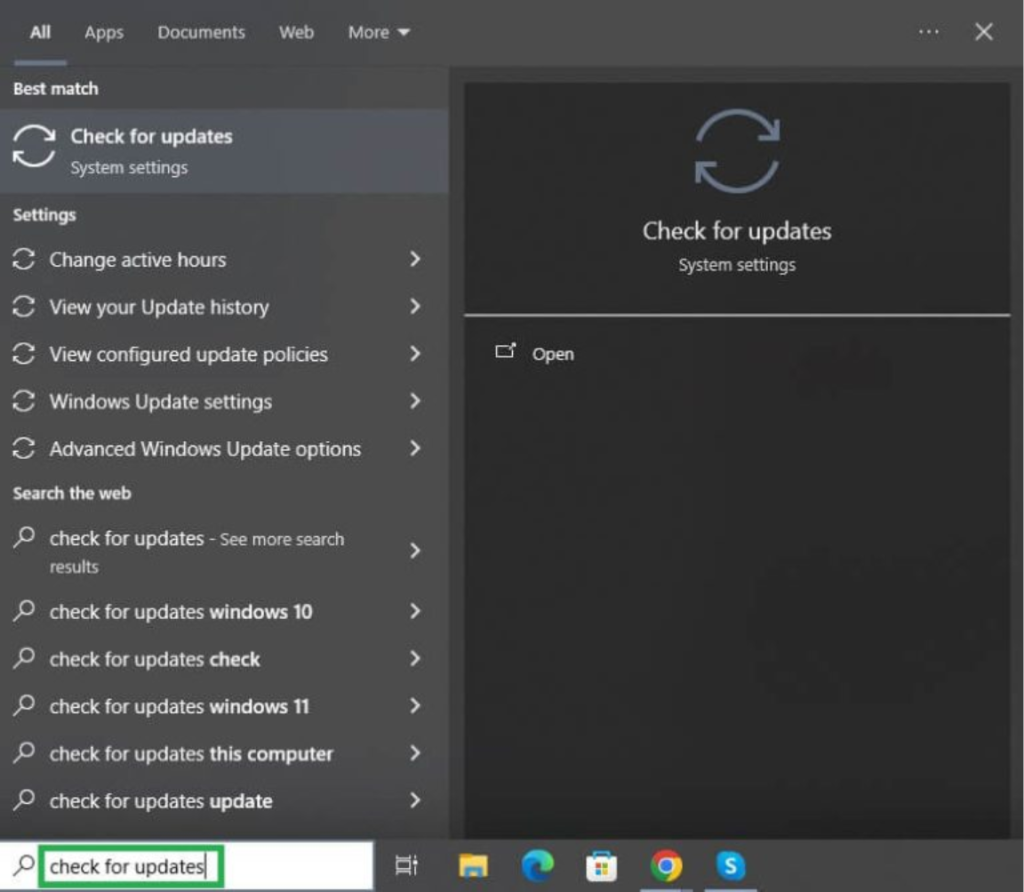
- Click Check for Updates in the search results.
- On the Windows Update screen, click the Check for Updates
- Click Download and Install for all available updates.
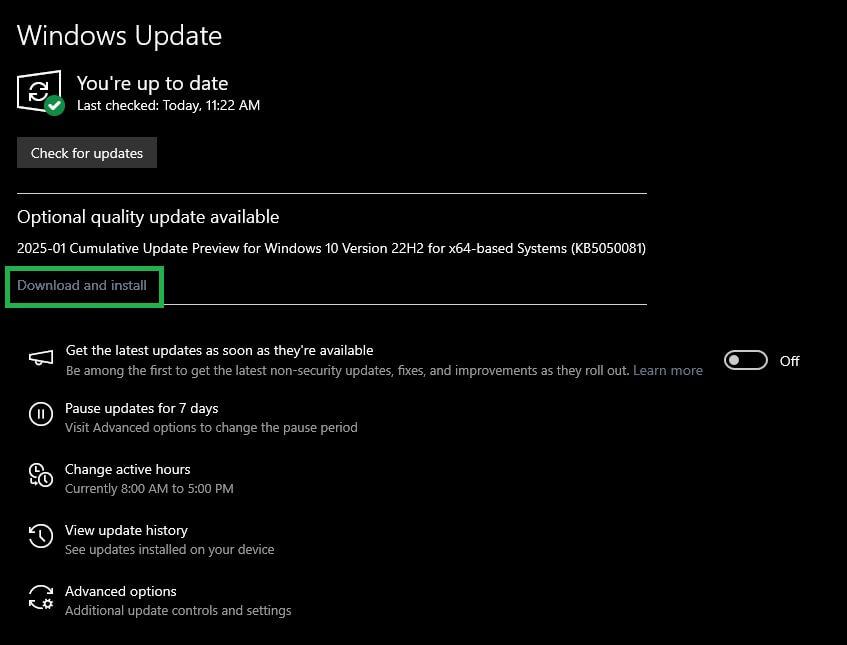
- Let the process complete.
- Lastly, restart your computer.
Method 3: Download and install the up-to-date Yamaha Steinberg USB driver for Windows using Device Manager
Device Manager is a built-in Windows driver updater utility that allows you to download, install, and update drivers for various devices to fix related issues. Below is how to download, install, and update the Yamaha Steinberg USB driver in Device Manager.
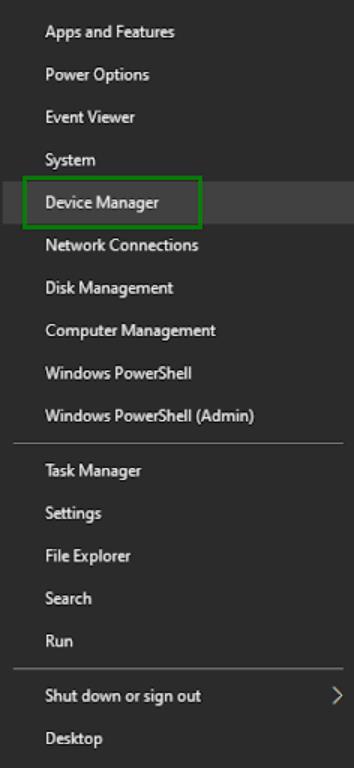
- Right-click the Start button.
- Click Device Manager in the menu that appears.
- In Device Manager, double-click Sound, video, and game controllers.
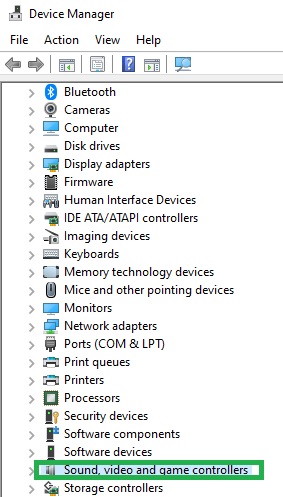
- Right-click your Yamaha Steinberg USB driver and then click Update driver.
- Click Search automatically for drivers.
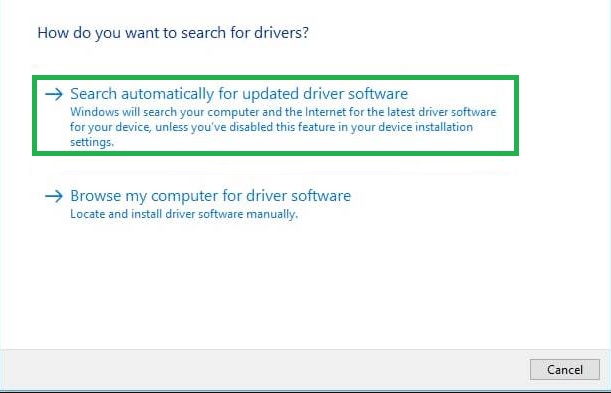
- Follow the instructions that appear to download and install the required driver.
- Restart your PC to complete the driver installation.
If any questions or confusion persist, check the frequently asked questions below for answers.
Also know: How to Set Up USB Game Controllers in Windows 11/10
Frequently Asked Questions
Q1. What is the Yamaha Steinberg USB driver?
Yamaha Steinberg USB driver is software for smooth MIDI and low-latency communication between your PC and hardware such as an audio interface and synthesizer.
Q2. My Yamaha Steinberg USB driver isn’t working. What should I do?
Reinstall the Yamaha Steinberg USB driver if it is not working on your computer. To reinstall the driver, follow the path: Control Panel > Programs and Features (or Apps & features) > Find and uninstall the driver > Restart your PC > Install the driver from the official website.
Q3. How do I update my Yamaha Steinberg USB driver for Windows?
Open Device Manager, double-click Sound, video, and game controllers, right-click your Yamaha Steinberg USB driver, click Update Driver, click Search automatically for drivers, follow the prompts that appear, and then restart your PC to update the driver.
That’s all for the Yamaha Steinberg USB driver download, installation, and update guide for Windows 11, 10, and older versions. Hope this helps you get the right driver for your device to ensure smooth performance. If you have any doubts, questions, or further suggestions about the same, leave us a comment.