

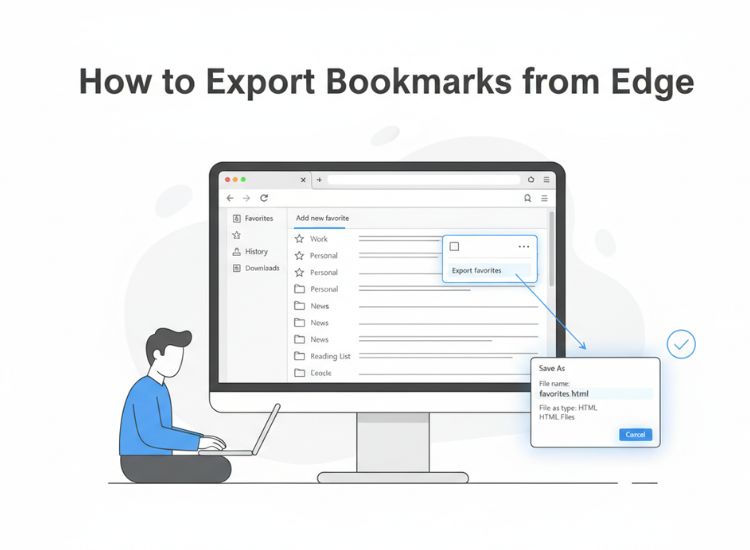
Don’t worry, exporting your bookmarks from Microsoft Edge is easy! Bookmarks, or favorites as Edge calls them, are the websites you save in your browser for quick access, such as your favorite news or movie review sites. If you’re moving from Edge to another top browser like Chrome or Firefox, you probably don’t want to lose these saved websites or have to find them again. This article will show you exactly how to export your Edge bookmarks step by step so you can take your favorites with you wherever you go.
Knowing how to export Edge bookmarks can also come in handy if you want to back up your bookmarks, set up a new computer, resolve the browser sync issues, or transfer bookmarks across browsers manually. No matter what your reason for exporting bookmarks is, the following step-by-step guide will help you save all your bookmarks in a single HTML file that you can carry to any browser. Let’s get started right away.
How to Export Edge Bookmarks
You can export bookmarks from Edge to HTML through the Export Favorites option. Here is the detailed step-by-step process to do the same.
- First, open the Microsoft Edge browser on your PC.
- In this step, click the three-dot (ellipsis) menu in the upper-right corner of the Edge window.
- Next, click Favorites in the menu that appears.
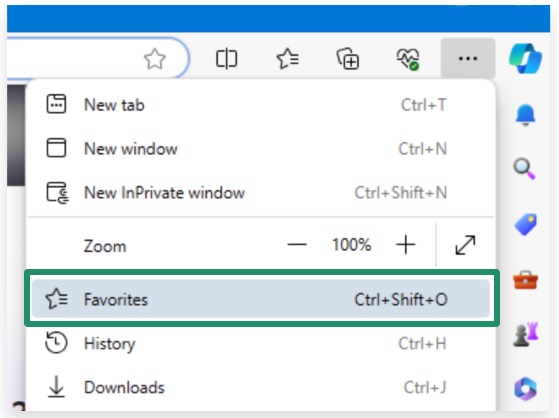
- Again, click the three-dot menu in the Favorites pop-up.
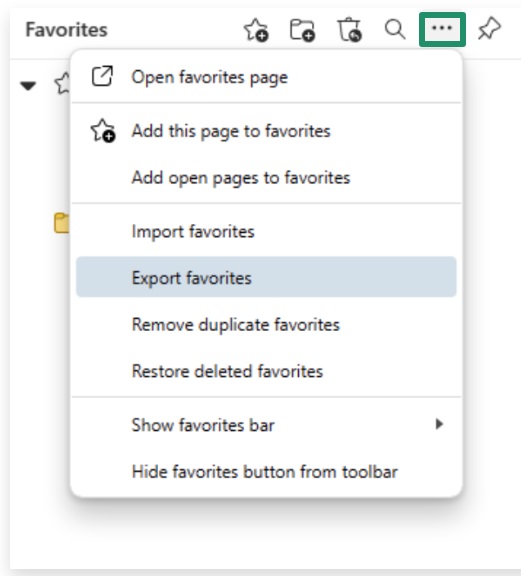
- Next, click Export Favorites in the Favorites menu.
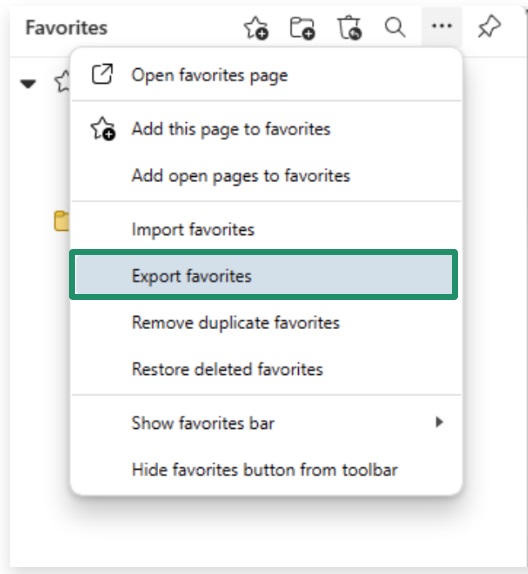
- In this step, name the file as desired, choose an accessible location on your computer, and click Save to export your bookmarks.
While exporting favorites from Edge is usually simple, you might occasionally run into a few common issues. Some of the most frequent problems occur due to an outdated version of Edge, restrictions from your school or work, low storage space, firewall interference, or a corrupted export file. If any challenges come up while you’re exporting your favorites, you can follow the troubleshooting guide below to help fix them.
How to Fix Common Problems when Exporting Bookmarks from Edge
Here is what you can do to fix the issues occurring when you export your favorites from Edge.
- Update your browser: Often, an outdated browser version is the reason you experience issues, such as the export option being missing when exporting your bookmarks. Hence, you can follow the steps below to update Microsoft Edge.
- Click the three-dot menu in the top-right corner of your Edge screen.
- Choose Help and feedback from the menu that appears.
- In this step, click About Microsoft Edge in the Help and feedback menu.
- If an update is available on the About page, click Download and install to proceed.
- Next, click Download and install to download the available update.
- After completing the above steps, restart Microsoft Edge to complete the update process.
- Switch to another account: Exports may be restricted on your work or school account. Hence, switch to a personal account and then try again to export Edge bookmarks.
- Free up storage space: Your computer may not have enough room to store the exported bookmarks. Hence, free up some space on your PC by removing unnecessary files, data, and apps.
- Check the firewall: The firewall may block the export process, thinking it is harmful. Hence, you can check and unblock the export from the firewall. Here is how.
- First, press Windows + I to open Settings on your PC.
- Next, click Privacy & Security in the on-screen Settings panel.
- In this step, click Windows Security and then navigate to Firewall & Network Protection.
- Next, click Allow an app through the Firewall.
- Lastly, find Microsoft Edge in the list of applications and check it for both Private and Public.
- Scan for viruses: Open the exported bookmarks in an HTML viewer. If it does not open, the file may be corrupted. To fix the issue, scan your computer with one of the best antivirus software and then try the export again.
Hopefully, the solutions above will help you export Edge bookmarks. A few additional tips can also prove effective for error-free favorites export from Edge. Let’s note them next.
Also know: How to Show Hidden Files and Folders in Windows 10 & 11
Effective Tips to Export Bookmarks from Edge
Here are a few tips you can follow to export your Edge bookmarks on Windows seamlessly.
- Ensure your folders are well-organized before beginning the export process.
- Make sure there are no dead or broken links in your favorites before beginning the export.
If you already have an HTML file of Edge bookmarks and you want to import it to another session of your Edge browser, you can do that too.
How to Import Bookmarks in Edge
To import favorites or bookmarks in Edge, click the three dots in the top right corner of the browser window, click Favorites, click More Options, click Import Favorites, choose Favorites or bookmarks HTML file from the Import Browser Data dropdown menu, click Choose file, navigate to the location containing the HTML file, select the bookmark’s HTML file, click Open, and then click Done after the import is complete.
If you want to import the bookmarks into another browser, the process may differ from browser to browser, and you may need to check your browser’s help to learn the exact steps to do it. However, generally, these steps are more or less the same on all browsers. For example, on Google Chrome, you need to click the three vertical dots menu in the top-right corner, hover over bookmarks and lists, click import bookmarks and settings, choose bookmarks HTML file from the dropdown, choose file, select the file, click Open, and then click Done when the import is complete.
That’s all for the guide on how to export bookmarks from Edge. You can follow the easy path: Three-dot menu > Favorites > Three-dot Favorites menu > Export Favorites > Save to take your favorites or bookmarks to your desired browser. If you have any questions or need clarification, you can leave us a comment.
Also know: Best GitHub Alternatives to Use in 2026
Frequently Asked Questions
Q1. How to transfer bookmarks from Edge to a new computer?
The easiest way to export your Edge bookmarks to a new computer is through the Edge settings. You can click the three-dot Edge settings menu, choose Favorites, click the Favorites menu, click Export Favorites, save an HTML file of your favorites to an accessible location on your computer, and then transfer this file to your new PC through email or USB. After transferring the file to your new device, you can import the favorites or bookmarks into Edge/another browser you plan to use.
Q2. Why Export Bookmarks from Edge?
You may need to export Edge bookmarks to transfer them to a new computer, switch from Edge to another browser, backup your bookmarks, or prevent losing the bookmarks if browser sync is not working.
Q3. Can I transfer all my bookmarks from Edge to Chrome?
Yes, you can export all your bookmarks from Edge to Chrome. To export the Edge bookmarks, follow the path Favorites > three-dot menu > Export favorites. To import the bookmarks on Chrome, follow the path Bookmark Manager > three-dot menu > Import bookmarks.
Q4. How do I export only selected bookmarks in Edge?
To export only specific bookmarks in Edge, save all your favorites as an HTML file and then edit that file manually to remove the bookmarks you do not want. Alternatively, you can temporarily delete the unwanted bookmarks and then export all favorites from Edge.
Q5. Where are bookmarks stored in Edge?
The saved bookmarks or favorites in Edge are saved with the file name Bookmarks at the location C:\Users\(username)\AppData\Local\Microsoft\Edge\User Data\Default in Windows. On Mac, it is stored in the location /Users/(username)/Library/Application Support/Microsoft Edge/Default. On Linux, it is saved in the location /home/(username)/.config/microsoft-edge/Default.
Q6. Does exporting bookmarks remove them from Edge?
Exporting favorites or bookmarks from Edge does not remove them. It only creates an HTML file backup of these bookmarks, allowing you to import them on another computer or browser safely.
