

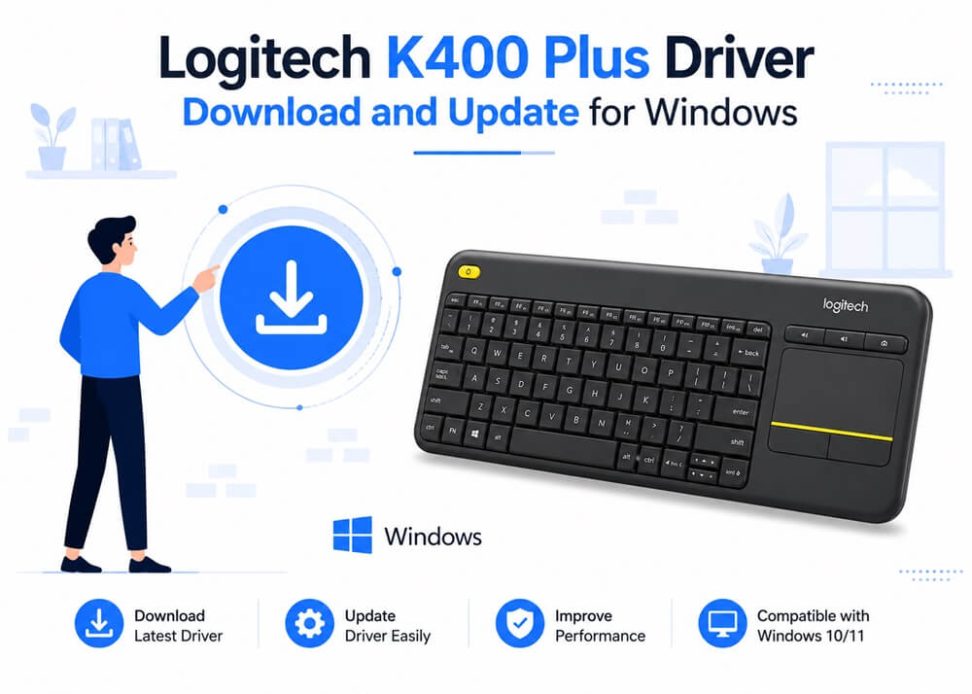
Logitech K400 Plus is a wireless touch keyboard, perfect for lazy browsing or streaming sessions, with an integrated touchpad. However, if your K400 keyboard is not working or you are experiencing performance issues, it is high time to download and install an updated Logitech K400 Plus driver.
A keyboard driver is the software your computer system needs to communicate with the keyboard. Without a correct, compatible, and latest driver, the keyboard does not perform smoothly.
Hence, this article guides you through downloading, installing, and updating the Logitech K400 Plus driver for Windows 11/10/7. Let’s get started.
How to Download Logitech K400 Plus Driver and Install It
You can download and install the latest Logitech K400 Plus driver through the Logi Options+ software (available on the official website) or Windows Update, depending on your convenience. Here is how.
Method 1: Download the Logitech K400 Plus driver through the Logi Options+ software
Logitech offers Logi Options+ software to download the necessary drivers and customize your keyboard. The following are the steps to download the driver for your Logitech K400 Plus keyboard and install it with this software.
- Navigate to Logitech Support.
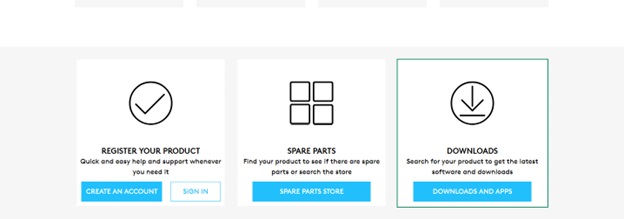
- Scroll down and click on Downloads.
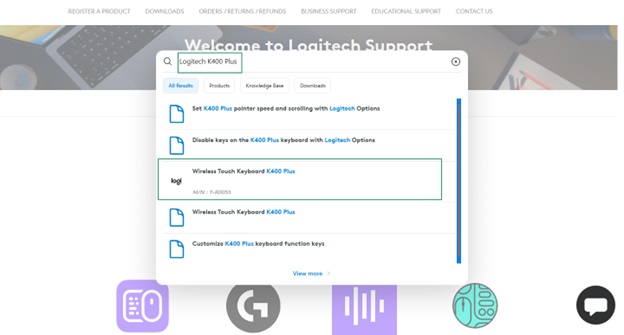
- Type Logitech K400 Plus in the search bar and select it from the search results.
- Click Downloads.
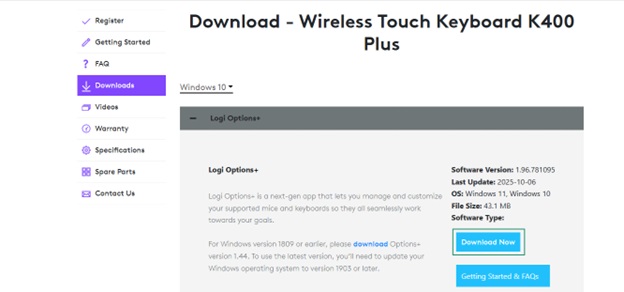
- Select your Operating System from the dropdown. If you are unsure about the operating system your computer runs, press Windows + I, click System, and then go to the About section to note the Operating System details.
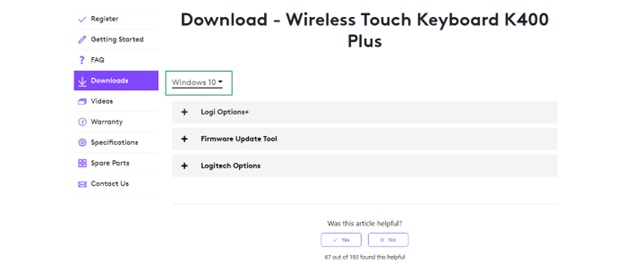
- Click Logi Options+. If your computer runs Windows 7, click Logitech Options.
- Next, click the Download Now button to download the software file.
- Double-click the downloaded file and follow the on-screen prompts to install the software.
- Ensure your keyboard’s USB receiver is plugged into your PC and the keyboard is turned on.
- Launch the Logi Options+ software and wait for it to detect your keyboard.
- Follow the on-screen prompts to download and install the driver.
- Lastly, restart your computer.
Also know: CP2102 Driver (Virtual COM Port – VCP drivers) Download and Install
Method 2: Download and install the Logitech K400 Plus driver via Windows Update
Windows updates, along with fixing security loopholes and random bugs, download and install the missing device drivers. Hence, here is how to update Windows to download the Logitech K400 Plus driver update and install it.
- Click the Start button.
- Type check for updates in the search box.
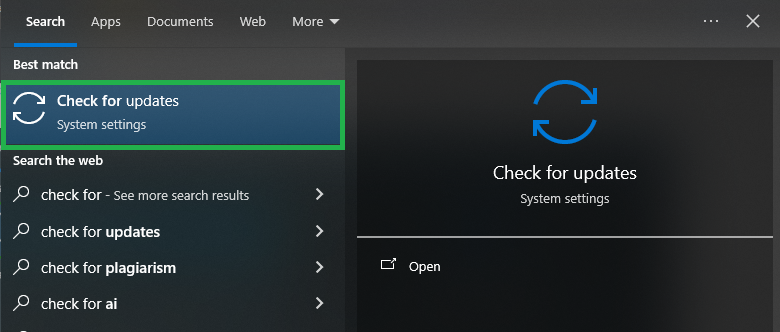
- In the search results, click Check for updates.
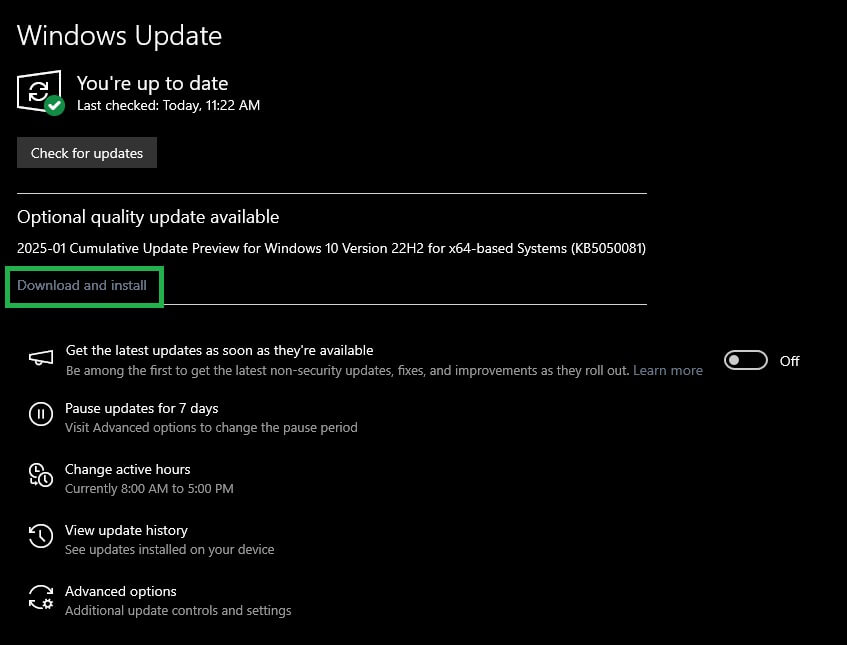
- Click the Check for Updates
- Next, click Download & Install for the available updates. Remember to include the optional updates.
- Lastly, restart your computer to complete the update process.
Only the Logitech K400 Plus driver download and installation is not enough for smooth keyboard performance. You must also update the driver on time to ensure it performs smoothly.
You can update the driver anytime you experience performance issues. It is recommended to check if the driver needs an update regularly. To check if the driver needs an update, right-click the “Start” button, click “Device Manager,” double-click “Keyboards” to find your Logitech K400 Plus keyboard (listed as HID keyboard device), and if unavailable, double-click “Mice and other pointing devices” to find your keyboard listed as HID-compliant mouse, and then check if the keyboard has a yellow exclamation. A yellow exclamation indicates the keyboard driver has problems and needs to be updated.
How to Update Logitech K400 Plus Driver
You can download the Logitech K400 Plus driver update and install it using the Device Manager. The Device Manager is a built-in driver management tool in Windows to perform actions, such as driver download, installation, update, uninstallation, and reinstallation. Below is how to use it.
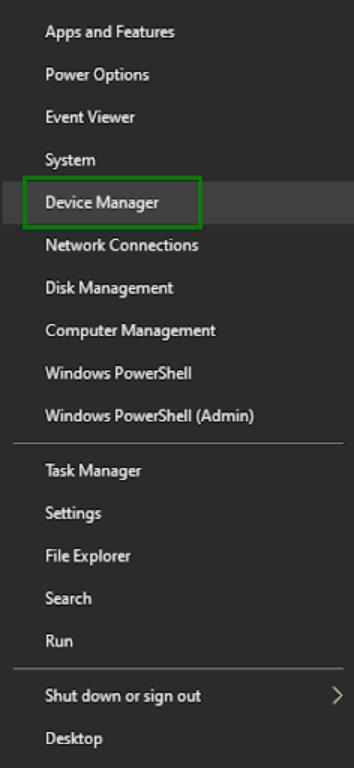
- Right-click the Start button.
- Select Device Manager from the menu that appears.
- Double-click Keyboards to find your Logitech K400 Plus keyboard (listed as HID keyboard device). If unavailable, double-click Mice and other pointing devices to find your keyboard listed as an HID-compliant mouse.
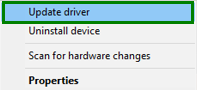
- Right-click your keyboard in the Device Manager and select Update Driver.
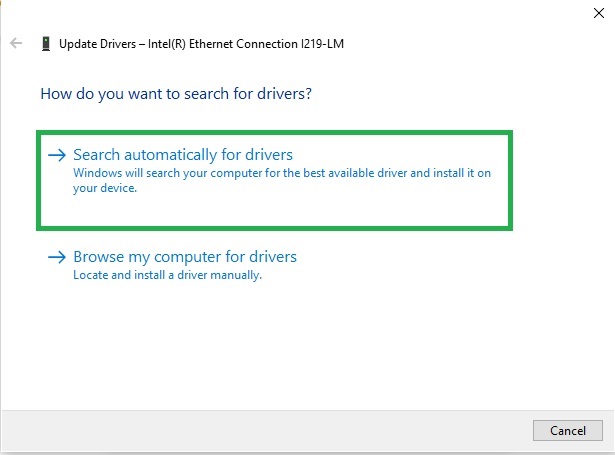
- Windows 11 users click Search automatically for drivers. Windows 10 and older operating system users, click Search automatically for updated driver software.
- Follow the on-screen prompts to download and install the Logitech K400 driver update for Windows 11/10/7.
- Lastly, restart your computer to allow the new driver to take effect.
Despite an up-to-date driver, you may encounter the wireless keyboard not working issue due to an outdated operating system, connectivity issues, or another software conflicting with the keyboard driver. Hence, if your Logitech K400 driver is not working, you can fix it with the solutions in the following section.
What to Do If the Logitech K400 Plus Driver Is Not Working
To fix the Logitech K400 Plus driver issues, you can:
- Reinstall the driver: Open Device Manager, double-click Keyboards or Mice and other pointing devices to find your keyboard, right-click the keyboard, click Uninstall, confirm the uninstallation, and restart your computer.
- Update Windows: Click the Start button, search for and open Check for updates, click the Check for updates button, click Download & install, and restart your computer.
- Re-pair and re-connect the keyboard: Unpair the keyboard and then pair it again. Additionally, if available, switch to another USB port.
- Check for software conflicts: Ensure no other software conflicts with your Logitech K400 Plus keyboard driver. To uninstall the conflicting software, press Windows + I, click Apps, click Installed Apps (or Apps & Features), click the problematic software, and click Uninstall.
Hope this helps you get the desired performance from your Logitech K400 Plus keyboard. However, if you need help with the Logitech K400 Plus keyboard driver download, installation, and update, or fixing related issues, write us a comment.
Also know: Download Projector Drivers for Windows with Easy Steps
Frequently Asked Questions
Q1. How do I update my Logitech drivers?
You can update the driver for your Logitech device using Device Manager, a built-in device and driver management tool in Windows. The guide above explains the detailed steps to use it.
Q2. What is the Logitech K400 Plus driver?
Logitech K400 Plus driver is a software that translates your instructions to the language your keyboard understands and its response to the language the operating system understands. In other words, it is the software that helps your keyboard and operating system to communicate with each other.
Q3. Why is my Logitech K400 Plus wireless touch keyboard not working?
Your keyboard may not be working due to factors such as an outdated or missing Logitech K400 Plus driver, connectivity problems, an outdated operating system, or another software that is interfering with the driver. To fix these issues, you can download and install the updated driver, reinstall the driver, update Windows, re-pair and re-connect the keyboard, and check for software conflicts.

