

Ask anyone the three most used commands on Windows computers. Cut, copy, and paste would be a common answer. Daily, millions of us copy and paste files from one location to another on our PCs. For example, think about moving hundreds of family photos to a new folder after a vacation or transferring gigabytes of large game files to a portable drive. In these situations, waiting for hours as the Windows copy dialog crawls along can be frustrating if not nerve-wracking, especially if something goes wrong and the whole process fails.
If you notice, the native Windows transfer tools are not fast enough (remember staring at the screen for hours waiting for copy operations to complete?), lack error recovery, and struggle with handling large-scale data transfers. Hence, to bypass these limitations, we have the best file copy software for Windows.
The best copy software applications that we have tested and reviewed in this article help fast copy and transfer files without taking hours, and while avoiding errors that hamper the copy and transfer of large files/folders from one location to another in Windows.
However, before we begin, here is a quick glimpse of the key features that we considered while choosing the best software to review in this article.
What Are the Key Features of the Best File Copy Software for Windows
Here are the features essential in a copy software to ensure seamless large data moves.
- Non-negotiable, the file copy software should support high-speed data transfer. Generally, the best copy software for Windows, such as TeraCopy and FastCopy, uses advanced and powerful buffering mechanisms and parallel processing to ensure file transfers are faster than native Windows tools.
- Data integrity is another essential characteristic of the best software for copying files in Windows. Since you entrust these programs with gigabytes of your sensitive data, they must ensure every byte between source and destination is a perfect match.
- If any error occurs while transferring files due to issues such as hardware problems or network instability, the file copy software should be able to pause and resume the transfer without losing progress to ensure uninterrupted transfers.
- The interface of the software should be user-friendly because there is no point in being the best copy software if you cannot use it. To ensure ease of use, the file copy apps generally support features such as drag-and-drop, clear error logs, and progress indicators to help you manage large-scale file transfers easily. Some copy utilities are designed with beginners in mind and offer a straightforward experience, while others include more advanced options that may come with a slight learning curve. Before choosing a tool, consider whether you prefer something simple or are comfortable investing a bit of time to learn the extra features of more powerful applications.
- The best file copy software for Windows supports a wide range of file systems, such as exFAT, NTFS, and network protocols, allowing you to transfer disk images, high-definition videos, and large datasets smoothly. Moreover, these programs recognize various file permissions and attributes, making sure these are retained when transferring files.
- For easy management of repetitive data transfer, the best software to copy files allows effortless automation with scheduled transfers, automated data verification, and set conditions.
- Selective copying options that allow you to set file size, type, or modification date-based filters so that it becomes easy to move only the data that needs to be moved.
With all these features in mind, we curated the best and fastest file copy software with all or most of these capabilities. Let’s begin with them.
What Is the Best File Copy Software for PC
The best software to copy files on Windows PCs includes programs such as KillCopy, FastCopy, Copy Handler, TeraCopy, and UltraCopier. Here is their detailed overview with key features, pros, and cons to help you make the right choice.
1. KillCopy
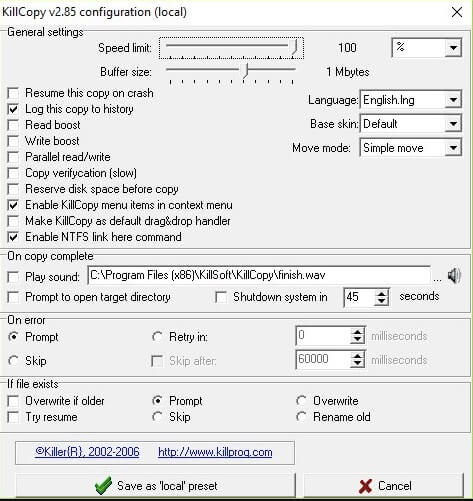
Meet KillCopy. It is among the best file copy software for Windows that allows high-speed file transfers over network connections and local drives. This software makes the copying process simple with its easy drag-and-drop feature, a fast verification mode to remove errors, and the following notable features.
Key features
- A KillDelete option to delete the source file after the copying process is complete.
- Auto Resume functionality to start the file transfer process automatically when it stops abruptly.
- A Turbo Mode to enhance the speed of copying large files.
- The history option lets you check the transferred files through the history.txt file from KillCopy’s directory.
Pros
- Easy navigation
- Buffer size adjustment for high transfer speeds on slow connections
Cons
- The interface looks dated
- Limited features compared to other copy software
Click here to learn more about KillCopy
Also know: Best Uninstaller Software for Windows
2. FastCopy
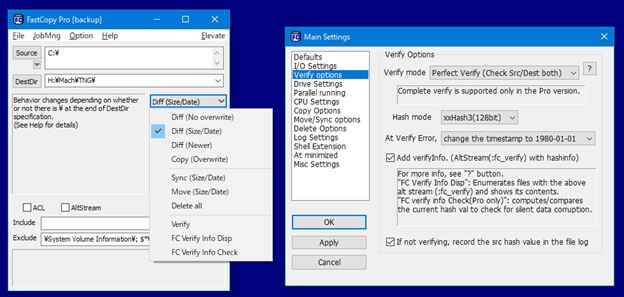
FastCopy is another popular free file copy software for Windows. You can use this open-source software to bulk copy files, ensure reliable and error-free copying with verification functionality that also records hash values for each file, employ multiple threads for read/write/verify, overlapped I/O, and direct I/O to bring out the best device speed, along with the following features.
Key features
- UNICODE and over MAX_PATH (260 characters) file pathnames supported.
- Supports UNIX wildcard-like Include/Exclude filters.
- It allows ACL and Allstream options.
- This software provides complete file copy or transfer details, such as file totals and tallying MBS.
- It lets you add and remove filters and adjust the copy speed to ensure fast and easy file copying.
- An integrated PDF viewer makes it easy for you to view documents.
Pros
- Extremely fast and portable
- Helps with seamless large file backups
Cons
- Sparse documentation
- Interface feels very basic
Click here to learn more about FastCopy
3. Copy Handler
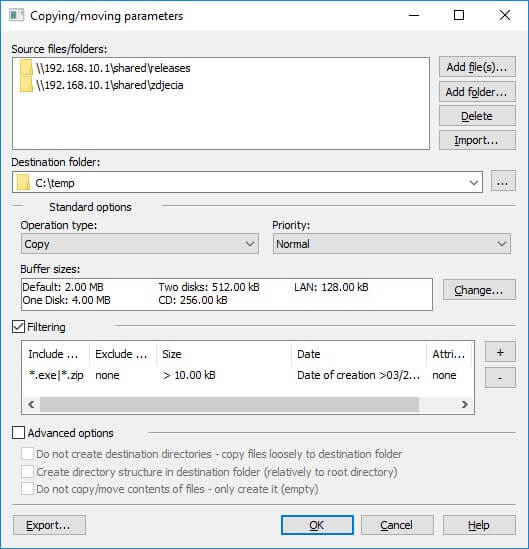
Next, we have Copy Handler on our list of the best file copy software for PC. This free and open-source software for copying files in Windows lets you control the whole copy and move functions through pause, resume, restart, and cancel options, and the remarkable features below.
Key features
- When it is necessary to shut down the computer, Copy Handler completes all unfinished tasks automatically after your PC restarts.
- Drag-and-drop function and queue support for easy file copying.
- Fully customizable with over 60 configuration options, such as setting language, shutting down the PC after copying, customizing copy/move thread, buffer size adjustment, thread priority setting, and ending with sounds on particular events.
- Windows Explorer integration to add additional commands to folder context menus and drag and drop menus.
Pros
- Supports multiple languages
- Highly customizable
- Availability of detailed statistics
Cons
- No software tutorial or support to understand the program
- Tough installation
Click here to learn more about Copy Handler
4. TeraCopy
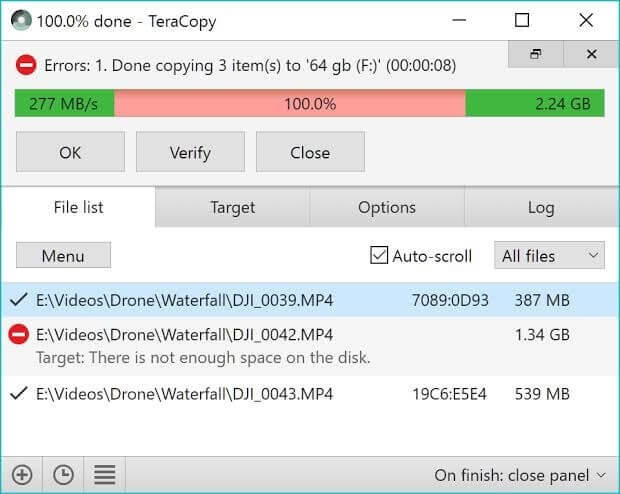
TeraCopy is a widely recognized file transfer utility that copies files faster with the utmost security. Some of the most likable features of TeraCopy include verification of copied files to ensure they are identical, seamless Windows Explorer integration, creation and verification of checksum files in all popular formats (such as BLAKE3, MD5, SHA, RIPEMD, Tiger, Whirlpool, and xxHash), and the following.
Key features
- In case of network issues or copy errors, TeraCopy tries to recover. In the worst cases, it skips the bad files and does not terminate the whole transfer.
- It compares the source file and target file hashes to ensure they are identical.
- TeraCopy informs you about failed file transfers to help you fix the issue, recopy problematic files, and remove unnecessary files/folders.
- The progress bar indicates problematic and skipped files with different colors.
Pros
- Needs no installation
- Reliable verification reduces data corruption risk
Cons
- Slightly intimidating UI compared to similar software
- Heavy system resource consumption
Click here to learn more about TeraCopy
5. UltraCopier
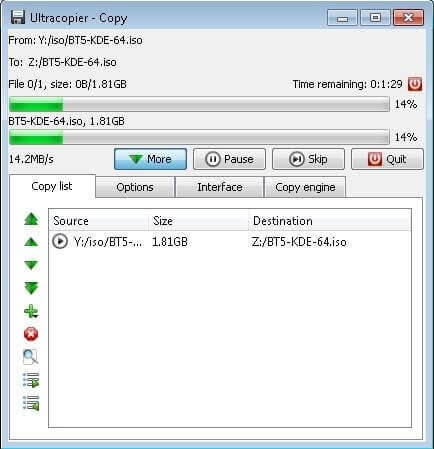
Next, we have UltraCopier on this list of the best file copy software for Windows PCs. UltraCopier is a popular choice for free file copying among users for its high customizability, simultaneous multiple copies, a copy queue tray that tracks the copy progress, and the following notable features.
Key features
- A built-in error management tool that lets you choose whether to skip or retry copying if a file cannot be read or written.
- Advanced features for existing file handling, such as overwriting, renaming, or skipping based on size or time.
- Options to pause and resume transfers and add more files to the copy queue.
Pros
- Straightforward interface
- Integrates with the system tray for easy access
- High customization with support for skins and plugins
- Advanced features, such as speed controls and copy lists search
Cons
- Copying speed is not so impressive
- Advanced features don’t seem fully developed
Click here to learn more about UltraCopier
The above are some of the best file copy software for Windows available currently. Most of these applications handle high-speed file transfers from one network to another or from one server to another efficiently.
Moreover, these copy utilities help perform easy bulk file transfers and copying. You can choose from these programs depending on your specific needs. However, if you have any related concerns or questions, you can leave us a comment for assistance.
Also know: Best Screen Recording Software for PC
Frequently Asked Questions
Q1. How to copy files quickly?
For high-speed file copying, you can use faster drives (such as SSDs), connect directly through Ethernet or SATA, zip files first before copying them, or simply use one of the best copy software programs in this article, such as FastCopy.
Q2. What is the best software for fast copying files?
While all programs in this article are recognized as high-speed copy utilities, FastCopy and TeraCopy are some of the most widely popular names for their fast speed.
Q3. Do files lose quality when copied?
If the bits are properly transferred, the copied file is an identical, byte-for-byte replica of the original file, ensuring no quality loss.
