

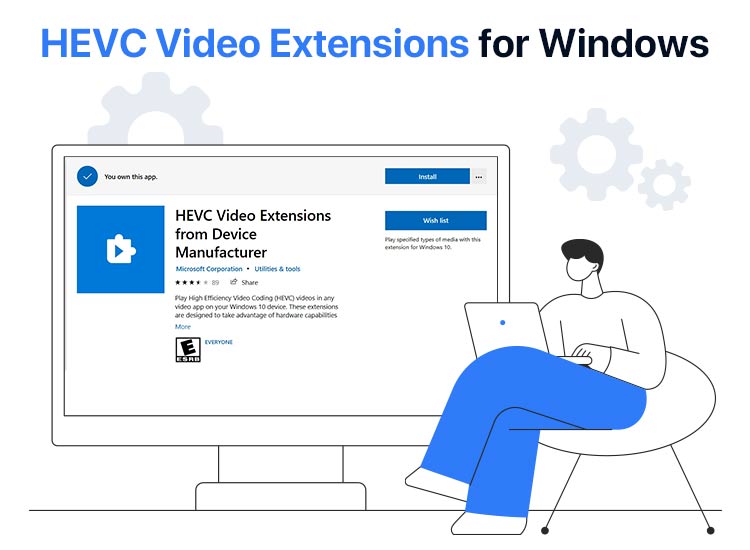
Is your internet connection slower, not much storage space on your computer, or is your device unable to play files encoded in HEVC format? Then, you need an HEVC codec to stream HD content even on slower connections, store high-quality videos, and play the HEVC files on your Windows 10/11 PC.
However, since Windows 10 and 11 do not include built-in HEVC support, this article explains the best methods to download Windows 10/11 HEVC codec extensions for free after clearing the confusion surrounding HEVC codecs.
What Is HEVC Codec
HEVC (High Efficiency Video encoding) is a video compression that lets you save videos in the minimum space while ensuring high quality. It allows you to save on the bitrate while still enjoying high-resolution videos. With the HEVC codec, you can compress 4K video files into multimedia containers, for instance, MOV and MP4, at lower bitrates.
However, since Windows 10 and 11 do not support HEVC natively, opening these files on your computer may lead to issues such as Black Screen of Death or application crashes. Moreover, without an appropriate HEVC codec downloaded, your video editing software may be unable to import or edit HEVC videos.
Hence, free HEVC video extensions allow your operating system to decode HEVC videos and play them smoothly. Moreover, it helps video editing software to handle HEVC files correctly. You can follow the guide below to download these extensions.
How to Download Free HEVC Codec Extensions
You can download the HEVC video extensions by following any of these methods, depending on your preference.
Method 1: Download the free HEVC Video Extension from Device Manufacturer
If your CPU and GPU include a license for HEVC playback, you can download the Windows 10 HEVC codec from the HEVC Video Extension from Device Manufacturer application. Here is how.
- First, navigate to the HEVC Video Extension from Device Manufacturer.
- Next, click on the Install button.
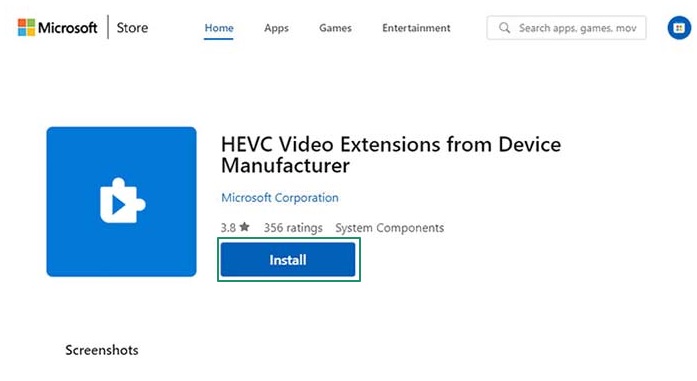
- Restart your computer once the application is installed.
- After installation, Windows automatically allows you to play HEVC (H.265) videos in the built-in Photos app, Movies & TV app, and Windows Media Player without any third-party software.
Also know: Error Code 102630 (This Video File Cannot Be Played): Solved
Method 2: Download HEVC Video Extensions from the Microsoft Store
HEVC Video Extensions on the Microsoft Store uses the hardware capabilities of modern computers, including devices having an Intel 7th Generation Core processor and the latest GPU, supporting Ultra HD and 4K videos. Though the playback experience may vary depending on your PC’s performance and video resolution, it also supports systems that do not support hardware decoding. Hence, you can follow these steps to download the HEVC Video Extensions.
- In the first step, use the Windows+S shortcut to access Windows search.
- Next, type Microsoft Store in the search bar and select it from the search results to open it.
- In this step, sign in to the Microsoft Store with your credentials.
- Now, search HEVC Video Extensions in the Microsoft Store.
- After finding the application, navigate to the details page and click on the Buy button.
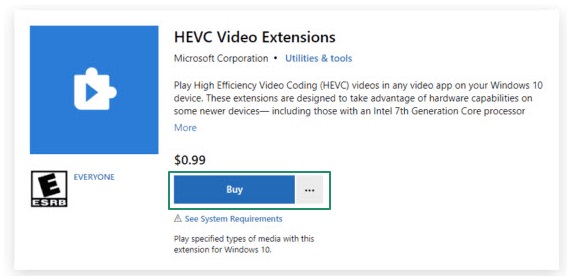
- Make the necessary purchase and install the application.
- If you have installed the application for the first time, click Open to get the HEVC Video Extension application activated.
Method 3: Download a third-party application to install free HEVC video extensions
You can download the Windows 10/Windows 11 HEVC codec through a third-party software library, such as Libde265. Developed by the VideoLAN team, Libde265 is an open-source software that supports a plethora of HEVC profiles, including Main 10, Main, Main 12, Main Still Picture, and Main 4:2:2 10, until Level 5.1.
After installing the free HEVC codec, you can play HEVC 4K Ultra HD videos hassle-free. Hence, below is how to download and install it.
- First, open your favorite browser and navigate to this link.
- Next, locate and click on Libe265-filters-0.1.1.exe to download it on your system.
- In this step, right-click the file you downloaded in the previous step and select Run as Administrator.
- Click Next to proceed further.
- Now, select the destination folder and click on the Next button.
- In this step, choose the components to install. You can choose all the default settings.
- Lastly, click Install to get Libde265 installed on your computer.
Also know: Best Methods to Update Video Drivers in Windows System
HEVC Codec Extensions Downloaded Successfully
The methods above allow you to download Windows 10/11 HEVC video codec extensions to play and edit HEVC videos on your computer. You can follow any method you like from this tutorial.
However, if you have any questions or confusion, please contact us through the comments section. You can also share your feedback or suggestions (if any) about this article through the comments. And, for more such helpful tech tutorials delivered directly to your mailbox, subscribe to our newsletter.
