

Server or workstation instability, application crashes, software/hardware failures, and unexpected shutdowns are common problems that hamper your computer experience, prompting you to check your Windows crash logs.
Crash logs are similar to regular reports that show how students are doing in school. Just as a progress report tracks a student’s achievements and any problems that need attention, crash logs track your computer’s performance and issues. These logs record important details such as errors, crashes, or system failures. By understanding crash logs, you can more easily solve problems with drivers, hardware, or software.
Hence, this article helps you understand PC crash logs, find and view them, and analyze them to troubleshoot common Windows errors. Let’s get started.
What Are Windows Crash Logs
Windows 10/11 crash and error logs are crucial tools to troubleshoot system problems. These logs contain details about hardware and software failures. They also provide details about app crashes and other critical system events.
The Windows 10/11 crash logs are saved as files called minidumps or crash dumps. A minidump is a small file that captures key information about the crash, while a crash dump contains more detailed data that can be used for deeper analysis. These files provide details about system crashes, which are commonly referred to as Blue Screen of Death or BSOD errors.
The Blue Screen of Death is the blue error screen you see when Windows encounters a serious problem and needs to restart. In simple terms, these logs and files help you understand what went wrong during a crash so you can begin troubleshooting.
The Windows 10/11 error logs are records of different system events, warnings, errors, and informational messages.
These logs track every aspect of the computer system’s functionality from its startup to shutdown, helping you fix issues such as sudden system crashes. Hence, it is important to understand how to access these logs.
How to See Windows Crash Logs
You can find and open the Windows crash logs through the Event Viewer, Reliability Monitor, and Command Prompt. Here is how.
Method 1: View Windows crash logs with Event Viewer
Event Viewer in Windows is the primary tool for browsing and filtering system events and checking crash logs. Below are the steps you can take to open the Event Viewer Windows crash logs.
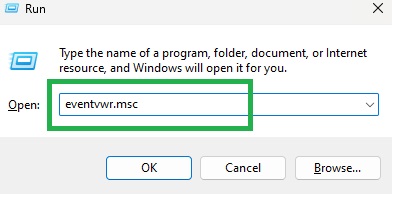
- First, press Windows + R to open the Run utility.
- In the Run box that appears, type eventvwr.msc and press Enter.
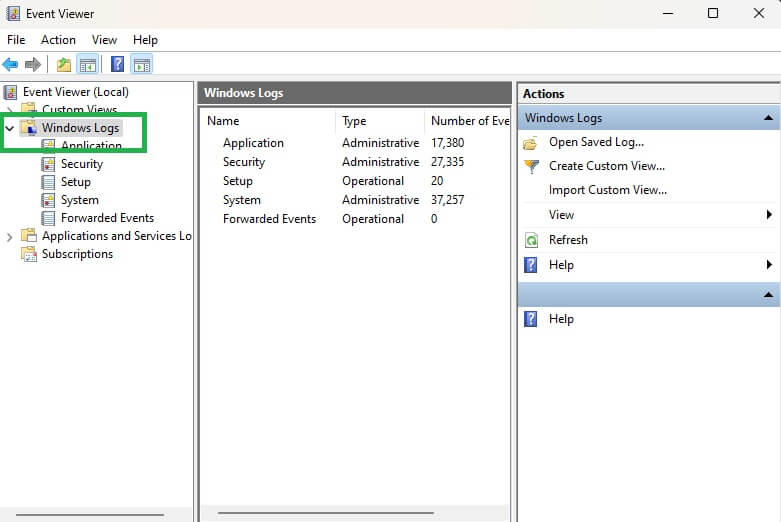
- Once the Event Viewer window appears, find and click Windows Logs in the left pane.
- Next, choose System to find system-related events, such as crashes.
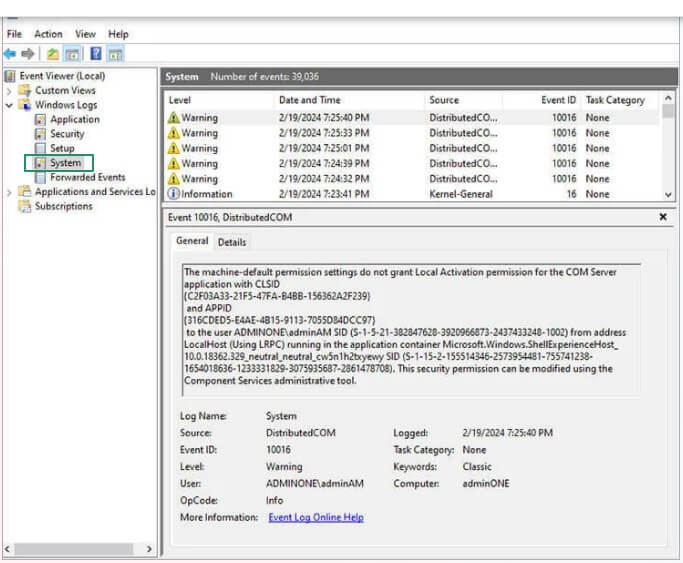
- You can select Application from the left pane to view application-related crashes and errors.
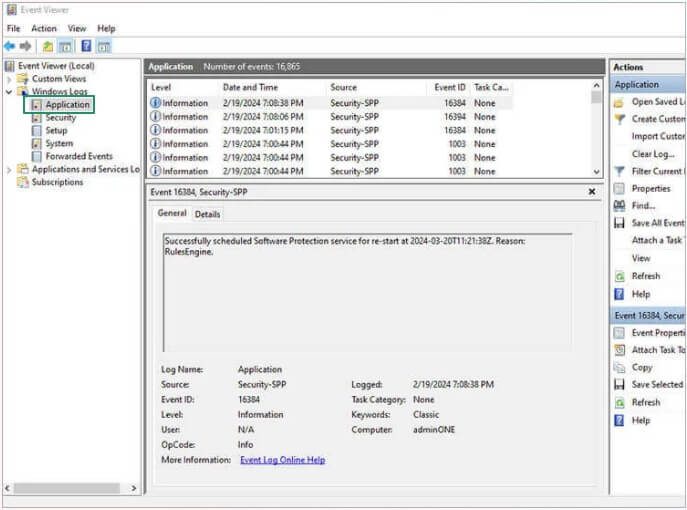
Note 1: Since not all events are crash-related, you may need to perform a custom search. To perform a custom search, click Action in the menu bar and choose Create Custom View from the options that appear. When a new window appears, select the timeframe from the Logged dropdown, check the Error box, and select Windows Logs from the Event Logs to view only system errors. Click OK, name the new filter, and click OK. After performing these steps, you can search for error IDs that signal crashes, such as 1001 or 41.
Note 2: You can filter the log to streamline your search and identify crash logs. To apply a filter, click the Filter Current Log in the Actions pane of the Event Viewer window’s right side. In the Filter Current Log box, set the Event Level to Error and Critical, and click OK.
Note 3: To identify critical events, you can navigate the System log’s event list to find critical events related to system crashes, search for entries with event IDs, such as 41 (for unexpected system crashes or shutdowns) or 1001 (for reporting Windows errors). Next, double-click any event to view its particulars and information, such as the event description, event ID, date and time of its occurrence, and accompanying error codes.
Also know: Best Ways for SSD and HDD Disk Health Check in Windows PC
Method 2: Check Windows crash logs using the Reliability Monitor
The Reliability Monitor is a built-in Windows tool that provides information about your system’s stability and reliability. Below is how to access crash logs on Windows with the Reliability Monitor.
- Begin by clicking the Start button, typing Control Panel in the search bar, and selecting the first search result.
- In the Control Panel, click the View By dropdown menu and choose Category.
- Next, find and click System and Security.
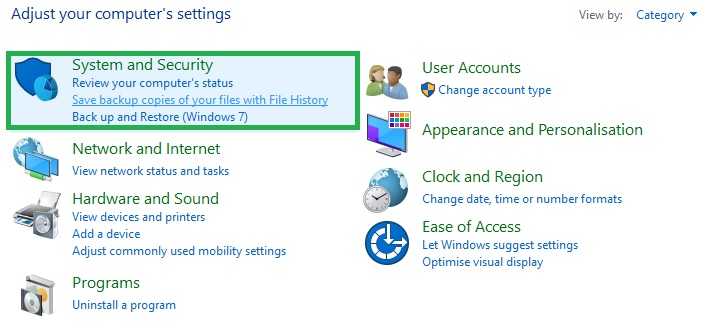
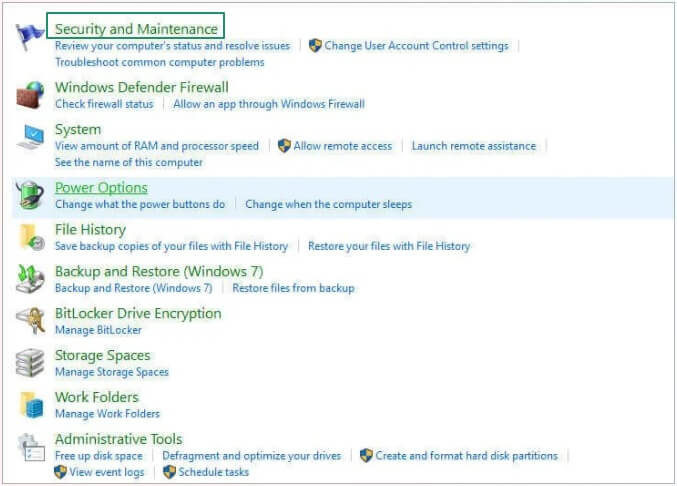
- Click the Security and Maintenance option.
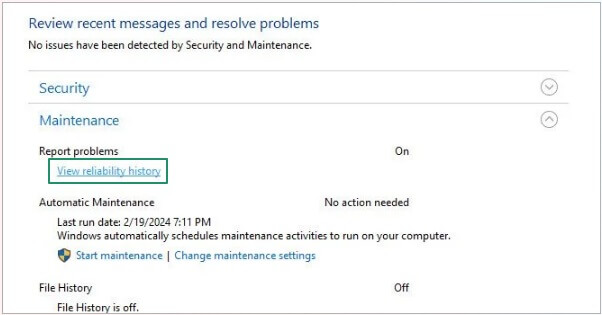
- In the Maintenance section, click the option to View Reliability History.
- In the Reliability Monitor, you can see Windows crashes or freezes with a red circle and an “X” indicating the failure.
- If you wish to see a specific day’s crash log, click that day’s column, and more detailed information will be available at the bottom. Additionally, you can double-click a listed event to get a new window containing more information.
Method 3: Use the Command Prompt to open Windows crash logs
Another way to view the latest errors and their logs is via the Command Prompt. While more suitable for advanced users, below is how to use the Command Prompt to check the crash logs.
- In the first step, press Windows + R to open the Run utility.
- When the Run utility opens, type cmd in the box that appears.
- After typing cmd in the Run box, press Ctrl + Shift + Enter to launch the Administrator Command Prompt.
- In the Administrator Command Prompt, copy and paste the following command to view the last 10 crash events from the System logs.
wevtutil qe System /f:text /c:10 /q:”*[System[(EventID=1001)]]”
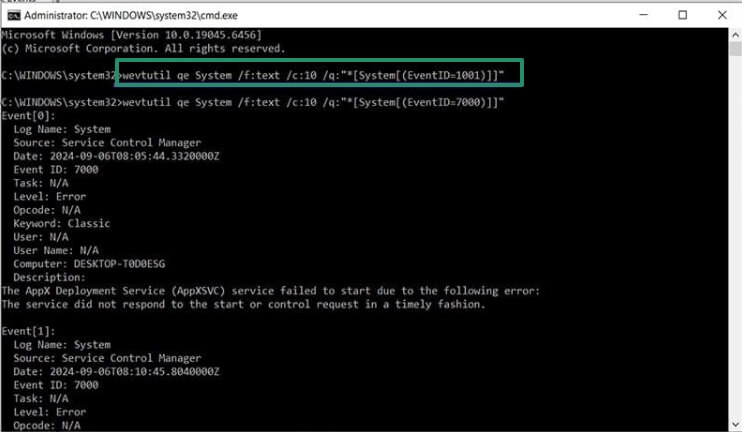
Note: You can change the number of events (/c:10) in the above command as required.
- Lastly, press Enter to get the event details, such as the event ID, timestamp, and error descriptions, to diagnose the issue without navigating the Event Viewer.
The above methods explained how to find Windows crash logs through various methods. These crash logs may not directly indicate the updates or software installations responsible for system crashes. While these logs indicate problems, you must check the recently installed software or updates to detect potential problems, even if not explicitly stated in the logs.
To make troubleshooting easier, below is how to fix common errors in Windows.
How to Troubleshoot Common Windows Errors
Before troubleshooting specific issues, you can perform these general steps to fix any issue you may encounter.
General steps
Update drivers
Recurring crashes and hardware failures may be a result of outdated drivers. Hence, update drivers for components, such as network adapters, graphics cards, and storage controllers.
Run diagnostic tools
Running diagnostic tools, such as MemTest86 for RAM and SMART diagnostics for hard drives, can help if hardware issues are not clearly pointed out by the logs. These diagnostic tools rule out or confirm hardware malfunctions.
Review software installations and updates
You can review recently installed software or updates if no clear hardware fault is detected to ensure no underlying software issues remain unaddressed.
Perform sfc /scannow
To resolve system-level issues due to system file corruption, you can run the System File Checker (SFC) command to repair these files.
Clean boot the PC
If the Windows crash log indicates conflicts with background services or apps, but does not pinpoint the exact cause, you can clean boot your system to isolate the problematic apps or services to identify the root cause of the problem.
Additionally, below is how to resolve some common specific Windows errors.
Application crashes
When an application crashes, Windows generally logs this error event with Event ID 1000. These logs indicate the module that resulted in the crash, the memory location, and the exception code that can help you repair apps that aren’t working properly in Windows.
For example, exception code 0x80131623 in the log entry for a C# service that crashed in production, the exception code indicates a .NET runtime error. That means you should check the application’s exception handling and related logs for .NET errors.
Blue screens and system crashes
System crashes and Blue Screens appear with specific event IDs to help you detect driver or hardware issues. For example, the event ID 6008 (EventLog) indicates an unexpected shutdown, the event ID 41 (Kernel-Power) indicates an unexpected system shutdown due to overheating, power issues, or hardware problems, and the event ID 1001 (BugCheck) denotes a Blue Screen of Death error with a bug check code and details to help you detect the root cause.
To fix these errors, check the system temperatures, power supply, hardware health, and driver updates.
Startup issues and service issues
When Windows services crash or fail, they log the event ID 7000, indicating a service failed to start due to resource or configuration issues, and event ID 7034, denoting a service’s unexpected termination and the count of the latest crashes.
Security and permission problems
You can track permission issues with security logs. Your system logs event ID 5145 when network file access gets denied and event ID 4625 for failed login attempts.
That’s all for our Windows crash logs guide. We hope it helps you find and fix your device issues. However, if any of your questions remain unanswered, feel free to write us a comment.
Also know: Best System Cooling Policy Settings for Windows 11
Frequently Asked Questions
Q1. How to clear Windows crash logs?
To clear your crash logs in Windows, you can open the Event Viewer through the Win+X menu, click Windows Logs, right-click System or Application, and then click Clear Log. Alternatively, open the Control Panel, click Security and Maintenance, click View Reliability History, and then click Clear All Problem Reports.
Q2. Where do I find my crash logs?
You can find the crash logs in the Event Viewer, Reliability Monitor, or Command Prompt, as explained in the guide above.
Q3. Why am I getting a “Crash Logs” pop-up?
You get a crash log pop-up when a game, application, or system process has frozen, unexpectedly failed, or terminated. You can send these logs to developers, check the Reliability Monitor to detect the problematic application or hardware component, update drivers, and check for malware to fix these issues.
You can export your Windows Event Logs for analysis. To do so, open Event Viewer via the Win+X menu, click Windows Logs, click Application, filter and find specific events using the filter options in the right panel, double-click any event entry to view its detailed information, right-click Application in the Windows Logs, select Save All Events As to save the log files, specify the destination and name of the log file, select a file format that suits your requirements, and save the files to share them with relevant support teams.

