

Remember those movie nights when the family would sit together, rejoicing in the quality time spent watching a favorite movie DVD? While the world now streams movies and Microsoft discontinued Windows Media Center on Windows 10 and 11, the joy of enjoying your DVD collection is alive with the best DVD player software for Windows.
Although Windows Media Player is still available in the Microsoft Store, it lacks native DVD support and is not frequently updated. Moreover, while Microsoft offers a paid DVD player application for Windows, it is flagged by many users for performance issues and errors, such as image distortion, DVDs not playing, and more.
Hence, we dig deep to find the best free DVD players you can use to play DVDs on your computer or your television through screen casting or an HDMI hookup. In addition to no-fuss DVD playing, the DVD player apps and software in this article have features such as digital video format support, video and audio enhancements, media organization, and a better experience as the cherry on top.
Each of the software mentioned in this article is selected after thorough research and analysis of factors such as user interface, media playback capabilities, OS compatibility, download popularity, real user reviews, and our own hands-on experience with the software.
Before we begin with an in-depth review of all free DVD players, here is a quick glimpse of our top 3 picks to help you choose the best if you are short on time.
A Quick Comparison of the Top 3 DVD Player Software
| Free DVD player software | Who Is It For | Best Features | OS Compatibility | Key Codec Supported | Are There Ads | Our Rating Out of 5 |
| PowerDVD | Users who want a home theater experience, high-end playback, or collect Blu-rays | Streams cloud-based content, high-quality audio playback, TrueTheater enhancements | Microsoft Windows 11, 10 (64-bit OS only) | 8K, 4K HDR, Blu-ray, DVD | No | 4.9 |
| VLC Media Player | Users who need an open-source DVD player app for standard unencrypted discs | Highly customizable, plug-in support, album cover search, synchronous subtitles, bypasses most region codes | Windows XP SP3 and above | Almost all media formats | No | 4.8 |
| PotPlayer | Users who want deep customization, hardware acceleration, and to play VR and 3D content | Different views (for example, side by side and top and bottom), supports page flipping, plays large and broken files | Windows 10 version 0.0 or higher | DVD, Blu-ray, 3D, VR | No | 4.6 |
What Is the Best DVD Player Software for Windows (Full Review)
Below you can read the detailed review of the best free DVD player software for PCs, such as PowerDVD, VLC Media Player, PotPlayer, GOM Player, and KMPlayer.
1. PowerDVD
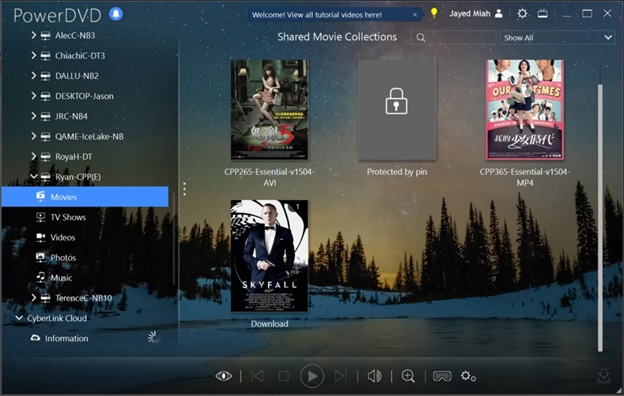
Meet PowerDVD. It is among the best DVD player software for Windows due to the movie theater-like experience it offers with 4K Ultra HD and 8K video playback, the top-notch instant karaoke with direct removal of vocals from songs in YouTube or your media library, deeper colors and high-quality video/audio playback, automatic playback quality adjustment according to your monitor’s capabilities, and the following notable features.
Key features
- It supports a wide range of media formats, such as AVCHD 2.0, MP4, MKV, HDMI, AVI, and more.
- PowerDVD supports almost all disc-based formats, including Blu-Ray, DVD, and Ultra HD Blu-ray movie discs (such as 360-degree, BD-Live, and VR video playback).
- Two interface options. You get a PC Mode and TV Mode (with a horizontal menu you can navigate through the CyberLink remote app) and can switch between these modes anytime.
- It lets you browse and play online content through YouTube, Vimeo, and Facebook, or add your favorite online content to the media gallery for offline access.
- PowerDVD supports multi-region DVD playback, allowing you to play all region-encoded discs.
- It lets you resume playback from where you stopped watching last time.
- PowerDVD lets you share your favorites with your family and friends.
- You can view detailed information about the movies and shows you play.
- A quick search functionality to help you find photos and TV shows.
Pros
- Excellent playback quality
- A lot of helpful features
- Intuitive interface
- Seamless streaming to other devices
- Better media organization with customizable thumbnails, AI-powered photo management, and poster walls
Cons
- Only a 30-day free trial
- Beginners may find some features overwhelming
- Occasionally, the loading speed is slow
Click here to learn more about PowerDVD
Also know: Best Must-Have Open Source Software for Windows
2. VLC Media Player
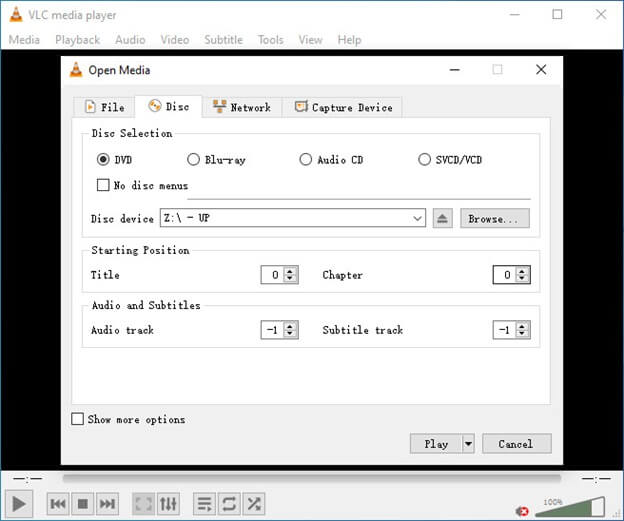
Next, we have VLC Media Player on our list of the best free DVD players for Windows 10/11. It is among the most popular open-source cross-platform multimedia players and frameworks for playing almost all multimedia files and streaming protocols. You can use it to play DVD discs, ISO image files, and DVD folders. Moreover, VLC Media Player offers a built-in library for playing protected DVDs on your computer, including a DVD protected by region codes and CSS, in addition to the following features.
Key features
- It supports a wide range of video formats, such as MPEG-2, MPEG-4, WebM, and MKV.
- VLC Media Player plays media from discs, webcams, and streams for comprehensive access.
- There are many high-quality filtration tools to help you enhance video streams.
- It improves media playback performance through rapid video decoding.
- VLC Media Player bypasses regional encoding for multi-region playback.
- Many customization options, such as advanced skins, filters, subtitle synchronization, and equalizers.
- You can use VLC Media Player to convert your DVDs into digital files.
Pros
- Plays videos while they are still downloading and zip files before unzipping them
- No spyware, tracking, or ads
- Low resource consumption
- Plays Blu-rays and a lot more
Cons
- The interface feels dated
- Occasional lag, stuttering, and other performance issues
- Beginners may need time to learn advanced settings
- Needs manual key installations to work with the latest copy protections
Click here to learn more about VLC Media Player
3. PotPlayer
PotPlayer is another DVD player app for Windows that you can choose if you are searching for the top DVD players with Blu-ray, 3D, and VR support. Highly popular among power users, PotPlayer supports OpenCodec, allowing you to add the required codecs manually, easy video organization and management, and these remarkable features.
Key features
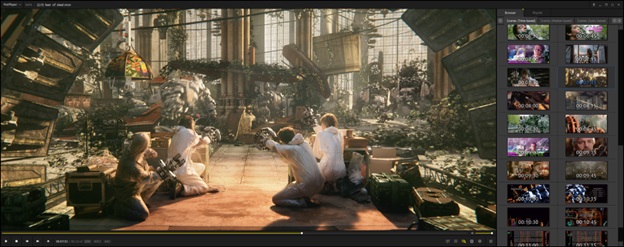
- There is a scene preview feature, allowing you to capture screenshots of scenes and view them.
- PotPlayer lets you choose from multiple soundcards for the best audio output.
- You can bookmark specific scenes for quick and easy access.
- It is compatible with various devices, such as HDTV, DVD, and TV.
- PotPlayer supports DVD (Vobsub) and Blu-ray subtitles, text subtitles (SMI & SRT), SMI Ruby tags, ASS/SSA animation, etc.
Pros
- Built-in audio equalizer
- An attractive, sleek, and borderless design
- Supports sending audio output to two devices simultaneously
Cons
- Occasionally, the DVD loading speed is slow
- Cumbersome settings and customization
- No commercial CSS encryption bypass
Click here to learn more about PotPlayer
4. GOM Player
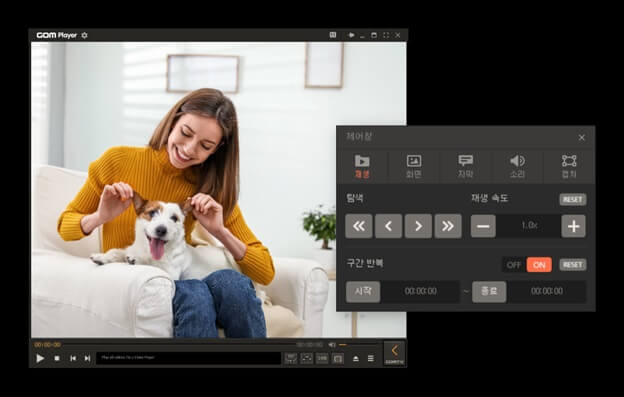
Next on our list of the best free DVD player software, GOM Player, is an excellent choice for those who like watching videos with subtitles. It supports almost all subtitle formats, searches the web and syncs subtitles for videos that do not have a subtitle option, lets you turn subtitles on or off with a subtitle button, and has the following notable features.
Key features
- Built-in codec finder helps you work with unsupported or rare formats.
- You can capture audio or screenshots directly from the video.
- It aids language learning by looping specific video segments easily.
- GOM Player supports 8K video, comes with a control panel for brightness adjustment, contrast, saturation, and playback speed tweaks, including time jumps.
Pros
- Custom playback and subtitle options
- Does not need extra plugins for uncommon file types
- Plays damaged or broken files better than similar software
Cons
- The software installer often includes bundled programs
- Ads in the free version
- Can cause freezes or lags at heavier workloads
Click here to learn more about GOM Player
5. KMPlayer
Let us introduce you to KMPlayer. It is among the best free DVD players for Windows 10 to play all video formats, such as Ultra HD with 4K resolution, 3D movies, and corrupted or locked media files. Moreover, it offers high-quality codecs, including HEVC, h.265, h.264, and VP9 for top-notch video quality, an option to easily watch and download videos from online sources (such as YouTube) by entering the URL, and the following key features.
Key features
- It offers complete control over video playback with post-processing effects, resizing, real-time video capture with output customization, and codec configuration.
- KMPlayer supports hardware acceleration to minimize CPU usage, even on low-end computers.
- There are enhancement features, such as noise reduction, casting with Chromecast, and a high-speed mode.
- A huge library of filters to help you color-correct and sharpen old DVD footage.
- KMPlayer supports a wide range of file formats, such as WMV, AVI, FLV, ASF, MKV, and more.
- It supports remote media access with FTP, SMB, and UPNP support.
- You can capture video segments and make an instant GIF from them.
Pros
- Attractive and friendly interface
- Excellent internal library of codecs
- Low resource consumption
- Supports over 42 languages
Cons
- The sidebar looks cluttered with ads
- Not updated frequently
- Bundles third-party software in the installation

Click here to learn more about KMPlayer
With so many options, choosing the best free DVD player app can be challenging. Hence, we have prepared a quick checklist of the factors to consider when selecting a DVD player for Windows.
How to Choose the Best Free DVD Player Software
Below are the factors you must keep in mind when choosing the right DVD player software for your requirements.
- Compatibility with Windows: Needless to say, the software you choose must be fully compatible with the Windows operating system (the software programs in this article are), and it must be updated regularly to ensure seamless functioning on your PC.
- Clean and friendly interface: You may not get the best viewing experience due to a confusing or cluttered interface. Hence, ensure that you find the DVD player friendly enough with accessible menus, clear navigation, and other such characteristics. Easy to find advanced controls, such as playback speed adjustment, audio track selection, and subtitle customization, are also some of the factors that make a free DVD player software stand out from other programs.
- High-quality playback: What’s the point of a DVD player if the playback quality is poor? The best software is one that offers high-definition playback quality with stutter-free and smooth playback at the highest possible resolution, along with support for a wide variety of disc types and file formats.
- Support for multiple regions: While not a non-negotiable, multi-region support is a good-to-have feature for those users who collect and consume foreign media or purchase DVDs during their international trips. DVDs have encoded regional restrictions to control playback in different markets. With the best DVD player software for Windows PCs, you can bypass these restrictions and play discs from all regions hassle-free.
- Advanced features: While the basic features are non-negotiable, prioritize whether you need advanced features, such as customizable video/audio effects, DVD ripping, media streaming, playlists, bookmarks, Blu-ray support, TV casting, etc., and choose accordingly.
Sometimes, choosing the best DVD player software for Windows is not enough. You may still be unable to play DVDs on your computer due to issues, such as a region code mismatch, a DVD drive not detected, a corrupted disc, etc. Hence, it would be helpful to learn how to fix DVD playback problems.
Also know: Best Methods to Activate Flash in Google Chrome
How to Fix DVD Playback Issues on Windows
To fix DVD playback problems on Windows, you can:
- Ensure your DVD player is updated regularly to fix problems, such as missing codecs or compatibility issues.
- In case of regional code mismatches, ensure the disc’s region coding matches your chosen software.
- Turn off background applications to free up system resources and fix lag or stuttering during DVD playback.
- Ensure up-to-date and compatible DVD drivers and chipset drivers are installed on your system, and there are no broken IDE/SATA connections.
- Make sure the DVD is not damaged, it is clean, and properly connected.
That concludes our best DVD player software for Windows guide with fixes for related issues. Hopefully, it helps you relive the good old days when entertainment was not streamed but brought to your screen from a store-bought DVD. However, if you have any concerns or questions about this post, feel free to write us a comment.
Frequently Asked Questions
Q1. Does Windows 10 or Windows 11 come with DVD player software?
Not all Windows 10 and Windows 11 support built-in DVD players. This is because Microsoft has discontinued paying licensing fees to include DVD playback in the Windows OS and media players.
Q2. Do DVD players work without the internet?
DVD players for Windows can work without an internet connection, with the internet only being required for value-added features.
Q3. How to install a DVD player software?
To install any of the best DVD player software for PC, navigate to its official website, download the software installer, double-click the downloaded installer, and then follow the on-screen prompts to complete the software installation.
Q4. Can a DVD player play a Blu-ray disc?
While not all DVD players for Windows are designed to play Blu-ray discs, some software programs, such as PowerDVD, can play them.
Q5. Why are DVDs not playing on Windows 10/11?
Issues such as a region code mismatch, a drive not detected, an incompatible DVD player, and scratched or old DVDs may be why DVDs won’t play on your computer. You can follow the troubleshooting tips in this article to fix the issue.
Q6. How to play a DVD automatically on Windows 11/10?
To play DVDs automatically on your PC, install one of the best DVD player software and then enable the Windows AutoPlay feature. To enable the AutoPlay feature, press Windows + I to open Settings, navigate to Bluetooth & Devices, and then select AutoPlay. After selecting AutoPlay, go to Choose AutoPlay Defaults, choose your installed DVD player app from the DVD Movie option.

