

Imagine your computer screen flickering suddenly or crashing mid-task. Understandably, this can be a frustrating situation. Such issues occur when you have an outdated or corrupted driver or don’t have a driver at all, with legacy drivers like ATI display drivers hard to find.
ATI is an officially retired brand name. All ATI graphics cards and their drivers are now out of production. AMD acquired ATI Technologies, and since then, all the ATI products (such as the Radeon graphics card) have been branded as AMD.
However, if you still have an ATI-branded graphics card, you can find the right drivers for it through the simple and reliable methods in this guide. A driver is the software that helps your graphics card and operating system communicate to ensure smooth device functioning. Let’s start with downloading and installing it on your Windows 10/11 system.
How to Download and Install the ATI Display Driver
You can download the ATI display driver for Windows 11 or 10 from the official website or Microsoft Update Catalog, whichever of these ways you find convenient. Here are both of these methods explained in detail.
Method 1: Download the ATI display driver for Windows 10/11 from the official website
Since ATI is now AMD, the ATI driver is available on AMD’s official website. You can follow the steps below to download and install it from there.
- Navigate to AMD’s official website.
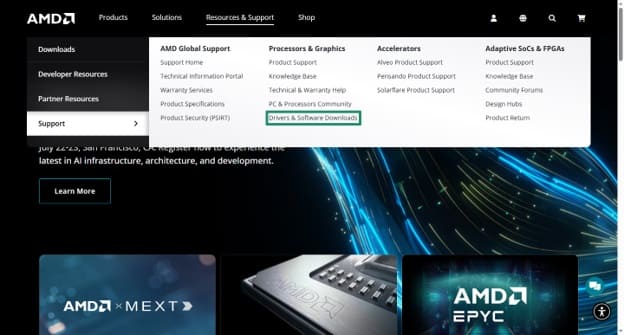
- Click Resources & Support in the menu bar on the AMD homepage.

- Next, click Drivers & Software Downloads in the Processors & Graphics section.
- Type your product name, for example, ATI Radeon™ HD 5450, in the search for your AMD product box and click the Search button.
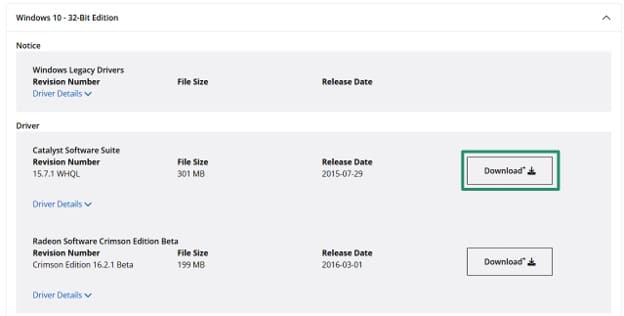
- Click your operating system. For example, Windows 10 – 32-Bit Edition. If you are unsure about the operating system your computer runs, press Windows + I, click System, and then click About to note the operating system details.
- Click the Download button next to the latest available stable driver.
- Save the driver application file to a convenient location on your PC.
- Double-click the downloaded file and then follow the on-screen prompts to install the ATI display driver.
- Lastly, restart your computer to let the installed driver take effect.
Method 2: Download and install the ATI display driver via Microsoft Update Catalog
Microsoft Update Catalog is the official Microsoft repository of all necessary software, drivers, and updates. You can download the ATI display driver for Windows 11/10 from there and install it on your system. Here is how.
- Visit Microsoft Update Catalog.
- Type ATI display driver in the search bar and press
- Click the Download button next to the latest driver for your device.

- Next, click the driver link that appears on your screen.
- Save the zip file on your computer.
- Extract the downloaded file. You can use a zip file extractor, such as WinRAR.
- Click the driver file and complete the driver installation.
- Lastly, restart your PC.
That was how to download and install the ATI display driver for Windows 10 and 11. Downloading and installing the driver alone is not enough. You must also keep it up-to-date to ensure smooth performance.
Also know: Fresco Logic USB Display Driver Download for Windows
How to Update the ATI Display Driver
You can update the driver for your ATI display device through the Device Manager, which is a free driver updater in Windows, or Windows Update. The following sections explain these methods.
Method 1: Use Device Manager to update Windows 10/11 display driver
Device Manager is a tool built into Windows operating systems to help you perform driver-related actions, such as driver updates. Below is how to use the Device Manager to update the driver for your ATI display device.
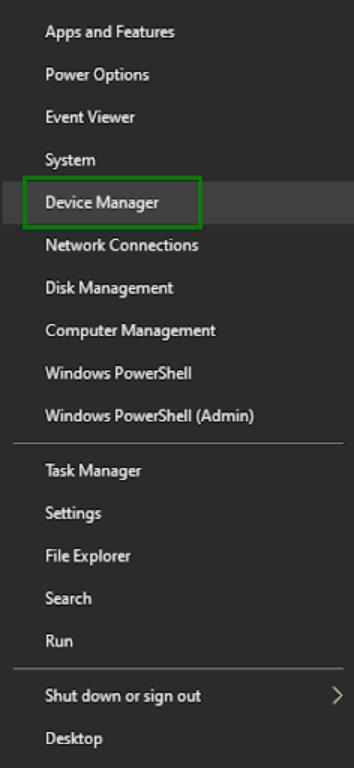
- Right-click the Start button.
- Click Device Manager.
- In the Device Manager, double-click Display Adapters.
- Right-click your ATI device and then click Update Driver.
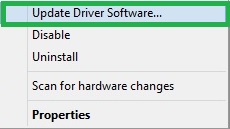
- Click Search automatically for drivers. If you have Windows 10, click Search automatically for updated driver software.
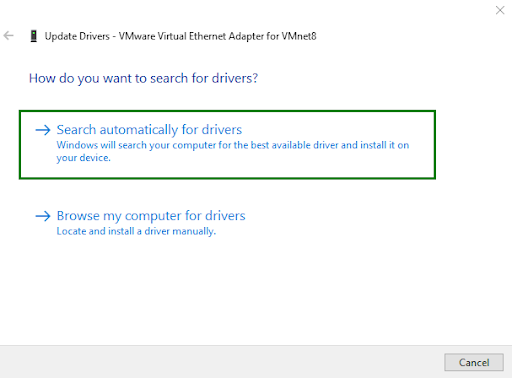
- Follow the on-screen prompts to complete the driver download and installation.
- After completing the above steps, restart your computer.
Method 2: Update Windows to get the latest ATI display driver for Windows 10/11
Updating the operating system fixes various system bugs and updates the necessary drivers on your computer. Hence, here are the steps to update Windows to download the ATI display driver update.
- Click the Start button.
- Type check for updates in the search bar.
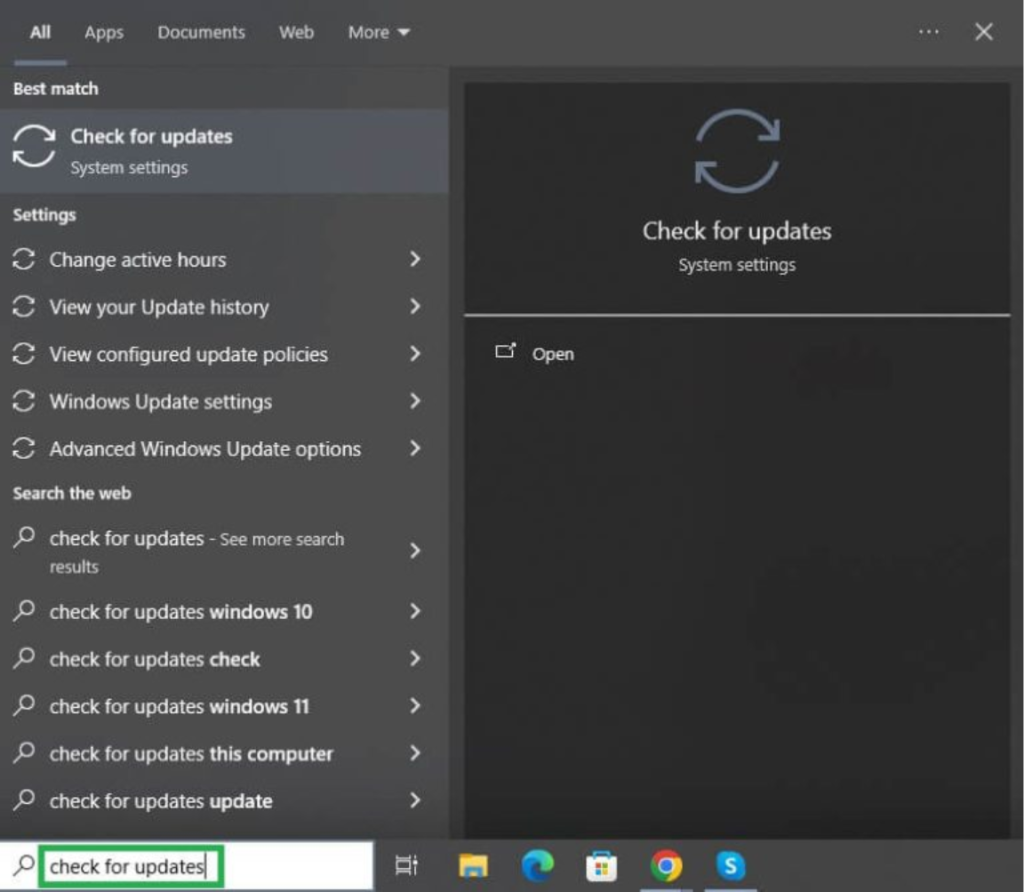
- Next, click Check for Updates in the search results.
- Click the Check for Updates
- Click Download & Install for all updates.
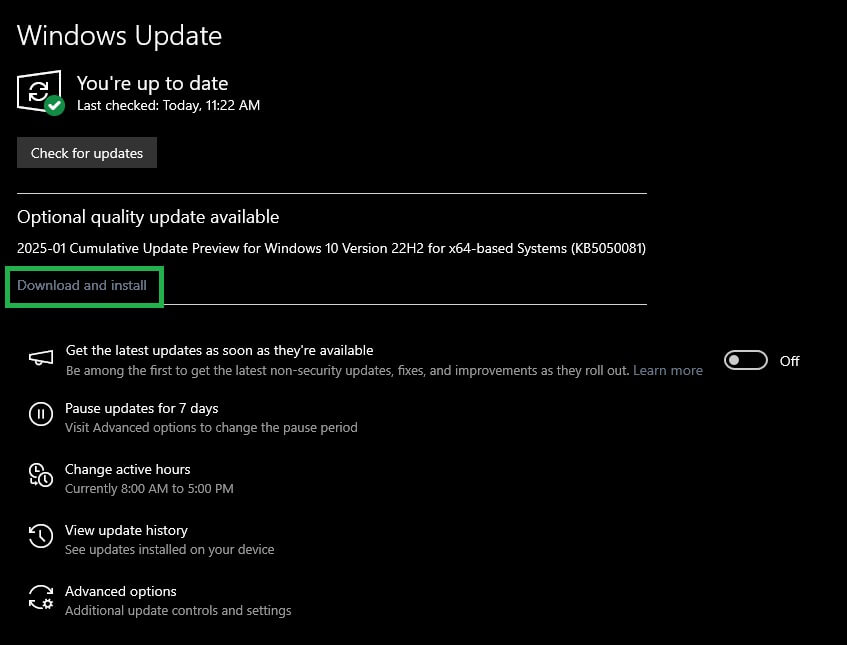
- Wait for the download and installation to complete.
- Lastly, restart your PC.
That’s all for the safest methods to download, install, and update the ATI display driver for Windows 10 and 11. Hopefully, this helps you keep your device running smoothly at all times. You can check the frequently asked questions section below for any questions you may have, or write us a comment if you have any unresolved queries.
Also know: How To Adjust Display Settings in Windows 11 for Better Appearance
Frequently Asked Questions
Q1. How do I install display drivers?
You can download the driver file from the official website and then run it on your computer to install the driver. The guide above explains this and other methods in detail.
Q2. How do you update your AMD ATI driver?
To update your ATI driver, right-click the Start button, click Device Manager, double-click Display Adapters, right-click your device, click Search Automatically for Driver, follow the instructions that appear, and restart your computer.
Q3. How to fix a display driver?
If your display driver has stopped responding or is not functioning as intended, update the driver and update Windows.

