


AULA F75 keyboard is a renowned for its premium feel, an excellent typing experience, and features such as versatile connectivity options, a hot-swappable PCB, and a long-lasting battery. However, despite being the best-in-class, like all other computer peripherals, it needs a correct, compatible, and up-to-date AULA F75 driver to deliver the performance that meets your expectations.
The driver is a translating software that translates your commands to the lower-level language and its response to the system’s higher-level language, i.e., binary codes, to help them communicate. Without an appropriate AULA F75 driver, this communication will break, leading to many issues, for example, the keyboard not working or your system not recognizing it.
Hence, this article helps you download and install the AULA F75 software, i.e., driver, in quick, easy, and reliable ways, such as through the official website, Device Manager, and Windows update.
Before discussing these methods, below is a quick snapshot of the latest Windows 10/Windows 11 driver for AULA F75 to ensure you install the correct and compatible drivers on your system.
AULA F75 Driver Details (Latest)
- Compatible OS: Windows 10 and above
- Last Updated: Mar 31, 2025
Why You Need AULA F75 Driver Software for Windows
In addition to the AULA F75 keyboard not working or being unrecognized by your system, you may experience various problems without the appropriate driver, such as the following.
- Your keyboard may malfunction; the keys may not work at all, some keys may not work, or it may type incorrect characters.
- Advanced features or functional keys, such as media or volume controls and brightness adjustments, may not work on your keyboard.
- You may not be able to navigate your system effectively, especially in Safe Mode.
Now that you are familiar with the latest driver software for AULA F75 and why you need one, let’s help you download and install the driver.
Now that you are familiar with the latest driver software for AULA F75, let’s help you download and install the driver.
How to Download and Install AULA F75 Driver
As mentioned before in this article, the quickest, easiest, and safest ways to download the AULA F75 driver for Windows 10/11 and install it include performing this action from the official website, Device Manager, or Windows update. You can choose any of these methods. Let’s elaborate on them.
Method 1: Download the AULA F75 driver from the official website
The official website of the manufacturer is among the best places from which you can obtain the latest AULA F75 software. Below is how to download and install the required driver software from the official website of AULA.
- Begin by navigating to AULA’s official website.
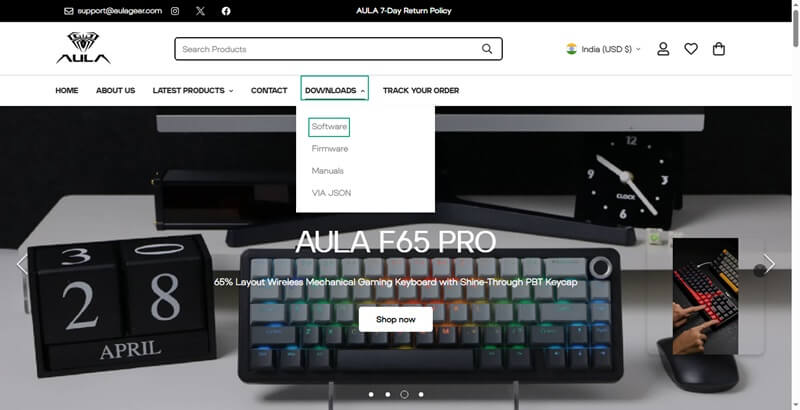
- In this step, hover your mouse over the Downloads tab and choose Software from the menu that appears.
- Next, scroll down to the AULA F75 driver and click on the Read More button.

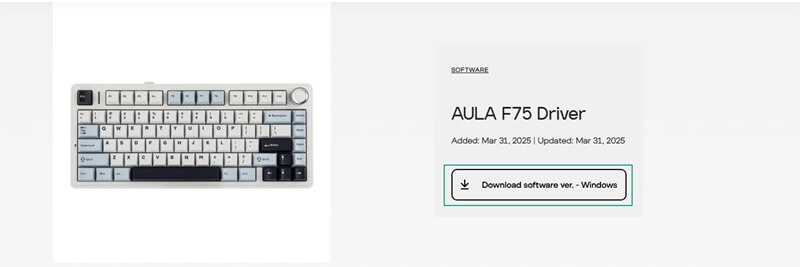
- Now, click on the Download button to download the setup file of the desired driver.
- In this step, right-click on the downloaded file and choose Extract All from the on-screen options, and then select a destination folder where Windows will save the extracted files.
- You can now open the extracted folder and find the setup file. The setup file is usually named Setup.exe.
- Next, double-click the setup file to open the installation wizard.
- Now, follow the directions of the wizard, i.e., read and accept the End User License Agreement (EULA), select the installation directory, and click “Install” to begin the driver installation.
- Lastly, restart the computer when the driver installation is complete to allow the driver to take effect.
Also know: How to Fix “A Driver Can’t Load on This Device” Error in Windows
Method 2: Use Device Manager to download and install the AULA F75 driver for Windows 10/11
Device Manager is a tool that is available in all Windows operating systems to help you download and install the required drivers, update them, reinstall them, uninstall them, and even roll back the driver to an earlier version. It helps devices perform smoothly. Below is how to use this tool to download and install the latest AULA F75 driver for Windows 10/11.
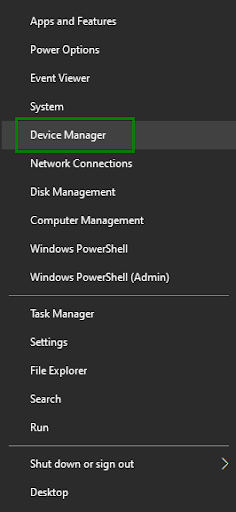
- In the first step, right-click the Windows icon and select Device Manager from the available menu.
- Next, double-click the Keyboards category in the Device Manager window to find your AULA F75 .
- In this step, right-click your keyboard and pick Update Driver from the on-screen options.
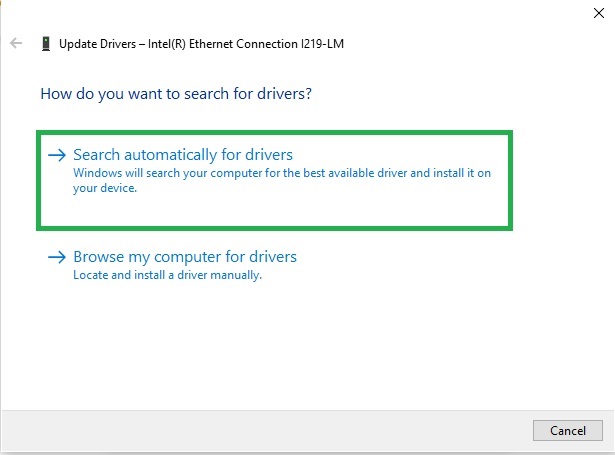
- Now, from the on-screen options, choose Search automatically for drivers.
- Next, follow the on-screen wizard to complete the AULA F75 driver download and installation.
- Lastly, restart your computer when the above process is complete to let the AULA F75 driver take effect.
Method 3: Update Windows to download and install the latest AULA F75 software
Windows updates resolve operating system bugs, fix security shortcomings, and download and install the latest drivers on your system for the best performance. Hence, you can follow the steps below to update Windows to download the AULA F75 driver’s updated version and install it on your computer.
- First, click on the Windows icon on your taskbar.
- Next, type check for updates in the search bar and click on the first search result to open it.
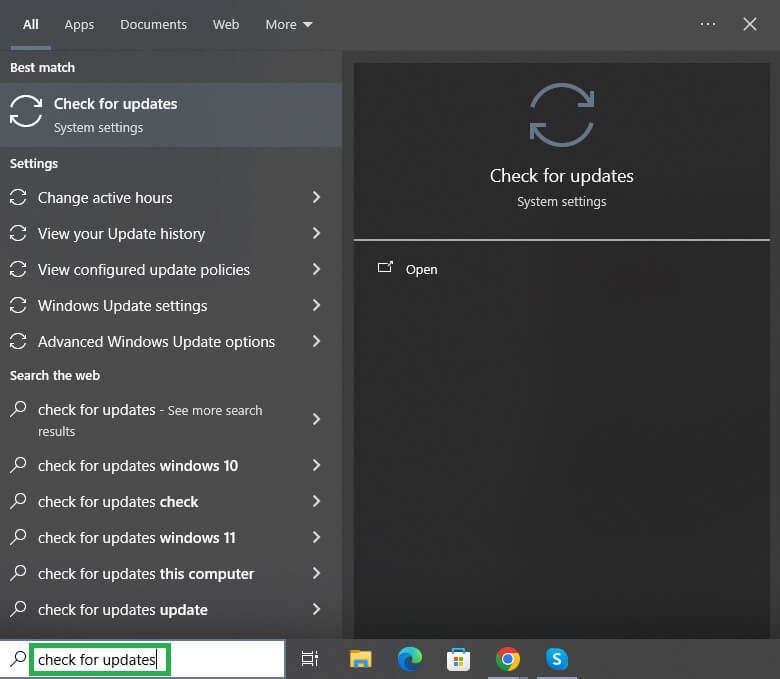
- In this step, click on the Check for updates button, allowing Windows to detect the latest updates for your operating system.
- Now, click on the download & install to get all the updates (including those listed as optional) downloaded and installed on your computer.
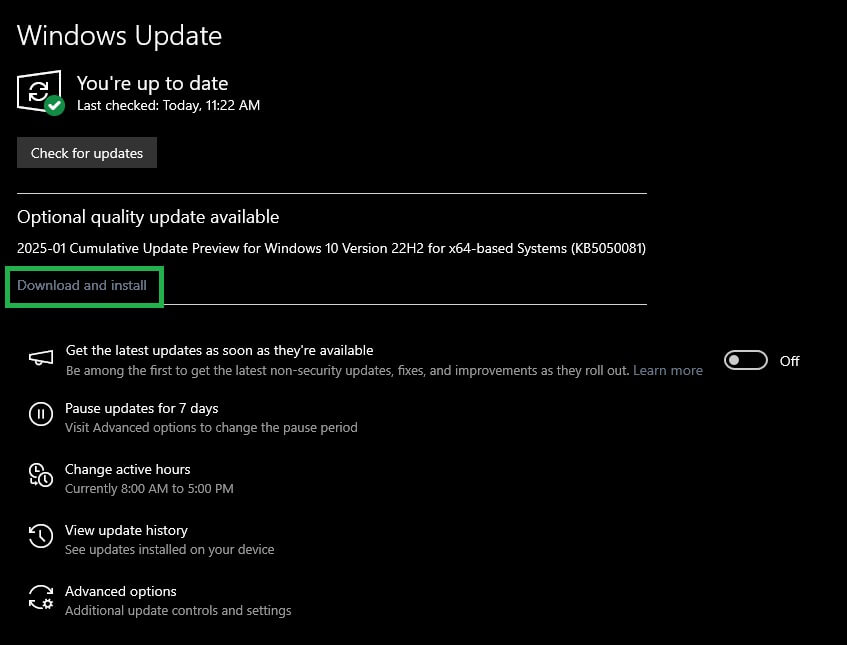
- Lastly, restart your computer to allow the above updates to apply to your operating system.
Also know: How to Fix Numbers on Keyboard Not Working in Windows 10, 11
AULA F75 Driver Downloaded and Installed
The above-mentioned are the methods you can use to download and install the updated AULA F75 driver on your Windows 11/10 computer to ensure the keyboard performs smoothly. You can follow any method from the guide above, depending on your convenience, to get the necessary driver software installed.
However, if you find yourself stuck at any step, have any doubts, have any questions, or have any feedback related to this article, please do not hesitate to contact us through the comments section below.
Frequently Asked Questions
Q1. What should I do if the AULA F75 still does not work after installing the driver?
If your AULA F75 does not work even after installing the driver, you can try these solutions sequentially until the issue is resolved.
- Restart your computer.
- Uninstall any other keyboard drivers or software that conflict with your AULA F75 .
- Update Windows by following the path Win+I keyboard shortcut>Windows Update>Installation of any pending updates.
- Reinstall the AULA F75 driver.
- Update your driver.
- Contact AULA’s customer support.
Q2. Why is my AULA F75 not detected?
Besides outdated, incompatible, or incorrectly installed AULA F75 drivers, your keyboard may not be detected because of connectivity issues (such as low battery, interference from other devices or software, or wrong mode).
Q3. How do I customize the AULA F75 driver settings?
You can follow the steps below to personalize your driver settings to match your preferences.
- First, find and double-click the AULA F75 icon in the Start menu or on your desktop.
- You can now adjust the settings, such as key bindings, RGB lighting, or macros, using the on-screen tabs with various customization options.
Q4. How to reset the AULA F75 driver settings to default?
To reset your settings to default, you can open the software, go to the Settings tab, and choose the Restore Defaults option.
Q5. Do I need the internet to use the AULA F75 software?
You only need the internet to download the driver software for your AULA F75 . Once downloaded, it works fine without the internet.

