

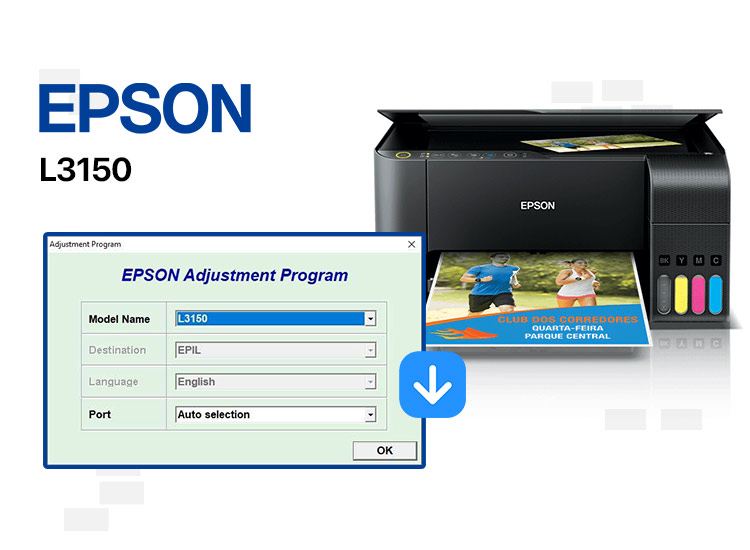
Epson L3150 is a highly efficient all-in-one solution for wireless printing. This wireless EcoTank printer is renowned for its duplex printing with a fast print speed of 33 ppm (monochrome) and 15 ppm (color), along with a stunning 5,760 dpi print resolution.
However, despite having the above specifications, the printer has certain limitations. For instance, you may struggle with errors like “service required” after printing a considerable number of pages on your computer. Moreover, the printer panel may have a blinking light that indicates problems with your printing machine.
All these issues result from waste ink pads that collect and absorb the unused ink in the printing process. However, this problem is easily solved by the Epson L3150 waste ink pad resetter adjustment program. This article elaborates on how to get this program downloaded for free. However, let us first look at what this program is and how it works.
What Is the Epson L3150 Resetter
The Epson L3150 adjustment program is software that resets the waste ink pad counter of your printer. This program resets your printing machine to factory settings when a red-colored light blinks on the printer or the screen displays a “service required” error.
Now that you are aware of the Epson L3150 resetter adjustment program, let us learn the process of using it.
How to Use the Epson L3150 Waste Ink Pad Resetter
If your Epson L3150 shows the Service Required or Ink Pad Full error, you can fix it by resetting the waste ink counter using the WIC Reset Utility. Follow the steps below to use the Epson L3150 resetter safely.
- Before you begin, remember that it is a paid utility, so you must purchase a valid software license key online to complete the reset. Once bought, the key is delivered instantly to your email and remains valid until you use it.
- Download the official WIC Reset Utility from a trusted website.
- Run the setup file as an administrator and follow the installation steps.
- Temporarily disable your antivirus if it blocks the tool, as reset utilities are sometimes flagged by mistake.
- After installation, create a shortcut on your desktop for quick access.
- Turn on your Epson L3150 printer.
- Connect it directly to your computer using a USB cable. Do not use hubs or long extension cables, as they may cause connection issues.
- Wait for Windows to recognize the printer.
- If this is your first time connecting, install the necessary printer drivers.
- Open the WIC Reset Utility.
- Select Epson L3150 from the list of detected printers.
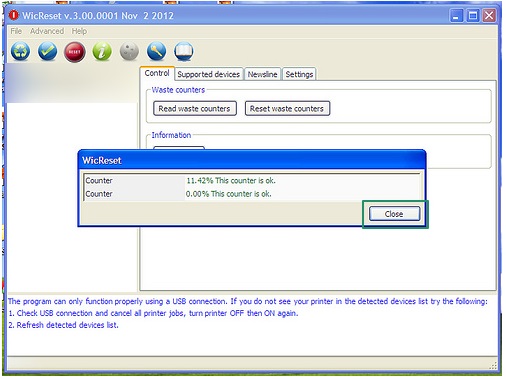
- Click Read Waste Counters to check the current levels of your waste ink pads.
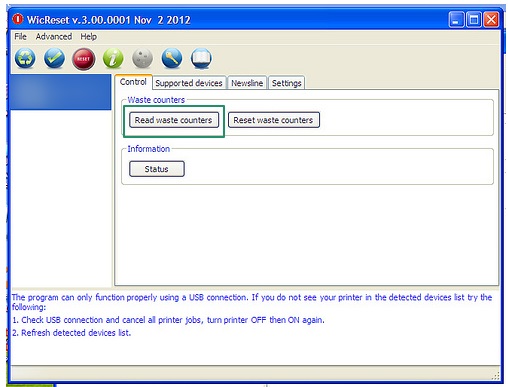
- If the counter is at or above 100%, a reset is required..
- Click Reset Waste Counters.
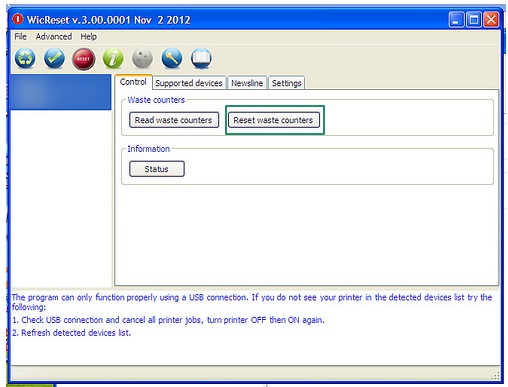
- Enter the reset key you purchased and confirm by clicking OK.
- Wait until the software completes the reset process. Do not turn off the printer during this step.
- Restart your printer and your computer after the reset completes.
- Print a test page to ensure everything is working normally.
- Open the WIC Reset Utility again and click Read Waste Counters.
- The waste ink pad counter should now show 0%, confirming the reset worked correctly.
- Lastly, click Finish to complete the process.
Also know: Epson Scan 2 Software/Driver Download, Install, and Update for Windows 10, 11
The above was how to use the WIC Epson L3150 reset utility to reset your waste ink pad counter. If you do not find it comfortable to reset the ink pad counter this way, you can use an Epson L3150 adjustment program.
How to Free Download the Epson L3150 Adjustment Program
Below, you will get a completely functional and totally free link to download the Epson L3150 resetter. You can use this program to reset the overflowing waste ink pad counter of your printer. Simply click the link below.
Epson L3150 Resetter Adjustment Program Free Download
How to Use the Epson L3150 Adjustment Program
You can follow the steps below to reset your Epson L3150 printer using the Epson L3150 resetter from AdjProg.
- First, disable your antivirus software. You can enable it after completing the waste ink pad reset.
- After disabling the antivirus software, extract the resetter program file you downloaded earlier.
- If prompted, enter the password kpuspriyonews.
- In this step, you can navigate to the extracted folder.
- You can now open the Epson L3150 Adjustment Program.
- In this step, double-click the adjprog.exe file.
- Next, click OK and then click on the Select button.
- Next, select your printer model name.
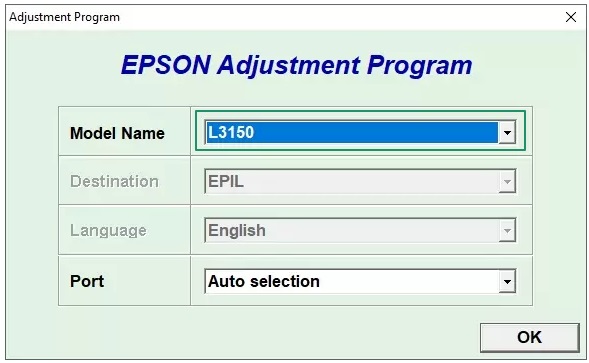
- This step requires you to choose your port from the Port menu and click OK.
- Once you have selected your port, click the Particular Adjustment Mode button.
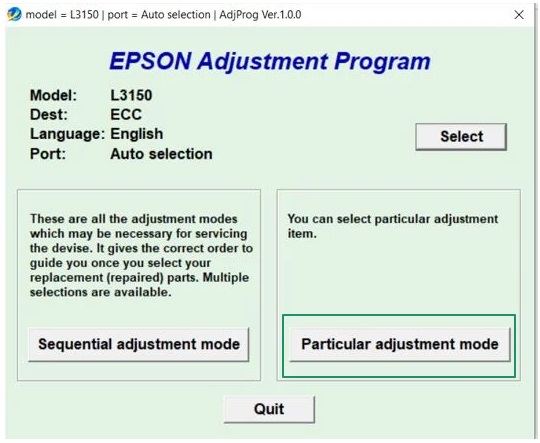
- Next, choose your Waste ink pad counter and click on the OK button.
- You can now choose the Main pad counter and Platen pad counter.
- Next, click Check to view the counter scores.
- In this step, select the Main pad counter and Platen pad counter again.
- Next, click on the Initialize button and then click OK to move to the next step.
- This step requires you to turn off your printer and click OK.
- You can now restart your printer and go back to the Main pad counter and Platen pad counter options.
- In this step, click Check and make sure both the counter scores are 0.
Lastly, click Finish to complete the process. After resetting the printer, you can also download the Epson L3150 printer driver to ensure smooth printing performance.
Also know: Epson Scan 2 Software/Driver Download, Install, and Update for Windows 10, 11
Epson L3150 Resetter Download and Usage Guide: The Conclusion
In this article, we discussed the process of downloading the free Epson L3150 resetter program or adjustment software to reset your printer’s waste ink pad counter. Hopefully, the service required error will no longer trouble you, or you will not be required to worry about the waste ink pad counter overflow anymore.
Out of the two methods in the guide above, we prefer using the Epson L3150 WIC reset, as it is a bit more convenient and straightforward. You can also use the Epson L3150 adjustment program if that works better for you. However, trusting any other free Epson L3150 resetter download without a password is not recommended, as it may be harmful for your computer.
If you have any doubts or need more information on how to download the Epson L3150 waste ink pad resetter and perform the reset, please do not hesitate to contact us via the comments section below.
FAQs
Q.1 What is the purpose of the Epson L3150 resetter program on my printer?
Ans. The Epson L3150 Resetter Adjustment Program is used to reset the waste ink pad counter in your printer. When the printer shows a “service required” error or starts blinking, it usually means the ink pads are full. This software resets the printer to factory settings and clears that error.
Q.2 Is it safe to use the Epson L3150 resetter program on my printer?
Ans. Yes, the resetter program shared in this guide is the official Epson software, not a cracked version. As long as you follow the steps carefully, it is completely safe to use and won’t harm your printer. Just make sure to disable your antivirus temporarily before running the program.
Q.3 Will resetting the waste ink pad counter fix all printer errors?
Ans. Resetting the waste ink pad counter only fixes errors related to the ink pad overflow, like blinking lights or “service required” messages. If your printer has other issues (like paper jams, poor print quality, or driver errors), you may need to troubleshoot those separately or update your printer driver.
Q.4 How to reset Epson L3150 without a resetter?
You can hard reset your Epson L3150 without a resetter by pressing the Power button until the WiFi Direct light and WiFi light flash alternately.
Q.5 What errors does the resetter fix?
Resetting your Epson L3150 printer with the resetter adjustment program can fix issues such as no printing, color blur, lack of color printing, and prints with vertical and horizontal stripes.

