

Ethernet is essential for an uninterrupted internet connection. However, to ensure the LAN cable functions smoothly on your computer, a correct Ethernet driver is necessary.
These drivers come bundled with most PCs, reassuring users that problems with missing or corrupted drivers are rare. In the majority of cases, the pre-installed driver will suffice for seamless functionality.
However, for some reason, the Ethernet driver for Windows 11/10 may become corrupted or go missing. In such situations, you need to download and install the drivers on your computer to experience an unhindered and stable internet connection.
In this article, we discuss the simplest and quickest ways to find, download, install, and update the Ethernet drivers for your Windows operating system.
Before these methods, i.e., obtaining the driver from the manufacturer, Device Manager, or Windows update, let’s clear the confusion about what an Ethernet driver is and why you need one.

What Is the Driver for Ethernet
An Ethernet driver is a specialized software that functions as a translator between your PC’s operating system and its network adapter, i.e., physical Ethernet hardware. It allows the computer to send and receive data via wired networks and handle tasks such as adapter configuration, data packet management, and TCP/IP stack communication for internet connectivity.
The driver tells the hardware what to do and helps understand the signals, making the network card functional for local network connection and wired internet. Without the driver, your wired internet connection may not function properly. Hence, let’s proceed to downloading and installing the updated driver for Ethernet.
Download, Install, and Update Ethernet Drivers
Before proceeding with the methods below to perform Ethernet driver download and update, ensure that you are connected to the internet. We recommend connecting to Wi-Fi if your Ethernet is not working smoothly due to an outdated driver.
If neither Ethernet nor Wi-Fi works, consider using another device to download the driver and transfer it to your computer using a USB drive. Once you have connected to the internet, you can proceed with any of the following methods.
Download the Ethernet driver for Windows 10/11 from the manufacturer
One of the best ways to install the drivers is to visit the official website of the device manufacturer. The top manufacturers include Intel, Dell, HP, Lenovo, Asus, and Acer. However, you must know the correct product details and Windows OS information to fetch genuine drivers. Here is how to do it.
Note: To find the model and specifications of your PC or Ethernet adapter, you can use built-in tools like System Information or Device Manager. To access System Information, type ‘System Information’ in the Windows search bar and press Enter. Under ‘System Summary’, note the ‘System Model’. Alternatively, open Device Manager by pressing Windows + X and selecting Device Manager from the menu. Expand the ‘Network Adapters’ section to identify your Ethernet hardware model. Knowing these details will ensure you obtain the correct driver.
- In the first step, navigate to the official website of your manufacturer.
- Next, go to Support and then the Driver Download Page.
- In this step, search for your product on the official website and select the compatible driver file.
- Now, select the correct Windows operating system version and click on the Download option.
- Once the driver file is downloaded, double-click on the downloaded file and follow the on-screen directions to complete the process.
- Lastly, restart your computer to let the newly installed Ethernet driver take effect.
Also know: How to Fix Wifi Connected But No Internet Connection
Ethernet Driver Download, Install, and Update Completed Successfully
Above, we explained some reliable methods you can use to search for, download, install, and update the Ethernet drivers. You can follow any of these ways depending on which of them suits your needs the best.
However, if you have any questions or confusion, do not hesitate to drop us a comment. Additionally, if you wish to read more informative articles related to technology, subscribe to our newsletter.
Update the Ethernet Driver for Windows 10/11 Using Device Manager
Device Manager is a built-in Windows tool that lets you download, install, and update drivers to ensure smooth device and system performance. You can follow the steps below to use the Device Manager to download and install the latest Ethernet driver.
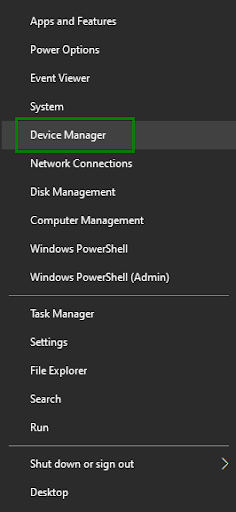
- First, right-click the Start button on your Taskbar and choose Device Manager.
- In the Device Manager window, double-click Network Adapters to locate your Ethernet adapter.
- Next, right-click your Ethernet adapter and choose Update Driver.
- Now, select Search automatically for drivers.
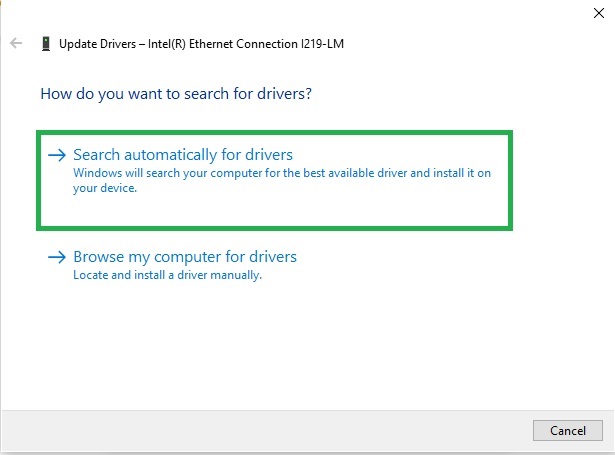
- In this step, follow the on-screen instructions to download and install the required drivers.
- Lastly, restart your computer to allow the Ethernet driver update to take effect.
FAQs
Q1. What is an Ethernet driver?
An Ethernet driver helps your computer connect to its network adapter. If you do not have the right Ethernet driver, or if it is outdated or broken, you may have problems like slow internet speeds, dropped connections, or no connection at all. Keeping your Ethernet driver updated and installed correctly is crucial for a stable and reliable wired internet experience.
Q2. How can I download Ethernet drivers for Windows 11/10?
To download the latest Ethernet drivers, you can visit the official website of your device manufacturer, such as Intel or Dell. Additionally, you can utilize the Device Manager to search for updated drivers or carry out a Windows update to automatically install the most recent drivers available for your system.
Q3. What should I do if my Ethernet connection is not working?
If your Ethernet connection is not functioning, check if the driver is corrupt or missing. You can try reinstalling the Ethernet driver from the manufacturer’s website or using Device Manager to update it. If issues persist, consider checking your hardware connections.

