

The latest AMD X570 chipset driver helps the system communicate effectively with the motherboard and pass the commands correctly. Without the correct, compatible, and up-to-date driver for your AMD chipset, the motherboard cannot function smoothly, resulting in unexpected system errors, failures, and shutdowns.
The chipset drivers contain crucial updates for the smooth functioning of the main circuit board in your computer, i.e., the motherboard. Therefore, this article explains some quick and simple ways to download and update AMD chipset drivers for Windows 10/11 using either manual or automatic methods, such as using free driver updaters. Before we begin downloading and updating the driver, here is an overview of the latest driver to ensure you download only the latest and most compatible driver for your chipset.
Latest AMD X570 Driver Details
Version: 8.02.18.557
Release Date: 2026-03-09
File Size: 74 MB
Supported Operating Systems: Windows 11 and 10, 64-bit editions
After noting the details of the latest driver for the AMD X570 chipset, let’s proceed towards the driver download, installation, and update.
How to Download and Install AMD X570 Chipset Driver for Windows
You can download the AMD X570 chipset driver for Windows from the official website or Windows update, whichever method feels the most convenient to you.
Method 1: Download the AMD X570 chipset driver from the official website
Despite being legacy hardware after AMD moved to the AM5 platform, you can find the most recent AMD X570 driver on the official website. Here is how to download and install it from there.
- Navigate to the official X570 drivers and downloads page.
- Click Windows 11 – 64-Bit Edition or Windows 10 – 64-Bit Edition, depending on the operating system your computer runs.
Note: If you are unsure about your computer’s operating system, follow the path Windows + I key > System > About to note your operating system details.
- Next, click the Download button to download the driver’s executable file.
Note: In addition to the AMD X570 driver, you can also download the AMD RAID Installer and drivers for better performance if you use SATA or NVMe RAID configurations. These software packages allow Windows to recognize and manage various storage drives as one unit on AMD Ryzen systems to improve speed and security.
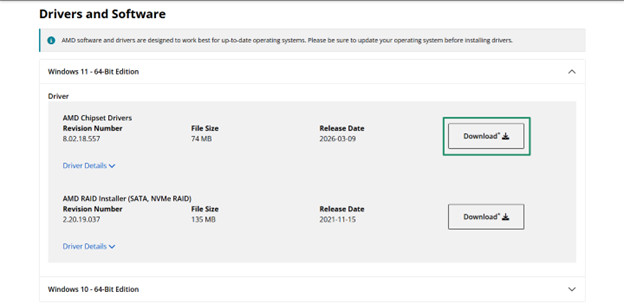
- Double-click the downloaded file and follow the on-screen prompts to complete the driver installation.
- Lastly, restart your computer so that the new driver can take effect.
Also know: Universal USB Joystick Driver Download for Windows 11 & 10
Method 2: Download and install the AMD X570 chipset drivers via Windows Update
Windows Updates fix common PC problems, patch security loopholes, and download and install the latest device drivers on your system. Below is how to update Windows to download the updated AMD X750 chipset driver and install it.
- Click the Start button.
- Type check for updates in the search bar that appears.
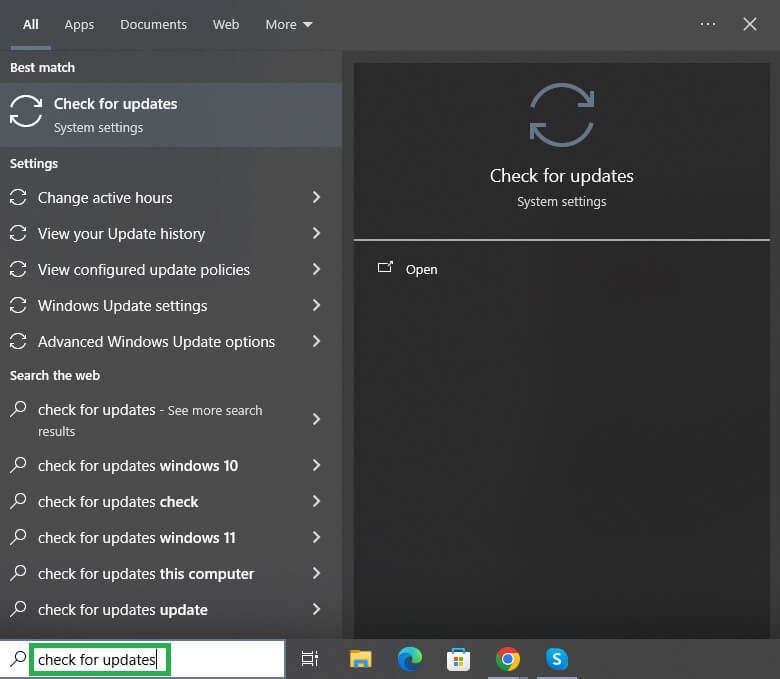
- Click Check for updates in the search results.
- In the Windows Update window, click the Check for Updates button.
- Click Download & Install for the available Windows updates, including the optional updates.
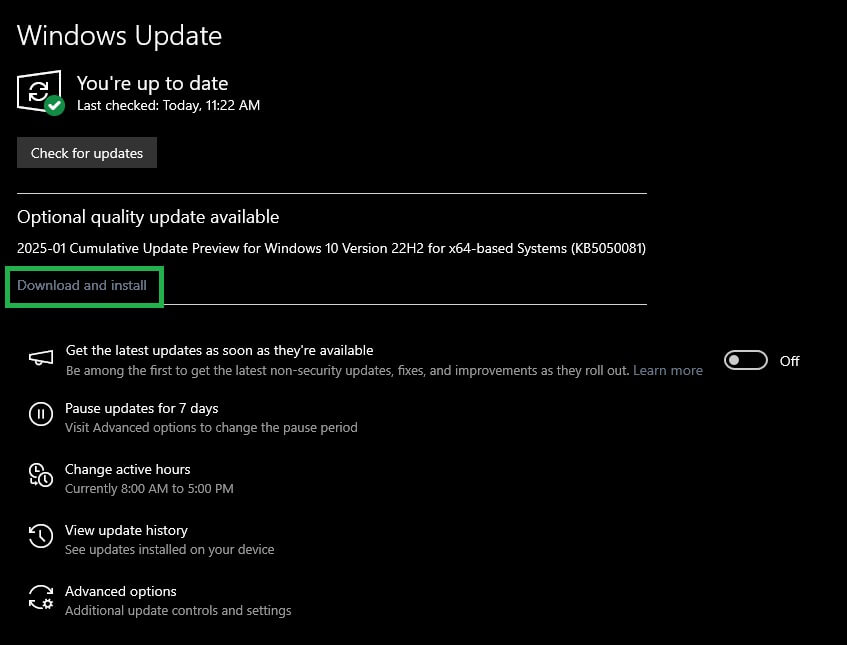
- Lastly, restart your computer after the above process is complete.
How to Update AMD X570 Chipset Driver for Windows
Outdated drivers break the communication between the system and the motherboard, causing significant performance issues. Hence, updating the drivers is necessary. You can download and install the AMD X570 chipset driver update for Windows using a built-in device and driver management tool called Device Manager. Here is how.
- Right-click the Start button on the taskbar.
- Click Device Manager in the menu that appears.
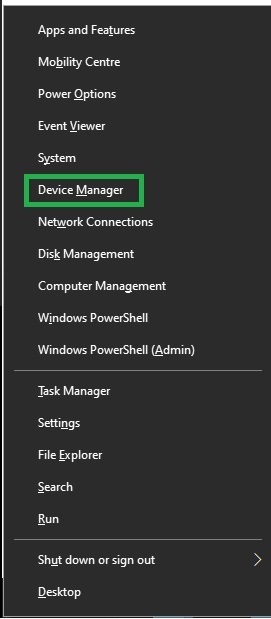
- In the Device Manager, double-click the System Devices category to expand it.
- Right-click your AMD X570 chipset and then click Update Driver.
- Windows 11 users click Search automatically for drivers. If you are a Windows 10 user, click Search automatically for updated driver software.
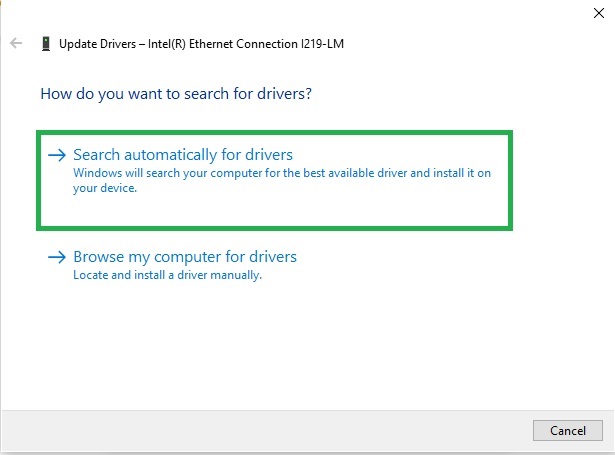
- Follow the directions that appear on your screen to download the AMD X570 chipset driver update and install it.
- Lastly, restart your computer so that the new AMD driver can take effect.
That concludes how to download, install, and update the AMD X570 chipset driver for Windows. Hopefully, you find this guide helpful to get an error-free and smooth device performance. However, if you have any doubts, questions, or suggestions about this article, feel free to get in touch with us using the comments.
Also know: Fresco Logic USB Display Driver Download for Windows
Frequently Asked Questions
Q1. How to update AMD X570 drivers?
You can download the AMD X570 driver update and install it using Device Manager in Windows. To do this, right-click the “Start” button, select “Device Manager,” double-click “System Devices,” right-click “AMD X570,” click “Update Driver,” click “Search automatically for drivers” or “Search automatically for updated driver software,” follow the on-screen prompts, and then restart your computer.
Q2. Where should I download X570 drivers?
You can download the AMD X570 chipset drivers and install them through AMD’s official website or Windows Update. This guide explains both methods in detail.
Q3. How often should I update X570 drivers?
You should update your drivers whenever you notice signs of degraded performance, such as random crashes, device instability, or blue screens, to ensure optimal performance. To check if your driver needs an update, right-click the “Start” button, select “Device Manager,” double-click “System Devices,” and check if your AMD X570 device has a yellow exclamation mark next to it. A yellow exclamation indicates there is a problem with the device, and it needs to be updated.

