

A Windows product key is essential for a fresh Windows installation, managing or troubleshooting multiple computers, moving a previous license to another motherboard, or checking for activation issues. Typically, you need to re-enter the product key when performing major hardware changes, such as replacing the motherboard, or during a clean installation of Windows.
Hence, if you have reinstalled or updated Windows, are repairing a system, moving an old license to a new computer, or verifying the key status after making any hardware changes, you must have the product key.
The Windows 11 and Windows 10 product key is available on a sticker on your PC hardware or somewhere in the packaging. However, finding the key this way is no less than searching for a needle in a haystack; a complete headache, especially if you have already done away with the box.
Hence, this article explains other easy methods, including finding the key through Command Prompt, PowerShell, and Windows Registry.
However, before we go into Windows 10 or Windows 11 product key finding, let’s help you understand what exactly this key is and where it is stored on your computer.
What Is a Windows Product Key
Imagine a key to a lock that, when opened, grants you access to a room full of treasure. Without opening that lock, you cannot reach the treasure.
Similarly, a Windows product key is a 25-character key you need to unlock the complete functionality of your computer. It is a license key that validates your operating system’s ownership.
While a product key sounds similar to an activation code, they are not the same. The product key is used during the installation of a Microsoft software, while an activation code is used to activate the software after installation.
The Windows product key is printed on the label or card inside the box your Windows came in. However, it is also stored digitally if you lose the box. Additionally, for some installations of Windows 10 and 11, a digital license is used instead of a traditional product key. This digital license, or digital entitlement, is directly linked to your Microsoft account, which means a product key may not always be necessary or visible.
Where Is Windows Product Key Stored
Digitally, the product key of your operating system is stored in your Windows Registry. You can extract this key through the Windows Registry, Command Prompt, PowerShell, or a key finder before you begin making changes to your computer.
How to Find Windows Product Key
Below is how to find the Windows 10 product key/Windows 11 product key if you cannot find it anywhere, including in the confirmation email you received after buying the digital copy of Windows.
Method 1: Find Windows product key using Command Prompt
The command line or Command Prompt lets you fetch the product key for your Windows. Below is how to use it.
- First, activate Windows search using the Windows+S keyboard shortcut.
- Next, type cmd in the search bar and right-click Command Prompt in the search results.
- Choose Run as administrator from the right-click menu.
- In the Administrator Command Prompt window, copy and paste the following command and press Enter.
wmic path softwareLicensingService get OA3xOriginalProductKey
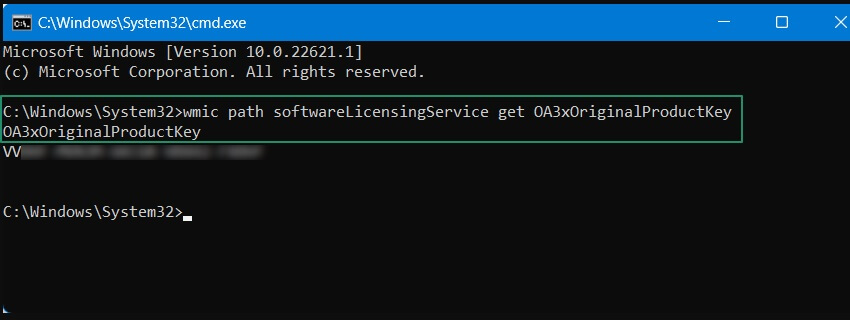
- Lastly, you can view the key below the command you entered in the previous step.
Method 2: Use Registry to find Windows product key
As mentioned before, Windows stores the Windows 11 or Windows 10 product key in the Registry.
Before proceeding, it is essential to take precautions to prevent potential issues. One such precaution is creating a restore point, which allows you to revert your system to its previous state if something goes wrong. To create a restore point, go to the Control Panel, select ‘System and Security,’ then ‘System,’ and click on ‘System Protection.’ Here, click ‘Create’ and follow the on-screen instructions.
Note: Follow these steps very carefully, as any wrong step or change made to the Registry Editor can damage the system. We recommend that you back up Windows to avoid potential problems. Additionally, having a restore point can provide added security, allowing for an easy recovery if needed.
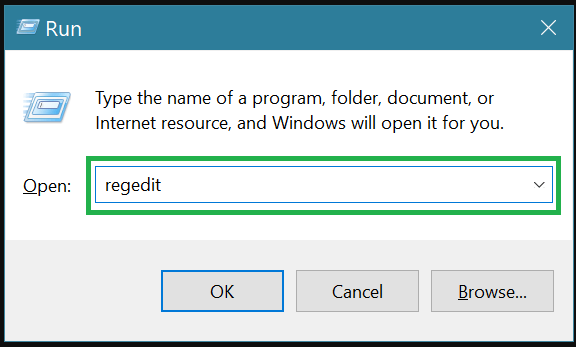
- First, use the Windows+R keyboard shortcut to access the Run dialog box.
- Next, type regedit in the Run box that appears and press Enter.
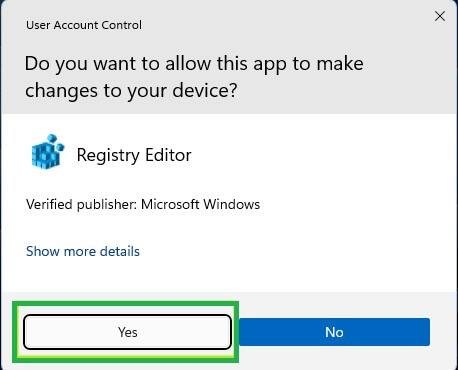
- Click Yes to open the Registry Editor if a User Account Control prompt appears.
- Go to HKEY_LOCAL_MACHINE\SOFTWARE\Microsoft\Windows NT\CurrentVersion\SoftwareProtectionPlatform.
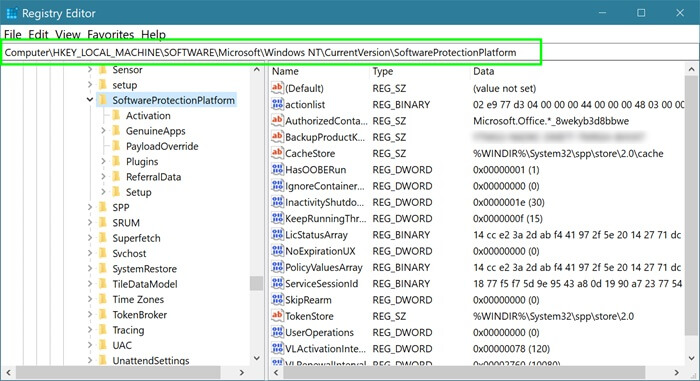
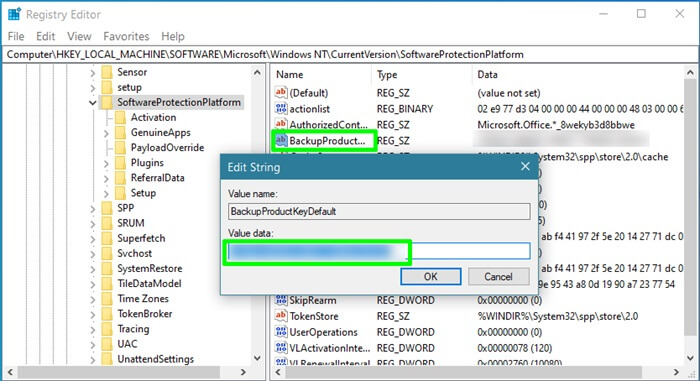
- Next, you can locate the BackupProductKeyDefault in the right pane of the Registry Editor. The value listed next to this entry is your product key.
Method 3: Find Windows product key using PowerShell
Obtaining a product key is similar to doing so through Command Prompt. Here is how to find the Windows 10 product key/Windows 11 product key via PowerShell.
- First, right-click the Start button on the Taskbar.
- Next, choose Windows PowerShell (Admin) from the right-click menu.
- In the Administrator Windows PowerShell, copy and paste the following command and press Enter.
powershell “(Get-WmiObject -query ‘select * from SoftwareLicensingService’).OA3xOriginalProductKey”
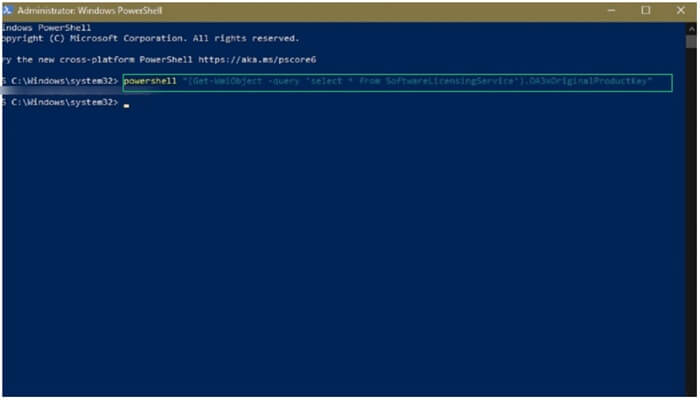
- Lastly, you can view your product key in the Administrator PowerShell window.
Method 4: Use a Windows product key finder
Third-party applications (such as Magical JellyBean KeyFinder) can help find your Windows 11 or Windows 10 product key. However, you must use such apps very carefully, as they may expose your computer to security risks.
While this is not the most recommended method, if it is your last resort, be sure to install a powerful anti-malware and back up your data. To ensure safety when using third-party tools, download them only from official websites and scan files with an anti-malware program before running them. This precaution helps protect against malware and keeps your system secure.
The above methods explained how to find the Windows 10/Windows 11 product key. However, if the product key that you found is blocked or dysfunctional, you can check the section below for solutions.
What to Do If Your Windows Product Key Is Blocked or Not Working
For some reason, your Windows key may be blocked or not working. If this is the case, you can:
- Run the Windows Activation Troubleshooter in Settings>System>Activation>Troubleshoot.
- Check the date and time on your computer to ensure it is correct and you have an active internet connection.
- Launch Command Prompt as an administrator, type slmgr.vbs /ipk <Your-Product-Key> in the command line and press Enter. Then, type slmgr.vbs /ato and press Enter to make the key work.
- If none of the above fixes work or you get the error code 0xC004C060 or 0xC004F051, contact Microsoft support to verify your license.
With that, we have come to the end of our comprehensive guide on where and how to find the Windows product key and solve related problems. Hope it helps! If you encounter issues that aren’t resolved by this guide, consider reaching out to Microsoft support for additional assistance. The official Microsoft Support can provide further guidance and troubleshooting steps to help resolve your Windows product key issues.
