

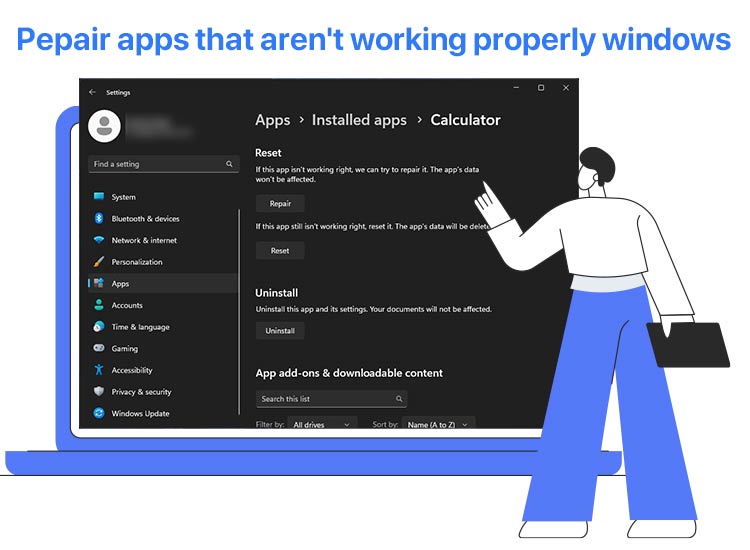
Are applications failing to launch, freezing, or crashing on your computer? Then, you are not alone in struggling with this problem, and many others also experience software glitches on their devices.
Hence, to help you and all others have a smooth experience with apps in Windows, this article compiles an effective guide containing quick and easy ways to repair apps that aren’t working properly in Windows.
Before moving to these solutions, let’s look at the possible causes of the problem for better understanding.
Why Apps Aren’t Working Properly in Windows
There are multiple reasons why apps won’t open on your computer, such as the following.
- The program you are trying to open is outdated or incompatible with Windows
- Your system files are corrupted
- The antivirus software or firewall program on your computer interferes with the application
- There are conflicts between Windows updates and the app you are trying to access
Now that you are familiar with why apps won’t respond on your computer, let’s help you solve this problem.
How to Fix Apps That Aren’t Working Properly in Windows
When troubleshooting app issues in Windows, it is best to start with the simplest solutions before moving on to more advanced steps. Begin by restarting your computer, updating Windows, and running the app with administrative rights, as these quick actions often resolve many problems.
If the issue persists, you can try additional methods such as updating the problematic app, clearing the Microsoft Store cache, running the built-in troubleshooter, running the SFC checker, repairing the problematic application, or reinstalling the app. The following sections explain how to apply these solutions step by step.
Fix 1: Try the basic troubleshooting
Sometimes, the most straightforward solutions, such as restarting the computer, updating Windows, and opening the application with administrator privileges, solve complex problems, such as the one you are experiencing. Hence, below is how to perform these actions before trying other solutions.
Restart your computer
- Click the Start button.
- Next, click the Power icon.
- Lastly, choose Restart from the menu that appears.
Update Windows
- Click the Start button.
- Type check for updates in the search box.
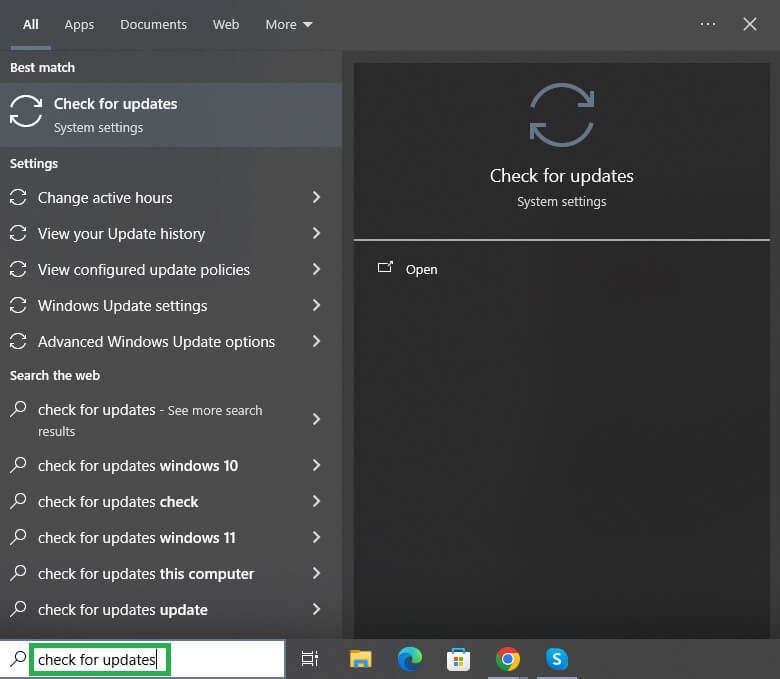
- Click the first search result.
- Next, click the Check for updates button.
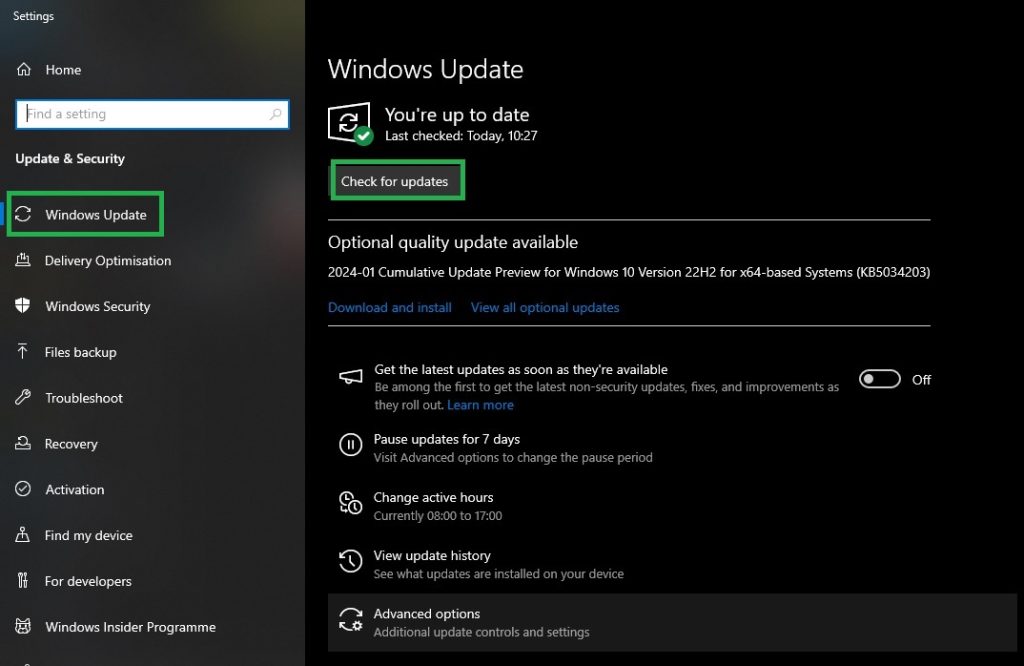
- Click to download & install the available updates.
- Lastly, restart your computer.
Run the app as an administrator
- Right-click the icon or shortcut of the problematic application.
- Choose Run as administrator from the menu that appears.
- Lastly, click Yes if a user account control prompt appears.
Fix 2: Update the App that is not working
App updates, in addition to bringing new features, fix bugs that may be responsible for the issues you are struggling with. Hence, to repair apps that aren’t working properly in Windows, you can update them. Here is how.
- First, click Start.
- Next, type Microsoft Store in the search bar that appears.
- Click the first search result.
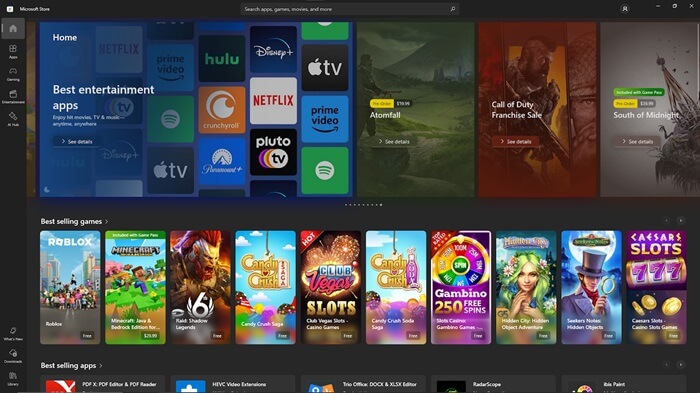
- In the Microsoft Store, navigate to Downloads and Updates.
- Lastly, click Get Updates and complete the process.
Also know: Easy Ways to Solve Error Code 1603 (Fatal Error During Installation)
Fix 3: Delete the Microsoft Store cache
Cache is the saved information that helps apps load faster on your computer. However, a corrupted cache or unnecessary cache accumulation can cause application malfunction. Hence, you can follow the steps below to clear the Microsoft Store cache.
- Begin by pressing Windows + R to access the Run utility.
- In the Run utility, type wsreset.exe and press the Enter key.
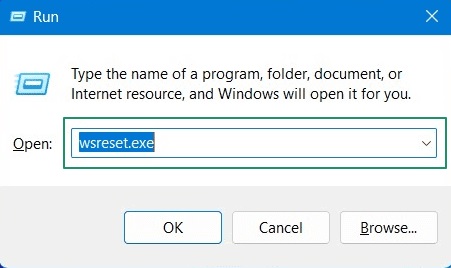
- Lastly, wait until the cache clears and the Microsoft Store reopens.
Fix 4: Run the Windows troubleshooter
Windows Troubleshooter is a built-in utility that resolves common issues, such as network problems, hardware problems, and app crashes. Below is how to use it.
- First, press Windows + I to open Settings.
- Navigate to the System settings. Windows 10 users choose “Update & Security.”
- Select Troubleshoot from the on-screen options.
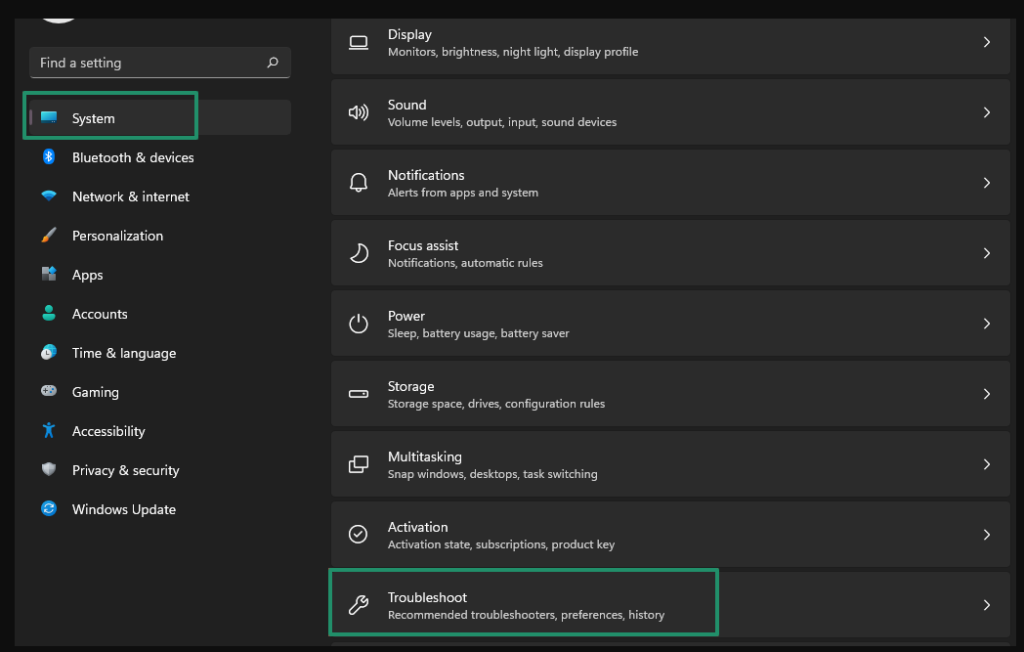
- Go to Other Troubleshooters.
- Find and click Windows Troubleshooter.
- Lastly, click Run to begin troubleshooting and follow the instructions that appear on your screen to resolve the issue you are experiencing.
Fix 5: Run the SFC checker
Corrupted system files can cause various problems, such as app crashes on your computer. Hence, below is how to run the SFC (System File Checker) to fix the corrupted files and ensure system integrity.
- In the first step, click the Start button.
- Next, type cmd in the search bar and right-click the first search result.
- Choose Run as administrator from the context menu that appears.
- Type or copy and paste the sfc /scannow command in the Administrator Command Prompt window and press Enter.
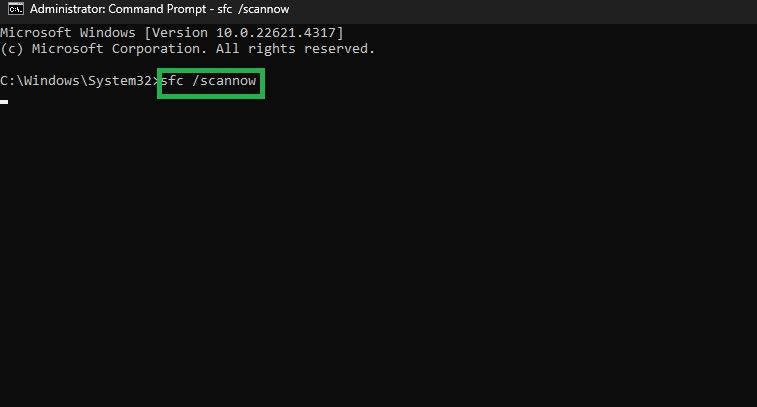
- Lastly, follow the instructions that appear to fix the corrupted system files.
Fix 6: Repair the problematic app
While this option may not be available for all applications, it is most commonly supported by apps installed from the Microsoft Store. Many traditional desktop programs do not have a built-in repair or reset feature. If the app you are using is from the Microsoft Store, you will likely see the Repair or Reset option in its settings as described below. Here is how.
- First, press Windows + I to access Settings.
- Next, choose Apps from the Settings menu.
- In this step, navigate to the Apps & Features.
- Click the problematic app.
- Lastly, click Advanced Options and then click Repair.
Also know: Complete Troubleshooter Guide to Fix Windows Update Errors Easily
Fix 7: Reinstall the app that is not working
If nothing works, you can repair apps that aren’t working properly in Windows by uninstalling and reinstalling them. Here is how.
- Begin by opening Settings through the Windows + I shortcut.
- Next, choose Apps from the available Settings.
- Go to Apps & Features and click the problematic application.
- Click Uninstall to confirm the app uninstallation.
- After completing the application uninstallation, click the Start button.
- Type Microsoft Store in the search bar and click the first search result.
- In the Microsoft Store, click See More and then navigate to the My Library option.
- Lastly, choose the app you wish to reinstall and click Install.
That concludes our guide on how to repair applications that aren’t working properly in Windows. We hope it helps solve your problem. However, if you have any questions or confusion, feel free to write to us in the comments below.
Frequently Asked Questions
Q1. How to fix a corrupted application on a PC?
To fix a corrupted app on your computer, you can press Windows + I, choose Apps from the Settings menu, go to the Installed Apps, select the problematic app, click Advanced Options, and then click Repair. If this does not solve your problem, check the guide above for solutions.
Q2. How to repair an app using cmd?
To repair an app through cmd, click the Start button, type cmd in the search bar, right-click the first search result, choose “Run as administrator,” type DISM /Online /Cleanup-Image /RestoreHealth, and press Enter, type sfc /scannow and press Enter, and lastly, restart your computer.
Q3. What to do when the “repair” or “reset” is greyed out?
To fix the greyed-out “repair” or “reset” options, you can run the Windows Store Apps troubleshooter. To do so, press Windows +I, click System, go to Troubleshoot, click Other Troubleshooters, click Windows Store Apps, and then click Run. If this does not help, you can uninstall and reinstall the application from the Microsoft Store.
