

Is your LG device performing the way you expect? Over time, the performance of an LG Gram laptop, LG monitor, and other devices degrades if the correct, compatible, and latest LG drivers are not installed.
The driver is like a bridge that connects hardware with the computer’s operating system. It ensures your LG devices function correctly, maintains optimal device performance, and resolves compatibility issues.
Hence, this article explains how anyone, including LG Gram laptop users, LG monitor users, those wanting to troubleshoot device issues, LG optical drive or burner users, and all other general LG PC or laptop users, can download, install, and update their device drivers. This guide covers a wide range of LG devices, including older and less common models, to ensure all users can find support for their specific hardware.
You can download, install, and update LG drivers through multiple methods, such as from the official website, Microsoft Update Catalog, LG Update Installer, and Windows Update. This article walks you through all these methods in detail, along with how to troubleshoot common problems.
Let’s get started by first clearing the basics about drivers and why you need one.
What Is a Driver
Imagine communicating with someone who does not understand your language, and you do not understand theirs. The way you need a translator to communicate with such a person, similarly, your computer’s operating system needs a translator to communicate with the hardware devices. The driver is this translator.
Simply put, the driver is a software that converts your instructions to the lower-level language the hardware understands and its response to the higher-level machine language the operating system understands.
Why You Need an LG Driver
Without appropriate LG drivers, the communication between the hardware and the operating system breaks down. The broken communication causes many problems, such as monitor errors like incorrect resolutions, screen flickering, or “Generic PnP Monitor” in Windows.
Moreover, official drivers (for example, the LG monitor driver) ensure optimal hardware functionality by unlocking advanced features, such as on-screen controls, gaming options, and color accuracy.
Furthermore, the latest drivers for your LG device ensure system stability and fix bugs that cause performance problems.
Additionally, drivers, such as LG USB drivers, help you connect your LG smartphone or device to your Windows computer seamlessly to perform critical functions, such as file transfers, USB debugging and development, firmware updates, and repair.
Now that you understand the importance of LG drivers, let’s help you download, install, and update these drivers for Windows 10 and 11.
How to Download and Install LG Software and Drivers
You can download LG drivers and install them on your computer from the official website or Microsoft Update Catalog. The following is a step-by-step explanation of these methods.
Method 1: Download LG Drivers from the official website
The official website of LG is among the most reliable sources of the latest drivers for all devices from the manufacturer. You can download and install LG software and drivers from the official website if you know your device’s model and serial number and your computer’s operating system.
To find your device’s model and serial number, navigate to the official how to find my LG model and serial number page and follow these instructions.
- Select your product category. For example, laptops.
- Follow the directions that then appear on your screen to note your device’s model and serial number.
To find your operating system details, follow these steps.
- Use the Win+I shortcut to open Settings.
- Navigate to the System settings.
- Go to the About section to note your operating system details.
Once you have the device’s model and serial number and your operating system details, you can follow the steps below to download and install LG drivers and software.
- First, navigate to the official LG software and drivers support page.
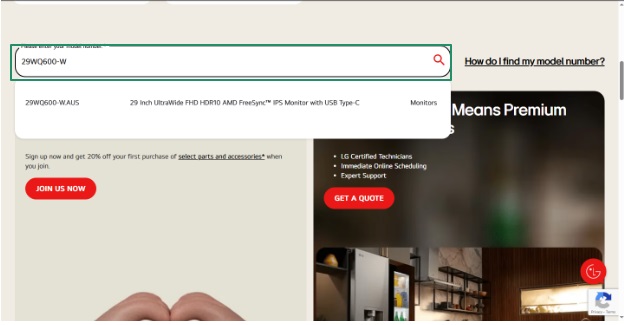
- Type your device’s model in the search box that you see on the LG support page and press Enter. As an example, we are searching for the LG Ultrawide monitor 29WQ600-W.
- Navigate to the Software & Drivers tab.
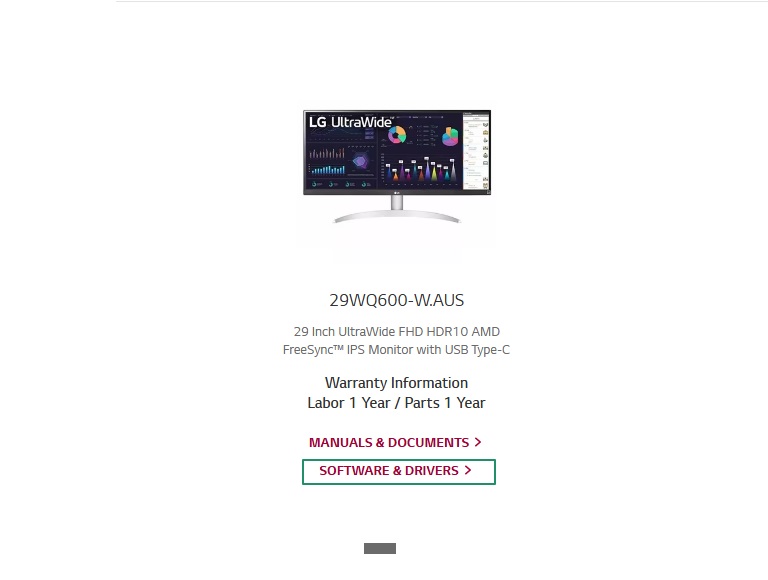
- Under the Manuals & Software tab, click the download link for the latest driver or software that matches your operating system.
- Right-click the downloaded file and extract the folder to an accessible location.
- Open the folder you extracted in the previous step and run the EXE file.
- Follow the instructions that appear on your screen to complete the installation of LG drivers or software.
- Lastly, restart your computer to complete the process.
Also know: How to Fix “A Driver Can’t Load on This Device” Error in Windows
Method 2: Download and install LG drivers from Microsoft Update Catalog
Microsoft Update Catalog is a free repository from Microsoft that contains drivers and software for different devices from various manufacturers. Below is how to download LG drivers and install them through the Microsoft Update Catalog.
- First, navigate to the Microsoft Update Catalog.
- Next, type LG drivers in the search box on the Microsoft Update Catalog page and press Enter.

- Click the Download button for the latest driver or software for your LG device.
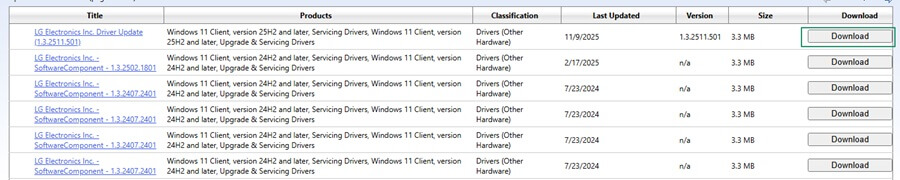
- Next, click on the link that then appears on your screen.
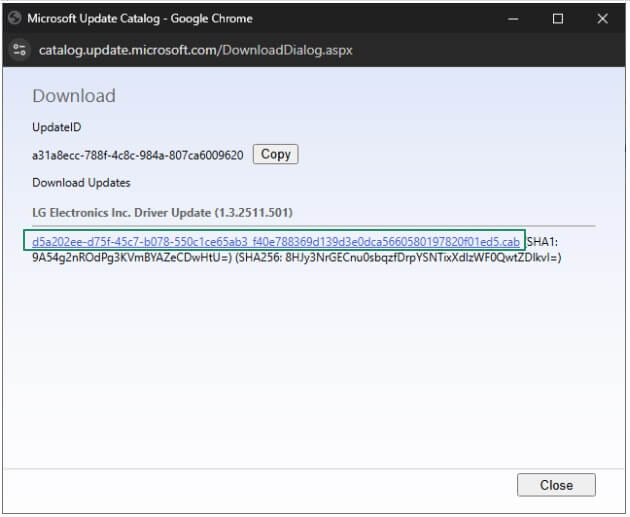
- Double-click the downloaded file and follow the on-screen instructions to install the LG software or driver on your computer.
- Lastly, complete the process by restarting your computer.
The LG drivers and software require regular updates to function optimally. Hence, you can follow the guide below to update the driver or software for your LG device.
How to Update LG Drivers
You can update your LG monitor, USB, or other drivers and software using LG Update Installer or Windows Update. The following section explains these methods in detail.
Method 1: Update LG software and drivers using LG Update Installer
LG Update Installer is an application that detects your device model and installs the appropriate software, such as LG Update Center or LG Update & Recovery. The LG Update Center or Update & Recovery is the main application or interface that runs on your system and lets you install the required drivers, firmware, and software. Below is a step-by-step guide to get the LG Update Installer program.
- First, click the Start button on the Taskbar.
- Next, type Microsoft Store on the Taskbar and click on the first search result.
- Type LG Update Installer in the Microsoft Store search and press Enter.
- Check the system requirements for the LG Update Installer. It supports Windows 10 version 17134.0 or higher with an integrated keyboard and mouse.
- Click Get to download the application file.
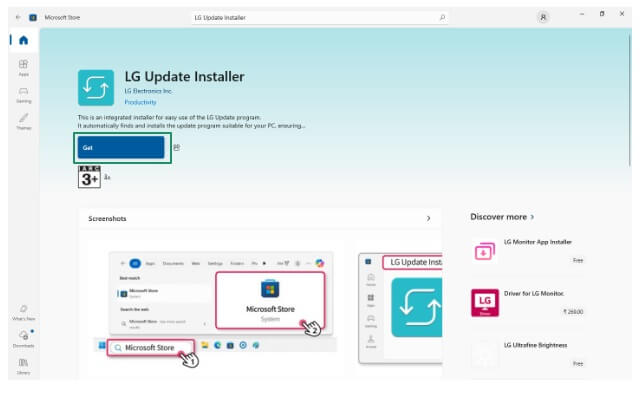
- Launch File Explorer and navigate to the Downloads folder.
- Click LG Update Installer in the Downloads folder.
- An LG Update Installer pop-up will appear. Click OK to allow the installer to install an LG Update application that is compatible with your computer, such as LG Update Center.
- Once the LG Update application is installed on your system, select the checkmark next to it and click Finish.
- The next steps vary depending on whether the LG Update Installer installs LG Update & Recovery, LG Update Center, or LG DnA Center Plus on your computer. LG Update & Recovery focuses on recovering and restoring the system to a previous state. LG Update Center handles updates for LG software and essential drivers. LG DnA Center Plus offers additional diagnostic and analytical tools to enhance device performance.
You can check this guide for the steps specific to the application installed on your system.
Method 2: Update Windows to get the latest LG drivers
Windows updates fix common device bugs, download missing drivers, and update the existing drivers to the latest version. Hence, you can update Windows to download and install the latest available LG drivers for Windows 10/11. Here is how.
- First, click the Start button on your Taskbar.
- Next, type check for updates in the search box that appears.
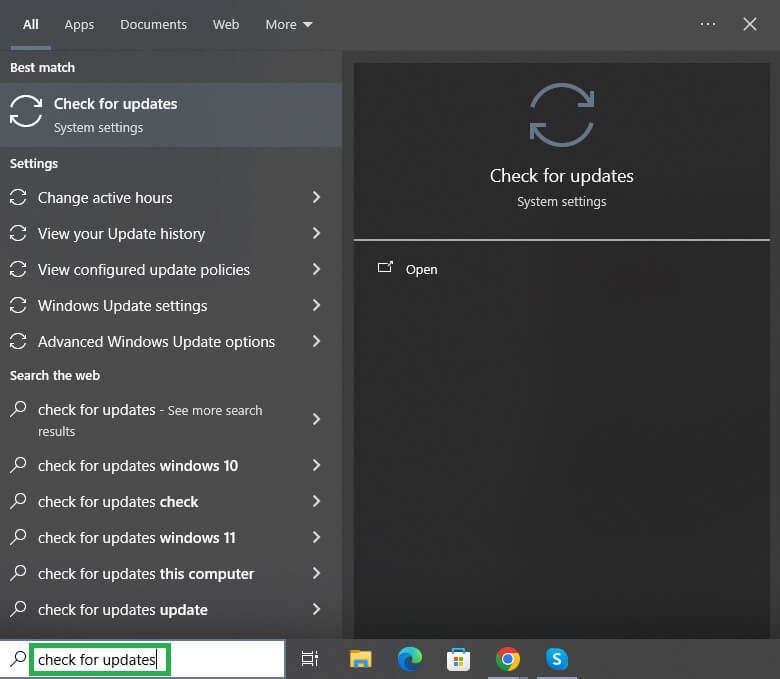
- Click on the first search result.
- Next, click Check for Updates.
- Click Download & Install for all the available updates (including those listed as optional).
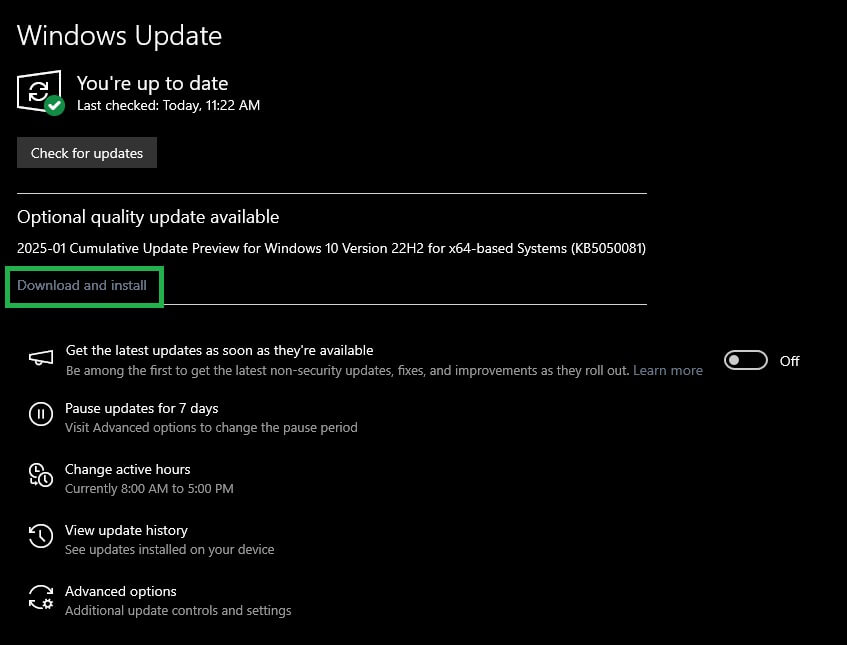
- Lastly, restart your computer to complete the update process.
If you run into any issues despite downloading, installing, and updating LG drivers, you can check the guide below for solutions to common problems. Additionally, if problems persist, consider reaching out to LG support for professional assistance or consulting community forums where experienced users share tips and solutions for specific issues.
Also know: Where Are Drivers Stored in Windows 11 and 10
Common LG Driver Problems and Solutions
The following are some common issues that users experience with LG software and drivers, and their solutions.
LG monitor issues
If you experience monitor problems, such as screen flickering, improper resolution, or stuttering, you can update your LG monitor drivers.
Failed driver installation
If LG USB drivers for your LG modem or phone fails to install or does not work, you can clean boot your computer and uninstall and reinstall the driver through the Device Manager (right-click the Start button, choose Device Manager, double-click Ports (COM & LPT)/Modems/Other devices to find your LG device, right-click the LG device, choose Uninstall, confirm the uninstallation, and reinstall the driver from the official website).
LG device not recognized
If your PC Suite or LG Bridge fails to recognize your device, you can download the latest driver version from the official website.
LG Blu-ray drives not working or not recognized
If LG Blu-ray drives are not working or are not recognized, you can update their firmware or chipset drivers through the official website.
That’s all for the day. We hope this comprehensive LG drivers guide helps you make the most of your device.

