

Think of the standard Windows Task Manager as a fundamental system monitor: it gives you essential real-time data about your running processes, CPU, memory, disk, and network activity, just as a basic dashboard provides the core stats for a car. For many users, this level of insight is enough to check system health or end an unresponsive application. Now, imagine an advanced system monitoring suite akin to those used by professional engineers, displaying not just basic information but also an extensive array of diagnostics, resource graphs, process trees, threads, and granular resource management options. In the context of Task Manager, these advanced tools serve as true Task Manager alternatives, empowering power users to monitor, fine-tune, and manage their PCs at a much deeper level to meet specific technical needs.
You might want to consider an alternative to Task Manager if you need advanced tools to monitor your system resources, troubleshoot network connections, analyze running DLLs or handles, require an in-depth debugging tool to track PC performance and memory, want to optimize your gaming performance, manage CPU affinities, force-close freezing processes, identify potential bottlenecks and malware risks effortlessly using process analysis, or are simply bored of the default Windows Task Manager.
Here are some concrete scenarios where Task Manager alternatives excel:
- Debugging memory leaks in misbehaving applications
- Analyzing GPU performance bottlenecks during gaming or rendering
- Tracking down processes locking specific files
- Monitoring which services impact startup times
- Investigating suspicious processes for malware analysis
- Troubleshooting network issues by reviewing open network connections
- Reviewing detailed resource graphs for CPU, RAM, disk, and GPU usage in real-time
- Managing or changing process priorities and affinities for resource-intensive tasks
- Identifying and terminating hung processes that the default Task Manager fails to close
The best Windows 10/11 Task Manager alternatives, such as Process Explorer, System Informer, AnVir Task Manager, System Explorer, and Task Manager Deluxe, offer advanced features, stronger capabilities, and, needless to say, a refreshed look. Let’s have a deeper look at them in this article.
What Are the Best Task Manager Alternatives for Windows
Below is a well-researched list of the best Windows Task Manager alternatives, including Process Explorer, System Informer, AnVir Task Manager, System Explorer, and Task Manager Deluxe, with their detailed reviews.
1. Process Explorer- Best for an expanded Task Manager
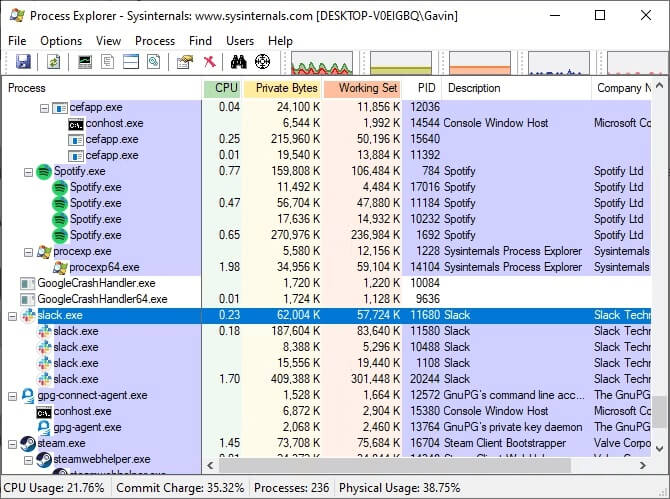
Meet Process Explorer. It is among the best Task Manager alternatives developed by SysInternals, which Microsoft later acquired. This powerful, free, and lightweight program offers more depth than the native Windows Task Manager. Here, you can view all the processes running on your system, neatly organized in a tree-like structure for a better understanding, get complete details of the running tasks, including their resource consumption, and manage your processes more efficiently with the following features.
Key features of Process Explorer
- You can view which DLLs or handles are used by processes to make troubleshooting easier.
- There is a powerful search engine to help you find the processes of a specific application or program on your computer effortlessly.
- You can restart, suspend, or kill processes.
- It has a color-coded list of processes for easy navigation.
- Process Explorer allows you to set Priority and Affinity actions for processes.
- It lets you view CPU, RAM, GPU, and I/O diagnostics data and graphs in real-time.
Pros
- Portable mode
- VirusTotal integration for malware scanning
- Amazingly detailed
Cons
- Some users may find the excessive information overwhelming
- Not documented heavily
Click here to learn more about Process Explorer
Also know: Best Keylogger Detector for Windows
2. System Informer- Best for an all-in-one debugging toolkit
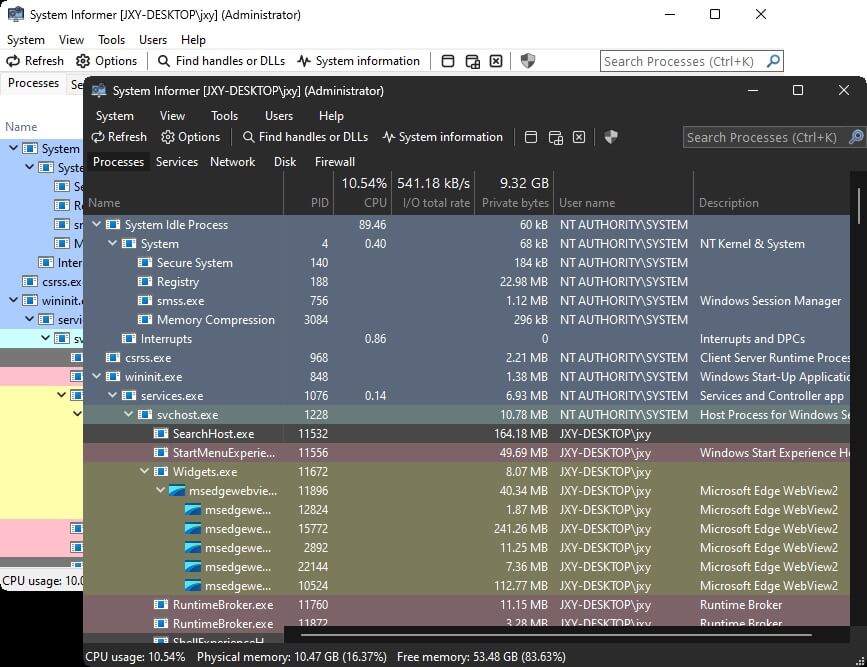
Next is System Informer. It is one of the best free Task Manager alternatives for Windows, with a rich graphical user interface to monitor real-time system resources, performance graphs, and process details. Moreover, this open-source software helps you identify resource hogs effortlessly with a detailed view of activities across CPU, disk, memory, and more using graphs and highlights. Additionally, here are some more notable features of this software.
Key features of System Informer
- It shows real-time information about processes using or locking a file, active network connections, and disk access.
- Detailed call stack traces for processes, such as WOW64, kernel-mode, and .NET.
- System Informer lets you create, manage, and edit Windows services and drivers with better control.
- Deep debugging information, performance graphs, and handle searches to help developers, systems administrators, and security researchers debug software or detect malware effectively.
Pros
- Portable
- Granular information about Windows processes and resource usage
Cons
- Beginners may find the amount of information and options overwhelming
- Steep learning curve to properly use all its advanced features
Click here to learn more about System Informer
3. AnVir Task Manager- Best for detailed information about each process
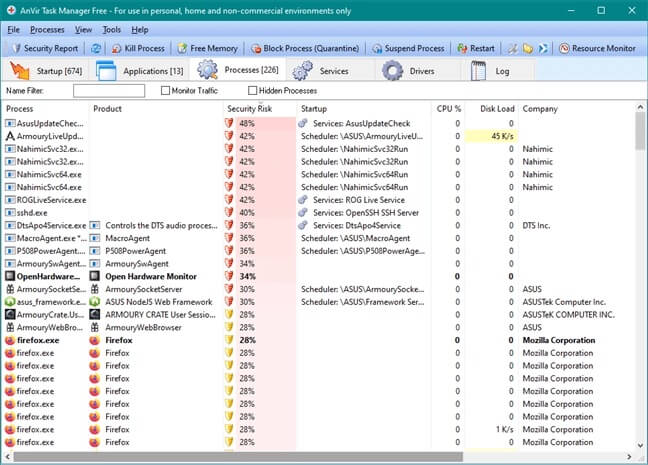
Let’s introduce you to the AnVir Task Manager. It is a free alternative to Task Manager to get comprehensive details about your PC’s processes, processor, startup programs, and storage drives. With its interface divided into easy-to-understand tabs, it displays complete information about inbound and outbound network traffic, performance graphs, storage drives’ load, internet connections, DLL files used by programs, and more. Moreover, it offers the features below.
Key features of AnVir Task Manager
- It lets you add or remove applications from startup.
- Tray icons allow you to view the hard drive and CPU usage easily from the system tray.
- Security rating for each service or active process to help you identify potentially harmful software easily.
- This software informs you if any application attempts to add itself to the startup.
- It lets you minimize open windows to the system tray or create floating icons easily.
- You can resize open windows to many of the available sizes.
Pros
- Simple user interface
- Highly customizable
- Available in portable mode
Cons
- Sometimes, takes a while to respond
- Initially, beginners may feel disoriented
Click here to learn more about AnVir Task Manager
4. System Explorer – Best for lightweight process auditing
System Explorer is another praiseworthy software on the list of the best Task Manager alternatives. With this program, you can view your CPU usage history over the past minute, hour, and day. Moreover, it displays the overall statistics for system performance, such as real-time system interrupts percentage and page fault numbers, to help you manage processes and enhance system security. Additionally, the following are other remarkable features of this replacement for Windows Task Manager.
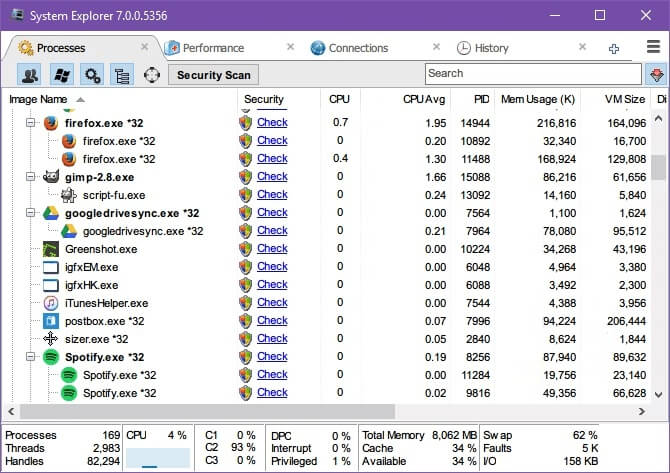
Key features of System Explorer
- It lets you create File, Registry, or File and Registry snapshots to compare with each other for better troubleshooting.
- You can perform a security scan if you find a suspicious process.
- There are Affinity and Priority actions for processes.
- You can end, suspend, or restart processes.
- It color-codes different processes to highlight them.
- The built-in file database and VirusTotal integration allow you to spot suspicious processes and files quickly.
- Easy process auditing with a list of zombies, i.e., inactive yet running processes, force-ending stubborn applications, and a real-time graphical view of core metrics, including GPU, storage, and memory health.
Pros
- Detailed real-time resource and process monitoring
- Deep information about services, modules, and startup items
- Available both as an installer and a portable version
Cons
- Beginners may find the advanced features confusing
- Occasionally sends alerts for non-critical, minor changes
- Interface is functional but less modern than similar programs
Click here to learn more about System Explorer
5. Task Manager Deluxe- Best for complex multitasking systems management
Available as a portable application, Task Manager Deluxe is among the best Windows Task Manager alternatives that show granular system details, such as process CPU affinity/priority, real-time monitoring of resource usage for RAM, CPU, and GPU, with charts, identifies startup processes not visible in the Windows Task Manager’s Startup tab, and offers the following features.
Key features of Task Manager Deluxe
- Hovering the mouse pointer over Windows displays process details.
- You can browse all locked or opened files, filter, and search them.
- It allows you to find processes by window or windows by processes.
- Task Manager Deluxe lets you terminate, restart, and suspend actions.
- With this software, you can manage services, network connections, and disks effectively.
Pros
- In-depth troubleshooting tools, such as Session Viewer and Desktop Explorer
- Lightweight software with a user-friendly interface
Cons
- Casual users may find it overwhelming
- No absolute minutest-level details compared to other tools
Click here to learn more about Task Manager Deluxe
Also know: Best Memory Testing Tools Like MemTest86 for Windows
So, that wraps our roundup of the best Task Manager alternatives. You can go through each of them and compare their features with your specific needs to pick the one that fits your requirements perfectly.
If you think we have skipped out on a deserving alternative to the task Manager, you can share it in the comments. You can also share your feedback about this article in the comments section.
Frequently Asked Questions
Q1. Is there a better alternative to Task Manager?
There are many programs better than Task Manager to suit your specific requirements. Some of these are Process Explorer, System Informer, AnVir Task Manager, System Explorer, and Task Manager Deluxe.
Q2. Are there free alternatives to Windows Task Manager?
Yes, software like Process Explorer, System Informer, Task Manager Deluxe, and AnVir Task Manager is a completely free Task Manager alternative.
Q3. What are the best Windows Task Manager alternatives for power users?
Power users can benefit the most from alternatives to Windows Task Manager, such as System Informer and Task Manager Deluxe.

