


Are errors such as “sync pending,” “file locked,” or “processing changes” disrupting your cloud storage workflow, or are you experiencing issues syncing your OneDrive in Windows? Then, this article will help you fix the OneDrive not syncing problem.
The issue you are experiencing is common among all kinds of Windows users who rely on OneDrive for storing and syncing their files at home, work, or school. Whether you use OneDrive for personal photos, important documents, or school assignments, you might run into syncing problems from time to time. Fortunately, you can fix these issues easily with simple yet effective steps, such as unlinking and relinking OneDrive, resetting OneDrive, updating OneDrive and Windows, clearing OneDrive and hard drive space, and more.
Before moving on to these solutions, it is important to answer the burning question, “Why is my OneDrive not syncing?” Knowing the underlying causes of the problem helps solve it more efficiently.
Why Is OneDrive Not Syncing
Factors like insufficient storage space, network issues, outdated software, and incorrect settings may be responsible for the OneDrive not syncing problem on Windows. Here are the details.
- Network issues: OneDrive needs a stable internet connection to work smoothly. Without a stable network or if the connection drops continuously, the uploads may not be completed, and you may find OneDrive not syncing all files.
- OneDrive blocked: Your antivirus software or Firewall may be blocking OneDrive, resulting in issues like OneDrive not connecting or not syncing.
- Outdated OneDrive application: Microsoft releases OneDrive application updates from time to time. The old version may have syncing issues and security loopholes.
- Outdated Windows: Just like the OneDrive application, your operating system may become buggy, requiring an update.
- Not enough OneDrive storage or disk space: If you have a free OneDrive account, you have 5GB of available storage. Beyond this limit, OneDrive stops syncing files. The same is true for Microsoft 365 users who get 1TB of storage space.
Additionally, OneDrive needs enough local disk space for its cache files and temporary data. Hence, low disk space may also be a reason OneDrive is not syncing. Especially for SSD, having at least 1GB of available storage on a drive with a OneDrive folder is recommended.
- Incorrect settings on OneDrive: Incorrect settings on OneDrive: If your OneDrive settings are incorrect, OneDrive will not sync. Two important settings to check are the sync folder selection and Files On-Demand.
To check which folders are syncing, click the OneDrive icon in your system tray. Open Settings. Look for the option labeled ‘Choose folders.’ Click it, and a list will appear. Make sure the folders you want to sync have a check mark next to them, then click OK.
Next, review the Files On-Demand setting. In OneDrive Settings, find the tab or section related to Files On-Demand. This option decides whether files are online-only or are downloaded to your device. If you need all your files available offline, turn Files On-Demand off. If you want to save space, keep it on, and your files will download only when you open them.
By carefully selecting your sync folders and adjusting the Files On-Demand feature, you can help make sure OneDrive syncs all your important files as expected.
Having understood what may have caused OneDrive not to sync, let’s help you fix it.
How to Fix OneDrive Not Syncing Problem: Proven Solutions
You can fix the OneDrive not connecting or not syncing issue through effective solutions, such as re-syncing OneDrive, compressing the files, adding the OneDrive account manually, updating Windows, updating OneDrive, clearing OneDrive and local disk space, correcting the OneDrive settings, restarting OneDrive and your PC, ensuring the file path is not long, and whitelisting OneDrive in your security programs. Below are all these fixes explained in detail.
Fix 1: Re-sync OneDrive
Reestablishing the sync is among the most no-brainer ways to fix the OneDrive not syncing issue. Here is how to do this.
- First, right-click the OneDrive icon in the notification panel. If this shortcut is unavailable, click Show Hidden Icons and then click the OneDrive icon.
- Select Exit from the OneDrive context menu and close the desktop application.
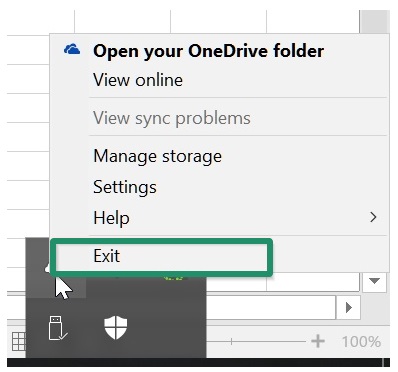
- Next, restart your system, allowing OneDrive to reconnect.
Also know: How to Update Windows Security Signatures Manually Windows 11/10
Fix 2: Reduce the file size
OneDrive does not allow uploading a single file exceeding 10 GB, even on its premium plans. Hence, if there is a video or file of more than 10 GB, you must reduce its size before you can upload it. To compress the file:
- Begin by right-clicking the file you want to compress.
- Choose Add to Archive or Send to Compressed folder, depending on your Windows version.
- Next, choose the compression type and click OK to complete the process.
If you find it challenging to compress the large video files, you can even use one of the best video compression software to do the needful.
Fix 3: Add your OneDrive account manually
While Windows generally connects your OneDrive directory and your account automatically, it may fail to establish the connection sometimes. Hence, you can connect the OneDrive account to Windows manually if OneDrive is not connecting. Here is how.
- First, press Windows+I to open Settings.
- Next, choose Accounts from the available settings.
- In this step, click Email & App Account.
- Click Add an account.
- Lastly, use your OneDrive or Windows/live credentials to sign in to your account.
Fix 4: Update Windows
Pending Windows updates may have caused the OneDrive not to sync on Windows. Hence, here is how to update Windows to solve the problem.
- Begin by clicking the Start button on your Taskbar.
- Next, type check for updates in the search bar that appears.
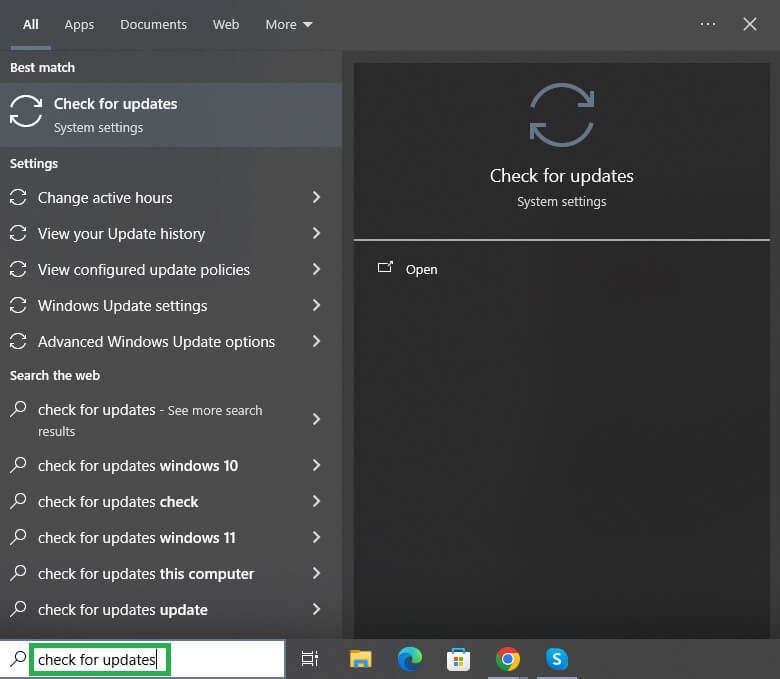
- Click Check for updates in the search results.
- Next, click the Check for updates button.
- Once Windows finds the available updates, click Download & Install.
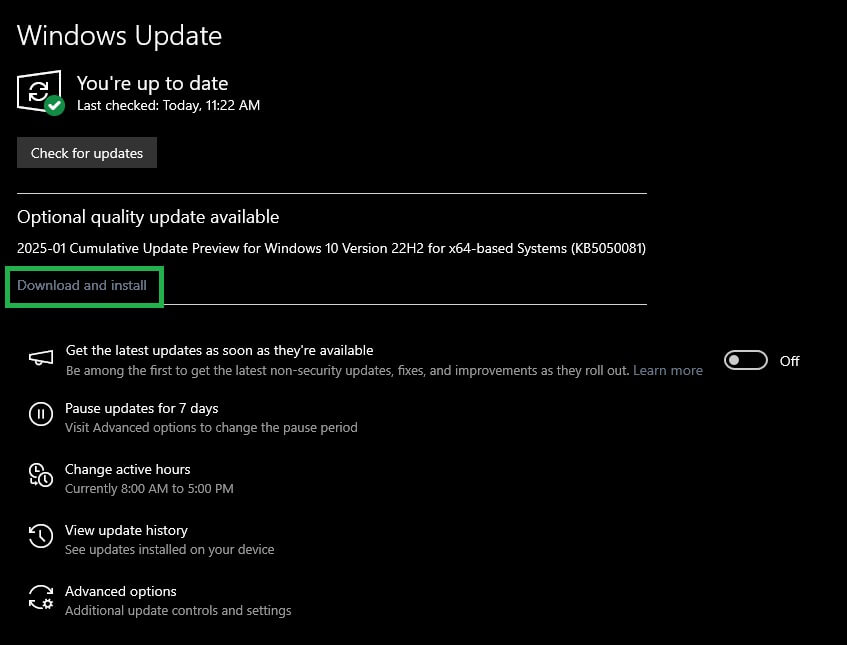
- Let the update download and installation complete.
- Lastly, restart your computer.
Fix 5: Update OneDrive
Old software may have bugs that updates fix. Hence, below is how to update OneDrive to fix the Microsoft OneDrive not syncing issue.
- In the first step, click the OneDrive system tray icon.
- Next, click the gear-shaped
- You can now navigate to the About
- Click the Get Updates button and complete the OneDrive update.
Fix 6: Clear OneDrive storage
Not having enough storage space on OneDrive can lead to OneDrive sync problems. Hence, you can follow the steps below to check and manage your OneDrive storage.
- First, log in to your OneDrive account.
- Next, navigate to the Storage option to check how much free space is available on OneDrive.
- Try emptying the OneDrive if you do not have enough storage space.
Fix 7: Check and correct OneDrive settings
The automatic office upload setting in OneDrive can hamper your OneDrive functionality. If the OneDrive is not syncing, below is how to switch off this setting.
- In the first step, navigate to the OneDrive settings.
- Click the Office
- Next, uncheck the Use Office to sync Office files that I open box and click
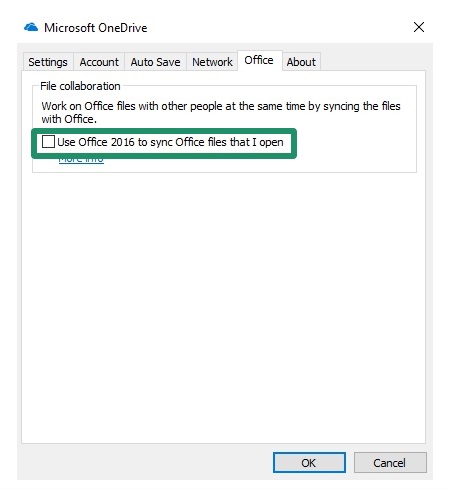
- Lastly, restart OneDrive.
Fix 8: Try unlinking OneDrive
If OneDrive does not sync, you can unlink it from your computer and later sync your files and folders selectively. Here is how.
- First, visit the OneDrive settings.
- Navigate to the Accounts tab in OneDrive settings.
- Click Unlink OneDrive or Unlink this PC, click OK, and then apply the changes.
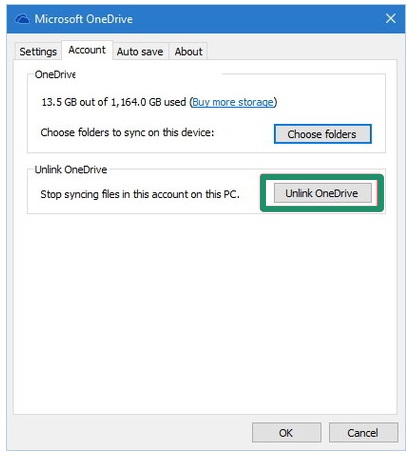
- Lastly, restart your computer and select the folders you want to sync with OneDrive manually.
Also know: What is an ISO File in Windows and How to Download It for Windows 7/10/11?
Fix 9: Ensure the file path is not too long
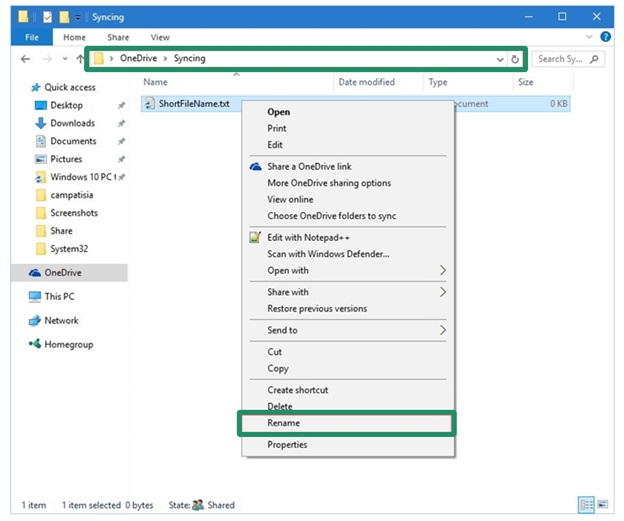
Your file path should not be more than 255 characters long. Having long pathnames or different sub-folders can lead to OneDrive not syncing issues. Hence, you can follow the steps below to shorten your file path.
- Visit your folders in the OneDrive directory.
- Right-click the folders, choose Rename, and change their name to shorten the file path.
Fix 10: Make sure your hard disk has enough space
Since OneDrive needs enough disk space for its cache and temporary files, it may not sync if you do not have enough space. Hence, it is recommended to free up space in Windows to solve the problem.
Fix 11: Whitelist OneDrive in your antivirus program
Your antivirus software may be blocking OneDrive, preventing it from syncing successfully. Hence, you can follow the instructions in your antivirus software manual to whitelist OneDrive, as the steps may vary from one software to another. Below is how to exclude it in Windows Defender.
- Click the Start button and type Windows Defender Firewall in the search box that appears.
- Next, select the first search result on your screen.
- Click Allow an app or feature through Windows Defender Firewall.
- Choose Change Settings from the top.
- Scroll down to find OneDrive in the Allowed apps and features.
- If unchecked, click the Private and Public boxes for OneDrive.
- Lastly, click OK to complete the process.
Fix 12: Reset OneDrive
If none of the above solutions work, the last resort is to reset your OneDrive manually to fix the OneDrive not syncing problem. Below are the steps to do it.
- First, press Windows+R.
- Next, type or copy and paste the following command in the Run box and press
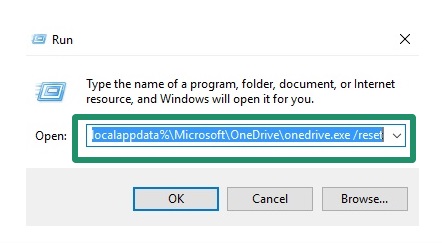
%localappdata%\Microsoft\OneDrive\onedrive.exe /reset
We hope your OneDrive can now sync successfully, solving the OneDrive is not syncing issue. However, if the problem persists, you can contact Microsoft support for further assistance.
Frequently Asked Questions
Q1. Why is OneDrive stuck syncing?
OneDrive may keep processing changes or be stuck syncing if you have a OneDrive file open, you are syncing a lot of files, you are trying to sync a very large file, or you are not signed in. To solve this issue, close the files after editing is complete, ensure you have a stable internet connection, compress the files before syncing them, and sign in to OneDrive again.
Q2. How to restore OneDrive sync?
To restore your OneDrive sync, navigate to the OneDrive website, sign in with your account, navigate to Settings, choose Options, click Restore your OneDrive, and then follow the on-screen prompts to complete the restoration.
Q3. How to enable the OneDrive sync process?
To enable sync in OneDrive, click the OneDrive icon in the Taskbar, click Settings, navigate to the Sync and backup tab, and then toggle on the folders you want to sync.
Q4. How to recover unsynced files from OneDrive?
To recover unsynced OneDrive files, open the Recycle Bin and locate your required OneDrive files, right-click your chosen OneDrive files, and then click Restore. Alternatively, you can recover unsynced files from File History.
Is OneDrive not syncing in Windows? Learn to fix stuck files, login errors, and sync issues with this detailed guide to get your files moving.

