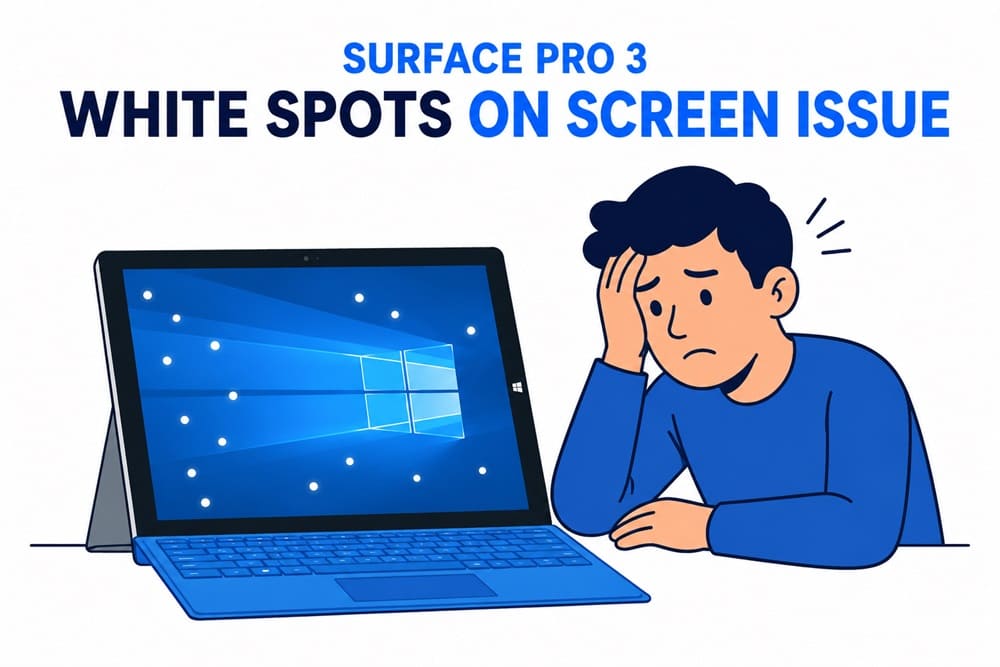
The other day, we noticed white spots on the screen. For us, a computer screen is the second most important thing after a keyboard, as what blocks our sight blocks our minds. The same is true for other computer users who need full concentration on the screen, such as PC gamers. While white bright spots on the laptop screen are annoying, the good news is they are easy to fix.
If you are also struggling with a similar issue, you can use the personally tested fixes in this article to get rid of the screen white spots. These fixes work on all laptops, including Surface Pro 3. Most of the solutions described here are safe and simple to follow, so you don’t need to worry about damaging your device while trying them.
Like all problems, troubleshooting the white spots on a computer screen begins with understanding why they occur in the first place.
What Causes White Spots on the Screen of a Laptop
Stuck pixels, pressure damage, internal debris or dust, and software issues (for example, incompatible or outdated display drivers) are the top causes of white spots on the monitor screen. Here is a detailed overview of why your laptop screen has a white spot.
- Stuck pixels: Stuck or hot pixels cannot display the colors correctly. An unresponsive group of dead pixels shows up as a white patch on the laptop screen.
- Display pressure: Excessive display pressure can result in white spots. Moreover, subjecting the screen to direct heavy pressure or negligence can also lead to display damage and white spots. For example, imagine the laptop falling on the ground with the screen side down; it can damage the display and cause white spots.
- Liquid spill: Work and coffee go hand in hand, at least for us. However, with liquids or moisture around the laptop, you must be extra careful. A liquid spill can damage the laptop display and lead to white spots.
- Wear and tear: Old laptops are vulnerable to damage. The white spots on the screen may be a result of normal wear and tear.
- LED reflectors: Damaged or faulty LED reflectors behind the laptop display can interfere with the laptop screen’s functionality and cause white spots.
- Hardware problems: Hardware issues, such as loose connections, damaged cables, and faulty backlights, can also cause issues like white spots, odd color patterns, or a blurry screen.
- Software problems: Software issues like incorrect display settings, outdated display drivers, or display incompatibility can lead to several problems, such as White Screen of Death in Windows 10 and white spots on the screen.
The white spot on your laptop screen, caused by any of the above factors, can appear as a constant spot that doesn’t move, a bright area that appears like leaking light, small glowing dots, irregular shapes or patches, or vertical/horizontal lines with brightness. No matter how the white spots look, you can fix them with the solutions in the next sections of this article.
Quick Tests for White Spots on Laptop Screen
The tests below can help you identify the exact cause of white spots on the screen to perform targeted troubleshooting.
Shut down the laptop completely and check the surface at a low angle in natural light. The damage is physical, and something is wrong in the panel layers if you can see a slightly cloudy or circular patch on the screen. If this happens, skip the software-related solutions, such as driver updates and display settings adjustment; move to the hardware fixes.
Open a full-screen pure black picture in your browser, then change to white, and then switch to solid red. A cloud that looks the same on all backgrounds is a diffuser damage. A dot that appears on black but disappears on white is a stuck pixel problem. A diffuse glow that appears only on black and is placed at the screen’s edge is backlight separation.
Take a screenshot on your laptop. If you can see white spots on the screen in the screenshot, it is a software problem. If the white spot disappears in the screenshot, it is a hardware issue.
Connect an external monitor to the computer. If the external screen looks fine, your laptop display needs repairing. If both screens show white spots, you need to check the display drivers.
Now that you have sufficient information about the white spots on your laptop screen, let’s fix the issue.
How to Fix White Spots on Screen
Depending on the tests you performed on your laptop screen, you can fix the white spots on the screen by cleaning the laptop screen, adjusting display settings, reinstalling the display drivers, repairing LED reflectors, applying the gentle pressure method, changing the refresh rate, closing background applications and widgets, and solving hardware problems. Below are all these solutions explained in detail.
Fix 1: Clean your laptop screen properly
That’s perhaps the easiest way to fix issues like white spots on the screen. Cleaning the laptop screen removes any dirt or residue that may be responsible for the white spot. Clean the screen gently using a microfiber cloth lightly dampened with a screen cleaner for electronic devices or water. Wipe the screen with the microfiber cloth in a circular motion, applying only minimal pressure.
In some cases, pressure on the screen can cause white spots. If cleaning the screen does not solve the problem, use a lint-free cloth or wrap your finger in a microfiber cloth to apply mild pressure to the white spot. Gently apply pressure only for a few seconds and be careful to avoid excessive force. Remember to keep your laptop turned off completely while doing all this.
Fix 2: Change display settings
Incorrect display resolution, mismatched refresh rates, unusual scaling, custom color settings, and HDR issues can cause shimmering pixels, dotted artifacts, tiny bright specks, and white spots. Hence, you can follow the steps below to adjust display settings.
- Right-click the empty desktop space and then click Display Settings.
- Click Display resolution in the display settings.
- Change the display resolution to the Recommended value.
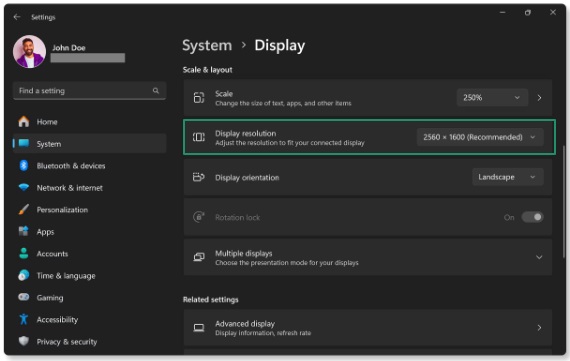
- In the scaling and layout settings on the display settings page, switch to the Recommended value. If the recommended value is already selected, choose a nearby value, then sign out of Windows and sign in again to let Windows redraw the interface smoothly.
Also know: Best Ways to Stop a Laptop from Overheating
Fix 3: Uninstall and reinstall display drivers
If the white spots on your screen are software-related, reinstalling the display driver can fix them. Here is how to reinstall the display driver.
- Right-click the Start button.
- Click Device Manager.
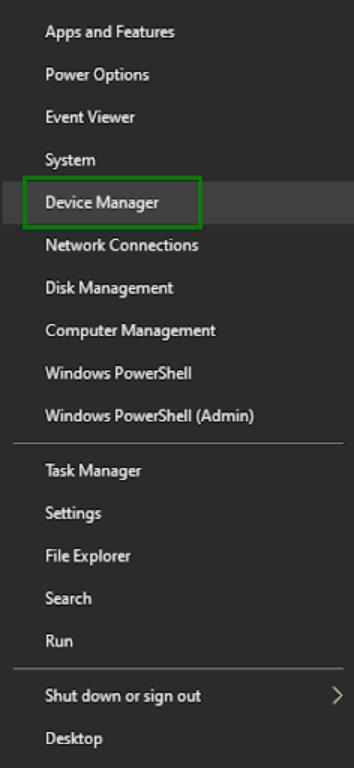
- In the Device Manager, double-click Display Adapters.
- Right-click your display adapter and then click Uninstall device.
- Confirm the uninstallation.
- After the uninstallation is complete, go back to the Device Manager.
- In the Device Manager, click Action.
- Next, click Scan for hardware changes in the Action menu.
- Lastly, restart your computer after completing the above process.
Fix 4: Try repairing LED reflectors
LED reflectors help with an even lighting display on your laptop. Loose or out-of-position LED reflectors can lead to white spots on the screen. Hence, you can follow these steps to repair LED reflectors. However, take expert assistance if you are unsure, as these steps need to be performed very carefully.
- Power off the laptop and remove it from the charger.
- Refer to your laptop’s user manual and open the backplate carefully.
- Disconnect speakers and other hardware to access the main circuit board and switch it off.
- Raise the tab on the frame and take out the reflectors one after the other.
- Use Q-tips and glue to put each reflector back in its place tightly.
Fix 5: Use the gentle pressure method
The gentle pressure method performs a reset of stuck pixel transistors. However, be very careful when performing the following steps, as this method also has a high chance of backfiring. Remember not to use excessive force or sharp objects. Also, stop immediately if new spots appear or you see spreading.
- Open a full-screen black picture.
- Mark the exact white spot mentally or using a removable tape.
- Wrap a finger or a stylus tip with a soft cloth.
- Press the spot gently for 5-10 seconds.
- Reduce the pressure gradually.
- Use a white background to test if the white spots disappeared. If the problem persists, continue troubleshooting.
Fix 6: Change the refresh rate
A mismatched refresh rate can lead to sparkling dots, screen flickering, or intermittent white dots, especially on high-refresh gaming laptop displays. Hence, here is how to change the refresh rate to solve the problem.
- Press Windows + I.
- Click System.
- In the System menu, click Display.
- Click Advanced display.
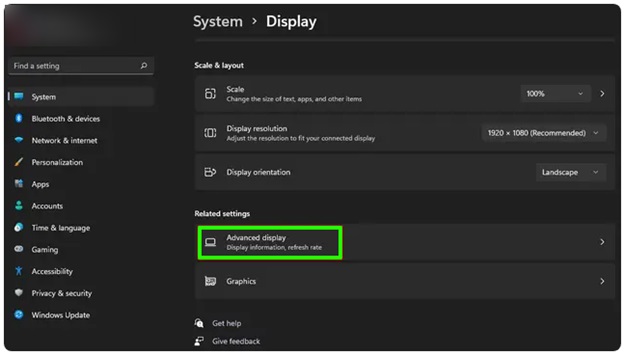
- From the Choose a refresh rate dropdown, select a stable refresh rate, for example, 60 Hz, or the monitor’s advertised rate if it is supported.
- Check if the Dynamic refresh rate is enabled.
- If you use HDR, follow the path Settings > System > Display > HDR and then turn off HDR temporarily. This changes color handling, brightness mapping, and makes small bright points more visible on some displays.
Fix 7: Close background apps and widgets
Certain background applications or third-party productivity software widgets can cause white spots on the screen. Below is how to close these apps and widgets to solve the problem.
- Press Ctrl + Shift + Esc to open the Task Manager.
- Review the apps and background processes running in the background. Pay special attention to programs such as Rainmeter, Grammarly, Microsoft Teams (new version), Steam, or other utilities installed recently.
- Right-click the app you think is causing problems and then click End Task.
- If you find the problematic application, consider updating it, disabling its auto-start, or uninstalling the app if it is not essential.
Fix 8: Check for hardware issues
Hardware problems like dead pixels or backlight issues may be responsible for white spots on the screen if these spots remain noticeable during BIOS setup or on every screen irrespective of software. Below is how to check and solve hardware problems.
- Reboot your laptop and enter the BIOS by pressing F2, F10, or Del (check your laptop manual for the exact BIOS keys) during startup.
- If white spots are visible in the BIOS, they are hardware issues.
To fix hardware problems or if none of the above solutions fix the white spots on the screen, you can seek professional assistance. Contact your laptop manufacturer or a certified computer technician to fix the issue by performing the necessary replacement or repairs.
Also know: Best CPU Overclocking Software for Windows
How to Prevent White Spots on Screen
Here are some preventive steps to help you prevent future occurrences of such white dots on your laptop screen.
- Never close the laptop lid forcefully.
- Avoid pressing or touching the screen unnecessarily.
- Always use a padded bag for your laptop.
- Do not place any object on the keyboard.
- Clean your laptop gently with appropriate tools (for example, a microfiber cloth) regularly.
- Avoid keeping liquids near the laptop.
- Keep the laptop away from extreme humidity and heat.
Hope this helps. If you have any questions or concerns after going through this guide completely, you can write us a comment.
Frequently Asked Questions
Q1. Why are there white spots on my screen?
Stuck pixels, manufacturing defects, dust and debris inside the screen layers, and damage due to physical pressure are among the top causes of white spots on the laptop screen.
Q2. How do I fix a white spot on my laptop screen?
Clean your laptop using a soft microfiber cloth and a screen-safe cleaner gently to fix the white spots on the screen. For more effective and detailed solutions, refer to the guide above.
Q3. When should I replace the laptop screen?
Replace the laptop screen if the white spot is growing, multiple white dots appear on the screen, there are patches on the laptop screen, the screen has white lines, or the display adversely affects your eye comfort or productivity.