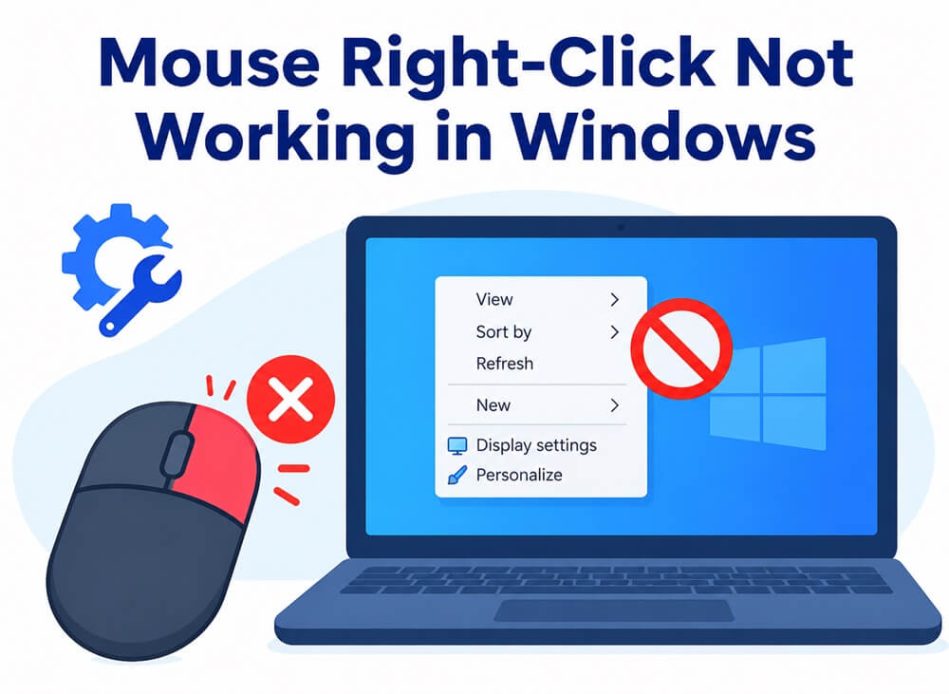
Mouse right-click not working means frozen context menus and inaccessible shortcuts, which is frustrating. The good news is that most right-click issues are fixable, and following these steps is safe for your computer. Though the issue is annoying, this guide offers simple fixes, from restarting the computer to performing a system restore.
However, before getting into the fixes, it is important to understand why the mouse is behaving erratically, causing a right-click mouse frozen issue. If you know what may have gone wrong, you can fix it the right way.
Why Is Mouse Right-Click Not Working
Temporary glitches, interference from background processes, hardware connection issues, an outdated or improperly installed mouse driver, random Windows bugs, incorrect USB power management settings, and corrupt system files may be the reasons the right mouse button is not working.
Now that you are familiar with what may have triggered the issue you are struggling with, let’s help you troubleshoot mouse problems.
How to Fix Right Mouse Click Not Working
If your mouse right-click is not working on Windows 10 or 11, it is best to start with the simplest solutions first. Begin by restarting your computer and checking the hardware connection, as these basic steps can often resolve the issue quickly. If these do not help, then move on to the more advanced solutions such as updating or reinstalling the mouse driver, updating Windows, disabling power management settings for the USB port, restarting Windows Explorer, running SFC and DISM scans, running the built-in troubleshooter, or performing a system restore. The sections below explain each of these solutions in detail, so follow them in order from the easiest to the more advanced steps until your right-click starts working again.
Fix 1: Restart your PC
Restarting the computer fixes the temporary glitches and background processes that interfere with the mouse’s functionality. Hence, you can follow the steps below to restart your computer.
- Press Windows key + X.
- Hover over Shut down or sign out.
- Click Restart in the available options to restart your computer.
Fix 2: Check the hardware connection
Hardware connection issues may be why your right-mouse click is not working. Hence, here are the steps to check and fix the hardware connection.
- If you have a wired mouse, unplug the USB interface, wait for at least 5 seconds, and then re-plug the mouse. For best results, plug the mouse into the USB interface at your computer’s back if you have a desktop computer.
- If you have a wireless mouse, open the mouse’s battery compartment, take the battery out and reinstall it, and ensure the battery’s positive and negative poles are installed correctly.
- To remove accumulated dust or debris from the mouse, use a clean cotton swab to wipe the right-click button gap gently.
Also know: How to Turn Off or Disable Mouse Acceleration in Windows PC
Fix 3: Update or reinstall the mouse driver
An outdated, improperly installed, or corrupted mouse driver is among the top causes of issues such as mouse lagging and stuttering and the right mouse button not working. This happens because the driver is software that helps the mouse and the operating system communicate. If the driver is problematic, this communication breaks down, causing issues like the one you are trying to fix. Hence, update the driver. If you have updated the driver recently and began encountering problems after the update, reinstall the driver. Here is how.
Update the mouse driver
- Press Windows key + X.
- Click Device Manager. The Device Manager is a free driver updater in Windows.
- Double-click Mice and other pointing devices.
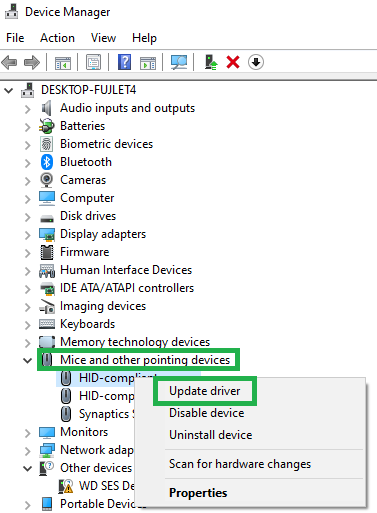
- Select your mouse and then press the Shift key + F10.
- Click Update Driver.
- Click Search automatically for drivers.
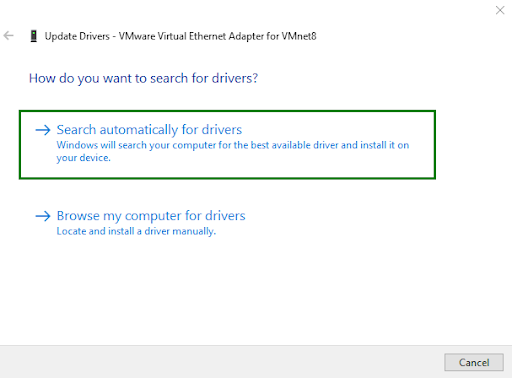
- Follow the on-screen prompts to complete the driver update.
- Lastly, restart your PC to complete the process.
Reinstall the mouse driver
- Press Windows key + X and then click Device Manager.
- Double-click Mice and other pointing devices.
- Select your mouse and then press the Shift key + F10 to right-click it.
- Click Uninstall Device.
- Check the Delete driver software for this device
- Confirm the uninstallation.
- Return to the Device Manager after completing the uninstallation.
- In the Device Manager, select your PC name.
- Press the Shift key + F10 to right-click your PC name.
- Click Scan for hardware changes in the available options.
- Lastly, restart your computer to complete the driver reinstallation.
Fix 4: Update Windows
Windows updates contain bug fixes for common issues, such as right-mouse click not working. Hence, below is how to update Windows.
- Click the Start button.
- Type check for updates in the search bar.
- Click the first search result, i.e., Check for updates.
- When the Windows Update screen appears, click the Check for updates
- Next, click Download & Install and let the available updates download and install.
- Lastly, restart your computer after completing the above steps.
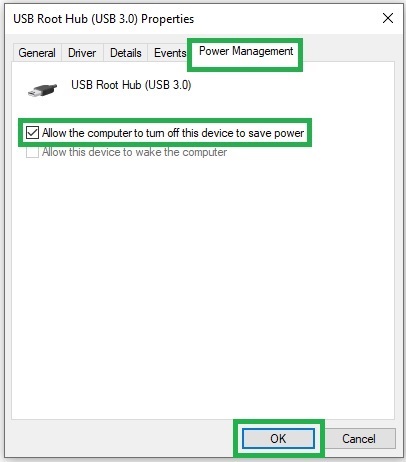
Fix 5: Disable Power Management settings for the USB Hub
Disabling the USB hub’s Power Management settings prevents USB hub disturbances to fix various issues like the problem you want to solve. To disable the Power Management settings:
- Press Windows key + R to open the Run box.
- In the Run box, type msc and press Enter.
- In the Device Manager, double-click Universal Serial Bus Controllers.
- Select the USB root hub and use the Shift key + F10 keyboard shortcut to right-click it.
- Click
- Next, click the Power Management
- Uncheck Allow the computer to turn off this device to save power and click OK.
Fix 6: Restart Windows Explorer
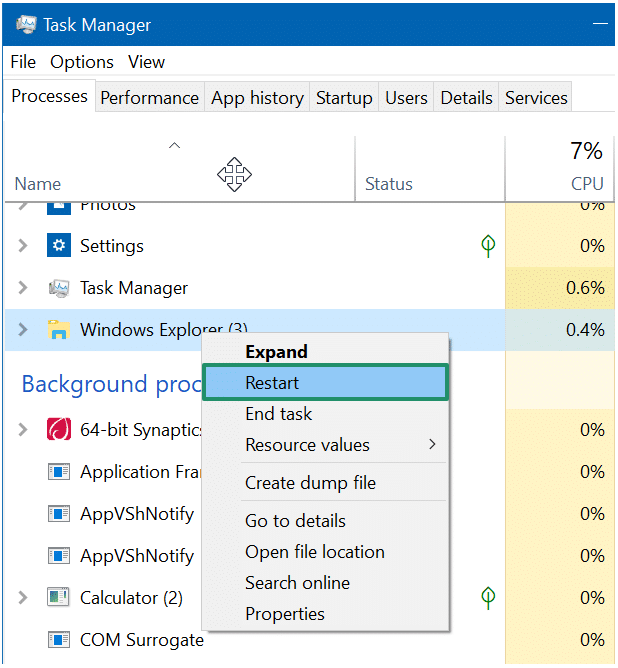
Restarting Windows Explorer refreshes file management and fixes minor bugs that may be the reason your right-click mouse is not working properly. Hence, you can follow the steps below to restart Windows Explorer.
- Press Ctrl + Shift + Esc to open the Task Manager.
- In the Task Manager, click the Processes
- Find and click Windows Explorer in the available processes.
- Click the Restart button to restart Windows Explorer.
- Lastly, restart your PC.
Also know: How to Fix the Middle Mouse Button Not Working
Fix 7: Run an SFC and DISM scan
Corrupt system files can cause various performance problems, one of them being the mouse right-click not working. Thus, below is how to run SFC and DISM scans to repair or replace these files.
- Press Windows + R to open the Run tool.
- In the Run box, type
- Press Ctrl + Shift + Enter to open Administrator Command Prompt.
- In the Administrator Command Prompt, copy and paste the following command.
sfc /scannow
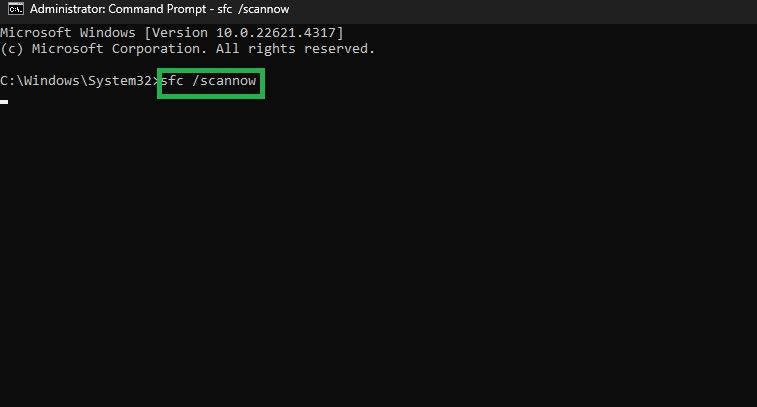
- Press Enter to execute the above command.
- Copy and paste the following command.
DISM /Online /Cleanup-Image /ScanHealth
- Press
- Copy and paste the following command.
DISM /Online /Cleanup-Image /RestoreHealth
- Press
- Lastly, exit Administrator Command Prompt and restart your computer.
Fix 8: Run the built-in troubleshooter
For wireless, Bluetooth-enabled mice, you can use the built-in Bluetooth troubleshooter in Windows to fix the Windows 11 wireless mouse right-click not working issue. Here is how.
- Press Windows key + I to launch the Settings app.
- Click System
- Next, click Troubleshoot in the System menu.
- Click Other troubleshooters.
- In this step, click Run next to the Bluetooth troubleshooter.
- Wait until the troubleshooter makes the necessary assessment.
- Apply the suggested changes.
- Lastly, restart your computer.
Fix 9: Perform a system restore
Sometimes, new updates or software can cause issues like the computer mouse right-click not working. You can restore the system to the state when your mouse was working perfectly by following the steps below.
- Press Windows key + S to open Windows search.
- Type System Restore in the search bar.
- Click Create a restore point in the search results.
- Next, click the System Protection
- Click System Restore and then click
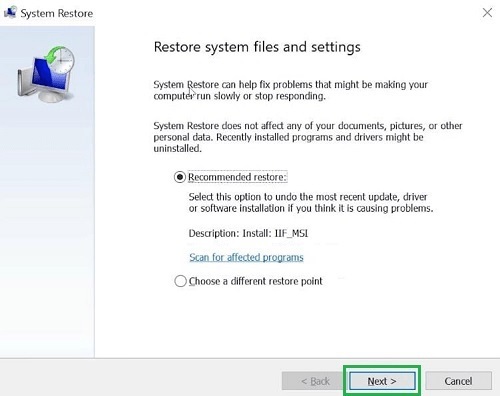
- Choose a restore point and click
- Confirm the selected restore point and click
- Click Yes to begin the restoration.
- Lastly, restart your computer after the restoration is complete.
Hopefully, the solutions above fix the computer or laptop mouse right-click not working. Below, we have answered a few related questions to clear up any persisting confusion.
Also know: How to Fix a Corsair Mouse and Keyboard Not Working
Frequently Asked Questions
Q1. Why is my right-click not working?
A temporary Windows Explorer glitch, a corrupted or outdated mouse driver, hardware connection problems, corrupt system files, incorrect power management settings, and random Windows issues may be why your mouse right-click is not working.
Q2. How do I enable the right-click of the mouse?
To enable the mouse right-click, update or reinstall the mouse drivers if the right-click is not working. For more detailed methods, check the guide above.
Q3. How do I check if my right-click is working?
To check if right-click is working on your computer, navigate to the desktop screen and right-click on an empty space. When you right-click on an empty space, you should see a small menu with options such as New, Refresh, or View.
That concludes our guide on how to fix the mouse right-click not working on Windows. Hopefully, this helps restore your mouse’s perfect working condition. However, if the problem persists, you can seek professional hardware assistance. If you have any confusion or questions, feel free to write us a comment.