Is the two-finger scroll not working? That’s a common problem on many laptops that develop disabled settings or missing drivers over time, especially after an operating system (OS) update. Understandably, it is a frustrating issue, as your workflow is disrupted when multi-finger gestures do not respond. Though annoying, the problem is easily fixed with the solutions in this guide, which range from enabling two-finger scrolling in touchpad settings to editing the Windows Registry.
However, before going into troubleshooting, understanding why the touchpad scroll is not working is important to troubleshoot the right way.
Why Is Two-Finger Scroll Not Working
A disabled two-finger scroll, the touchpad service not working, outdated touchpad drivers (the software that helps your touchpad and the OS communicate with each other), random Windows bugs, a corrupted or incorrectly installed touchpad driver, and issues with the mouse pointer (cursor, the arrowhead) are the top reasons your touchpad can’t scroll with two fingers.
Now that you are familiar with what may have gone wrong with your touchpad, let’s help you fix the two-finger scroll and even issues like the left click doesn’t work on a Windows touchpad.
How to Fix Two Finger Scroll Not Working
To fix the touchpad scroll not working with two fingers, enable two-finger scroll, restart the touchpad service, update touchpad drivers, update Windows, disable and re-enable the touchpad, roll back the touchpad driver, change the mouse pointer, run the Hardware and Devices troubleshooter, and if these fixes don’t work, edit the Windows Registry. Below are these solutions explained in detail; follow them sequentially until the two-finger scrolling starts working on your touchpad.
Fix 1: Enable two-finger scrolling in touchpad settings
Two-finger scrolling is a standard feature in Windows laptops. Disabling this feature mistakenly can be why two-finger scrolling on the touchpad is not working. Hence, you can follow the steps below to enable it.
- Press Windows key + I to open Settings.
- Click Devices
- Next, click the
- Ensure the touchpad is enabled.
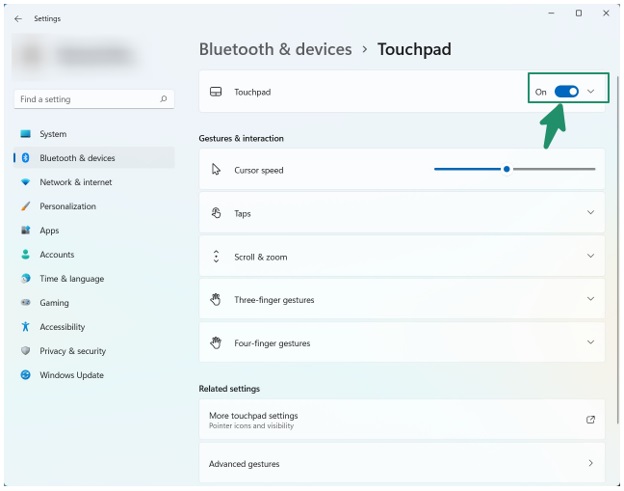
- Check the Leave touchpad on when a mouse is connected box in the touchpad section.
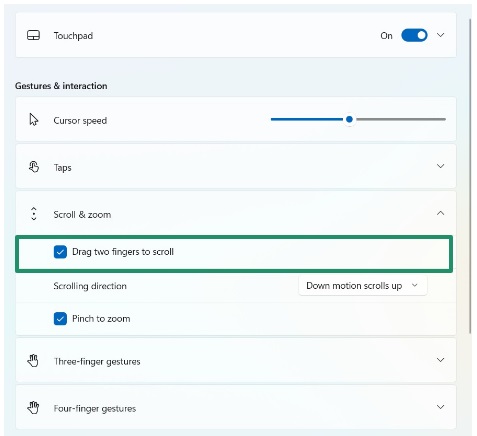
- Click the Scroll & Zoom section to expand it.
- Check the Drag two fingers to scroll box to enable the two-finger scroll.
Fix 2: Restart the touchpad service
A disabled or dysfunctional touchpad service is another reason the 2-finger scroll is not working. Thus, here is how to restart this service.
- Press Windows + R to open the Run box.
- In the Run box, type msc and press Enter.
- Locate and right-click HID-compliant touch pad in the list of services.
- Lastly, click Restart to restart your touchpad service.
Also know: How to Fix Mouse Cursor Disappears on Windows 10/11
Fix 3: Update touchpad drivers
A driver is the software through which the touchpad and OS communicate with each other. An outdated touchpad driver can also be one of the reasons your touchpad can’t scroll. Hence, to update the touchpad drivers:
- Right-click the Start button.
- Click Device Manager in the available options.
- In the Device Manager, double-click Mice and other pointing devices.
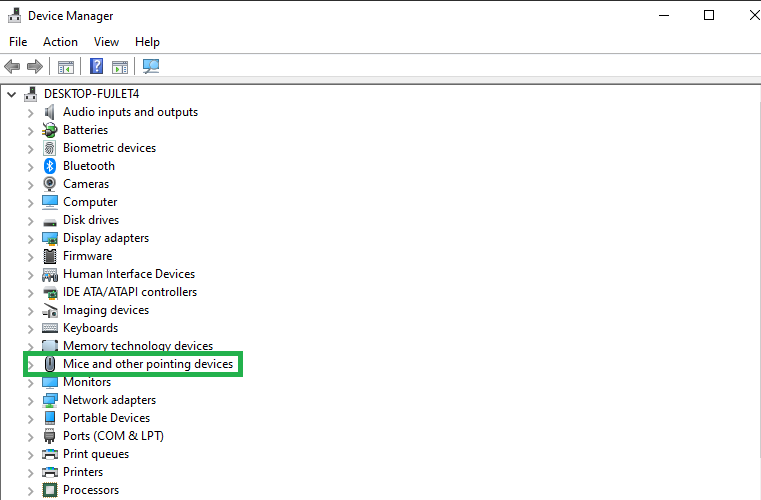
- Right-click your touchpad and then click Update driver.
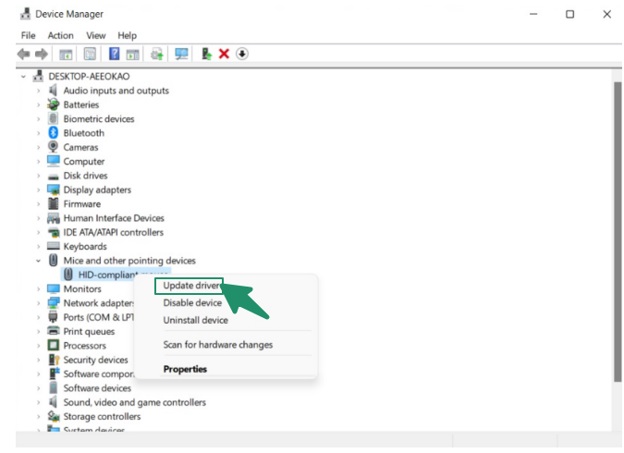
- Follow the on-screen prompts to complete the driver update.
- Lastly, reboot your computer and check if the two-finger scroll is working. If it is not working, move to the next solution.
Fix 4: Update Windows
Random system bugs may have caused touchpad compatibility issues, resulting in problems such as the two-finger touchpad scroll not working. Hence, update Windows to fix these bugs. Here is how.
- Click the Start button.
- Type Check for updates in the Windows search bar.
- Click Check for updates in the search results.
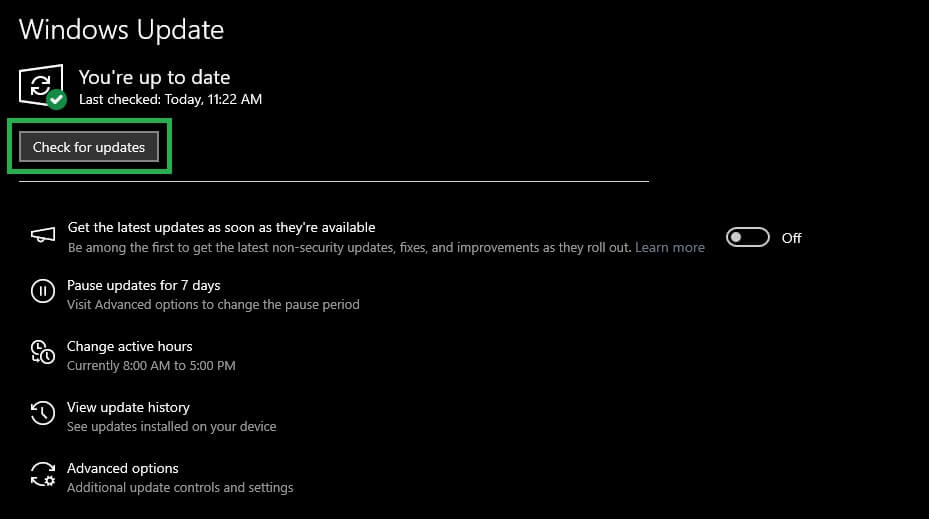
- On the Windows update screen, click Check for updates.
- Click Download & Install for the available update.
- Wait for the process to complete.
- After the process is complete, restart your computer.
Also know: How to Debloat Windows 11 for Better Performance
Fix 5: Disable and re-enable the touchpad
Disabling and re-enabling the touchpad is a common fix for touchpad problems that has fixed the two-finger scroll on the touchpad not working for many users. The following are the steps to disable and enable the touchpad.
- Press Windows key + I to open the Settings panel.
- Click Devices in the Settings menu.
- Next, click
- Lastly, disable and re-enable the touchpad.
Fix 6: Roll back the touchpad driver
If you began encountering touchpad issues after updating the touchpad driver, an incompatible driver may be the reason two-finger scroll is not working on your touchpad. Hence, you can roll back the touchpad driver by following the steps below.
- Right-click the Start button.
- Click Device Manager.
- In the Device Manager, double-click Mice and other pointing devices.
- Right-click your touchpad and then click
- Click the Driver
- Next, click the Roll back button.
- If prompted, select any reason for the rollback. You can choose any of the given reasons; it won’t make a difference.
- Confirm the rollback and wait for the process to complete.
- Lastly, restart your computer to apply the changes.
Fix 7: Uninstall and reinstall the touchpad driver
In addition to outdated and corrupted drivers, an improperly installed driver can also cause issues such as two-finger scrolling not working. Thus, you can follow the steps below to reinstall the touchpad driver to solve this problem.
- Right-click the Start button and then click Device Manager.
- Double-click Mice and other pointing devices.
- Right-click your touchpad.
- Click Uninstall device.
- Check the Delete the driver software for this device box and click
- After the uninstallation is complete, return to the Device Manager.
- Right-click your PC name.
- Click Scan for hardware changes.
- Restart your computer after the above process is complete.
Fix 8: Try changing the mouse pointer
The mouse pointer is the cursor or arrowhead that reflects your mouse, pointing device, or touchpad’s movements. Changing the mouse pointer can help fix the two-finger touchpad scroll not working. The following are the steps to do this.
- Click the Start button.
- Type mouse in the search bar.
- Click Change your mouse settings or mouse settings in the search results.
- In the Mouse settings window, click Additional mouse options.
- Click Pointers in Mouse Properties.
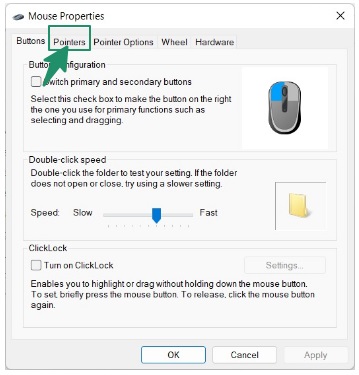
- From Scheme options, choose Windows Default (system scheme) and click
Fix 9: Run the Hardware and Devices troubleshooter
Hardware and Devices troubleshooters help detect and fix hardware-related issues, such as two-finger scroll on the touchpad not working. Not directly accessible in Windows, below is how to access and run this troubleshooter.
- Press Windows key + R.
- Copy and paste exe -id DeviceDiagnostic in the Run box and press
- Wait until the troubleshooter completes its assessment.
- Apply the suggested solutions.
Fix 10: Perform a Windows Registry edit
Editing the Windows Registry is an advanced troubleshooting step and should only be attempted if you are comfortable with making system changes. Making a mistake in the Registry can cause serious issues with your computer. If you are not sure how to proceed, it is highly recommended to ask someone with technical expertise for help, or to contact professional support. Always back up your Registry and important files before making any changes, so you can restore your system if something goes wrong.
- Press Windows key + R.
- In the Run box, type regedit and press
- In the Registry Editor, go to HKEY_CURRENT_USER\Software\Synaptics\SynTP\TouchPadPS2
- Locate the 2FingerTapPluginID and 3FingerTapPluginID keys in the right pane.
- Double-click each of these items and make sure the Value data field is empty.
- Change the values of the following keys as mentioned below:
- MultiFingerTapFlags: Value data 2 or 3
- 3FingerTapAction: 2 for right-click or 4 for middle-click
- 3FingerTapPluginActionID: 0
- 2FingerTapAction: 2 for right-click or 4 for middle-click
- Lastly, close the Registry Editor and restart your computer.
That’s all for the solutions. Below, we have also answered a few common questions about the two-finger touchpad scroll not working issue to clear up any confusion you may have.
Also know: How to Fix USB Composite Device Driver Error on Windows
Frequently Asked Questions
Q1. Why is 2-finger scrolling not working?
The 2-finger gesture is turned off in the system settings, an outdated or glitched touchpad driver, or a crashed system service may be the reasons your touchpad’s two-finger scroll is not working.
Q2. How do I fix my touchpad not scrolling?
To fix the two-finger scroll on the touchpad that is not working, enable the touchpad in system settings, update or roll back or reinstall the touchpad driver, and restart the touchpad service. For more detailed solutions, check the guide above.
This will fix the two-finger scroll not working. However, if the issue persists, you can check Microsoft support for solutions to touchpad problems in Windows or contact your Windows device’s manufacturer for assistance. If you have any questions or suggestions to improve this guide, feel free to leave a comment.