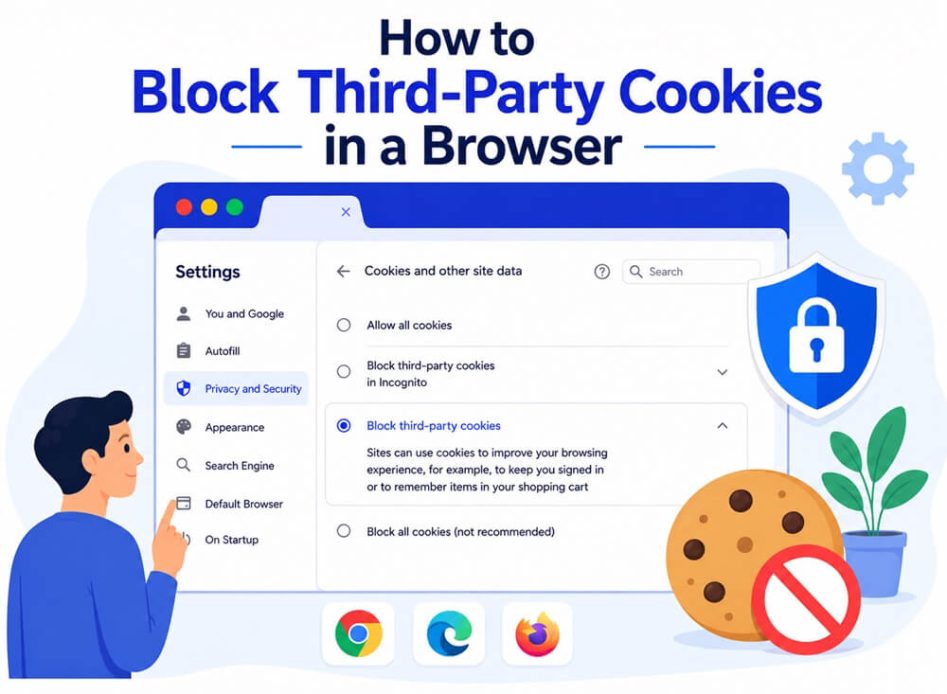
This website uses cookies” pop-up often appears when you visit a website on your browser. Confusing at first, cookies are small files of information generated and sent by a web server to the browser. The browser stores these cookies for a fixed period of time, or until your session on the website ends. In simple terms, a ‘domain’ is the main web address you are visiting, like example.com, while a ‘session’ is the time you spend on a website from when you open it until you leave or close your browser. Simple and harmless it sounds, but a specific type of cookie, i.e., a third-party cookie, belongs to a domain different from the one displayed in your browser. These third-party cookies are used to record your browsing activities for purposes such as advertising.
For example, when you search for smartphones at smartphone.example.com, a cookie from smartphone.ad-network.com is also stored in your browser and tracks your activity on smartphone.example.com, even without you currently accessing smartphone.ad-network.com. Then smartphone ads chase you around the web, unless you have a powerful ad blocker to rescue. Not only targeted ads, but browsing information getting into notorious hands can also lead to being targeted with spam emails or phone calls and pressure to choose specific options that bring affiliate revenue. That’s how third-party cookies work.
With third-party cookies collecting sensitive information about a user, it is easy to create extensive user profiles with thousands of data points, for example, their searches in the past five years, credit card transactions, political convictions, relationships, and a lot more.
Keeping these privacy and security concerns in mind, it is essential to learn how to work around these cookies. Before blocking or doing anything with these cookies, let’s first look at them in a bit more detail to understand them.
What Are Third-Party Cookies
Also known as trackers or cross-site cookies, third-party cookies are small data files that domains other than the one you are currently visiting create. The cookies are generally used for cross-site tracking, personalized ads, enabling retargeting, and analyzing cross-site behavioral data.
These cookies play a significant role in personalized marketing by helping advertisers customize messages, enhance user experience, and show relevant targeted ads. However, many users block third-party cookies in Windows because they track browsing history and user behavior across multiple websites without direct authorization; users don’t know which companies collect their data or how their data is used; these cookies are under strict scrutiny of regulations like the California Consumer Privacy Act (CCPA) and General Data Protection Regulation (GDPR).
Moreover, with the best secure browsers like Firefox already phasing out third-party cookies owing to tracking across multiple websites, lack of transparency and control, regulatory changes, and industry innovation, it is a wise move to block third-party cookies in your browser.
Still confused about blocking third-party cookies? Then the section below clears all reasons you would want to block them.
Why Block Third-Party Cookies
While third-party cookies can help with fraud prevention by detecting fraudulent activities across various sites, enabling single sign-on by allowing users to sign in once using third-party services like Google, and personalization by allowing sites to coordinate with third-party services, users prefer blocking third-party cookies because:
- They breach your privacy on the browser. On many websites, visiting a page sets cookies for nearly 50 third-party domains to correlate requests that come from your browser over days, months, or years. For example, some google.com cookies take 20 years to expire.
- Third-party cookies pose significant data privacy and cybersecurity risks, such as unauthorized access to user information, unlawful use of users’ information by threat actors, and cybersecurity threats, such as session hijacking, cross-site request forgery, and cross-site scripting. In a shocking example, from June 2025 through June 2026, NordVPN researchers found over 52.4 billion browser cookies in infostealer logs offered for sale on Telegram marketplaces and dark web forums.
This confirms third-party cookies can do more harm than good, making blocking them the right decision.
How to Block Third-Party Cookies in Windows for All Browsers
You can effortlessly block third-party cookies in Chrome, Firefox, Brave, Opera, Chromium, Microsoft Edge, and Vivaldi through browser settings. Here is how.
- Click More (three vertical dots) in the top-right corner of your Chrome window.
- Next, click Settings in the menu that appears.
- Click Privacy and Security.
- Next, click Third-party cookies.
- Choose Block third-party cookies from the available options to block all third-party cookies from other websites unless you add any website to the exceptions list.
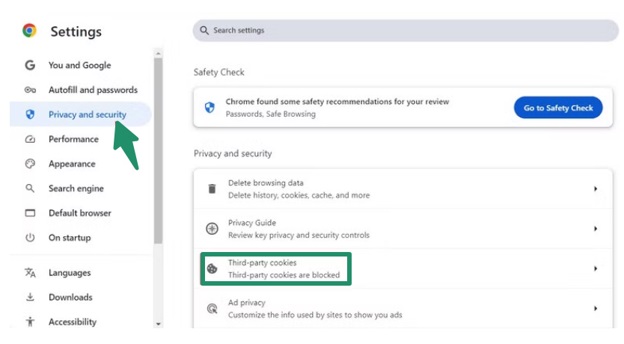
It’s interesting to note that Google Chrome planned to deprecate third-party cookies by 2022. However, this plan got delayed until 2024 and then further postponed until 2025. As of the latest changes introduced in the Privacy Sandbox initiative, a set of proposals to enhance user privacy, Google Chrome is no longer phasing out third-party cookies and has cancelled all previous plans to deprecate them.
Also know: Fixed: Field ‘Browser’ Doesn’t Contain a Valid Alias Configuration
- Click the menu button (three horizontally stacked lines) in the Firefox window.
- Next, click Settings in the Firefox menu.
- Click Privacy and Security in the left panel.
- In Enhanced Tracking Protection, click the Custom radio button.
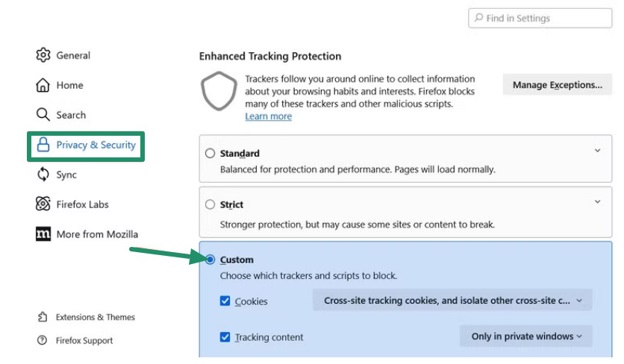
- Check Cookies and, using the drop-down menu, select the types of cookies you want to block. To block all third-party cookies, choose All cross-site cookies from the drop-down.
- Click the Reload All Tabs button (when multiple tabs are open) to apply the changes.
It is worth noting that Firefox’s Enhanced Tracking Protection feature blocks third-party cookies by default. However, its privacy and security settings no longer include the Do Not Track toggle. This Global Privacy Control feature replaced the Do Not Track toggle to prevent websites from selling or sharing your data.
- Click the Menu icon in the top-right corner of the Brave window.
- Select Settings in the drop-down menu that appears.
- Choose Privacy and Security in the left sidebar of Brave settings.
- On the right side, scroll down and click on Third-party cookies.
- Click the option to Block third-party cookies.
Interestingly, Brave blocks many tracking and third-party cookies by default using Brave Shields. It also blocks cookie consent notices that ask for your permission to use cookies on many websites, providing a cleaner, smoother experience.
- Go to your browser
- In the left sidebar, click
- Click Privacy & security.
- Next, click Site settings.
- Click Cookies and site data.
- Turn off the Allow sites to save and read cookie data (recommended)
Additionally, you can clear cookies and site data when you quit Opera and block third-party cookies. You can also add site-specific cookie preferences for websites.
- Go to the Settings of your browser.
- Click Privacy and Security.
- Next, click Cookies and other site data.
- Click Block third-party cookies.
Also know: How to Change My Default Browser on Windows 11 and 10
- Click Settings and more in the top-right corner.
- Next, click Settings in the menu that appears.
- Click Privacy, search, and services.
- Click
- Enable the Block third-party cookies
Additionally, you can adjust your privacy and security settings in Microsoft Edge to turn on tracking prevention, enable Microsoft Defender SmartScreen, turn on enhanced security mode, enable automatic HTTPS, block potentially unwanted apps, and disable save payment methods to protect your privacy and ensure secure browsing.
- Click the Vivaldi icon in the upper-left corner.
- Next, click Settings in the Vivaldi menu.
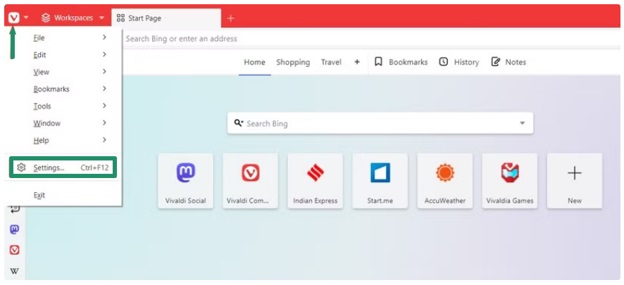
- Click Privacy and Security in the settings menu.
- Under the Third-party cookies section, click Block All.
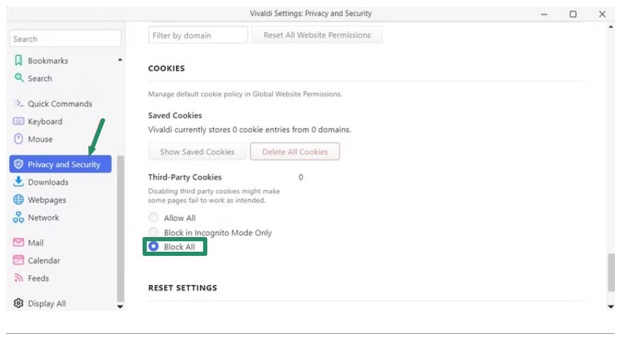
Blocking third-party cookies prevents advertisers from tracking your online activities. However, it can also disable certain website features and functions. To restore them, you must unblock third-party cookies by following the same steps you followed to block them, enabling them this time.
With many browsers already blocking third-party cookies, what will replace third-party cookies is a burning question. While no single technology has replaced third-party cookies, browsers follow a fragmented approach, with website owners relying on first-party data (data collected directly from users, for example, email addresses), server-side tracking (analytics and marketing tags via a server and not the browser), browser fingerprinting (collecting user details, such as their browser and browser cache contents), contextual advertising (placing ads based on the page content), and consent-based approaches (obtaining and documenting user consent for cookies) to personalize advertising, improve user experience, and understand how users are interacting with the website.
By now, you may have understood what third-party cookies are and how to block them on your browser. Below, we have also answered some more questions users ask about third-party cookies to clear up any confusion you may have.
Also know: Best Secure Web Browser to Keep Data Safe in 2026
Frequently Asked Questions
Third-party cookies are used to remember user preferences and customizations, sign in once with third-party services, and detect fraudulent activities across various websites (such as a single device signing up for many accounts from different locations).
Privacy concerns (such as the collection of significant personal information about a user), security risks (such as tracking users to deliver malware), and lack of transparency about third-party cookie use are the primary disadvantages of third-party cookies.
If you block all third-party cookies, outside companies cannot track your browsing habits across various websites, improving your online privacy and reducing targeted ads. However, it can also break embedded features on certain web pages, such as shopping cart widgets or cross-site logins.
First-party cookies are cookies that website owners place on the website to collect user data to improve user experience, store information (for example, items a user has added to their shopping cart), remember user information (for example, usernames and passwords), and provide add-on services (for example, live chat). Third-party cookies are cookies that someone other than the website owners places on the website to track and remember user information, often used by advertising networks to drive up sales or page views.
To tell if a website uses third-party cookies in Google Chrome, press F12 to open Developer Tools, click Application, and double-click Cookies; the website is using third-party cookies if there is a diverse list of domain names. In Microsoft Edge, click Settings, click Site Permissions, click Cookies and site data, and then click the See all cookies and site data arrow to view all cookies saved to your device.
Cookies are not necessarily unsafe. However, what makes them potentially unsafe is that they invade your online privacy, and bad actors can access your sensitive information to commit cybercrimes.
Hopefully, this clears up your doubts about why and how to block third-party cookies in Windows browsers. You can follow the guide above to disable third-party cookies to protect your online privacy and ensure data security. For any unanswered questions or confusion, feel free to comment with your queries.