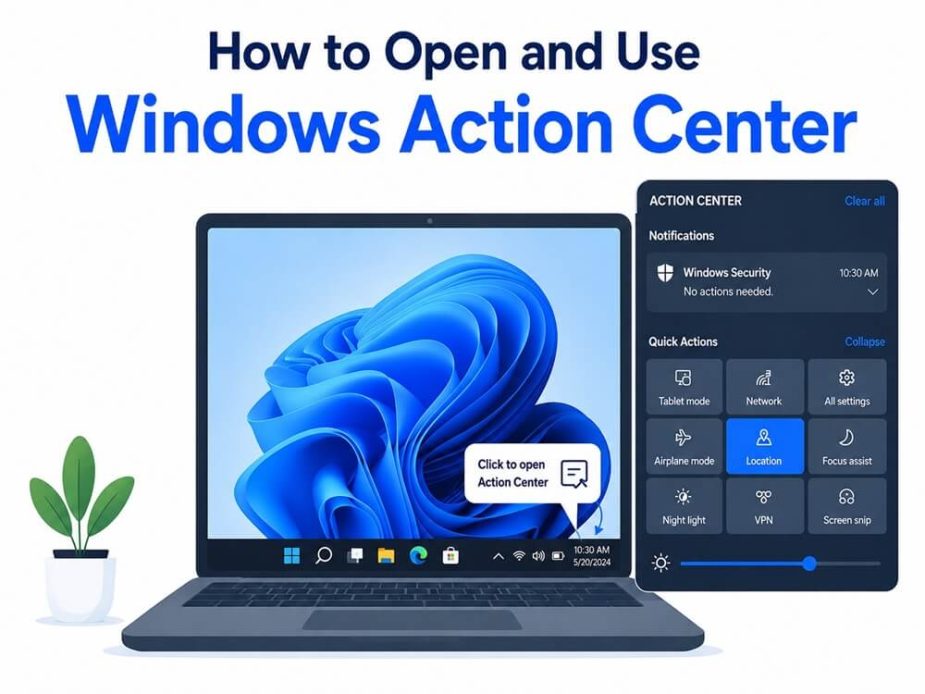
Some situations need quick actions. For example, turning up the screen brightness when working on something important on your PC; if you do it by going all the way into your computer’s settings, you lose both your time and concentration. That’s why there is Windows Action Center to customize quick settings, such as brightness, Bluetooth, and more; learn shortcuts to frequently used functions, and access important system and app notifications easily, all without navigating through multiple menus.
Action Center in Windows is a single place to find all your notifications and take the necessary steps to run Windows smoothly. If Windows detects an issue with your software or hardware, the Action Center is where you get all important messages about problems that need your attention.
The Action Center has changed with almost every Windows edition. On Windows 10, it appears as a panel on the right side of the screen with useful toggles. The Action Center in Windows 11 splits its functions into Quick Settings and the Notification Center on the Taskbar.
Unlike Windows 10, the Action Center seems to be missing on Windows 11, but it is not. The visual and functional changes make it look different: In Windows 10, the Action Center appears as a side panel that slides out from the right, with clear icons for notifications at the bottom right of the Taskbar. In Windows 11, the Action Center’s functions are split between two places: Quick Settings, which show only toggle buttons for features like WiFi and brightness and display settings when you click the network, volume, or battery icons; and Notification Center, with notifications now appearing as toast alerts and collected separately. So, while the layout and access points have changed, all the core features remain available in Windows 11.
Though it may appear confusing, you can still open and use the Action Center in both Windows 11 and 10. This guide explains how to do it step-by-step. Let’s get started.
How to Open Windows Action Center
In Windows 10, you can open Windows Action Center using the speech bubble icon, using the keyboard shortcut, swiping the screen (for touchscreen PCs), using the notification icon, or checking the system tray icons. You can open the Action Center in Windows 11 using the network, volume, and battery icons or the Windows + A shortcut. The following section explains all these methods in detail.
Opening Action Center in Windows 10
You can open Windows Action Center in Windows 10 in any of the following ways.
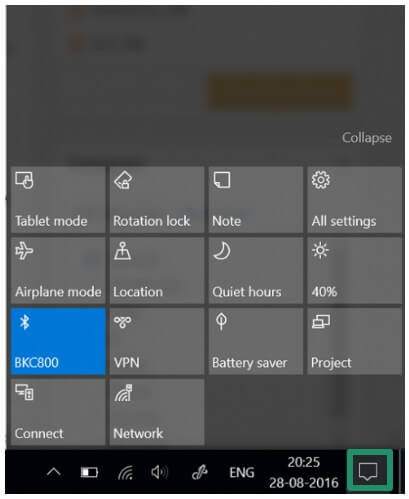
Method 1: Using the speech bubble icon
- Find the icon at the bottom right of your screen that resembles a speech bubble.
- Click on the speech bubble or Action Center icon to open the Action Center.
Method 2: Using the keyboard shortcut
Press the Windows key and A key simultaneously on your keyboard to open the Action Center. Windows + A is the shortcut to open Windows Action Center.
Method 3: Swipe from the right
If you have a touchscreen PC, swipe in from the right of your screen to open the Action Center in Windows 10.
Opening Action Center in Windows 11
The following are the methods to open Windows 11 Action Center.
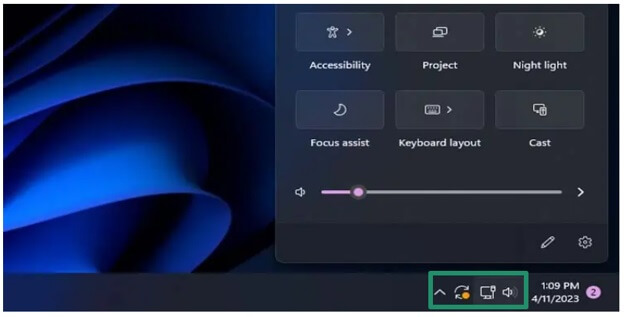
Method 1: Use the network, volume, and battery icons
To open the Action Center in Windows 11, click the network, volume, and battery icons on the Taskbar. These icons together form the Windows 11 Action Center. You may notice that some icons, like the battery icon, are missing on certain devices. This is completely normal—desktop PCs usually only show the network and volume icons, since the battery icon is typically only available on laptops. If you do not see all three icons, it does not mean your system is broken.
Method 2: Use the Action Center shortcut
Another way to open Windows 11 Action Center is using the Windows + A shortcut. On touchscreen displays, you can also swipe left from the right side of the screen to open the Action Center.
After opening the Windows Action Center, you can use it for multiple purposes. Let’s look at its prominent uses before explaining how to use it.
Also know: How to Debloat Windows 11 for Better Performance
What Is Windows Action Center Used For
Viewing notifications and taking quick actions are the primary uses of Windows Action Center. It is where your PC’s notifications are available. Here you can find all your messages from applications, updates, and reminders. Moreover, you can also take quick actions from the Action Center after receiving a notification. For example, if you get a notification that application installation is complete and you can open it, clicking the notification opens the application.
To use the Action Center in Windows 11/10, you can follow the guide below.
How to Use Action Center in Windows 11/10
Here is how to use Windows 10 Action Center and Windows 11 Action Center step-by-step.
Windows 10
- Open the Action Center panel.
- You will find shortcuts to your frequently used settings at the bottom. Choose any of them to open the relevant settings. For example, clicking the brightness shortcut opens the display brightness settings.
- Action Center is where you can view all important notifications. However, if you want to disable notifications or set the notification priority, click the Action Center icon on the right side of the Taskbar, click All Settings, click System, click Notifications & Actions, and then toggle switches to on or off for various app settings.
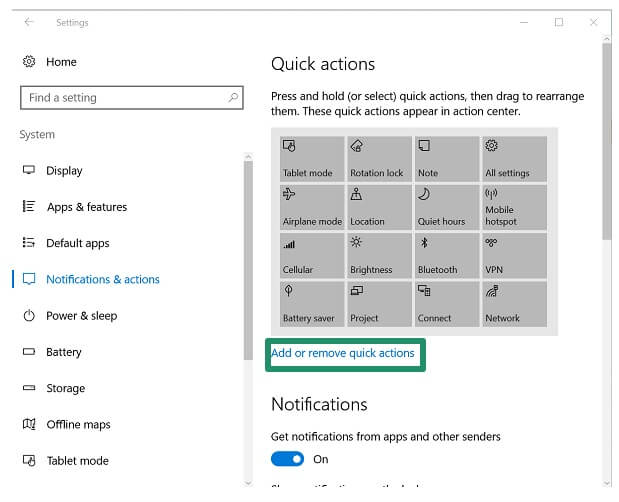
- To choose which Quick Actions, such as display and tablet mode settings, appear in the Action Center, click the Action Center icon, click All Settings, click System, click Notifications & Actions, click Add or remove quick actions, toggle on the actions you want to see in the Action Center, and then close the window.
- If you feel the Action Center is cluttered with too many notifications, you can dismiss notifications. To dismiss notifications, click the Action Center icon, hover the mouse pointer over the notification you want to dismiss, and then click X to dismiss the notification.
Windows 11
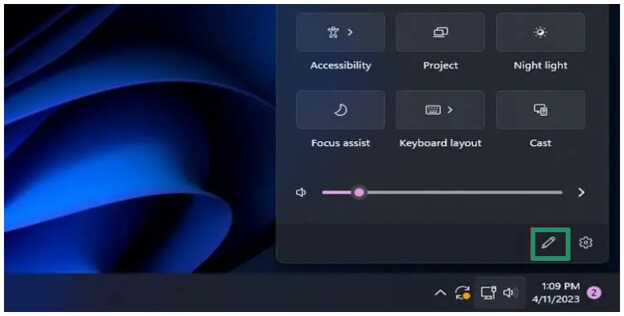
- To remove Action Center shortcuts in Windows 11, open the Quick Settings Action Center, click the pencil icon in the lower right corner, and then remove default options, for example, Bluetooth buttons, from the Action Center.
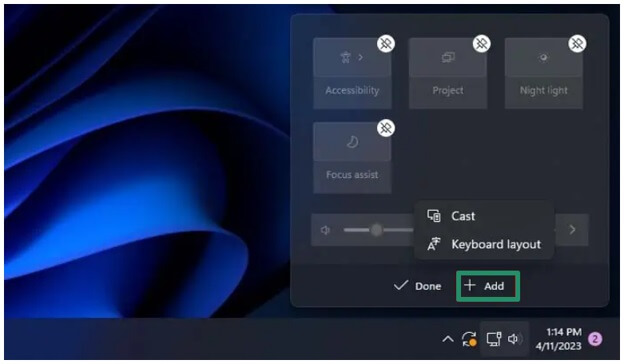
- To add new Action Center shortcuts, click the Add button and select from the on-screen features.
- To check the missed notifications, press Windows key + N to open the notification center.
- To expand a notification, click the arrow next to the time.
- To clear a notification, click the X
- To turn off all notifications for a particular application, click the More button and then click Turn off all notifications.
- To remove all notifications from the notification center, click the Clear All
- To configure notification settings for each application, follow the path Start > Settings > System > Notifications, click the app under Notifications from apps and other senders, and then adjust the notification preferences to ensure only important alerts are highlighted, and less important ones are minimized.
Additionally, you can also customize the Action Center layout and toggles. The next section explains how.
How to Customize Windows Action Center
You can customize the Action Center layout in Windows 10 through Settings. To customize the Action Center toggles in Windows 11, you can use the edit or pencil icon. Below is how to do this step-by-step.
Windows 10
- Click the Start button on the Taskbar.
- Next, click the gear-shaped Settings
- Click the System
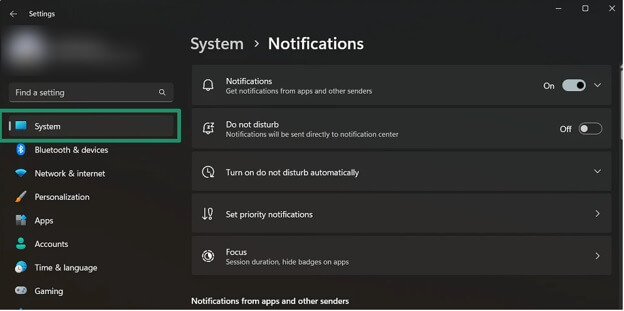
- In the System settings, click
- Drag and drop the action buttons in the Action Center in the order you want them to appear.
- To remove or add quick actions from the Action Center, click Add or remove quick actions.
- To hide quick actions in the Action Center, turn them on or off.
Windows 11
- Open the Windows Action Center.
- Click the pencil icon.
- To remove a toggle, click the close button.
- To add a toggle, click the Add button and select a toggle from the list that appears.
- Click Done to save the changes.
Even after customization, if you don’t like the Action Center in Windows 11 or 10, you can disable it. The section below explains how.
How to Disable Windows Action Center
You can disable the Action Center in Windows via Settings. Here is how.
- Press Windows key + I to open Settings.
- Click System in the left sidebar.
- Next, click
- Toggle Notifications Off to stop all pop-up alerts.
Note: Toggling off the notifications stops alerts from appearing. However, it does not completely remove the Action Center in Windows 11. To remove the Action Center completely in Windows 11, press Windows + R, type regedit, click OK, navigate to the path HKEY_CURRENT_USER\Software\Policies\Microsoft\Windows\Explorer, right-click in the right pane, click New > DWORD (32-bit) Value, name the value DisableNotificationCenter, double-click DisableNotificationCenter, change the value to 1, and click OK. Remember that editing the Registry can harm the system if performed wrongly. Always be sure of what you are doing and back up the Registry before making any changes.
- To silence Action Center notifications in Windows 10, toggle off the Get notifications from apps and other senders in Notifications & actions
- To fully disable the Action Center in Windows 10, click the Turn system icons on or off link and then toggle off the Action Center.
However, if you don’t want to disable the Action Center but it is not working correctly, you can easily solve various Action Center issues.
Also know: How to Lock Your Windows PC Automatically in Windows
Common Windows Action Center Problems and Solutions
Here are some common problems associated with the Action Center in Windows and their effective solutions.
Windows Action Center missing
If you don’t find the Action Center icon, follow the path Windows key + I > Personalization > Taskbar and then enable system icons.
Windows Action Center not opening
If the Action Center won’t open, restart Windows Explorer in the Task Manager. To do this, right-click the Taskbar, click Task Manager, find Windows Explorer, and click Restart.
If the edit button is missing in the Action Center or Quick Settings, restart Windows Explorer using Task Manager.
Windows Action Center notifications not appearing
If Windows Action Center notifications do not appear, ensure you have notifications enabled in the System settings.
Shortcut not working
If the Windows + A Action Center shortcut is not working, restart your computer and update Windows.
That’s pretty much everything you may need to know about Windows Action Center. The following section also answers a few common questions about it so no confusion remains.
Frequently Asked Questions
Q1. What Is Windows Action Center?
Action Center in Windows is a centralized hub to view and manage your notifications, access quick settings such as WiFi, brightness, Bluetooth, etc., and perform frequently used functions using simple shortcuts.
Q2. Where is the Action Centre on Windows?
The Action Center is on the far right side of the Taskbar next to the clock. However, its location and name may differ based on your Windows version.
Q3. What does Windows Action Center do?
Action Center in Windows allows you to see all your application alerts and system notifications in a single place. It also gives you fast and easy access to various computer settings.
Q4. How do I check if Windows Action Center is enabled?
To check if you have Action Center enabled, press Windows key + A or search for the notification/quick settings icon on the right of the Taskbar. If the Action Center opens, it is enabled. If it does not open, check the system settings.
Q5. How do I edit the Action Center in Windows 11?
To edit the Action Center or Quick Settings in Windows 11, press the Windows key + A, click the pencil icon, drag and drop icons to customize their order, click Unpin to remove them, or click Add to add a new quick action item to the Action Center.
Q6. How do I fix the Action Center not opening in Windows 11?
To fix the Action Center not opening in Windows, press Windows key + I, follow the path Personalization > Taskbar, and ensure the Action Center is enabled in the Turn system icons on or off section. Then, follow the path Settings -> System -> Notifications and Actions, enable the Action Center if not already enabled, and choose apps that can show notifications. If the Action Center is enabled but not opening, kill the explorer.exe process in the Task Manager and then restart File Explorer.
Hopefully, this guide helps you make the most of Windows Action Center. If any questions or confusion persists, feel free to comment with your queries.