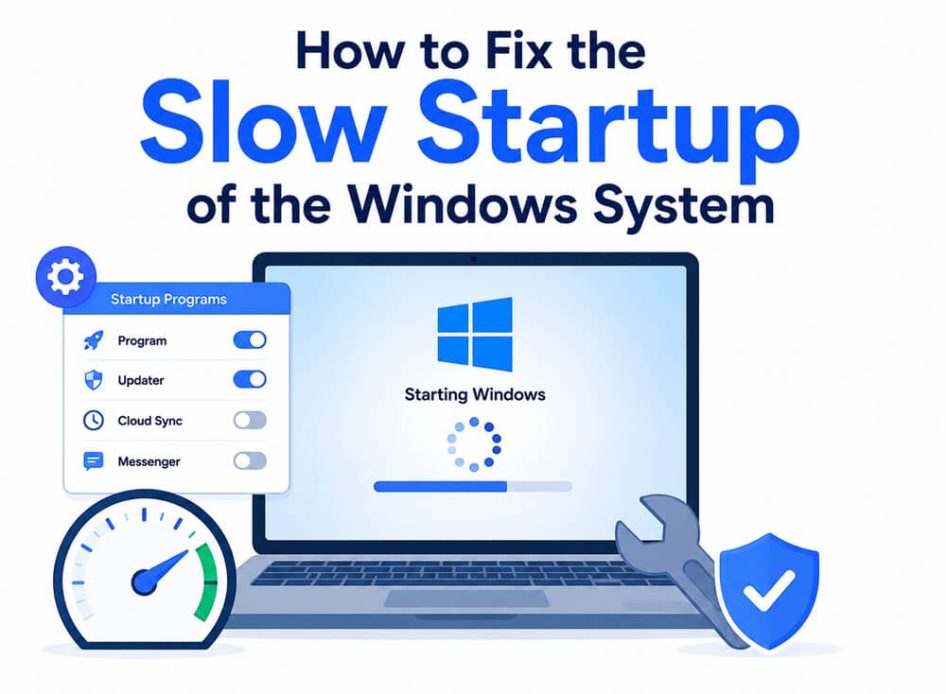
Nothing is more frustrating than sluggish boot times. The pain of waiting for Windows to start up is understandable, especially when you have something important to do or want to blow off some steam playing your favorite games. However, learning how to fix slow Windows startup luckily won’t take much of your time.
A few quick adjustments and toggles are all it takes to fix a slow Windows 11 PC startup. Before fixing anything, understanding what may have gone wrong is a smart move to ensure you troubleshoot correctly. Hence, let’s decode why Windows startup is slow so that the next time you start your computer, the wait won’t feel like forever.
Why Windows Startup Is Slow
The fast startup feature enabled, too many startup apps, problematic paging file or virtual memory settings, outdated graphics drivers, corrupted system files, disk drive issues, malware, and low disk space can be why your Windows 11 or Windows 10 suddenly takes forever to start up.
- Fast startup: Windows has the fast startup feature enabled by default. However, it pre-loads some boot information before your computer shuts off, which may slow Windows startup.
- Startup apps: Having too many startup apps means many programs fighting for CPU, memory, and disk resources, increasing the Windows startup time.
- Paging file or virtual memory settings: When Windows is about to max out the actual RAM, it switches to virtual memory to save processes that are not actively in use. Windows changing the virtual memory settings on its own can cause boot problems.
- Outdated graphics drivers: A driver is software your operating system and connected hardware use to communicate with each other. If the graphics driver is outdated, the communication between Windows and your graphics card breaks down, causing boot issues.
- Disk drive problems: Hardware problems in the storage drive may also be responsible for a computer becoming progressively slower over time.
- Corrupted system files: If the Windows files responsible for the booting process go corrupt, replacing them with working copies is essential to prevent slow startup.
- Malware issues: Malware infections impact your PC’s startup, slowing it down significantly.
- Low disk space: Windows requires space to manage temporary files, updates, and the page files during startup. If the system drive is nearly full, Windows does not get enough space, slowing everything. Hence, cleaning up disk space helps improve Windows startup.
Now that you are familiar with why your PC or laptop is taking too long to start Windows 10 or 11, let’s help you fix it.
How to Fix Windows Slow Startup
To fix slow PC startup in Windows 11/10, try the following steps: disable fast startup, disable unnecessary startup apps, adjust paging file settings, update graphics drivers, perform an SFC scan, check your SSD and HDD drives, clean boot your PC, scan your computer for malware, and reset Windows. We recommend starting with the safest and most common fixes first, such as disabling fast startup and unnecessary startup apps, before moving on to more advanced solutions like adjusting paging file settings or resetting Windows. This order helps you address the most frequent causes and reduces risk when troubleshooting. Follow these solutions sequentially until the Windows startup returns to normal. Here is how to do this step-by-step.
Fix 1: Disable fast startup
- Press Windows + R.
- Type cpl in the Run dialog box and click OK.
- In the Power Options, click Choose what the power button does.
- Click Change settings that are currently unavailable.
- Uncheck Turn on fast startup (recommended).
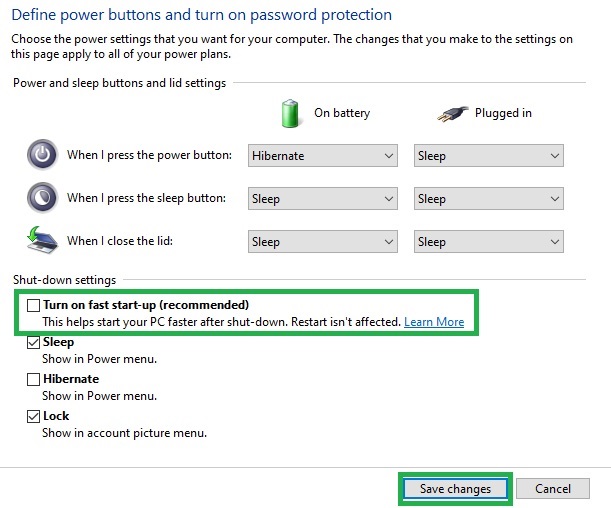
Note: If the fast startup option is unavailable, enable hibernation. To enable hibernation, press Windows + X, click Windows PowerShell (Admin), Command Prompt (Admin), or Terminal (Admin), copy and paste the command: powercfg /hibernate on, and press Enter.
- Lastly, click Save Changes.
Also know: How to Download Tiny10 ISO File for Windows
Fix 2: Turn off unnecessary startup apps
- Press Ctrl + Shift + Esc to open the Task Manager.
- Click Startup apps (on the left pane if you have Windows 11) or Startup (on the top pane if you have Windows 10).
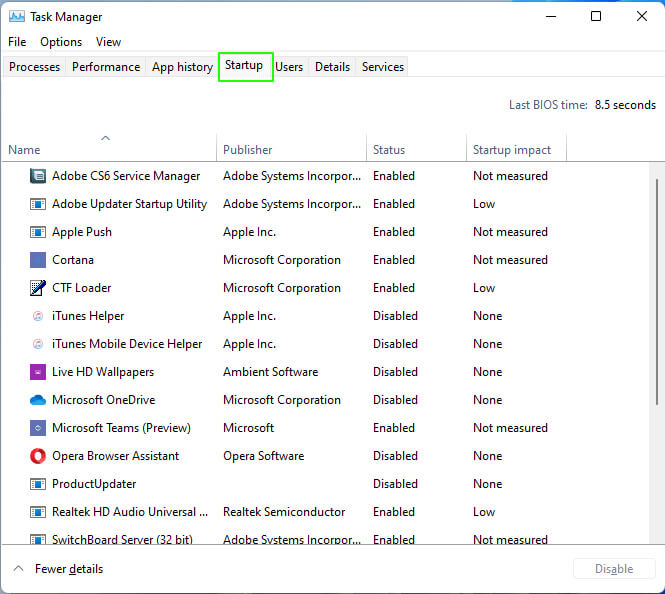
- Click Startup impact.
- Right-click Unnecessary processes, especially the processes with high startup impact.
- Click Disable and then reboot your computer.
Fix 3: Change paging file settings
- Type Performance in the Start menu.
- Click Adjust the appearance and performance of Windows.
- Navigate to the Advanced
- Click Change in the Virtual Memory section to edit the paging file size.
- Uncheck Automatically manage paging file size for all drives.
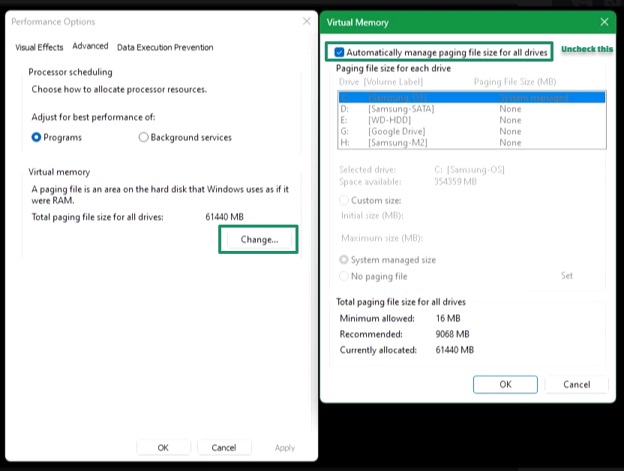
- If you have multiple volumes, ensure your C: drive, where your OS is installed, is selected in the top box.
- Select Custom Size and change the Initial Size and Maximum Size to the recommended values.
- Lastly, reboot your PC to check if this fixes the issues. If the issue persists, continue following the fixes in this guide on how to fix Windows slow startup.
Fix 4: Update graphics drivers
- Right-click the Start button.
- Click Device Manager.
- In the Device Manager, double-click Display Adapters.
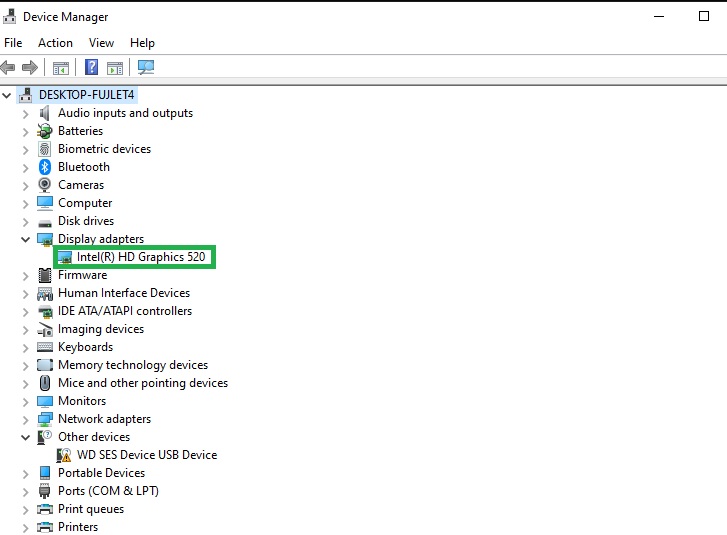
- Right-click your graphics card.
- Click Update Driver.
- Click Search automatically for drivers or Search automatically for updated driver software.
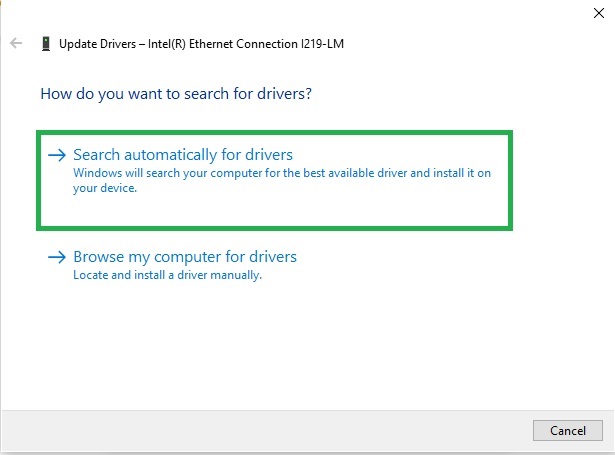
- Follow the instructions to install the driver.
- Restart your computer to complete the process.
Also know: How to Run a Troubleshooter for PC Issues in Windows
Fix 5: Run an SFC scan
- Click the Start button.
- Type cmd in the search bar.
- Right-click Command Prompt in the search results.
- Click Run as administrator.
- In the Administrator Command Prompt, copy and paste the following commands one by one and press Enter after each command.
sfc /scannow
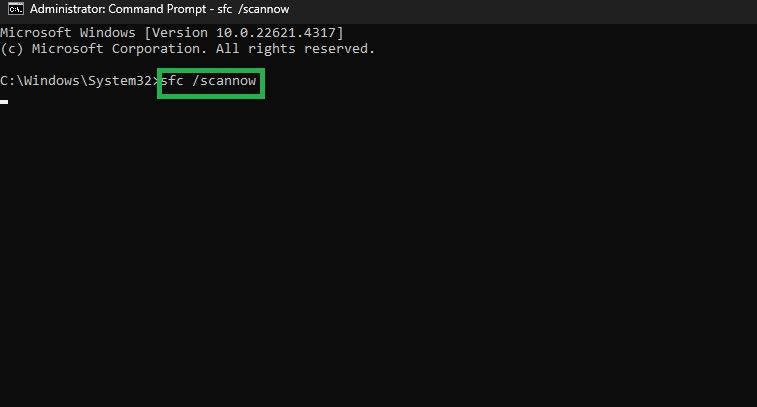
DISM /Online /Cleanup-Image /RestoreHealth
- Lastly, restart your computer and check whether Windows boot time has improved.
Fix 6: Check your SSD or HDD drive health
- Press Windows + E to open File Explorer.
- In File Explorer, right-click your system drive (C:) in the left pane.
- Click Properties.
- In the Windows (C:) Properties, click the Check button in Error Checking.
- Allow Windows to repair the detected drive errors.
- Replace the drive if it continues to show errors or SMART warnings. SMART (Self-Monitoring, Analysis and Reporting Technology) is a built-in monitoring system for drives that detects and reports various indicators of drive health. If you see warning messages like “SMART status bad,” “SMART failure predicted,” or repeated error messages in your drive’s properties or diagnostic tools, it’s a sign your drive may be failing and should be replaced. If possible, switch to an SSD if your computer runs on a hard disk.
Fix 7: Clean boot your computer
- Press Windows + R.
- Type msconfig in the Run box and press
- Click the Services
- Next, check Hide all Microsoft services.
- Click Disable All.
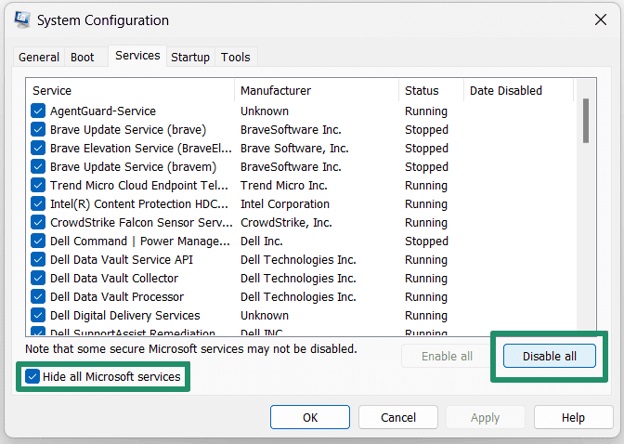
- Next, click Startup and then click Open Task Manager.
- Right-click unnecessary startup items and then click
- Close the Task Manager.
- Click OK in the System Configuration tool.
- Lastly, click Restart to reboot your PC.
Fix 8: Scan your system for malware
- Click the Start button.
- Type Windows Security in the search bar.
- Click the first search result.
- In the Windows Security app, go to Virus & threat protection.
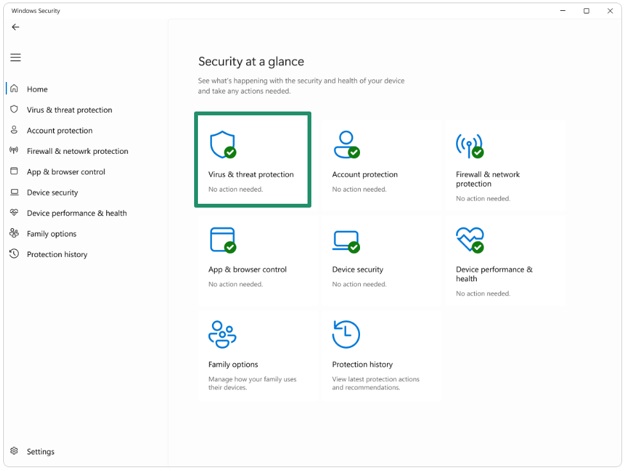
- Click Scan Options on the right side.
- Next, click Full Scan.
- Click Scan now to begin the scan for malware.
- Wait for the scan to complete and then take the suggested steps.
Fix 9: Reset Windows
Note: Resetting Windows removes installed applications. Hence, back up your data before following the steps below to reset Windows.
- Press Windows + I.
- Click System
- Next, click Recovery
- Click the Reset PC button next to the Reset this PC option.
- Next, click Keep my files to preserve your data.
- Lastly, allow the process to complete.
That’s the end of available fixes for a slow Windows startup. Before we conclude this guide, below we answer a few common questions about slow Windows boot times to clear up any confusion you may have.
Also know: Computer Runs Slowly? Here Are the Tips to Speed Up Windows PC
Frequently Asked Questions
Q1. Why does Windows 11 take so long to boot up?
Too many startup applications, the fast startup feature, outdated graphics drivers, corrupted system files, and disk drive issues are the top reasons Windows 11 takes a long time to boot up.
Q2. How to reduce PC boot time?
If you want to reduce your PC boot time, disable the Windows fast startup feature, disable unnecessary startup apps, adjust paging file settings, update graphics drivers, perform an SFC scan, check your SSD and HDD drives, clean boot your PC, scan your computer for malware, or reset Windows. The guide above explains these solutions in detail.
Q3. How long should a PC boot take?
Generally, a PC takes no more than 10-15 seconds, or 22 seconds at maximum, to boot and load the OS.
That’s all for how to fix Windows 10/Windows 11 slow startup. Hopefully, this helps boot your computer fast for a smooth experience. However, if the issue remains unresolved, you can check Microsoft Support for solutions to slow startup and write us a comment if you have any questions/suggestions to improve this guide.