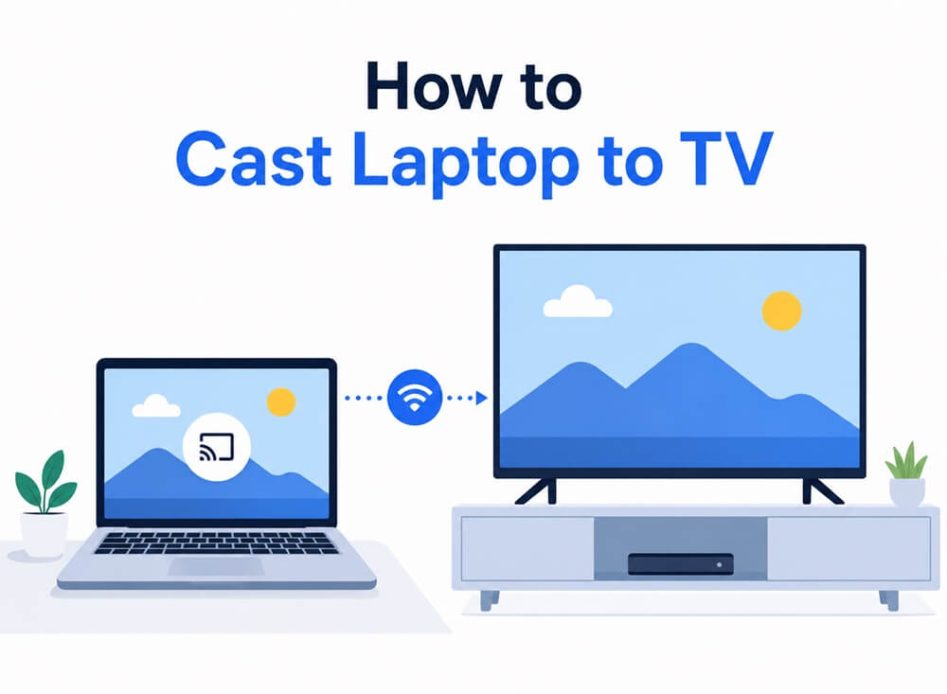
Do you have exciting movies or videos on your laptop that you would like to watch on a bigger screen? Do you want to play games downloaded on your laptop that come alive on a TV’s bigger screen? Do you want to set up a temporary dual monitor workspace or prepare for a presentation on a TV’s larger screen? Or are you curious to explore how the laptop content looks on a more extensive screen? Then, we are here to help you understand how to cast your laptop to TV.
Casting from a laptop to a TV is an easy way to enjoy all your laptop’s favorite content on the TV’s bigger screen. It makes streaming movies, gaming, and sharing presentations more fun and easier. By transmitting the laptop content to the TV through casting, you can improve your viewing experience, share photos/videos/presentations easily, relish game titles with better visuals on a TV screen, and multitask hassle-free; imagine working on a writing project on your laptop when your TV plays the soothing music videos you downloaded on the laptop with better quality to keep you focused.
All of that is possible with casting your laptop to TV. Hence, this article walks you through the steps to cast your laptop to TV with HDMI and VGA or wirelessly using Miracast, Chromecast, and screen mirroring. Let’s get started.
How to Cast Laptop to TV with HDMI
You can connect your laptop to the TV using an HDMI cable for high-quality audio and video. This method of casting the laptop to the TV does not need technologies like WiFi and works with a majority of TVs and laptops. However, first confirm both your TV and laptop have an HDMI port.
If your laptop lacks an HDMI port, you need an HDMI adapter to connect the computer to your TV. You can choose from a USB-C to HDMI adapter if your laptop has USB-C or Thunderbolt 3/4 ports, a DisplayPort to HDMI adapter if your device has a DisplayPort, a Micro HDMI to HDMI adapter if your laptop has a Micro HDMI port, or an HDMI to VGA adapter to connect to an older TV with only VGA input. Use a compatible HDMI adapter and a high-quality HDMI cable to connect the laptop and TV.
To connect the laptop and TV using HDMI if both your computer and TV have an HDMI port, follow the steps below.
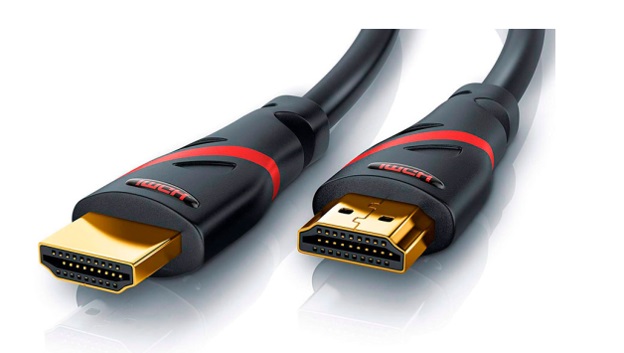
- Plug the HDMI cable’s one end into the HDMI port on your laptop and the other end into an HDMI port on the TV. Here is how an HDMI cable looks.
- On the TV remote, press the Input or Source button and then choose the HDMI port corresponding to where you plugged the cable.
- On your laptop, press Windows + P to get display options and then choose from PC screen only (lets you use only your PC screen), Duplicate (shows the same screen on both your laptop and TV), Extend (expands your desktop across both your laptop and TV), and Second screen only (displays everything on your TV, converting it into your primary screen) options.
How to Connect Laptop to TV with VGA
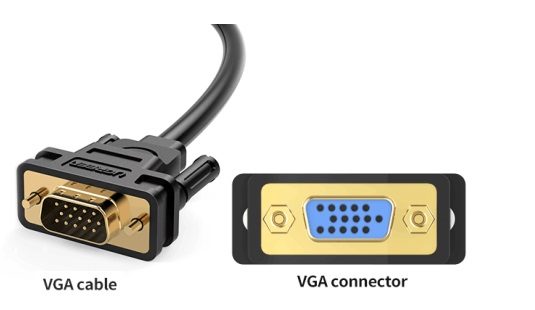
If you have an older TV and/or laptop, you may have a VGA port. You can use VGA to cast your laptop to TV. However, the issue here is that VGA supports only video, and you need to use an audio lead to get audio. If that works for you, here are the steps to connect your laptop to the TV screen via VGA.
- Power on both your laptop and TV.
- Connect the VGA cable to your TV and laptop.
- For audio, connect a 3.5 mm audio jack via the audio in on your TV/speakers and the headphone out port on the laptop.
- Lastly, press Windows + I on your laptop, click System, click Display, click the option to adjust resolution, and then ensure your TV is selected in the Display drop-down box to confirm the connection.
That was how to connect a laptop to a TV via an HDMI or VGA cable. However, if you wish to eliminate chaotic cables and cast your laptop’s content to the TV wirelessly, doing that is easy.
How to Cast Laptop to TV Wirelessly
You can connect your laptop to the TV wirelessly through Miracast, Chromecast, or screen mirroring. Miracast works best for Miracast-compatible (most 2016+) Smart TVs and users who want the fastest setup. Chromecast is an ideal choice if you have the Chrome browser and a Chromecast device or built-in TV. Screen mirroring is the best if you want to use your Samsung, LG, or Sony Smart TV’s built-in feature. Here are all these methods explained in detail.
Method 1: Use Miracast to connect laptop to TV
Miracast is a feature built into modern laptops to connect to a TV or projector. It creates a direct WiFi connection between your computer and TV, without needing any application, account, or dongle. This feature is generally available on Smart TVs made after 2016 and Windows 10 and 11 laptops made after 2015.
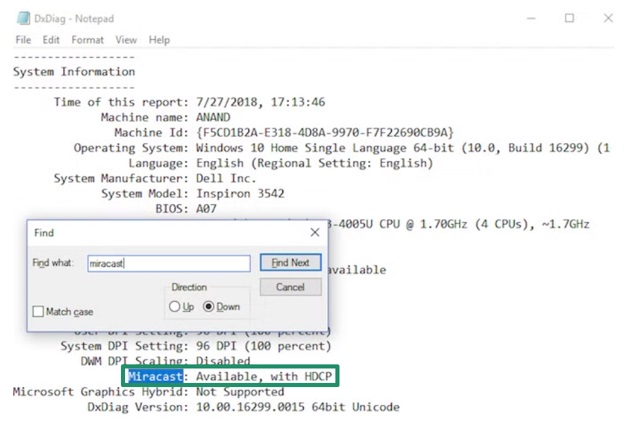
However, budget or older laptops may not support Miracast. Hence, to check if your laptop supports Miracast, press Windows + R, type dxdiag, press Enter, click Save All Information, open the saved text file, and search the saved file for Miracast. If Miracast is available, you will see something like “Available, with HDCP” (supported).
On your TV, this feature may be available with different names, based on the TV manufacturer. Samsung calls Miracast Screen Sharing, Sony calls it Screen Mirroring, and LG calls it Screen Share. However, the following steps to connect using Miracast are the same across all brands.
- Open your TV Settings and enable the Miracast feature; you may see it as Screen Mirroring, Screen Sharing, WiFi Direct, or Wireless Display depending on your TV brand.
- On the laptop, press Windows + K.
- Click the TV brand name to start the connection.
- After connecting, you will see a tiny toolbar at the top of the screen. Click Change projection mode to select your desired mode from Duplicate (an exact mirror of your laptop screen) or Extend (converts your TV into a second monitor) options.
Also know: Best Data Transfer Tools for PC to PC Windows
Method 2: Connect laptop to TV using Chromecast
Chromecast does not have any operating system limitations. You can use any laptop, whether Windows, Chromebook, or Mac, to connect to the TV through Chromecast. However, you must have the Google Chrome browser (you can download it at https://www.google.com/chrome/), a Chromecast device plugged into the TV’s HDMI port, or a TV with built-in Chromecast (all Google TVs and Android TVs and many other Smart TVs made after 2019 have Chromecast built-in), and your Chromecast and laptop should be on the same WiFi network.
If these conditions are met, below is how to cast the laptop to the TV using Chromecast.
- On your laptop, open Google Chrome.
- In the upper-right corner, click the three-dot menu ( ⋮ ).
- Click Cast and wait for the cast dialog to appear.
- Next, click the Sources dropdown at the top of the Cast dialog.
- You can now choose Cast desktop to mirror your whole screen or Cast tab to share only the current Chrome window.
- Click your Smart TV or Chromecast device in the list that appears to start casting.
- To use Chromecast on a Chromebook, click the time in the lower-right corner to access Quick Settings and then click
Method 3: Connect laptop to TV with screen mirroring (for Samsung, LG, and Sony Smart TVs)
Samsung, LG, and Sony Smart TVs have a built-in screen mirroring feature. These features are built on top of Chromecast or Miracast protocols. Hence, the steps to cast the laptop to TV are the same as Methods 1 and 2 for the laptop, but the TV settings are different. Here they are.
- On Samsung TVs, press the Home button on the remote, follow the path Settings → General → External Device Manager → Device Connection Manager, enable Screen Sharing, press Windows + K on the laptop, select your Samsung TV from the list that appears, and select Allow with your TV remote.
- On LG TVs, press the Settings button on the remote, follow the path All Settings → General → Screen Share, enable Screen Share, press Windows + K on the laptop, and choose your LG TV from the list that appears.
- On Sony’s Android or Google TV models, open Google Chrome on the laptop, click the three-dot menu, select Cast, and then select Sony TV from the list that appears.
- On non-Android Sony TVs, press Home on the TV remote, follow the path Settings → Wireless and Networks → Wi-Fi Direct Settings → Advanced Settings, enable Screen mirroring, press Windows + K on the laptop, and then select Sony TV from the list that appears.
If you run into problems like the TV not showing up in the cast list, screen mirroring keeps disconnecting, no sound on the TV when mirroring, laggy or low-quality picture, this PC doesn’t support Miracast, or a greyed-out Cast option, you can check the following section for solutions.
Troubleshooting Common Laptop to TV Connection Problems
Here are some effective solutions to common laptop-to-TV connection issues.
- If the TV is not found in the Cast list, ensure TV mirroring is on, ensure both devices are on the same WiFi network, update the WiFi adapter driver, and, if using HDMI, check the cable connections.
- If screen mirroring keeps disconnecting, move the laptop closer to the WiFi router and switch the router band to 5 GHz.
- If there is no sound on the TV when mirroring, right-click the Speaker icon, select Sound Settings or Playback Devices, and then change the output device to your TV name or Wireless Display.
- To fix laggy or low-quality pictures, use the 5 GHz WiFi band, lower the resolution before connecting, close the browser tabs and applications on the laptop, and choose Standard quality on Chromecast.
- To fix the “This PC doesn’t support Miracast” error, update the WiFi adapter driver or use Chromecast to connect your laptop to TV.
- If the Cast option is greyed out in Chrome, update Chrome, type chrome://flags in the browser’s address bar, search for and enable the Load Media Router Component Extension, and relaunch Chrome.
Below we have compiled the answers to some more questions you may have about casting your laptop to TV.
Also know: How to Connect Oculus Quest 2 to PC
Frequently Asked Questions
Q1. How can I cast my laptop to my TV without HDMI?
You can cast your laptop to your TV without HDMI using Miracast, Chromecast, or screen mirroring. These methods are explained in detail in the guide above.
Q2. Is wireless display the same as screen mirroring?
Wireless display is an umbrella term for everything that shows content on a display without physical video cables. Screen mirroring is a type of wireless display, but wireless display also includes casting and other ways to share the screen without using a physical video cable.
Q3. Which is better, screen mirroring or casting?
Screen mirroring is better for sharing documents and navigating websites, gaming, and easily sharing the complete device interface as it is. Casting is better for media streaming, multitasking, and ensuring minimal laptop battery drain and good video quality.
Q4. How do I know if my screen is casting?
To know if your screen is casting, look for a cast icon, i.e., a screen with a WiFi symbol in the status bar, or check the Quick Settings panel to see if Smart View, Cast, or Screen Mirroring is highlighted.
This concludes the guide on how to cast a laptop to a TV. Hopefully, you find it helpful. If any questions or doubts persist, feel free to reach out through the comments section.