

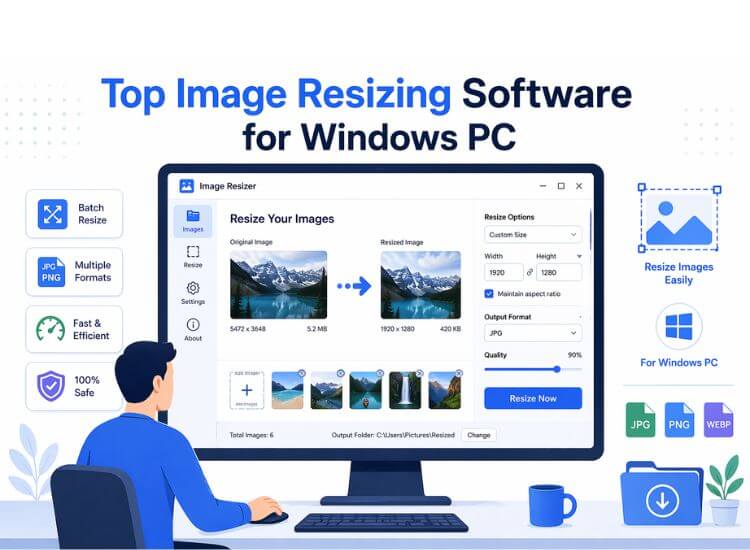
One size does not fit all, especially for images. For example, an image that looks perfect in your photos folder may look cropped, stretched, or simply awkward on Instagram. This is so because all social networks have image size requirements to ensure a pleasing fit. Similarly, a large image can disrupt the user experience on websites, apps, and software, may not be shareable, or may not look good when printed, requiring you to resize images, i.e., adjust the picture dimensions to serve your intended purpose.
Hence, this article explains how to change the dimensions of a photo with the best image resize software for Windows 10/11. We carefully researched and tested these software programs to change the image size based on multiple factors, such as how quickly the software resizes images, the formats it supports, how user-friendly the software is, and its real user reviews.
Based on the above factors and our hands-on experience with the best apps to resize images for PC, here we compare our top picks before reviewing each program in greater detail. The quick comparison helps you choose the right software to make your images size-efficient fast if you are short on time.
A Quick Comparison of the Top 3 Best Windows Image Resizer Software
| Image Resizer | Best For | Price | Key Strengths | Supported Formats | Rating Out of 5 |
| Fotosizer | Casual users, bloggers, and professionals | Standard Free, premium version starts at $18.50 for 1 PC | Windows right-click contextual menu integration, batch image resize, additional features such as image watermarks | TIFF, JPEG, GIF, BMP, PNG, WMF, EMF, WEBP | 4.9 |
| FILEminimizer Pictures | Users with limited storage | Free for private use, commercial use license for $108.00 (single user), $21.00 (multi-user) | Facebook integration, search wizard, lossless compression | JPG, BMP, GIF, TIFF, PNG, and EMF | 4.5 |
| FastStone Photo Resizer | Web designers, content creators, photographers | Free for personal/educational use, commercial use license for $19.95 | Renaming with sequential numbers, image conversion, multithreading, watermarks | JPEG, JPEG2000, PNG, GIF, BMP, TIFF, PCX, TGA, WMF, EMF, ICO, CUR, PPM, HEIC, WEBP | 4.3 |
What Are the Best Image Resizer Software Programs for Windows (Full Review)
Fotosizer, FILEminimizer Pictures, FastStone Photo Resizer, PicResize, and Light Image Resizer are some of the best Windows image resizers to change the dimensions of a photo, making it perfect for various purposes. To help you choose based on privacy and connectivity needs, it’s important to know that Fotosizer, FILEminimizer Pictures, FastStone Photo Resizer, and Light Image Resizer are all offline tools and work fully on your Windows PC without requiring an internet connection. On the other hand, PicResize is a web-based, online tool that requires an active internet connection for resizing images.
All of these utilities stand out for their unique capabilities. For example, Fotosizer for its easy accessibility, FILEminimizer Pictures for image compression by up to 98% without quality loss, FastStone Photo Resizer for its image converter and renaming tool, PicResize for its photo filters and dedicated cover/profile photo resizers for Facebook, LinkedIn, and Twitter. Here is a detailed review of all these apps with their features, pros, and cons so that you can choose the one that fits your needs.
1. Fotosizer
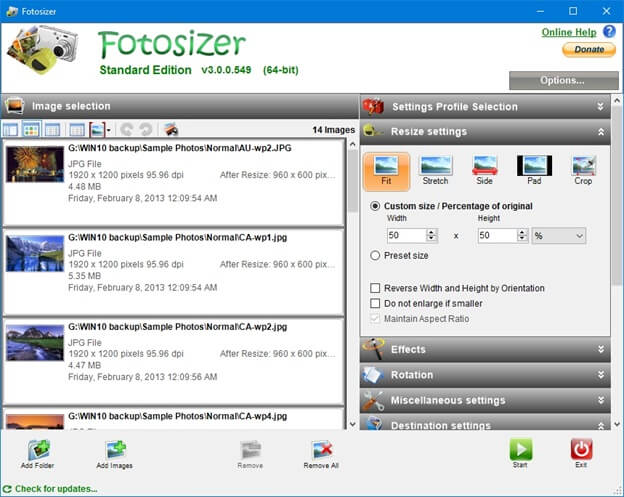
Fotosizer is one of the best Windows 11/Windows 10 image resizers for its ease of use, clean layout, easy accessibility through the Windows Explorer context menu, and a wide range of resizing modes. It offers multiple resizing modes, such as Side, Pad, Crop, and Stretch, along with an option to resize your images in Windows by percentage, inches, height/width, mm, or cm. In addition to custom width/height, there are many preset sizes to choose from, add padding to make your images the same size, or change the DPI.
Moreover, Fotosizer is a freeware image resizer software that maintains the quality and aspect ratio while allowing you to keep one side of the image fixed and adjust the other side, resize multiple images (even landscape and portrait pics) at once using the batch mode, and offers the following notable features.
Key features
- You can make your photos stand out by adding rounded corners.
- It allows you to add your name, logo, or your copyright notice as a watermark on your image. Further, you can customize the watermark’s style, font, color, font size, transparency level, add shadows, or rotate the watermark.
- There is an option to choose from dark or light display modes.
- After resizing an image in Windows, you can transfer the image to another folder, send it to the Recycle Bin, or delete the image permanently.
- The real-time preview allows you to view the image resize settings and effects on the images before saving the changes.
Pros
- Image editing options, such as color adjustments
- Settings can be saved as profiles
- Multilingual; supports over 35 languages
Cons
- Most advanced features are locked behind a paywall
- The interface sometimes feels outdated
- Occasional batch mode crashing
How to resize images in Windows using Fotosizer
After downloading and installing the software from the link below, add the images you want to resize by dragging and dropping them into the resizing pane or using the add images button. Once you have added the images, choose whether you want to resize them by fixed width and height or by percentage in the right pane. If you wish, you can keep the original aspect ratio or stretch the pictures to new dimensions. Lastly, click Start and wait for the process to complete.
Click here to learn more about Fotosizer
Also know: Best GitHub Alternatives
2. FILEminimizer Pictures
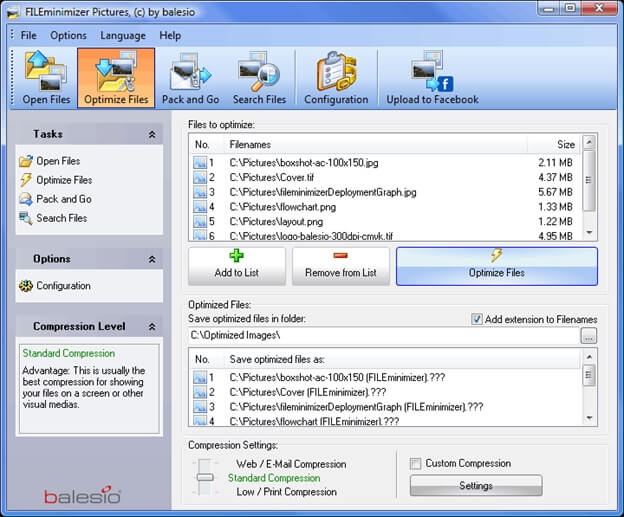
Next comes FILEminimizer Pictures on the list of the best software to resize images in Windows, for its significant image file size reduction (over 98%) when using JPEG without quality loss. Moreover, it offers 4 different compression modes to compress your photos and save them in the original file format. Batch resizing, allowing you to resize and optimize your whole photo gallery at once, a drag and drop functionality for easy file selection, and the following features are also worth noting about FILEminimizer Pictures.
Key features
- Facebook integration allows you to upload photos directly to Facebook after compressing them.
- The search function finds all large-sized image files that you can optimize on your PC.
- A Pack & Go feature that optimizes your images automatically and sends them via email.
Pros
- Simple and fast image resize in Windows
- No quality loss in image compression
Cons
- Not as feature-rich as FastStone Photo Resizer and similar software
- The interface feels outmodded
How to change dimensions of a photo using FILEminimizer Pictures
To resize your images with FILEminimizer Pictures, launch it on your computer, drag and drop the images to resize into the software window, or select them using the add files option, select the desired compression level, choose the folder where you want to save the resized images, and click optimize files to change the image size.
Click here to learn more about FILEminimizer Pictures
3. FastStone Photo Resizer
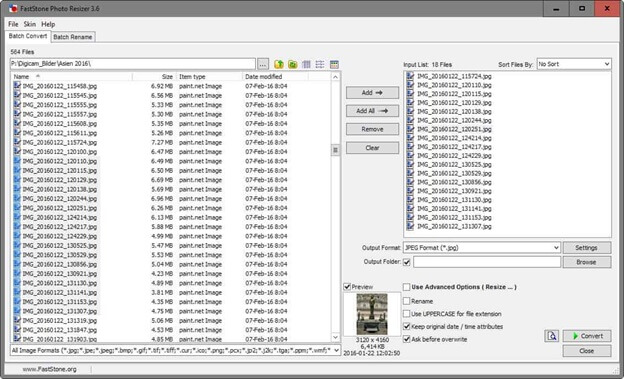
FastStone Photo Resizer is well-known as the best image resizing software for Windows 11/10 because of its image converter and renaming tool that allows you to convert your images into a size-efficient format and then rename them with sequential numbers. It lets you simply drag and drop images into the resizing pane, in addition to allowing batch conversion of multiple images and offering these remarkable features.
Key features
- You can change color depth, crop, and rotate the images.
- It allows you to add text, border effects, and watermarks to the resized images.
- FastStone Photo Resizer lets you search and replace text in the image file name.
- It supports folder and non-folder structures.
- FastStone Photo Resizer allows you to preview the images before saving the changes.
Pros
- Frequently updated
- Fast conversion and resizing
Cons
- The interface is quite boring, with the resizing option hidden in the Advanced Options
- Struggles when enlarging images with a considerable size difference
How to resize images with FastStone Photo Resizer
To use FastStone Photo Resizer for Windows, download, install, and launch the software. After launching the software, add files to the software, click Use Advanced Options, click Advanced Options, click Resize, and set the desired settings. You can also change DPI, click OK, and save the resized files from the output folder.
Click here to learn more about FastStone Photo Resizer
4. PicResize
Price: Free with essential features, Pro version with advanced options available for $75 (one-time purchase)
Supported formats: BMP, GIF, JPG, and PNG
PicResize is the best free Windows image resizer for those looking for a web-based tool to resize, edit, and crop their images. In addition to resizing images, PicResize allows you to enlarge or shrink your images as required, batch-resize multiple images, and offers these noteworthy features.
Key features
- It doubles as an image size reducer, allowing you to compress images to reduce their file size to a required quality or disk size in megabytes or kilobytes.
- PicResize allows you to convert your images into GIF, BMP, PNG, or JPG format for image resolution preservation.
- You can enhance your photos with free photo filters.
- It allows you to resize images for Facebook, LinkedIn, and Twitter profile pictures or covers.
Pros
- Simple and intuitive interface
- No image quality reduction after resizing
- Decent image editing options
- An option to resume the last unprocessed session
Cons
- Pop-up advertisements in the free version
- Needs an active internet connection
How to use PicResize Windows 11/Windows 10 image resizer
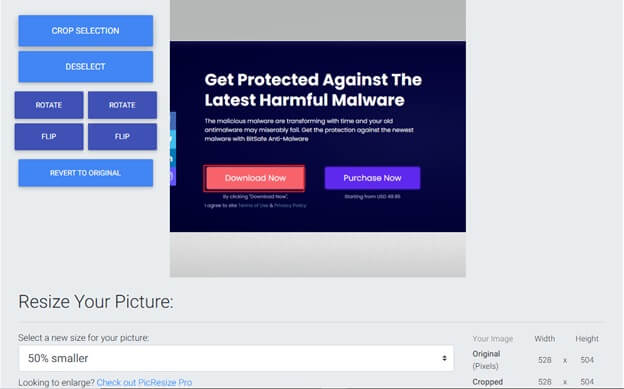
To resize an image in Windows 10/11 using PicResize, you can upload the image to the software by browsing it from your computer, or from the image URL, or simply drag and drop the image file into the resizing pane. After uploading the image, make the necessary crop, rotate, flip, resize, and filter selections. Once you have made the required selections, select the image format for the resized image, and click I’M Done, Resize My Picture. After that, you can preview your resized image, continue editing the image, or save the image to your computer.
Click here to learn more about PicResize
Also know: Best Free Drawing Apps for Windows
5. Light Image Resizer
Price: Free with essential features (processes up to 70 files simultaneously), Pro version available for $24.99
Supported formats: JPEG, JPG, BMP, GIF, PNG, WebP, various camera RAW formats, TIF, PSD (Photoshop), PCD, TGA, PCX, HEIC, PDF, and EMF
ObviousIdea’s Light Image Resizer for Windows is a simple and easy way to resize images and convert them one by one in bulk. Previously called VSO Image Resizer, this software offers context menu integration, i.e., an option to resize your images from the File Explorer by simply right-clicking them.
In addition to easy image resizing, it offers quick image conversion from one format to another in bulk or individually for your images. Additionally, here are some other notable features of Light Image Resizer, which make it a popular Windows 11 and Windows 10 image resizer.
Key features
- You can arrange your images in collage layouts to share on social media or your blog post with the free collage maker.
- It lets you create your own profile or choose from a wide range of pre-defined profiles, including 1K, 2K, Web Optimized, and Watermark.
- Light Image Resizer lets you protect your work by adding a watermark, copyright to images with HTML-like formatting, and transparency support.
- It allows you to take screenshots or perform editing functions such as text addition, highlighting, blurring, and more.
Pros
- High-speed batch resize and conversion for large batches
- An extensive set of features
- Clear and simple workflow with presets
Cons
- Not many editing options as compared to PicResize
- The Pro version may feel expensive for the available features
How to resize images in Windows using Light Image Resizer
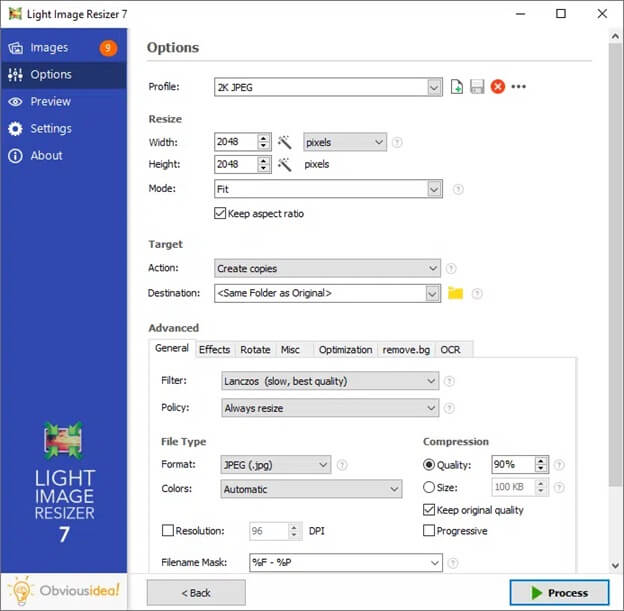
To resize images, open the folder containing the images you want to resize, click the images while holding the Shift or Ctrl key to select them, right-click the selected image files to find Light Image Resizer in the shell menu, and apply your own settings or follow the presets to complete image resizing.
Click here to learn more about Light Image Resizer
While the above are the best Windows image resizers, you must consider your image resizing needs to choose the right software. Here are the key factors to keep in mind to identify the software for resizing images in Windows that aligns with your requirements perfectly.
How to Choose the Best Image Resizer for Windows (Key Considerations)
You must weigh the essential factors below, besides ease of use, to ensure the image resizer app matches your needs.
- Privacy and security are crucial, especially if you handle sensitive images. To ensure greater privacy and safety for sensitive images, use offline tools that process images locally on your desktop or in your browser.
- To save time and effort when resizing many images regularly, ensure the software has batch-processing capabilities.
- Ask yourself if you need only resizing or additional features, such as format conversion, image compression, or basic editing. Then choose the software that matches your required feature set.
With that, let’s wrap up the best Windows image resize software. To ease your decision fatigue, we recommend Fotosizer if you prioritize more granular control while resizing images in bulk, FILEminimizer Pictures for saving disk space with maximum possible image size reduction without quality loss, FastStone Photo Resizer for fast and lightweight batch processing of images, PicResize for online image resizing, and Light Image Resizer for its customizable presets and vast features.
Have any questions or concerns? Don’t hesitate to leave us a comment to get your queries resolved.
Frequently Asked Questions
Q1. Does Windows have an image resizer?
Yes, you can resize images in Windows using the Photos app or Paint app. To resize using the Photos app, open the image with the Photos app, click the three dots, and then choose Resize. To resize with the Paint app, open the image using the Paint app, click Resize on the toolbar, and then click Resize. However, please note that these options do not offer greater control and features like the best Windows image resizers.
Q2. Which image format is the best for resized images?
JPEG is the most recommended image format, followed by PNG for graphics or transparency. For high-quality resizing, you can also consider PSD or TIFF formats.
Q3. How to resize an image in Windows without losing quality?
To resize images without quality loss, you can use tools such as FILEminimizer Pictures, which adjust pixels intelligently to ensure clarity.
Q4. What is the fastest way to resize an image?
You can use one of the best image resizers for Windows from Fotosizer, FILEminimizer Pictures, FastStone Photo Resizer, PicResize, and Light Image Resizer to resize images quickly and easily. This article reviewed all these programs in detail.
Q5. What is the best free image resizer for Windows?
The best free picture resizers for Windows include Fotosizer, FILEminimizer Pictures, FastStone Photo Resizer, PicResize, and Light Image Resizer. You can check this article for their detailed reviews.
