

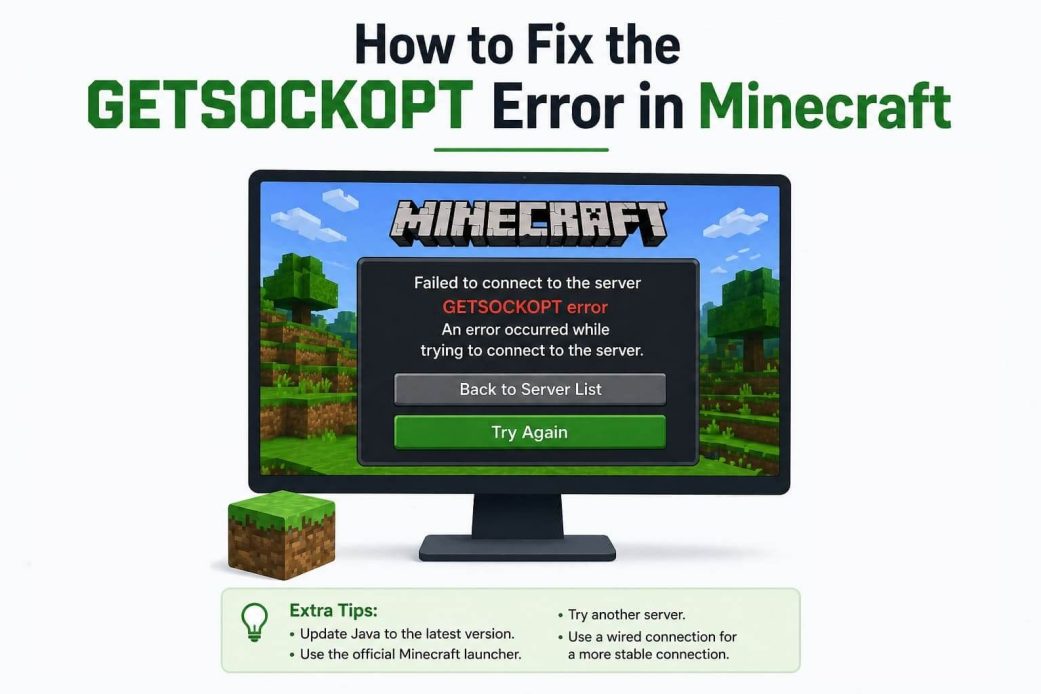
Got some time off from your work or studies to play Minecraft, but an annoying getsockopt Minecraft error blocks your way? Don’t worry, many others row the same boat and are equally confused about how to fix this issue that prevents players from joining a server to play the game. However, the good news is that this issue is easily fixable. This article explains how.
Broadly, the Minecraft getsockopt error, also known as connection timed out, is a connection error. Let’s help you understand this issue and its causes better to ensure effective troubleshooting.
What Is the Getsockopt Minecraft Error
Minecraft’s “getsockopt: connection timed out” error prevents you from connecting to a game server or a LAN (Local Area Network) connection. It appears when you attempt to join a LAN world or server, and the game does not establish a network connection. Simply put, this error occurs when Minecraft (via Java) fails to communicate with your operating system to verify the network connection status.
Please note that this error is not a Minecraft bug, but a network permission or reachability problem. Multiple factors may have contributed to this issue.
What Causes the Getsockopt Error in Minecraft
The causes of the Minecraft connection refused getsockopt error can be Firewall blocks, server-side problems, DNS issues, ISP restrictions, incorrect server details, and router limitations.
- Firewall issues: Your antivirus software or Windows Defender Firewall may have blocked Minecraft ports or the executable (javaw.exe) on your system.
- Server-related problems: The server you want to connect to may have high traffic, be going through maintenance, or be offline. Additionally, Minecraft connections may also come to a halt if Mojang’s authentication server is down temporarily.
- DNS issues: DNS, or Domain Name System, creates IP addresses from server addresses. If the DNS is slow, returning incorrect or outdated results, or misconfigured, you may experience the Minecraft connection timed out getsockopt error.
- Restrictions from ISP: Your internet service provider, or ISP, may have blocked some ports or applied policies that conflict with playing games online to save bandwidth and prevent load on the network during peak hours.
- Server details are incorrect: An incorrect port or IP address may prevent the Minecraft connection. Any mismatch or typo in the Minecraft Java Edition TCP port 25565 can lead to connection failure.
- Router restrictions: Some routers do not let you connect to your public IP, requiring you to use your local IP. However, you can bypass these restrictions with a VPN for Windows. A VPN can help you connect to servers by masking your real IP, but be aware that using a VPN might cause higher latency or lag in the game. In addition, some Minecraft servers may restrict or prohibit VPN use, so always check the server rules before connecting with a VPN.
If you have a LAN setup, a public network with network discovery disabled or AP isolation, i.e., a router feature that does not allow wireless devices connected to the same network to communicate with each other directly, may be responsible for network is unreachable or permission denied getsockopt Minecraft errors.
Now that you are familiar with what getsockopt means in Minecraft Java and its causes, it will be easy to fix this error.
Also know: How to Access Unblocked Games 76 Safely on Windows
How to Fix the Getsockopt Error in Minecraft
You can fix the connection is timed out, or the network is unreachable, Minecraft getsockopt errors by ensuring a strong or stable internet connection, checking the server, whitelisting Java and Minecraft in Windows Firewall, adjusting the date and time on your PC, restarting your PC and router, updating or reinstalling Java, updating the Minecraft Launcher, turning Windows Defender Firewall off temporarily, switching to public DNS servers, flushing DNS, resetting the IP configuration, performing Winsock reset, or checking the port forwarding settings.
However, please note that you may not necessarily need to apply all these solutions. You can start with the first fix below and stop when the problem is fixed.
Fix 1: Ensure your internet connection is not weak or unstable
An unstable or weak internet connection is among the top reasons Minecraft connections fail. Hence, if you get a connection timeout getsockopt error in Minecraft, follow the steps below to check and fix the internet connection.
- First, turn off and unplug your router.
- After 30 seconds of unplugging the router, plug it back in and turn it on.
- Lastly, try the Minecraft connection again when the router is reconnected.
Fix 2: Check your Minecraft server
Since offline Mojang authentication servers, or when these servers undergo maintenance, may block the connection to multiplayer servers or worlds, you can follow the steps below to check the Minecraft server status.
- Navigate to Downdetector, a trusted server status checker.
- If there are no current problems with Minecraft, you can proceed to the next solution. However, if the servers are down, there is nothing you can do except wait for Mojang to fix the server issue.
Fix 3: Whitelist Java and Minecraft in Windows Firewall
Windows Defender Firewall is a built-in security software in Windows that blocks unrecognized or untrusted applications to protect your system from threats. Sometimes it blocks Minecraft and Minecraft’s Java executable from connecting to the internet, especially if the game was updated recently. Hence, you can unblock Minecraft and its Java executable in the firewall to fix the Minecraft getsockopt error. Here is how.
- First, click the Start button, type Windows Defender Firewall in the search bar, and select it from the search results.
- In the Windows Defender Firewall, click Allow an app or feature through Windows Defender Firewall in the left panel.
- Next, click the Change Settings button.
- In this step, scroll through the application list and search for Minecraft Launcher, Minecraft, and any entries related to java, javaw, or javaw.exe.
- Ensure the Private and Public checkboxes are ticked for all the entries you found in the above step.
- Lastly, click OK to save the changes you have made and relaunch Minecraft.
Fix 4: Change your PC’s date and time
Minecraft works on connections that validate authentication tokens and security certificates using your PC’s system clock. Hence, if your system clock has an incorrect date or time, this verification may fail, resulting in a ” Minecraft connection refused” getsockopt error. To solve this issue, follow the steps below to update your system clock.
- First, right-click the clock in the lower right of your taskbar.
- Next, click Adjust date and time.
- In this step, toggle on Set time zone automatically and Set time automatically.
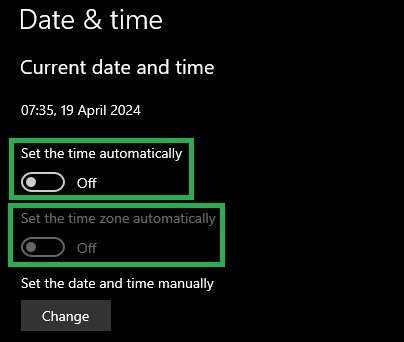
- Lastly, navigate to Additional Settings and click Sync Now.
Also know: Best PC Games Download Sites (Safest 2026)
Fix 5: Restart your PC and router
Restarting your computer is among the simplest things you can do to fix the getsockopt Minecraft error. It resets network connections, deletes temporary files, and gives your computer a new chance to function smoothly. Moreover, restarting the router deletes cached routing information that may interfere with the connection and refreshes your connection to the ISP. Hence, here is how to perform these actions.
- In the first step, right-click the Start button on the taskbar.
- Next, hover over the Shut down or sign out option.
- In this step, click Restart.
- After restarting your computer, unplug the router from the power source and keep it unplugged for at least 30 seconds.
- Lastly, plug the router back in and wait until it reconnects fully before launching Minecraft.
Fix 6: Update Java or reinstall it
Running Minecraft on an outdated Java version can lead to network instability, triggering the connection refused Minecraft getsockopt error. While the official Minecraft Launcher installs and manages the correct Java version automatically, if the version is not updated automatically, you can follow the steps below to update it.
- First, open your Minecraft Launcher.
- In the Minecraft Launcher, click Java Edition in the left panel.
- Ensure your Java version is set to the latest release.
- If the Java version is not set to the latest release, you can choose the latest release from the dropdown menu to download the newest version automatically.
Fix 7: Update your Minecraft Launcher
An outdated Minecraft launcher may be unable to communicate with Mojang servers, leading to issues like Minecraft getsockopt connection time out. Hence, you can follow the steps below to update the Minecraft Launcher.
- To begin, click the Start button, type Microsoft Store in the search bar, and click the first search result.
- In the Microsoft Store, click Library in the lower-left corner.
- Next, click Get Updates to get the latest version of your Minecraft Launcher.
- Lastly, wait for the launcher to update automatically upon opening or download the update yourself from the Microsoft Store.
Fix 8: Turn off Windows Defender Firewall temporarily
Despite whitelisting Minecraft and its launcher in Windows Defender Firewall, it may continue to interfere with Minecraft. Hence, you can disable it temporarily to solve the problem. However, remember to re-enable it later by following the same steps as disabling it to ensure your computer remains protected from threats.
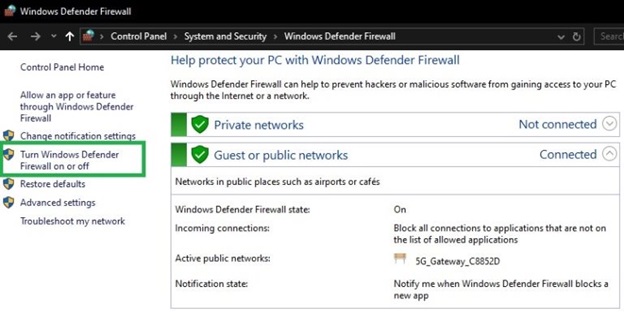
- First, right-click the Start button, type Windows Defender Firewall in the search bar, and click the first search result.
- Click Turn Windows Defender Firewall on or off in the left-hand menu.
- Next, click Turn off Windows Defender Firewall (not recommended) for both Public network settings and Private network settings to disable the Firewall. To re-enable the Firewall later on, you can click “Turn on Windows Defender Firewall” for both Public and Private network settings.
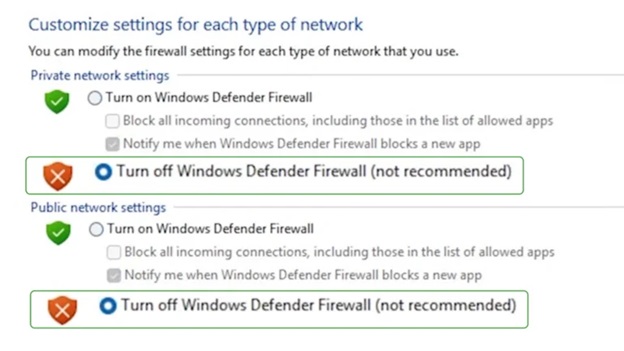
- Lastly, click OK to save the changes you have made in the previous steps.
Fix 9: Switch to Google’s public DNS servers (8.8.8.8 and 8.8.4.4)
The default ISP’s DNS servers can be unreliable, misconfigured, or slow, leading to a ” Minecraft network is unreachable” getsockopt error. Hence, you can follow the steps below to switch to 8.8.8.8 and 8.8.4.4 Google’s public DNS servers.
- To begin with, click the Start button, type Control Panel in the search bar, and click the first search result.
- In the Control Panel, click Network and Internet.
- Next, click Network and Sharing Center.
- In this step, click Change adapter settings in the menu on the left of the Network and Sharing Center window.
- Right-click your WiFi or Ethernet connection and choose Properties from the menu that appears.
- Next, click Internet Protocol Version 4 (TCP/IPv4) and then click Properties.
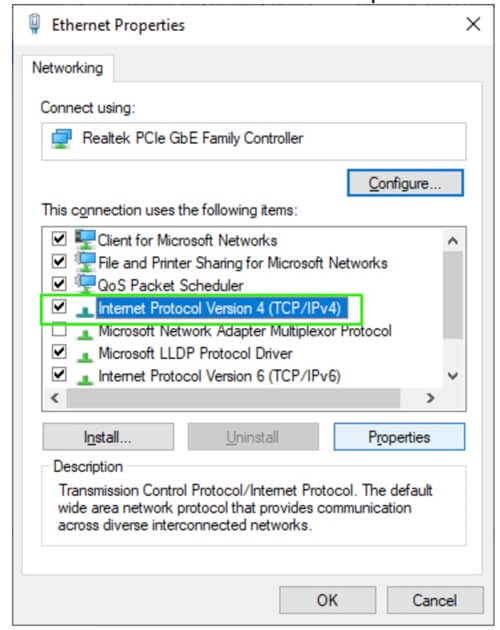
- In this step, click Use the following DNS server addresses.
- In the Preferred DNS server, enter 8.8.8.8, and in the Alternate DNS server, enter 8.8.4.4.
- Lastly, click OK to save the server changes.
Fix 10: Try flushing your DNS
Corrupted or outdated DNS records may be another reason you experience failed Minecraft connections and connection-timeout getsockopt errors. Hence, below is how to flush DNS to clear the server records and find your server addresses again to solve the problem.
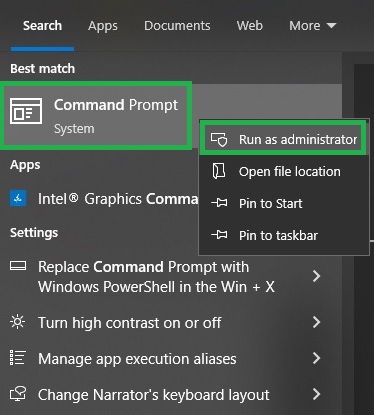
- In the first step, click the Start button, type Cmd in the search bar, right-click the first search result, i.e., Command Prompt, and then click Run as administrator.
- Once the Administrator Command Prompt appears, copy and paste the following command and press Enter.
ipconfig /flushdns
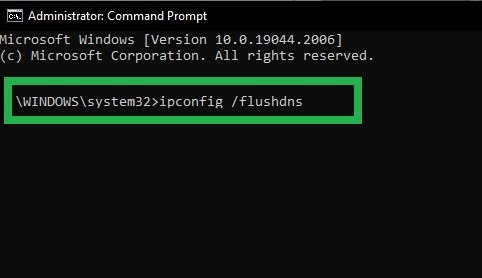
- After the “Windows IP Configuration” and “Successfully flushed the DNS Resolver Cache” messages appear, type Exit, press Enter, and close the Administrator Command Prompt.
Fix 11: Reset the IP configuration
An IP configuration reset releases your present IP address and gets a new IP address from the router to solve problems like Minecraft getsockopt errors. Hence, you can reset your IP configuration. Here is how.
- First, click the Start button, type ” CMD ” in the search bar, right-click Command Prompt, and then click Run as administrator.
- In the Administrator Command Prompt, copy and paste the following commands one by one and press Enter after each command.
ipconfig /release
ipconfig /renew
- Lastly, type Exit, press Enter, and then close the Administrator Command Prompt.
Fix 12: Try resetting the Windows Socket API (Winsock)
Winsock, or Windows Socket API, component allows communication between network services and your computer. If this component is misconfigured or corrupted, due to issues such as network connection or software update failure, you can experience failed Minecraft connections. Hence, here is how to reset Winsock to fix these issues.
- First, open Command Prompt as an administrator. You can check the first step of the previous fix to learn how to do it.
- In the Administrator Command Prompt, copy and paste the following command and press Enter.
netsh winsock reset
- After the “Successfully reset the Winsock Catalog” message appears, restart your computer to complete the reset process.
- Lastly, type Exit in the Administrator Command Prompt, press Enter, and then restart your computer.
Fix 13: Check the port forwarding settings
Problematic port forwarding settings may be the reason you experience Minecraft getsockopt connection timeout errors. Port forwarding lets your router direct incoming traffic on a particular port to the correct device on the network. Without port forwarding, other players’ connection requests will fail to reach your server if they are trying to connect to your Minecraft server. Hence, ensure the TCP port 25565 (the default Minecraft Java Edition port) is forwarded correctly in your VPN or router settings. You can check your router or VPN’s documentation for specific directions to set up port forwarding.
We hope one of the above solutions fixes the getsockopt Minecraft error. However, if the issue remains unresolved, you can contact your ISP, as some ISPs apply strict NAT policies or block ports. If you have any confusion or questions, feel free to contact us through the comments section.
Also know: Best Online Games Without Ads in 2026
Frequently Asked Questions
Q1. What does getsockopt mean in Minecraft Java?
Getsockopt is a function that Minecraft uses to check the status of the network connection with a server.
Q2. How does getsockopt affect Minecraft performance?
The getsockopt error in Minecraft prevents you from connecting to a Local Area Connection (LAN) or game server.
Q3. How to fix Minecraft connection timed out getsockopt?
To fix the ” connection timed out” error in Minecraft, begin by checking the internet connection and ensuring the server is not offline. If there is nothing wrong with your internet connection or server, add Minecraft to the allowed apps in Windows Firewall. If this does not help, try the other fixes in this article until the problem is solved.
