

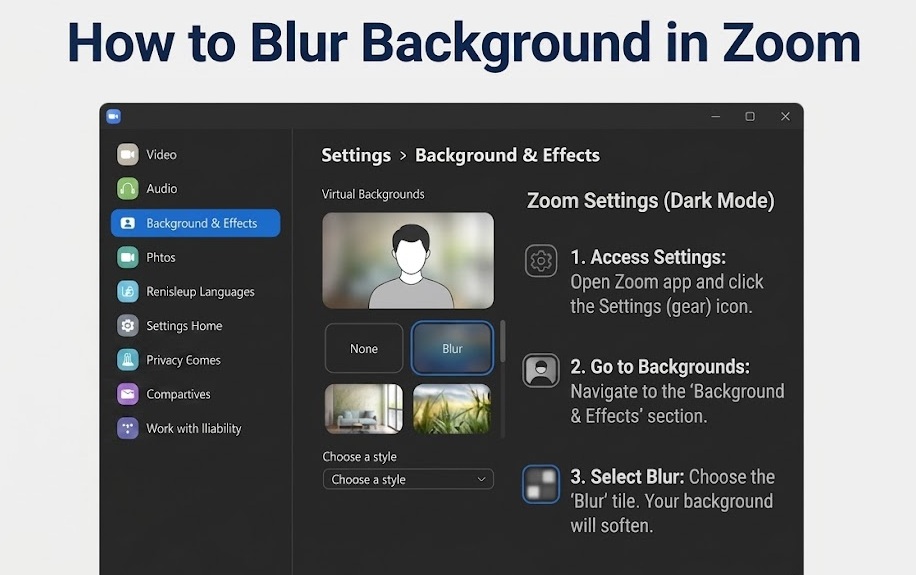
We got you covered with the Zoom background blur. While it is nobody’s concern that you attend a meeting from your bedroom, a bench in the park, or on the beach, the piled-up laundry or a messy bed, the kids running, or people soaking in a sunbath, can be embarrassing and distracting when you want the focus to be on yourself, not the surroundings in the meeting. It is certainly helpful to know how to blur the background in Zoom because you cannot always run across the room, looking for that one perfect corner, the “ideal” background, while others have already joined the meeting room, because the background matters!
However, let’s be honest, blurred means not fully visible, and what’s partially hidden can spark curiosity, which can be distracting too. Hence, a blurred Zoom background is not ideal for all situations.
This article guides you through how to blur the Zoom background in a meeting and, before it, how to troubleshoot if the blur option is unavailable, when to blur, and when not to blur, and what you can do to eliminate distractions if you do not blur your background. Let’s get started.
Can You Blur the Background in Zoom
While you can blur Zoom for free, it may not be accessible on all devices. Your device must meet certain requirements to use the Zoom background blur. Here they are.
System requirements to blur the Zoom background on the desktop client
- Zoom desktop app, Global minimum version or higher
- Windows 7, 8, 10 (64-bit), and 11
System requirements to blur the Zoom background on the mobile application
- Zoom mobile app, Global minimum version or higher
- Android 8.0 or higher
- iPhone 8, 8+, X, or newer models
If your device meets the Zoom blurred background system requirements, you can proceed to blur the background.
How to Blur Background in Zoom During a Meeting
To blur your Zoom background on a desktop during a meeting, use the arrow next to the video icon in the video window, go to Background & Effects, and click Blur. To use a blurred background during a meeting on mobile, tap More, select Backgrounds, and then choose Blur. The following sections explain these steps in detail.
On desktop
Please note that the steps are the same for Windows, macOS, and Linux desktops.
- In the lower-left corner of the video window, click the arrow icon next to Video.
- Click the Blur my background option.
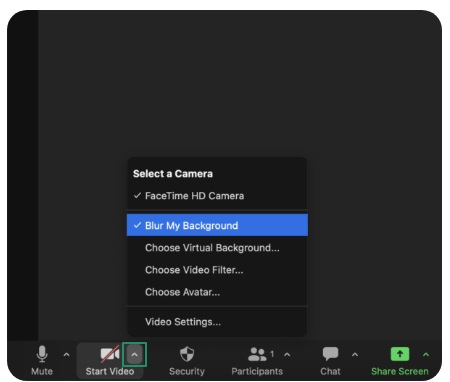
Note: Your background will remain blurred in the next meeting as well. To turn off the Zoom background blur, click “Blur my background” while a check mark is next to it.
On a mobile application
How to blur the background in Zoom during a meeting is the same for both Android and iOS devices.
- Tap More in the lower-right corner of the controls toolbar.
- Next, tap on Backgrounds & effects.
- Tap Blur in the Backgrounds tab. After blurring the Zoom background, you can tap the minimize icon to return to your main meeting window.
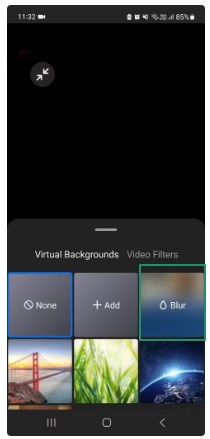
Note: To unblur the Zoom background, choose the “None” option from the same menu.
Also know: How to Manage App Permissions For Camera In Windows 11/10
How to Blur Background in Zoom Before a Meeting
To enable blurred background before a meeting in Zoom on a desktop, go to Settings, click Backgrounds & Effects, and then click Blur. Please note that the option to blur the background before a meeting is not available on mobile devices. Here are the detailed steps for Zoom background blurring before a meeting (only on a desktop).
- Click your Profile Picture.
- Next, click Settings.
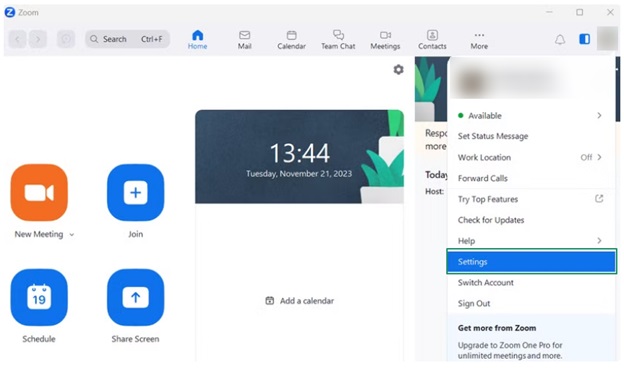
- In this step, click Backgrounds & Effects.
- Click Virtual Backgrounds.
- Lastly, click Blur.
Note: If you want to remove the background blur on Zoom, choose “None” from the Virtual Backgrounds menu.
The above was how to blur the background in Zoom during and before a meeting quickly and easily. However, if you experience problems with blurring your Zoom background, you can check the following section for causes and fixes.
You may experience problems blurring your background on Zoom if you are using an outdated version of the application or if you have accumulated cache. To fix these issues, you can update the Zoom application and log out and log in to the Zoom web client. Here is how.
Update the Zoom application
To update your Zoom app on Windows, macOS, or Linux, you can follow the steps below.
- Sign in to the Zoom desktop application.
- Click your profile picture in the upper-right corner.
- Next, click Check for Updates.
- Lastly, wait until Zoom downloads and installs the available update.
To update the Zoom application on Android or iOS, navigate to Google Play or App Store, search for the Zoom app, tap Update, and then install the updated application.
Log in and out of the Zoom web client
Random bugs may creep in to prevent the background blurring in Zoom. Thus, you can log out and back in to your Zoom account by following the steps below.
- First, navigate to zoom.us/signin.
- Next, sign in with your email, phone number, or SSO/Google/Facebook.
- After signing in, click your profile picture in the upper-right corner and click Sign Out.
Clear Zoom cache
To clear Zoom cache, go to the Settings menu in the desktop application, navigate to the General tab, and then click the Clear option next to “Clear local Zoom app data and cookies.” On Android, follow the path Settings > Apps > Zoom > Storage > Clear Cache. On iPhone, follow the path Settings > General > iPhone Storage > Zoom > Offload App.
In addition to blurring your background on Zoom, you can take the extra steps to improve your appearance in a meeting.
How to Use the Zoom Background Blur: The Best Practices
Here are the best practices you can follow while using the background blur in Zoom to improve your appearance.
- Ensure you have good lighting with the light coming from behind for better clarity.
- Wear solid and contrasting colors, as stripes, busy patterns, reflective fabrics/colors can interfere with the blur feature.
- Clean your camera lens regularly with a dry and soft cloth to ensure a clear and focused image.
While that was all about blurring the Zoom background, a blurred background may not be suitable for all situations, such as a remote team building session, where your background can be an icebreaker between you and your team. For example, a photo frame on the wall can start a conversation about one of your most memorable vacations. If you do not want to show your home for privacy reasons, you can use a virtual background in such situations.
Is a Blurred Zoom Background Better or a Virtual Background (Which One Should You Choose)
When something is blurred or not hidden completely, it creates curiosity about what is there that you want to hide. However, it may sometimes be a red flag, a wrong signal, that there is something not right, something you find embarrassing, or perhaps, a sign that you are always a messy person, while you may not be. Moreover, keeping the background visible helps people open up; it helps you know what you may have never known about your coworkers.
It happened to us once, while on a Zoom call during work-from-home, one of our colleagues had a guitar on the wall. It was only then that we learned he was the lead singer of his college band, something we had not imagined. Our surroundings tell us more about us than we can think.
However, if for privacy or any other reason, you do not want to show your real surroundings, you can add a virtual background that reflects your personality.
Note: Choose a blurred background if you want the focus to be only on you without any visual distractions, or choose a virtual background for better engagement and personalization. Typically, the Zoom background blur is best for everyday meetings, where you need simplicity and professionalism. When you want branding or creativity, a virtual background is better.
Also know: How to Fix the GETSOCKOPT Error in Minecraft
How to Add a Virtual Zoom Background
To apply a virtual background, upload a custom background image or pick from the default options in the background & filters settings. To upload a specific theme, click the + icon to add an image from your device.
Hopefully, this helps you get the best Zoom meeting experience. However, if you have any doubts or questions, feel free to reach out through the comments section.
Frequently Asked Questions
Q1. Can I hide my background in Zoom?
You can hide your background in Zoom by blurring it before or during the meeting. The guide above explains the detailed steps to do so.
Q2. Why do people blur their background on Zoom?
The background blur in Zoom helps users keep their privacy intact, maintain focus, and is faster than applying a virtual background.
Q3. Does Zoom background blur lower video quality?
A blurred Zoom background only adjusts your background; it does not make the video unclear. Hence, there is no effect on the video quality.
Q4. How can I test a blurred Zoom background before a meeting?
To test your Zoom background before a meeting, click on your profile picture, select Settings, go to Background & Effects, and then go to Virtual Backgrounds to preview, choose, and change your background.
