

Are you worried about Windows performance issues, such as slow speed, inconsistency, and UI problems? Then, you can download Tiny10 ISO to solve these problems by saving disk space, running smoothly on low-end and old computers, decluttering the device of bloatware (unnecessary third-party or Windows applications), and ensuring a clean and minimalist UI with only essential features.
Developed by NTEDV, Tiny10 removes unnecessary applications and services while keeping core utilities, such as PowerShell, Disk Management, and CMD, to ensure fast and smooth PC performance. However, you can install the removed applications, for example, a driver updater, or services whenever required without any issues.
Before explaining how to download Tiny10 and install it on your computer, let’s clear up any confusion you may have about it.
What Is Tiny10 ISO File
Simply put, Tiny10 is a stripped-down, modified version of Windows 10. It cuts out all the unnecessary components from your Windows computer to debloat it for a smoother experience. In addition to removing unnecessary Windows services, applications, and components, Tiny10 optimizes your PC for faster performance and better responsiveness.
However, please note that it does not have Windows Security and Microsoft Store, and does not support Windows Subsystem for Linux (unless you enable Hyper-V). If this is not a deal breaker for you, you can proceed to the Tiny10 ISO download and installation.
Also know: What is an ISO File in Windows and How to Download It for Windows
How to Download and Install Tiny10 ISO File
You can follow the steps below to download the Tiny10 ISO file (64-bit and 32-bit).
- Navigate to the official Tiny10 page on the Internet Archive.
- If you have a torrent client on your computer, select the torrent download option for better download speeds. Otherwise, choose the direct download option.
- You will see the 1809, 2209, and 2303 Choose the 22H2 or the 2303 LTSC build. If you wish to run a 64-bit version of a stripped-down Windows 10, avoid the 2303 LTSC build, as it is available only for 32-bit systems.
- After downloading the correct Tiny10 ISO file, download software to create a bootable USB drive, such as Rufus.
- Once you have created a Windows 10 bootable media, connect the Tiny10 bootable USB drive to your computer.
- Power on your PC and press the F-key to get the boot device options.
- Use the arrow keys to select the USB drive and press Enter to boot.
- After you get the Windows 10 setup and installation window on your screen, select your country and language, and then click Accept.
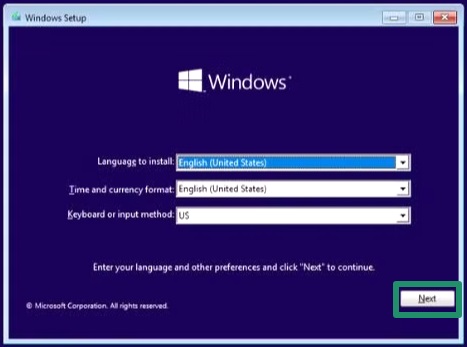
- Click Install Now to proceed to the next step.
- Next, click I accept the license terms, and then click
- Select the Custom installation option and then choose the drive on which you wish to install Windows.
- Click Next and wait until the installation is complete. In this process, your PC will restart more than once.
- After completing the installation, a setup window will appear. Choose your preferred region and click
- Select the desired keyboard layout and click
- Enter the username and click
- Set and confirm your password and click
- Choose three security questions and answer them.
- Uncheck all the Privacy page options and click Accept.
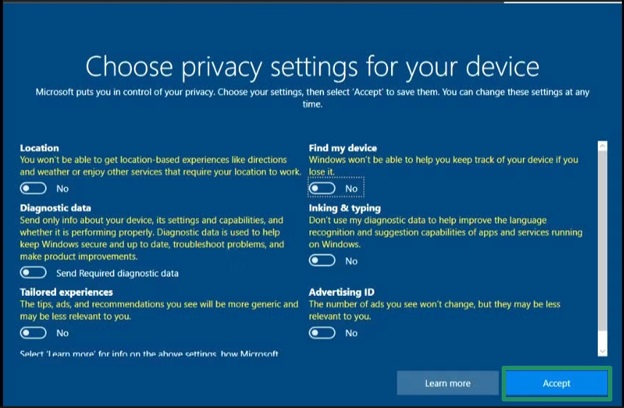
- Lastly, wait for the Tiny10 Windows 10 installation to complete.
That’s how you can bring your old PC to life with a simple Tiny10 ISO file download and installation. With no more bloatware and tracking items dragging your PC down, you can enjoy a fast and smooth Windows experience. However, please note that NTDEV, the Tiny10 developer, no longer plans to support the Windows 10 build, and this would be the last one, as users are increasingly switching to the new Windows 11. This build works, but no new ones will arrive in the future, so enjoy it while it’s there. If you have any related questions or concerns that you cannot find answers to in the frequently asked questions, or if you need help with anything tech, you can leave us a comment.
Also know: Best Free Windows Server Backup Software
Frequently Asked Questions
Q1. What is the difference between Tiny10 and Windows 10?
The difference between Tiny10 and Windows 10 is that Tiny10 is a toned-down or modified version of Windows 10, containing only the essential tools. It does not contain any unnecessary applications or bloatware, not even the Microsoft Store. However, it has the Edge browser that you can use to download and install any application or software that you need.
Q2. Is Tiny10 safe to install?
While Tiny10 is fast and smooth, it is developed by an anonymous developer, raising questions about its safety. We advise you to be careful, as it can contain keyloggers in the installation files, putting your privacy and security at risk.
Q3. How to install Tiny10 ISO on Windows 10?
To install the Tiny10 ISO file on Windows 10, you need to download the Tiny10 ISO from the Internet Archive, download a bootable USB creator, create a bootable USB, boot from USB, and then install Tiny10. You can check the guide above for detailed steps.

