Almost every smart TV is packed up with several pre-installed apps, but there are also various applications that you cannot access due to various restrictions and limitations. To get over those limitations and access those apps with regional restrictions, you can simply use a VPN connection. But you are confused ‘How to use VPN on TV?’
There are different ways to connect and setup your VPN with your smart TV because there are many smart TVs that do not accept some of the methods.
Why You Use a VPN on TV?
Before understanding ‘How to get VPN on TV?’ Now it is time to understand what the reasons are you must use a VPN on smart TV as a game changer for a user. These are the following reasons for you to learn why a user must use VPN on your smart TV.
Security: VPN makes sure that your data remains to yourself only. And there are entities that might track you down with your activities on your smart TV and also with the streaming activities. So, it is not necessarily sure that your data is safe without a VPN.
Content from Various Regions: There are various applications on your smart TV which cannot be accessed on your smart TV because of the regional restrictions. According to a survey conducted, almost 49% of users are using VPN to access lots of content.
Multi Access: The most useful feature you can get from connecting a VPN from your smart TV is that you can access various servers available. You will face flexibility with the servers and very few traffic that ensures smooth streaming.
Now let us learn ‘How to get VPN on TV?’ With a step-by-step guide with several methods.
How to Use VPN on TV?
There are different methods for smart TV VPN usages because there are different kinds of smart TV that support different ways to connect to a VPN. You can either download a VPN directly on your smart TV, or configure the VPN router, or create a VPN protected Wi-Fi hotspot.
Here are a complete step-by-step guide and solution to your problem of ‘How to use VPN on TV?’ for the ways to install and setup a VPN on your smart TV.
Method 1: Using your Home Router
To use the smart TV VPN, you can directly connect your smart TV with the router you are using at your home. This method is mainly used to protect all those devices connected to your network at the time.
Step 1: Go and make sure that the VPN provider you are using supports the router model.
Step 2: Open the browser in your system and search for the IP address of your router.
Step 3: Enter the username and the password of the router and log in.
Step 4: Open the settings and configure the VPN settings of the router.
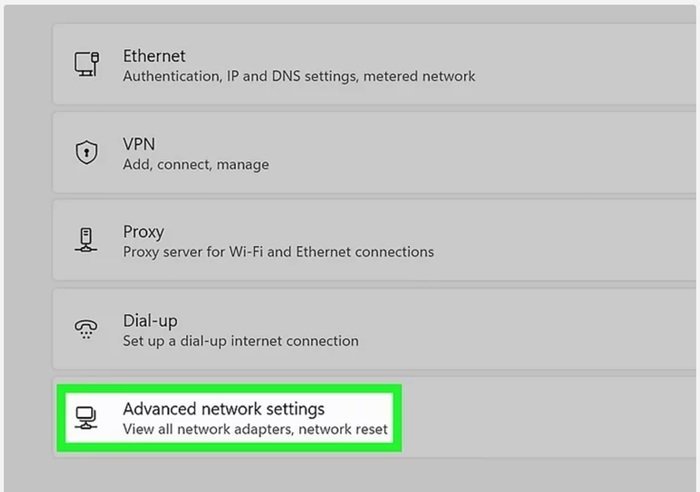
Step 5: Then connect your smart TV to your current network at your home.
If you are still not able to connect and setup VPN on your smart TV, then follow another method.
Also know: What Is a VPN vs Proxy: Detailed Comparison
Method 2: VPN Protected with Wi-Fi Hotspot
Another solution to the problem ‘how to use VPN on TV?’ To install and setup the VPN on TV, you can connect it with the Wi-Fi you are using at your home. And this method is best when the smart TV you are using is not supporting the VPN application.
Step 1: Enable the OpenVPN
Step 2: Go to the search bar and enter ‘Network Connection’ and then go to ‘View Network Connection’
Step 3: And then press ‘Windows + S’ and search for ‘Mobile Hotspot Settings’ and press ‘Enter’ to switch on the mobile hotspot. There you will find the ‘Network Name’ and click on it then enter the network password.
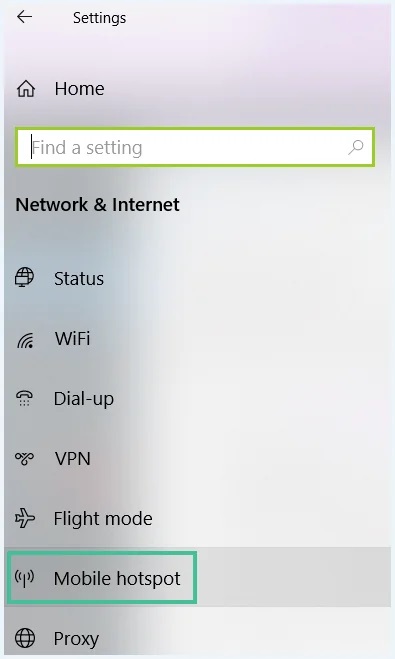
Step 4: After this, go to the network connection and select the new network adapter.
Step 5: And then connect to the VPN using the protect Wi-Fi hotspot.
If you are still not able to connect and setup VPN on your smart TV, then follow another method.
Method 3: Ethernet Cable
If you still wonder and seek the answer for the question ‘How to use VPN on TV?’ then here is your solution. This method is mainly used for smart TVs who neither support VPN nor Wi-Fi.
Step 1: Go to the settings and open VPN settings and go to the Protocol option.
Step 2: Then go to the Data Channel Offload of the adapter settings and search for the ‘Network connection’ and form the dropdown menu. Click on ‘Ethernet’ and click ‘OK’.
Step 3: Then connect to the VPN you are using at your home.
Step 4: After this, share your TV, console, and all the devices the system is using.
If you are still not able to connect and setup VPN on your smart TV, then follow another method.
Also know: Best Free VPN Reddit Users Recommend
Frequently Asked Questions (FAQs)
Q1. How to use VPN on TV for free?
Ans. You can use VPN on smart TV for free, but there are always restrictions on speed, usage, and security issues. The paid versions are way better than a free one to use with better security and performance.
Q2. Is VPN used to stream content also?
Ans. Yes, you can use a VPN to stream content on your smart TV.
Q3. What else can you do to use a VPN?
Ans. You can use VPN on your desktop and mobile services and along with that, you can also use it for privacy while browsing. You can easily access all geo websites with restrictions. The data on your system also remains encrypted while using a VPN.
To figure out ‘How to use VPN on TV?’ These were the methods for you because connecting VPN to your smart TV is a game changer. After this, you will secure your data with encryption of VPN, and you will also encounter larger content libraries. This will make your streaming easier and faster for your smart TV.