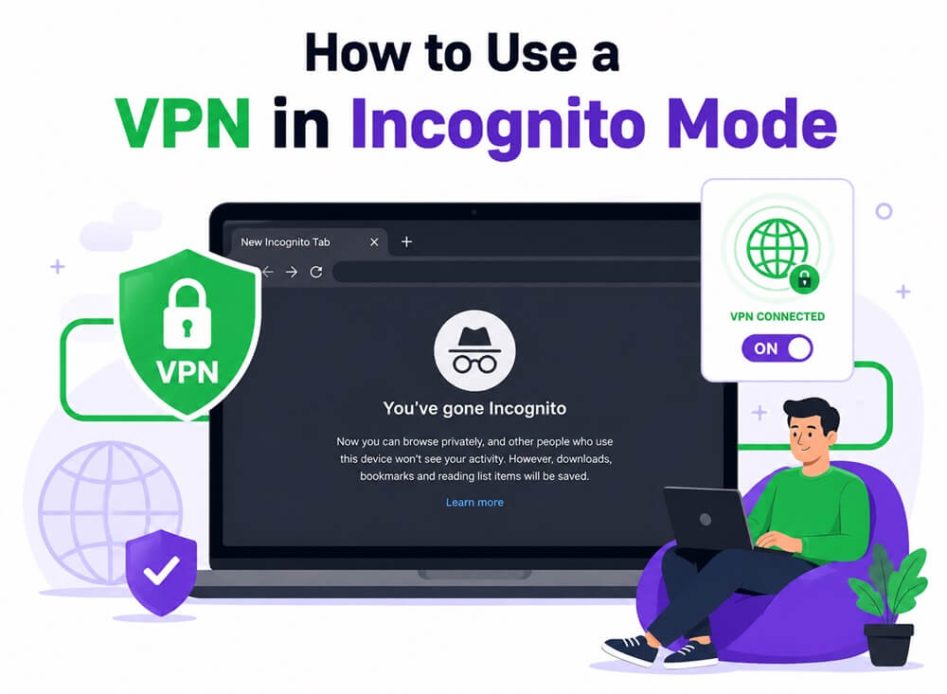
It may come as a shock: Google was ordered to destroy billions of users’ data records of users who were browsing in Incognito mode; the court estimated the monetary value of this data at a staggering $5 billion. This is not a one-off case, but proof that your browsing activity is not completely private even in Incognito mode. For example, when you use public WiFi at a coffee shop, browse sensitive topics on a shared family computer, or shop online while traveling, your private information may still be exposed—despite using Incognito. While Incognito mode does not save your history, cookies, or form data, your internet activity is still visible through network tools, system logs, and sometimes your own Google account unless you can use a VPN in Incognito mode to level up your privacy.
While Incognito mode protects your local history, a VPN encrypts your data, hides your IP address, and prevents tracking by your internet service provider (ISP) or websites for complete privacy protection. However, before enabling a VPN for Incognito mode, let’s clear up a few basics about Incognito mode and VPN to prevent any confusion.
What Is Incognito Mode
Incognito mode, InPrivate mode, or private browsing is a privacy feature on almost all popular browsers that prevents the browser from saving your browsing history, cookies, or site data locally to ensure privacy on shared devices.
What Is a VPN
A VPN, or Virtual Private Network, is a technology that creates a secure tunnel between your device and the websites you visit online, encrypting your data and hiding your IP address. A VPN server routes your internet traffic via an encrypted pathway to prevent anyone from accessing or intercepting your information.
Do VPNs Work in Incognito Mode
Yes, a VPN works in Incognito mode, exactly like a regular browser window. A VPN and Incognito mode operate at completely different levels, never interfering with each other. Both tools run together to ensure your browser does not save your browsing activity locally, your real IP address remains hidden from websites, your online activities remain hidden from your ISP, and your traffic is encrypted and protected.
In other words, a VPN fills the gaps Incognito leaves; Incognito mode cannot protect against hackers or cybercrimes, while a VPN helps protect from hacking and phishing attacks, ensures a secure connection on public WiFi, bypasses geo-restrictions, protects from online tracking, and helps share sensitive files or documents securely.
How to Use a VPN In Incognito
To use a VPN for Incognito mode, open your VPN application, select a VPN server, connect to the VPN, open Incognito mode, check the IP address, browse the web without logging into personal accounts, and close the Incognito window when you are done browsing. Below are these steps explained in detail.
- Open the VPN app: Launch the VPN application on your device. You can use a desktop VPN, mobile VPN, or a VPN browser extension. While a browser extension protects your browser traffic, a device-level VPN protects traffic from all applications. Some of the best VPNs that work with Incognito mode are NordVPN, CyberGhost VPN, and ExpressVPN.
- Select a VPN server: Choose the VPN server location you wish to use. Select a nearby server for general privacy and better speed. Choose a server in your desired country or region for location-specific browsing. If speed is one of your top concerns, use WireGuard or OpenVPN VPN protocols.
- Connect to the VPN: Before opening the Incognito window, click Connect and wait for the VPN app to confirm your VPN connection is active. Avoid opening the Incognito window before a successful VPN connection.
- Open Incognito mode: After the VPN is connected, press Ctrl + Shift + N to open Incognito mode. To open private mode on Edge, press Ctrl + Shift + N. On Firefox, press Ctrl + Shift + P.
- Check the IP address: Before browsing, ensure the visible IP address is the same as your VPN server location. If you still see your actual location, disconnect and reconnect your VPN.
- Start browsing: You can now begin browsing. To ensure complete privacy, do not log into accounts that can identify you, for example, Instagram, Facebook, Google, your personal email, Discord, or Amazon.
- Exit Incognito: When finished, close the Incognito window to delete browsing history, temporary cookies, and website data. If you wish, you can also disconnect the VPN; your VPN connection will remain active until it is disconnected manually.
However, before following the steps above, if you want to be completely sure about the reasons to use a VPN with Incognito mode, it double-shields your data and sensitive searches and makes it nearly impossible for anyone to track your activity.
Why Use a VPN in Incognito Mode
You can enhance privacy, secure your connection on public WiFi, unlock restricted content, stay protected from online tracking, and share files securely by using a VPN for Incognito mode.
- VPN in Incognito mode masks your IP address and encrypts your data.
- Prevents interception by hackers when you connect to WiFi networks in public places, such as cafes, hotels, or airports.
- A VPN for Incognito mode bypasses geo-restrictions and unlocks content that may be blocked in your region.
- No advertiser or third party can track your online activities to show targeted advertisements or for other purposes.
- A VPN protects your files in Incognito mode and prevents unauthorized access.
However, a VPN is not a magic formula to become completely invisible. There are some things neither a VPN nor Incognito mode can hide.
What VPN and Incognito Mode Do Not Hide
Even if you use a VPN in Incognito mode, a few things remain unhidden, such as:
- Your identity when you log into a personal account, such as your email, Google, Instagram, and Facebook.
- Your activities from websites that use signals like browser fingerprinting to recognize a repeat visitor.
While the VPN cannot hide everything in Incognito mode, privacy protection also depends significantly on the VPN you use. Hence, it is important to choose the right VPN.
Also know: Best Free VPN for Dark Web to Use for Safety
How to Choose the Best VPN that Works in Incognito Mode
To choose the right VPN provider, consider the VPN’s privacy policy, security features, server locations, speed and reliability, and cost.
- The right VPN does not log your activity; it has a strict no-logs policy.
- The VPN must have all essential security features, such as DNS leak protection and a kill switch.
- The best VPN service encrypts your data using strong AES-256 encryption or OpenVPN.
- Check how many server locations are accessible. The VPN should have a wide range of server locations.
- The VPN should provide a reliable and fast connection.
- Compare the VPN’s cost with your budget and the value that the VPN offers. In general, free VPNs, other than the best free VPNs, are not as secure as the paid options.
In addition to choosing the right VPN for Incognito mode, you must also have the best settings for using a VPN in Incognito mode for maximum privacy protection.
What Are the Best VPN Settings for Incognito Mode
To ensure you get maximum privacy protection with a VPN for Incognito mode, enable the kill switch, use DNS leak protection, use a modern VPN protocol, disable unnecessary browser extensions, and enable HTTPS-only mode.
- The kill switch terminates your internet traffic if the VPN connection drops unexpectedly. It helps prevent your real IP address from being exposed when the VPN disconnects.
- With DNS leak protection, DNS requests cannot go outside the VPN tunnel. Without DNS leak protection, your network or ISP can see the domains you access.
- Using a modern VPN protocol, such as WireGuard, OpenVPN, and IKEv2/IPsec, ensures a fast, efficient, reliable connection while handling network switching well on mobile networks.
- Disabling unnecessary browser extensions is essential as browser extensions may access your browsing activity.
- HTTPS-only mode warns you before connecting to any insecure HTTP page, adding an extra protective layer over HTTPS that modern websites use.
However, even the right settings may not work if you make some common mistakes, such as opening Incognito mode before connecting the VPN.
Also know: How to Set up VPN on Chromecast
What Mistakes to Avoid When Using VPN with Incognito Mode
Opening Incognito mode before connecting the VPN, logging into personal accounts, forgetting to check the IP address, choosing the wrong free VPN, and ignoring VPN leaks are the common mistakes you should avoid when using a VPN for Incognito mode.
- Opening Incognito mode before connecting the VPN exposes your IP address before the VPN can protect it.
- Not checking the IP address to ensure it has changed after connecting to the VPN may leave your real IP address exposed if the VPN does not connect.
- Wrong or unreliable free VPNs involve significant risks, such as malware, data logging, and slow connection speeds.
- DNS and WebRTC leaks can reveal your real IP address. Hence, never ignore them and ensure your VPN has built-in leak protection.
Avoiding the mistakes above keeps you protected when you use Incognito mode on public WiFi, shared computers, are comparing search results from another region, researching sensitive topics, or testing websites. However, a VPN with Incognito mode is not enough when you need strong anonymity, such as when you function as a whistleblower, journalist, activist, or someone going through targeted surveillance. In these situations, you need the best alternatives to VPN for Incognito mode with a powerful operational security setup.
Operational security (also known as OpSec) refers to the practices and steps you take to protect yourself and your information online beyond just using privacy tools. For example, OpSec includes habits like never revealing your real identity, using different usernames and emails for each account, avoiding sharing personal information, and being careful about which networks and devices you use. Good operational security helps high-risk users stay anonymous and protected, though it can require extra vigilance and planning.
What Are the Alternatives to VPN in Incognito Mode
While VPN plus Incognito mode is excellent for everyday privacy, consider Tor Browser, the most secure and privacy-focused browser, such as Brave, Firefox, and DuckDuckGo, and browser extensions such as uBlock Origin and Privacy Badger in high-risk situations.
- Tor network routes your traffic via multiple relays, protecting your privacy.
- Best secure web browsers to keep data safe, such as Brave, Firefox, and DuckDuckGo, offer built-in privacy features, such as fingerprinting blockers.
- Extensions to improve browser privacy, such as uBlock Origin and Privacy Badger, block ads and trackers.
Hopefully, this helps you make the right choice for your needs. To clear up any doubts you may have, below we have answered a few common questions about using a VPN in Incognito.
Also know: What Is a VPN vs Proxy
Frequently Asked Questions
Q1. Can I use a VPN in Incognito mode?
Yes, you can use a VPN in Incognito mode to enhance privacy by encrypting your data and hiding your real IP address.
Q2. Why doesn’t my VPN work in Incognito mode?
If you use a VPN browser extension in Incognito mode, it may be blocked by default in private windows. To fix this issue, allow VPN in Incognito in the browser’s extension settings. Also, ensure your VPN is connected. If the problem persists, restart your VPN client or contact your VPN provider for assistance, ensure the kill switch is active, and there are no VPN leaks.
Q3. Can Incognito be tracked with a VPN?
Mostly, Incognito cannot be tracked with a VPN unless you log into an account or the website you visit uses fingerprinting.
Q4. Is VPN safer than Incognito mode?
Yes, a VPN is much safer and more secure than Incognito mode alone. Incognito mode cannot protect you from everything, as it does not encrypt your private data and hide your IP address like a VPN.
Q5. Does Incognito mode act like a VPN?
No, Incognito mode cannot act like a VPN. It lacks the encryption, IP masking, and security features of a VPN.
Q6. Does Incognito block the VPN?
No, Incognito does not block the VPN. Incognito and VPN run on separate layers and do not interfere with each other’s functioning.
That concludes our guide on how to use a VPN in Incognito. To enhance your privacy and browsing experience with a VPN for Incognito mode, select a reliable VPN provider, turn on automatic VPN connection, update the VPN extension regularly, use strong and unique passwords, clean your browser cookies and cache regularly, be careful of websites with geolocation, do not share personal information online, and disconnect the VPN when not in use. For any questions or concerns, feel free to write us a comment.