Is the Device Manager showing a yellow warning sign, or is your system showing an error when you plug hardware into your computer? This is a USB composite device error, which is easily fixable.
This guide will help you fix it quickly and easily with simple solutions, such as installing an updated USB driver. However, before getting into troubleshooting, it is important to understand what a USB composite device means and what causes this issue in the first place to ensure proper problem-solving.
What Is a USB Composite Device
A USB composite device is a USB device that performs several functions with a single connection. For example, a keyboard with an integrated USB hub or touchpad appears to the operating system as both a Human Interface Device (HID) mouse and HID keyboard. These devices help multiple functions work via a single connection to conserve USB ports and allow the operating system to execute each task independently.
What Causes a USB Composite Device Error
The USB composite device driver error occurs due to outdated, corrupted, or incompatible USB composite drivers, specifically when you connect an older device to a modern USB 3.0 port. Other causes of this error include pending Windows updates, incorrect power management settings, and corrupted installations.
Now that you are familiar with the USB composite device issues and causes, let’s help you fix this error.
How to Fix USB Composite Device Error
To fix the USB composite device error, you can change the USB port, update the driver for the USB composite device, reinstall the driver, update Windows, run the Hardware and Devices troubleshooter, change USB port settings, and switch to a USB 2.0 port. Below are these solutions explained in detail; follow them sequentially until the problem is solved.
Fix 1: Use another USB port
An unsupported USB port may cause the USB composite device driver error. Hence, follow the steps below to change the USB port or connect your hardware device, such as your keyboard or printer, to any other USB port.
- Remove the USB drive from your computer.
- Insert the USB drive into another port.
- Press Windows key + E to check if the USB drive is visible in File Explorer.
Also know: How to Remove Write Protection from USB Drive on Windows
Fix 2: Update USB composite device driver
A driver is software that the operating system needs to communicate with the connected hardware. An outdated, corrupted, damaged, or missing driver breaks down this communication, resulting in a USB composite device and other errors. Thus, the following are the steps to update the driver.
- Right-click the Start button.
- Click Device Manager in the menu that appears. The Device Manager is a free driver updater available in Windows.
- In the Device Manager, double-click Universal Serial Bus Controllers.
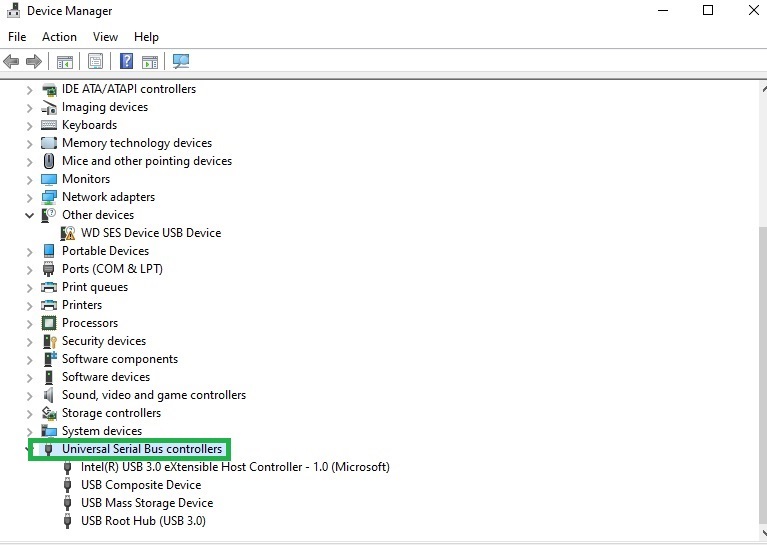
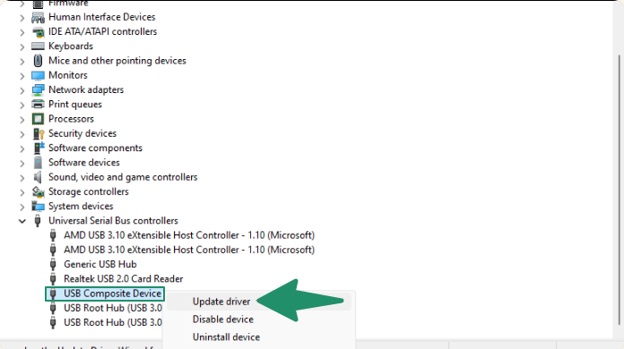
- Right-click USB Composite Device.
- Click Update Driver.
- Next, click Search automatically for drivers.
- Follow the on-screen prompts to complete the driver installation.
- Lastly, restart your computer.
Fix 3: Reinstall USB composite device driver
If the driver files are corrupted or outdated, you may experience problems like the one you are trying to solve. Hence, here is how to reinstall the driver for the USB composite device to allow Windows to reinstall its fresh version.
- Right-click the Start button.
- Click Device Manager.
- Double-click Universal Serial Bus Controllers in the Device Manager.
- Right-click USB Composite Device.
- Click Uninstall device.
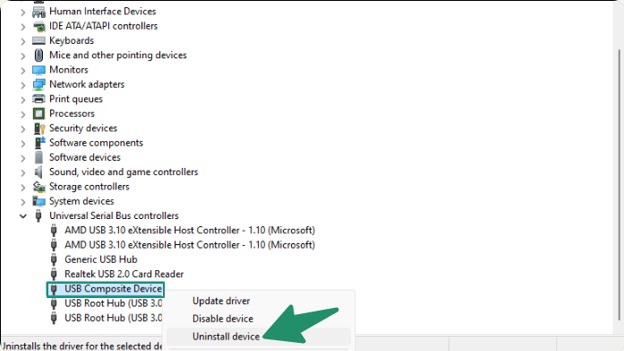
- Next, click OK or Uninstall to complete the uninstallation.
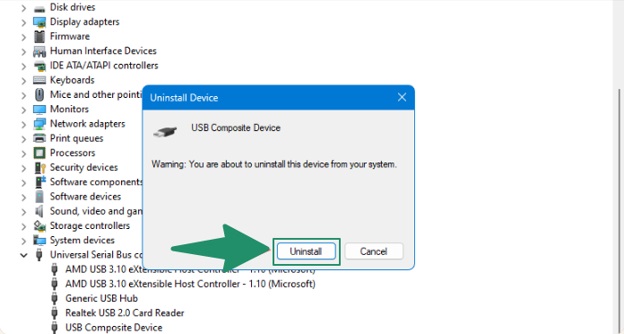
- Once the uninstallation is complete, restart your computer.
Fix 4: Update Windows
Updating Windows fixes issues such as the USB composite device errors. To update Windows:
- Click the Start button.
- Type check for updates in the search bar.
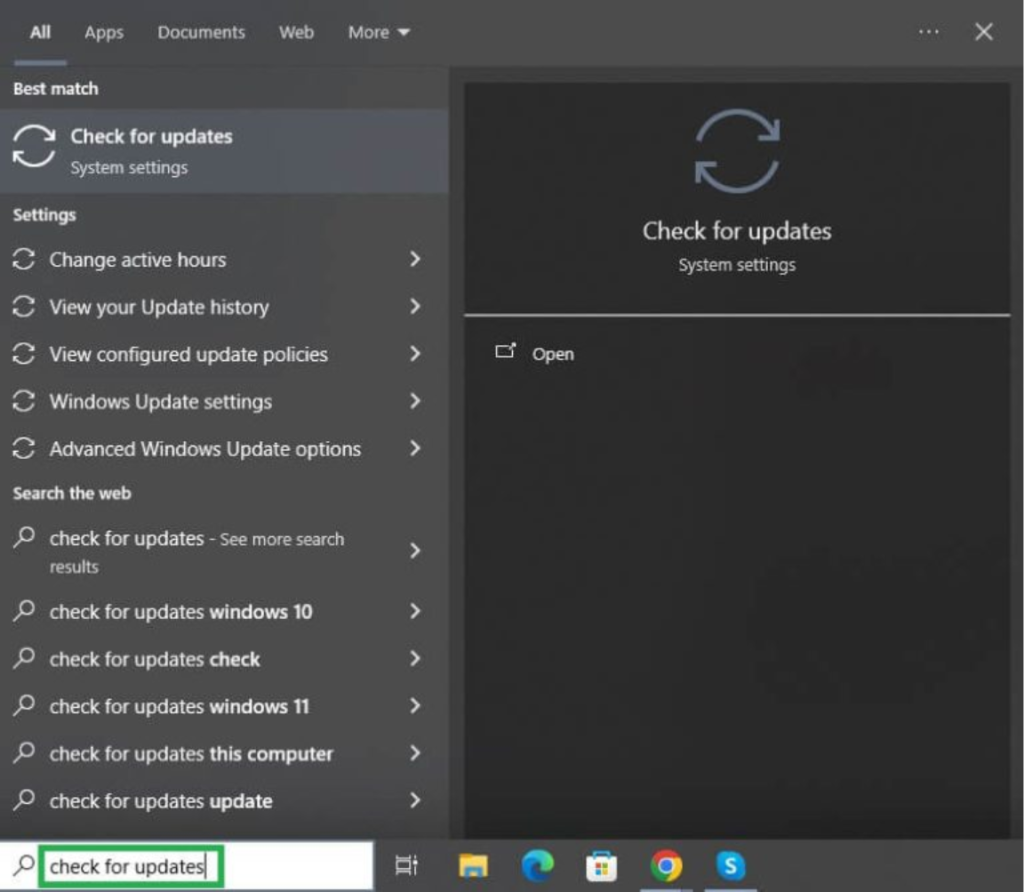
- Click Check for updates in the search results.
- On the Windows Update screen, click the Check for updates
- Click Download and install for the available updates.
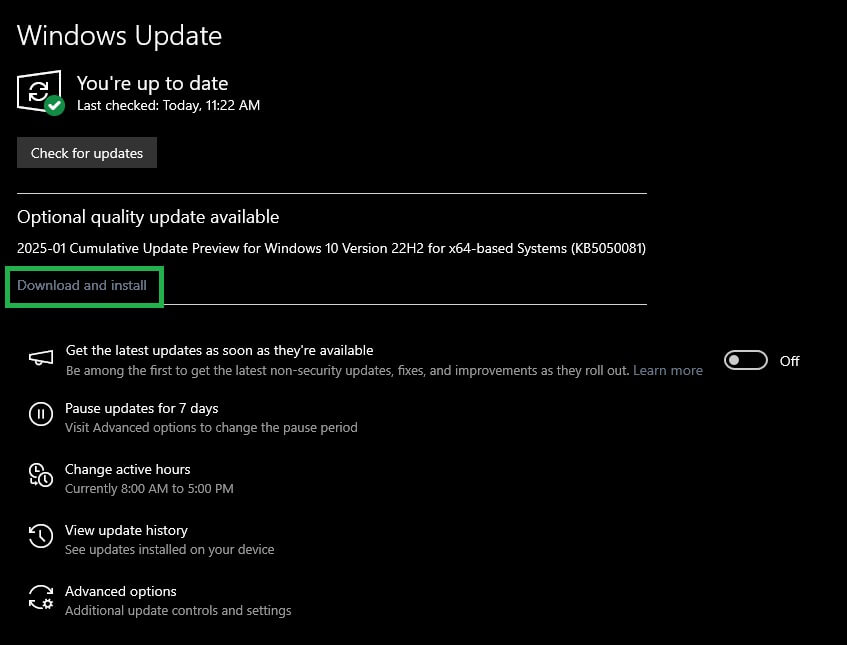
- Wait for the download and installation to complete.
- Lastly, restart your computer to allow the update to take effect.
Also know: How to fix Unknown USB Device Descriptor Request Failed
Fix 5: Run Hardware and Devices troubleshooter
The Hardware and Devices troubleshooter fixes common hardware issues, such as USB composite device errors. Not directly available in Windows 11, below is how to run this troubleshooter.
- Press Windows key + R.
- In the Run box, type or copy and paste exe -id DeviceDiagnostic and press Enter.
- Let the troubleshooter complete its assessment.
- Apply the recommended fixes.
- Reconnect your USB composite device.
Fix 6: Change USB port settings
Changing USB port settings such as power management options can improve the power supply to your USB ports and fix connectivity issues. Hence, you can change these settings through the following steps.
- Right-click the Start button and then click Device Manager.
- In the Device Manager, double-click Universal Serial Bus Controllers.
- Right-click USB Root Hub (USB 3.0).
- Click Properties.
- Click Power Management.
- Uncheck Allow the computer to turn off this device to save power.
- Click
Fix 7: Use a USB 2.0 port
Certain older devices may not function smoothly if connected to USB 3.0 ports, though these ports generally have backward compatibility with older USB standards. Hence, connect the USB composite device to a USB 2.0 port if your PC has both USB 3.0 and USB 2.0 ports and the current USB port is not working.
That’s how you can fix the USB composite device driver error. Below, we have also answered a few related questions about this error to clear up any doubts you may have.
Also know: How to Fix the USB Device Not Recognized Error in Windows PC
Frequently Asked Questions
Q1. What are the drivers for USB composite devices?
The USB composite device driver is the driver that allows communication between the operating system and multifunctional USB devices. When this driver runs into problems, these devices are not recognized or do not function properly.
Q2. How do I fix a USB composite device driver error?
To fix the USB composite device driver error, you can update the USB composite device driver. To update the driver, open Device Manager, double-click Universal Serial Bus Controllers, right-click USB composite device, click Update Driver, click Search automatically for drivers, follow the on-screen prompts, and restart your computer. For details and more effective solutions, check the guide above.
Hopefully, this answers all your questions and helps fix the USB composite device driver error. If any questions remain unanswered or doubts persist, you can seek help through the comments section.