

Broadcom is one of the leading manufacturers of semiconductor and semiconductor-based solutions for networking connectivity, wireless device connectivity, servers and storage systems, and broadband. While Broadcom device problems, such as a Broadcom wireless adapter or Bluetooth not working, can be encountered, they are common issues that are generally straightforward to resolve.
By following simple troubleshooting steps, such as installing the necessary Broadcom drivers, most users find that these issues can be quickly and easily fixed, ensuring your devices are back up and running smoothly.
A driver is the bridge between the hardware and your computer’s operating system. Without the right driver, you may not be able to use your hardware devices as intended.
Hence, this article helps you understand the drivers for your Broadcom devices and how to fix common issues, such as the Broadcom network adapter not working with a simple hardware driver update and other solutions. Let’s get started.
What Are Broadcom Drivers
Imagine communicating with someone who does not understand your language; someone in a foreign land. The way you communicate with them through a translator that translates your words into the language they know and vice versa, your Broadcom device and the PC’s operating system communicate with each other through a translator called a driver.
In other words, a Broadcom driver is a piece of software that translates your instructions into the hardware language of your Broadcom device and its response into the binary language of the operating system.
Without correct and compatible Broadcom drivers, this communication breaks down, leading to multiple problems that we help you fix in this article.
Common Broadcom Driver Problems and Solutions
The following are the most common problems related to the Broadcom drivers, along with how to fix them.
How to download, install, and update Broadcom drivers
To download, install, and update the drivers for any Broadcom device, you can follow the steps below.
- First, navigate to the official website of Broadcom.
- Next, search for your Broadcom device.
- Click on the search result that matches your query.
- Next, click on the Downloads tab.
- Click on the Driver section to expand it.
- Next, click Download to download the driver file on your computer.
- Double-click the driver file you downloaded in the previous step.
- Follow the instructions that appear on your screen after double-clicking the driver file to complete the driver installation.
- Lastly, restart your computer to complete the driver download and installation process.
How to fix the Broadcom driver missing error
“Broadcom driver missing” is a common problem many users encounter, bringing their workflow to a halt. Multiple factors, such as accidental driver uninstallation, recent Windows updates, and a corrupted driver file, may be responsible for this issue.
Below is what you can do if you experience a missing Broadcom driver.
Reinstall the Broadcom drivers
Reinstalling the driver for your Broadcom device can help fix the Broadcom driver missing issue. Here is how to do it.
- First, right-click the Start button on the Taskbar and select Device Manager from the options that appear.
- In the Device Manager, look for the problematic Broadcom device with a yellow exclamation mark. You can find it in the ‘Network Adapters,’ ‘Bluetooth,’ ‘Other Devices,’ or a similar category. Double-click each category to expand it.
If the Broadcom device does not appear at all in Device Manager, try scanning for hardware changes. You can do this by right-clicking the computer name at the top of the list and selecting ‘Scan for hardware changes.’ If the device is still missing, ensure it is properly connected, and consider restarting your computer or checking the physical connections.
- Next, right-click the problematic device and choose Uninstall device from the menu that appears.
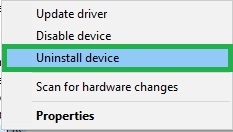
- Confirm the uninstallation and wait for it to complete.
- After the uninstallation is complete, navigate back to the Device Manager and right-click your computer’s name at the top of the device categories in the Device Manager.
- Choose Scan for hardware changes from the options that appear.
- Wait until Windows re-detects your Broadcom device and installs the required Broadcom drivers.
- Lastly, restart your computer to complete the driver reinstallation process.
Update Windows
Microsoft frequently releases Windows updates to fix common issues, such as a missing or outdated device driver. Hence, you can follow the steps below to update Windows.
- First, click on the Start button and type check for updates in the search bar that appears.
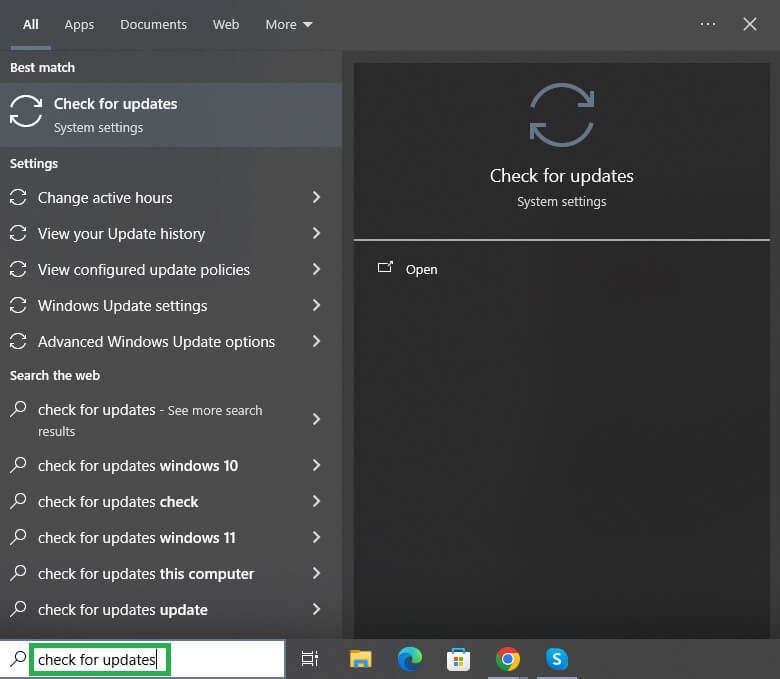
- Next, click the first search result to open it.
- Click the Check for updates button to let Windows find the recently released updates for your operating system.
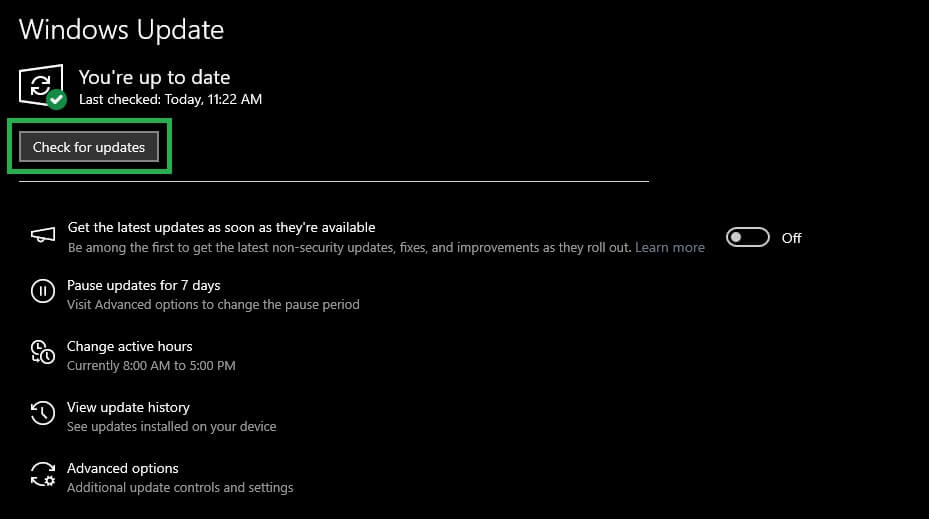
- Download & Install all available updates, including the ones listed as optional.
- Lastly, restart your computer to complete the Windows update process.
Also know: How to Map a Network Drive in Windows 11
How to fix the Broadcom Bluetooth not working issue
Common issues, such as the Broadcom Bluetooth adapter not starting, the Bluetooth adapter not working after a Windows update, and Windows being unable to find your Bluetooth devices or complete the pairing process, may render the Bluetooth on your computer dysfunctional.
To fix these issues, you can update the driver, disable power management, and use the built-in Bluetooth troubleshooting feature. Here is how.
Update the driver
- Right-click the Start button and choose Device Manager from the available options.
- Double-click the category of the problematic device to expand it.
- Right-click the problematic device and choose Update Driver.
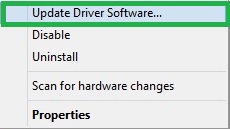
- Click Search automatically for drivers.
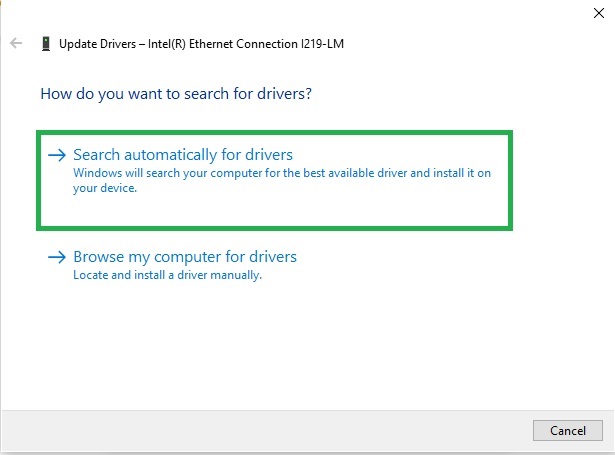
- Follow the instructions to download and install the updated drivers.
- Lastly, allow your PC to restart to complete the process.
Disable power management
- Right-click the Start button and select Device Manager to open it.
- In the Device Manager, double-click the Bluetooth category to expand it.
- Right-click your Broadcom Bluetooth adapter and choose Properties from the menu that appears.
- Navigate to the Power Management tab in the Properties window.
- Uncheck Allow the computer to turn off this device to save power.
- Lastly, restart your computer.
Use the built-in Bluetooth troubleshooter
- First, use the Windows key+I key shortcut to open Settings.
- Choose System from the Settings menu. Windows 10 users select Update & Security.
- Click Troubleshoot to view the available troubleshooters.
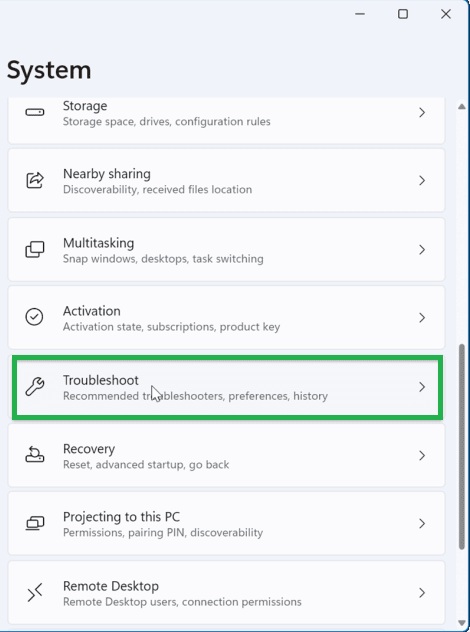
- Navigate to the Other troubleshooters.
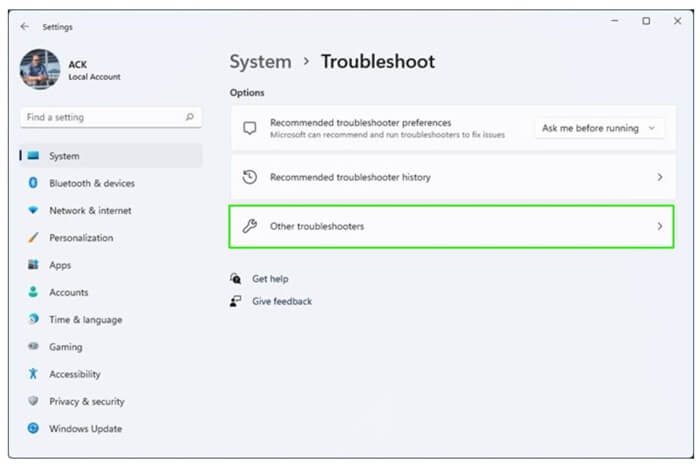
- Find and click on Bluetooth.
- Click on the Run button to begin the troubleshooting process.
- Lastly, restart your computer when the troubleshooting is complete.
How to fix the Broadcom network adapter not working issue
If your Broadcom network adapter does not work, you can apply the following solutions sequentially until the problem is resolved.
Reinstall the Broadcom network driver
- Right-click the Start button and choose Device Manager to open it.
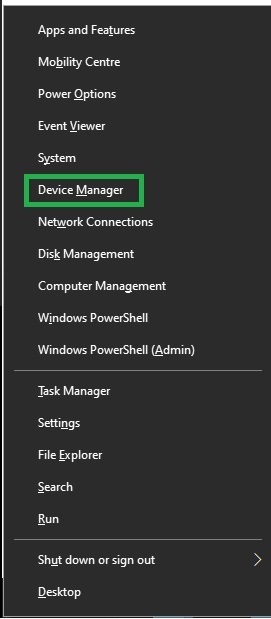
- In the Device Manager, double-click the Network adapters category to expand it.
- Right-click your network adapter and choose Properties.
- Navigate to the Driver tab.
- Click Uninstall, confirm the uninstallation, and wait for the process to complete.
- Lastly, restart your computer after the uninstallation is complete.
Reset network settings
- Click on the Start button and type cmd in the search box.
- Right-click the first search result and choose Run as administrator.
- In the Administrator Command Prompt, copy and paste the following command and press Enter.
netsh winsock reset
- Lastly, restart the computer.
Also know: How to Fix 0x80070035 Network Path Not Found Windows 11
How to fix the Broadcom drivers installation failure
If the Broadcom driver installation fails on your computer, you can update or reinstall the driver in Device Manager, right-click the .exe driver file and choose “Run as administrator” to install the driver as an administrator, uninstall the current driver and then restart the computer to install the new driver.
Additionally, consider checking for and installing Windows updates, as these can resolve compatibility issues. Temporarily disabling your antivirus software might also help if it is interfering with the driver installation.
That’s how you can ensure smooth performance of your device by downloading and installing appropriate Broadcom drivers and fixing related issues. However, if any problem persists, you can always contact the official Broadcom support for expert assistance.

