While the HP LaserJet 1020 Plus is a discontinued printer and HP no longer manufactures its new units, it is still popular among users. It is a single-function, compact, monochrome laser printer that can print at a speed of up to 14 pages per minute (ppm) with a 600 x 600 dpi resolution, and manual duplex printing support. However, without a compatible HP LaserJet 1020 Plus driver, this printer can also run into problems, such as the printer not working or not being recognized by Windows.
Hence, this article walks you through multiple methods to download and install the most compatible and up-to-date driver for your HP LaserJet 1020 Plus printer. But first, let’s begin by helping you understand the driver to ensure HP LaserJet 1020 Plus printer driver compatibility with your system for smooth printing.
What Is an HP LaserJet 1020 Plus Driver
HP LaserJet 1020 Plus driver for Windows is software that helps the printer and your computer’s operating system communicate. Without this software, the operating system and the printer fail to understand and execute your commands correctly.
However, to ensure error-free printing, only having a driver installed is not enough. The installed driver must also be up-to-date and compatible with your system. Hence, the following section lists the details of the latest driver.
Latest HP LaserJet 1020 Plus Driver Details
Compatible OS: Windows XP, Vista, 7, 8, 8.1, 10, 11
Version: v1601
Release Date: Feb 9, 2016
File Size: 80.2 MB
Free disk space required: At least 590 MB
Now that you are familiar with the latest HP LaserJet 1020 Plus driver, let’s help you download and install it.
How to Download, Install, and Update HP LaserJet 1020 Plus Driver for Windows
You can download the updated version of the HP LaserJet 1020 Plus driver and install it through HP’s official website, Device Manager, or Windows Update. The following section explains all these methods in detail.
Method 1: Download the HP LaserJet 1020 Plus driver and install it from the official website
The manufacturer’s official website is among the most reliable driver sources. You can follow the steps below to download and install the HP LaserJet 1020 Plus driver for Windows via HP’s official website.
- Navigate to HP’s official website.
- Hover over the Support
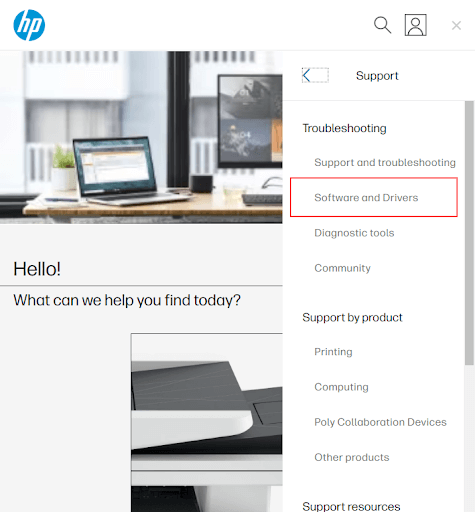
- Click Software & Drivers in the Support options.
- Next, click Printer in the options that appear.
- Type HP LaserJet 1020 Plus in the search bar and press
- If the detected operating system is incorrect, click Choose a different OS and then click the correct operating system. If you are unsure about the operating system your computer runs, follow the path Windows + I > System > About to note it.
- Click Download to download the driver file.
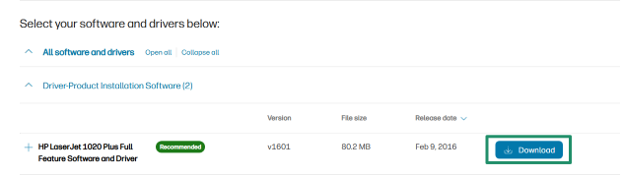
- Save the driver file to your hard disk.
- Close any software programs running on your device.
- Double-click the downloaded file to extract all the driver files on your hard drive.
- Click the printer driver file and follow the on-screen instructions to complete the installation.
- After the installation is complete, restart your computer to let the newly installed driver take effect.
Also know: How to Set Your Preferred Default Printer Windows
Method 2: Download and install the latest HP LaserJet 1020 Plus driver for Windows using Device Manager
Device Manager is a free tool to download, install, and update drivers built into all Windows computers. Below is how to use it to download the HP LaserJet 1020 Plus driver’s latest version and install it on your system.
- Right-click the Start button present in the extreme right corner of the Taskbar.
- Click Device Manager in the options that appear.
- In the Device Manager, double-click Printers or Print Queues.
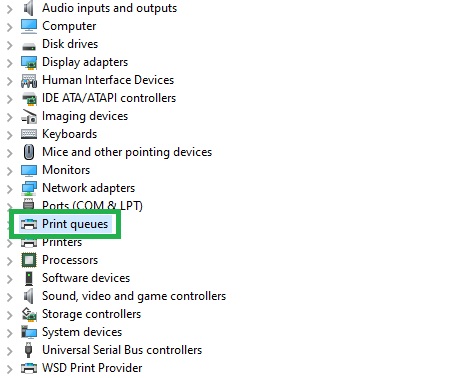
- Right-click your HP LaserJet 1020 Plus printer and then click Update Driver.
- Click Search automatically for drivers on Windows 11 and Search automatically for updated driver software on Windows 10.
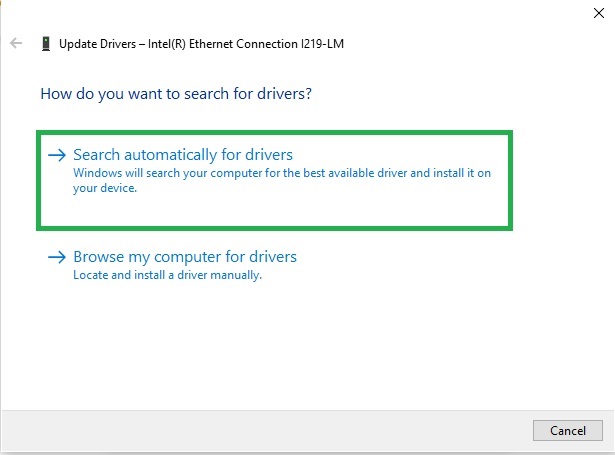
- Follow the directions that appear on your screen to complete the driver installation.
- Lastly, restart your computer to let the HP LaserJet 1020 Plus driver take effect.
Method 3: Perform Windows Update to download and install the HP LaserJet 1020 Plus driver update
Windows updates fix security loopholes, add new features, solve performance problems, and update device drivers. You can follow the steps below to update Windows to download and install the latest HP LaserJet 1020 Plus driver.
- Click the Start button on the Taskbar.
- Type check for updates in the search bar.
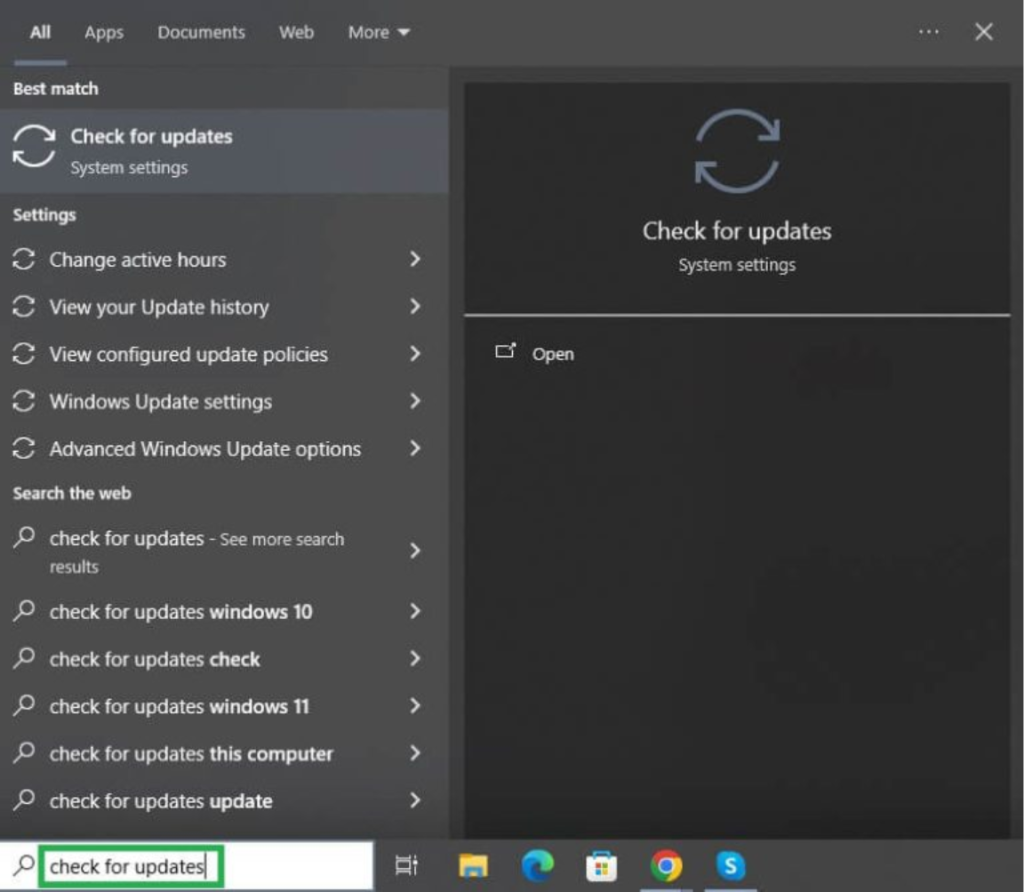
- Click Check for updates in the search results.
- On the Windows Update screen, click Check for Updates.
- Next, click Download & Install to get the latest Windows update, including optional updates downloaded and installed.
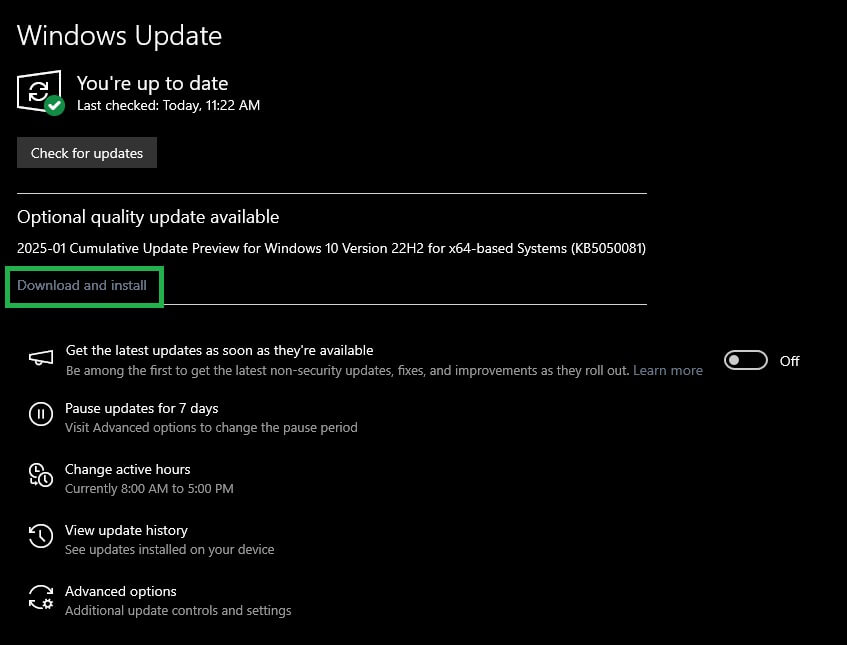
- Follow the on-screen instructions to complete the Windows update process.
- Lastly, restart your computer to let the changes take effect.
You can find the answers to any questions that you may have in the following section.
Also know: How to Fix My Printer Printing Blank Pages Windows 10
Frequently Asked Questions
Q1. Where can I find the official HP LaserJet 1020 Plus driver?
You can find the official driver for your HP LaserJet 1020 Plus printer on HP’s official website, through Device Manager, or using Windows Update. The guide above explains all these methods in detail.
Q2. How do I fix the HP LaserJet 1020 Plus printer not working?
If your HP LaserJet 1020 Plus printer is not working, clear the print spooler, update the HP LaserJet 1020 Plus printer driver, and ensure the printer is properly connected to the computer.
Hopefully, this answers all your questions for a smooth printing experience with the right HP LaserJet 1020 Plus printer for your system. However, if you have any persisting doubts, you can leave your questions or valuable suggestions to improve this guide in the comments.