

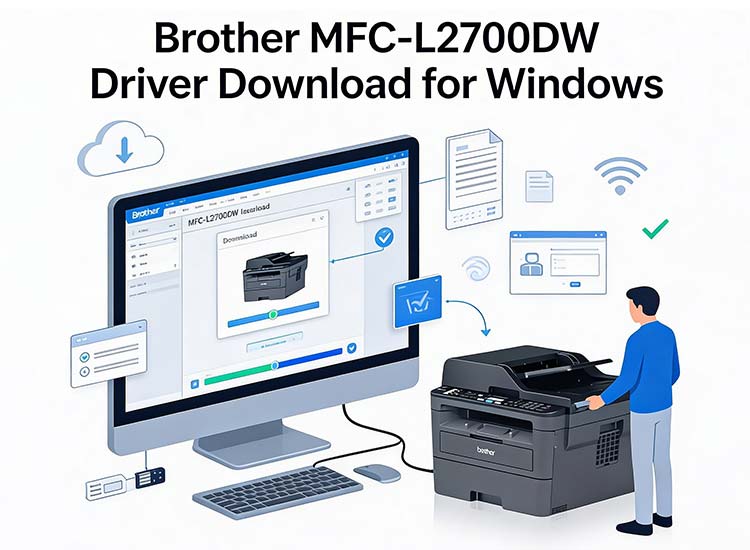
Despite being a discontinued model, the Brother MFC-L2700DW is still a user-favorite monochrome multi-function laser heavy-duty printer. Popular for both personal and office use, it offers fast and easy document scanning, copying, printing, and faxing. However, irrespective of the best-in-class features, the printer may not work correctly due to an outdated, corrupted, incompatible, or missing Brother MFC-L2700DW driver file.
Hence, this article explains the quickest and easiest ways to download, install, and update the driver for your Brother MFC-L2700DW printer for smooth performance. Before getting started, here is a quick overview of the most recently released driver for your Brother printer to ensure you download the correct and compatible driver on your system to prevent potential compatibility issues.
Latest Brother MFC-L2700DW Driver for Windows
Latest Version: 1.11.0.0
Release Date: 07/16/2025
File Size: 33.77 MB
Now that you are familiar with the latest Brother MFC-L2700DW printer driver, let’s help you download, install, and update it.
How to Download and Install the MFC-L2700DW Driver for Windows 11/10
You can download the Brother MFC-L2700DW driver for Windows 10/11 from the official website of the manufacturer or Microsoft Update Catalog (Microsoft’s driver and software repository). Here is how.
Method 1: Download the Brother MFC-L2700DW driver from the official website
The printer manufacturer’s official website is among the most reliable sources for drivers and driver updates. Like all other manufacturers, Brother also releases drivers for its products on the official website. Below is how to download and install the Brother MFC-L2700DW driver from there.
- First, navigate to Brother’s official website.
- Next, click the Support tab.
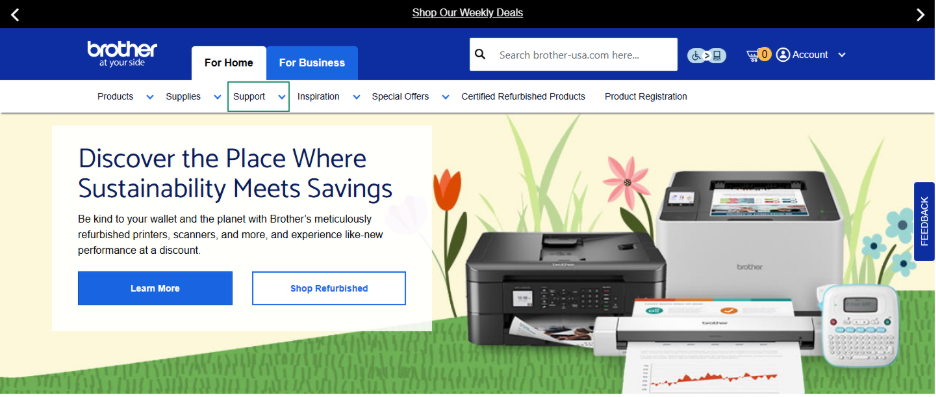
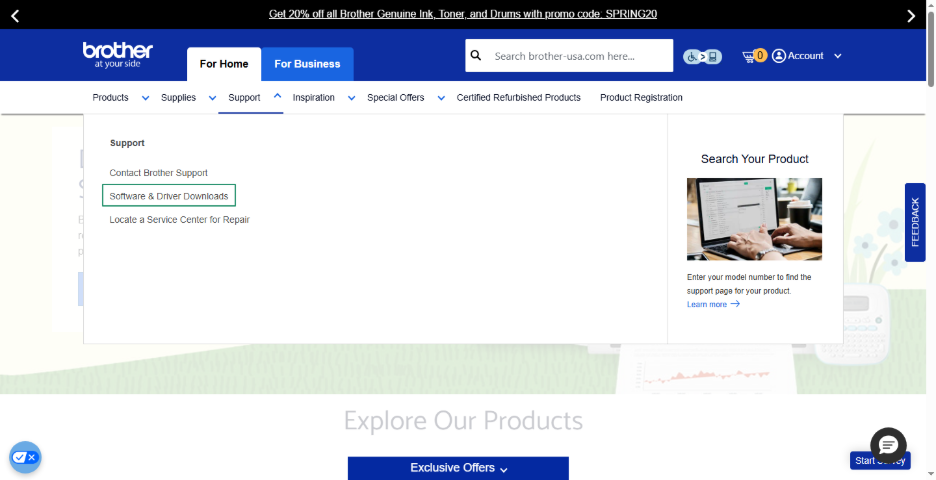
- In this step, click Software & Driver Downloads in the Support menu.
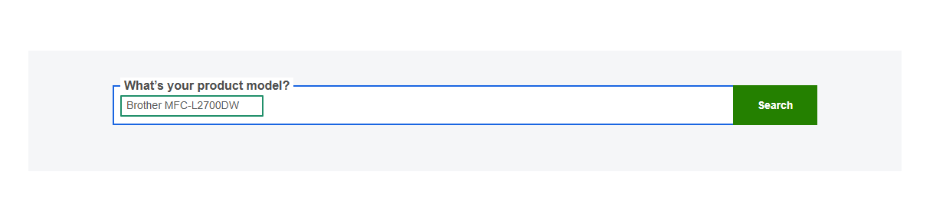
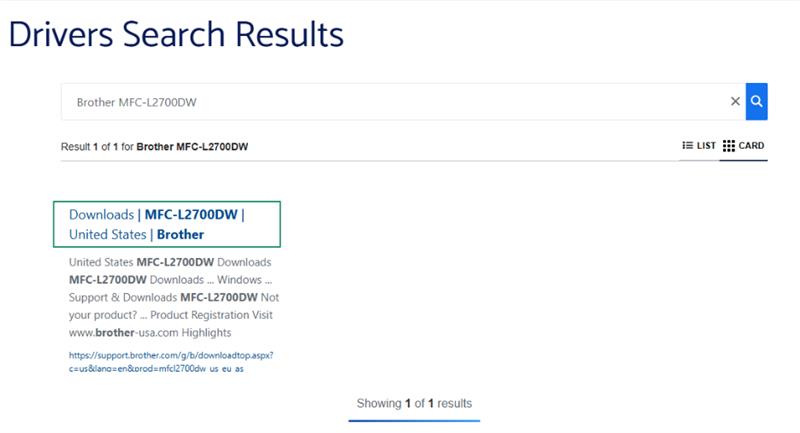
- Type Brother MFC-L2700DW in the “Find Drivers for Your Model” box and click Search.
- Click the link to open the driver’s download page.
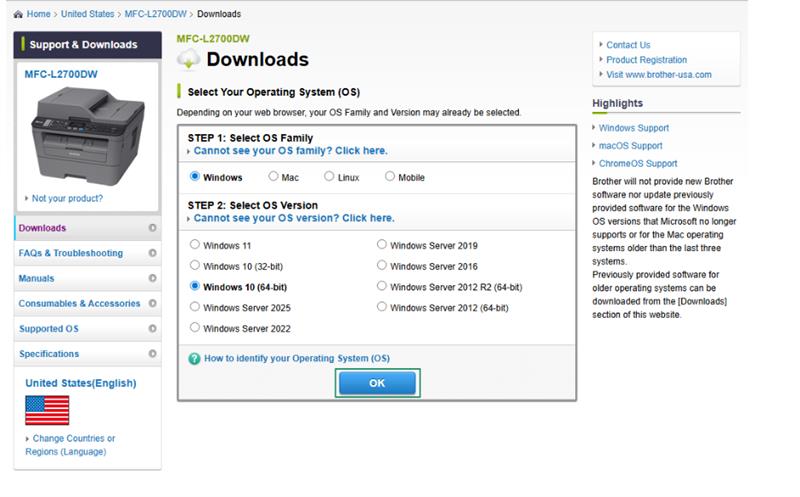
- Next, check whether the selected operating system is correct or not. If it is incorrect, select the correct operating system and click OK.
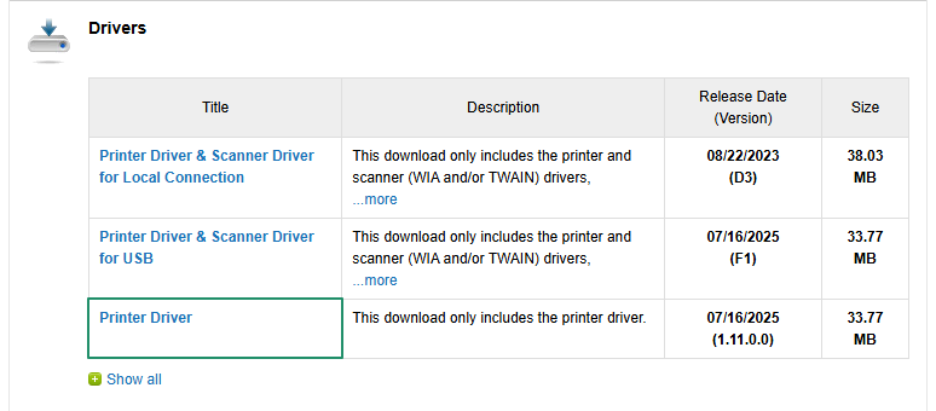
- In this step, click the latest Printer Driver to proceed to the next step.
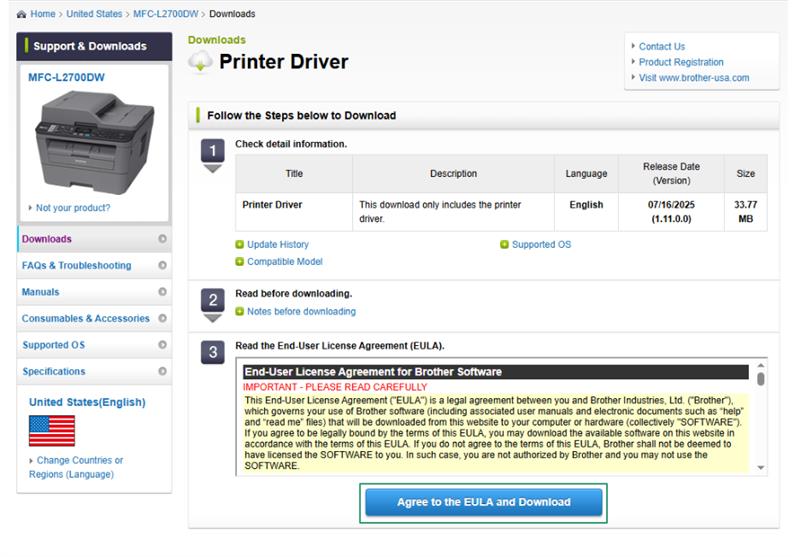
- Read and agree to the EULA and download the driver file.
- Double-click the downloaded driver file and follow the prompts that appear on your screen to install the driver.
- Lastly, restart your computer to let the newly installed Brother printer driver take effect.
Method 2: Download and install the Brother MFC-L2700DW driver from the Microsoft Update Catalog
Microsoft Update Catalog is Microsoft’s repository for drivers and updates. Below is how to download the Brother MFC-L2700DW driver for Windows 10/11 and install it from there.
- To begin, navigate to the Microsoft Update catalog.
- Next, copy and paste Brother MFC-L2700DW in the search bar and press Enter.
- In this step, click Download next to the latest Brother printer driver.
- Next, click the link that appears on your screen.
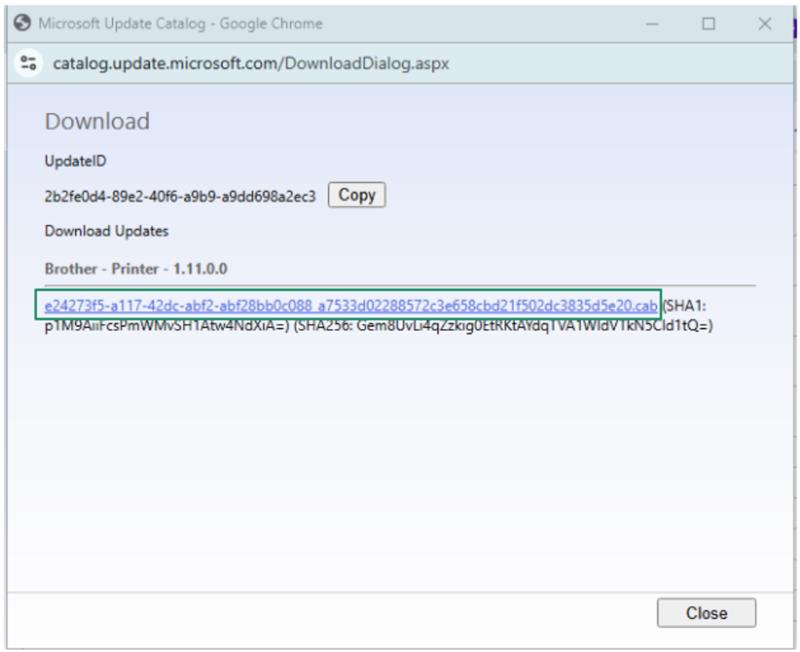
- Save the driver file in an accessible location on your computer.
- Double-click the saved driver file and follow the on-screen instructions to install the driver.
- Lastly, restart your computer to complete the driver’s download and installation process.
How to Update the MFC-L2700DW Driver for Windows 10/11
You can update the driver for your Brother MFC-L2700DW driver through Windows Update or Device Manager, i.e., a built-in tool. Here is how.
Method 1: Use Windows Update to update the Brother MFC-L2700DW driver
Windows updates fix common system bugs, patch security vulnerabilities, and download and install the up-to-date device drivers. Hence, below is how to update Windows.
- In the first step, click the Start button, type check for updates in the search bar that appears, and then choose Check for Updates from the search results.
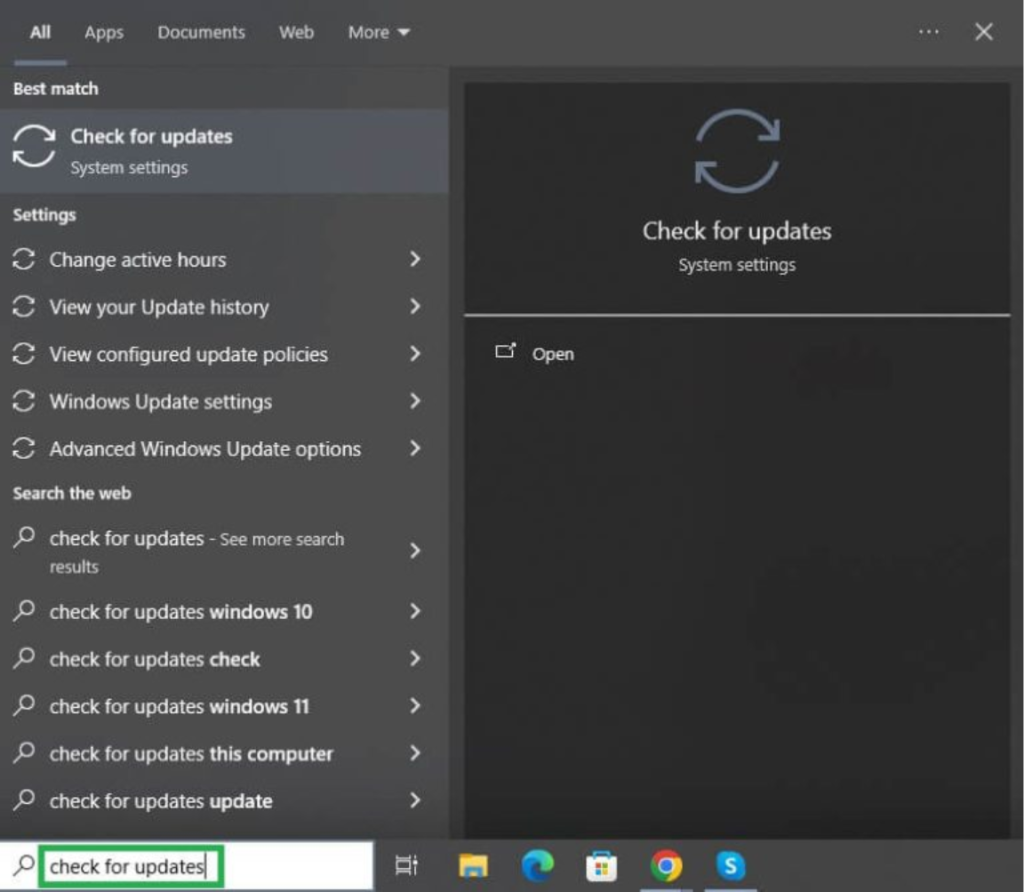
- Next, click the Check for Updates button to find the updates available for your system.
- In this step, click Download & Install to download and install the available OS updates.
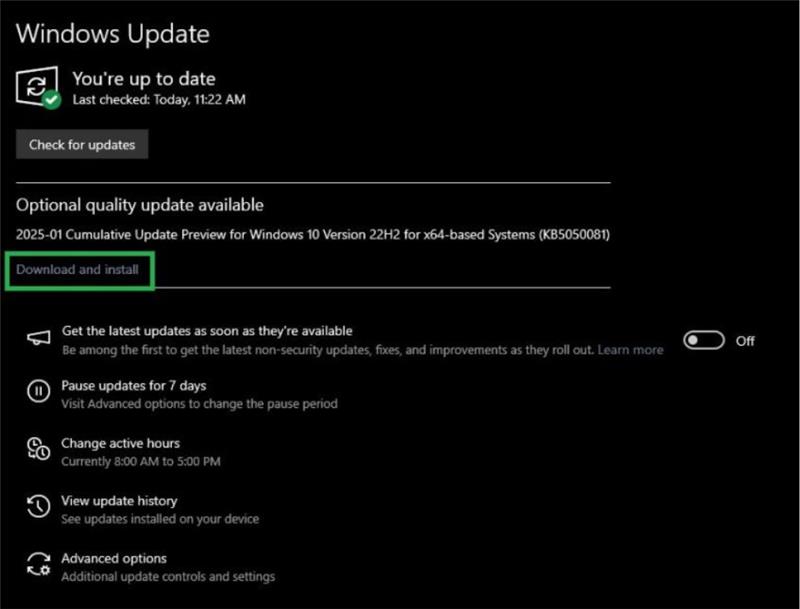
- Lastly, restart your computer to complete the Windows and driver update process.
Method 2: Update the Brother MFC-L2700DW driver using Device Manager
Device Manager is a tool pre-built into all Windows operating systems to help you perform all driver-related actions, such as driver download, installation, and update. Here is how to use this tool to download the updated Brother MFC-L2700DW driver and install it.
- First, right-click the Start button and then choose Device Manager from the menu you get on your screen.
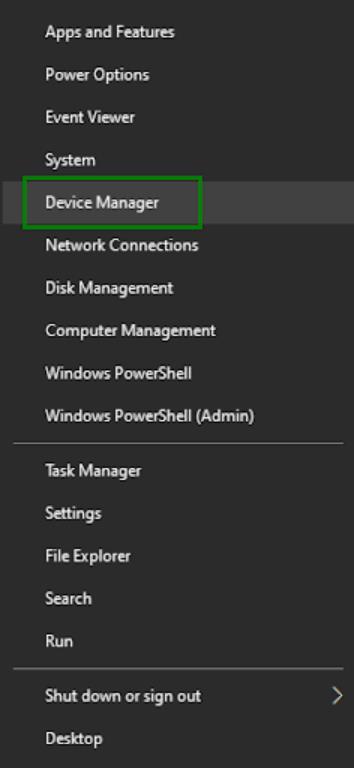
- In the Device Manager, double-click the Printers or Print Queues category to find your printer.
- Next, right-click your printer and select Update Driver from the available options.
- In this step, click Search automatically for drivers.
- Next, follow the prompts that appear on your screen to download and install the latest Brother MFC-L2700DW driver.
- Lastly, restart your computer to complete the Brother MFC-L2700DW driver update for Windows 10/11.
That’s all for the easiest yet productive ways to download, install, and update the Brother MFC-L2700DW driver for Windows 11/10. Hopefully, this guide helps you get smooth performance from your Brother printer. However, if you have any questions or concerns, you can drop us a comment.
Frequently Asked Questions
Q1. Why is my Brother MFC-L2700DW printer not printing?
An outdated, incompatible, or improperly installed Brother MFC-L2700DW driver may be why your printer is not printing. To solve this problem, you can refer to the guide above to download and install an up-to-date printer driver. Reinstalling the driver can also help solve the problem. To reinstall the driver, head to the Device Manager, double-click Printers or Print Queues, right-click your printer, click Uninstall, confirm the uninstallation, return to the Device Manager, click Action, click Scan for hardware changes, and then restart your computer.
Q2. How to download and install Brother printer drivers?
You can download a compatible driver for your Brother printer and install it from the official website or Microsoft Update Catalog. The guide above explains both of these methods in detail.
Q3. How to reset the Brother printer MFC-L2700DW?
To reset your Brother MFC-L2700DW printer, disconnect any USB or network cable connected to the printer, press the Menu button on the printer’s control panel, select General Setup using the Up or Down arrow keys, press OK, go to Reset, press OK, choose from Machine Reset to restore machine settings (such as date and time), network settings reset, all settings reset, and factory reset to fully reset the printer, press OK, and then press the Up arrow key to confirm the reset and reboot your printer.

