


Are you troubled by a poor VR experience on your Oculus device, crashes, and compatibility problems with games and apps? A missing or outdated Oculus driver may be your most likely culprit.
The Oculus driver for Windows 11/10 is a software component that enables communication between your Oculus device and the operating system. Without this software, you may be unable to achieve smooth performance with your VR device.
Hence, this article walks you through the efficient methods to download, install, and update the driver for your Oculus device with the best driver updater to fix glitches and bugs, support new content and features, and enhance your overall VR experience with significant performance improvements. Let’s get started.
Note: To ensure smooth Oculus device performance, you need ADB or Android Debug Bridge by Google. The ADB driver helps your device properly interact with your Windows operating system. In this article, we help you download, install, and update this driver.
How to Download and Install Oculus Driver for Windows 11/10
To download the Oculus driver and install it on your system, you can use the Official website of the device manufacturer or Microsoft Update Catalog, i.e., Microsoft’s driver, software, and update repository, depending on the method you find the most convenient. Below are both of these methods explained in detail.
Method 1: Download the Oculus driver and install it from the official website
The official website of a device manufacturer is among the most reliable driver sources. To download and install the most compatible driver from there, you must first note your operating system details through the path Windows + I key > System > About, and then follow the steps below.
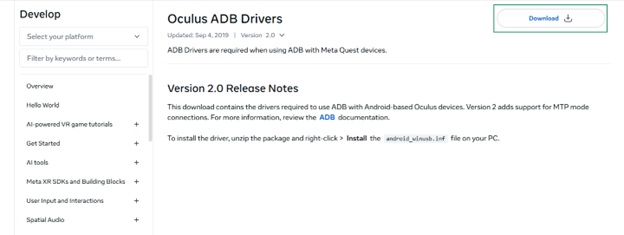
- Navigate to Oculus’s official website.
- Click the Download button.
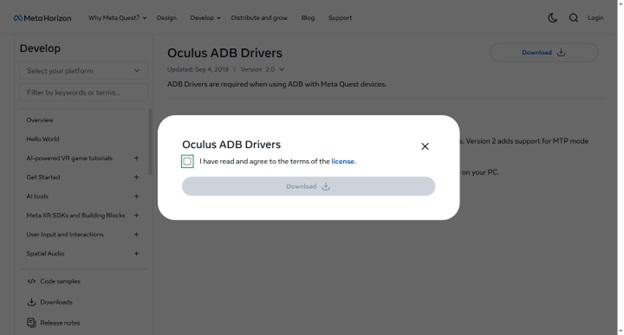
- Read and agree to the license terms.
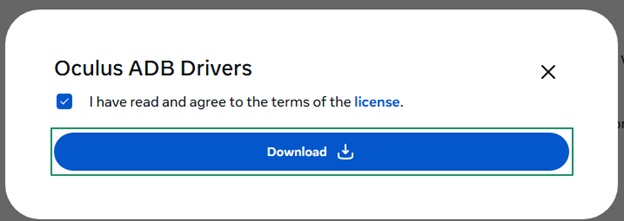
- Next, click the Download button.
- Double-click the downloaded zip file.
- Unzip the downloaded file.
- Go to the folder that you extracted from the zip file.
- Right-click androidwinusb. inf.
- Click Install.
- Lastly, restart your computer after the installation is complete.
Method 2: Download and install the Oculus driver from Microsoft Update Catalog
Microsoft Update Catalog is the official repository of Microsoft that contains the necessary software, drivers, and updates. Below is how to download the Oculus driver for Windows 10/11 and install it from there.
- Go to the Microsoft Update Catalog.
- Type Oculus driver in the search bar and press Enter.

- Click the Download button.
- Next, click on the link that appears.
- Save the WinRAR archive file in a convenient location.
- Double-click the downloaded file and unzip it.
- Open the extracted folder.
- Double-click the driver file and follow the instructions to install the driver.
- Lastly, restart the computer to complete the process.
The above methods explained how to download the Oculus driver for Windows 10/11 and install it. It is important to note that the exact steps or driver file names may vary slightly depending on your specific Oculus or Meta Quest model (such as Oculus Rift S, Oculus Quest, Quest 2, or Quest Pro). Before proceeding, check your device model and refer to the official support documentation or website for any model-specific instructions to ensure compatibility and avoid installation errors. Having the right drivers does not guarantee smooth performance; having the right and up-to-date drivers does. Thus, let’s help you update the driver.
Also know: Ethernet Drivers Download, Install, and Update on Windows 11/10
How to Update the Oculus Driver for Windows 11/10
You can download the Oculus driver update and install it on your computer using the built-in device and driver management tool, Device Manager, or Windows Update. Below are both of these methods explained step-by-step.
Method 1: Update the Oculus driver using Device Manager
Device Manager is a built-in tool in Windows to manage all devices on your computer and perform driver-related actions, such as driver download, installation, re-installation, and update. Below is how to use this tool to download and install the Oculus driver update for Windows 10/11.
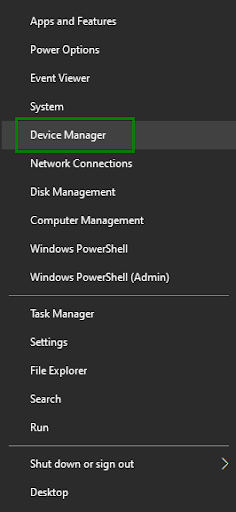
- Right-click the Start button.
- Click Device Manager in the on-screen menu.
- In the Device Manager, double-click Oculus Devices or Quest Devices to find your Oculus device. If it is unavailable there, double-click the Universal Serial Bus Devices to find the device.
- Right-click your Oculus device and choose Update Driver from the menu that appears.
- Next, click Search automatically for drivers. If you are a Windows 10 user, click Search automatically for updated driver software.
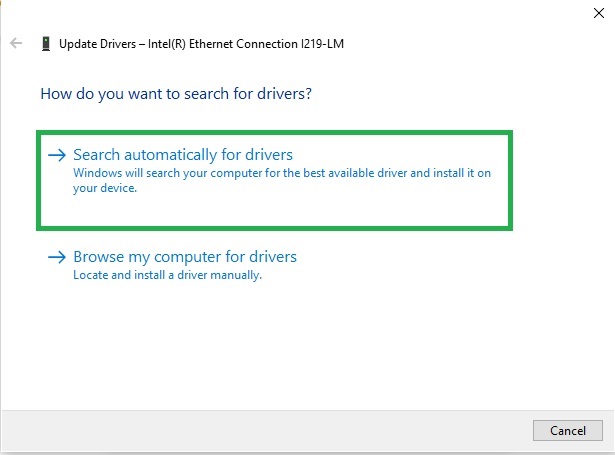
- Follow the on-screen prompts to download and install the available Oculus driver.
- Lastly, restart your computer to let the Oculus driver update take effect.
Method 2: Download and install the Oculus driver update using Windows Update
Windows updates fix PC performance issues, download the required drivers and driver updates to ensure your device performs smoothly. Thus, you can follow the steps below to update Windows.
- Click the Start button.
- Type check for updates in the search bar.
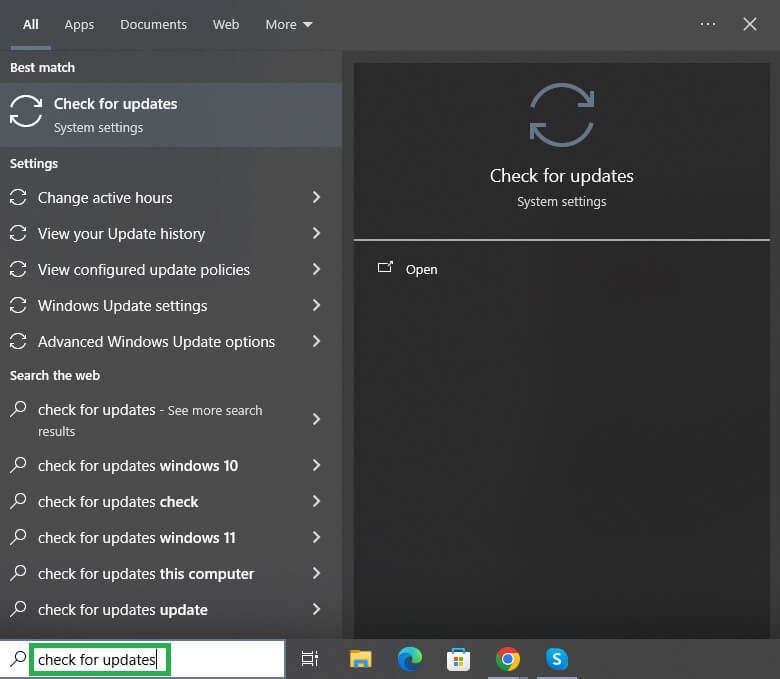
- Click Check for updates in the search results.
- Click the button to check for Updates.
- Next, click Download & Install for the latest updates. Also include the optional updates.
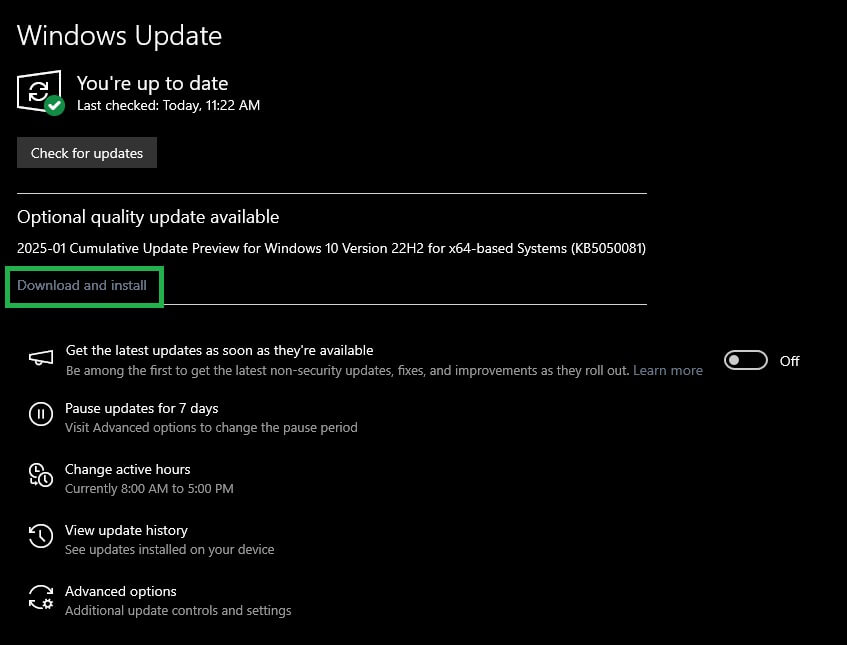
- Lastly, restart your computer to complete the update process.
So, that’s how to download the Oculus driver for Windows 10/11, install it, and update it. Hopefully, this helps you make the most of your Oculus device. However, if you have any doubts or questions, you can write us a comment.
Also know: Fixed: TP-Link Wifi Not Working in Windows PC
Frequently Asked Questions
Q1. What is an Oculus device?
Now rebranded as Meta Quest, Oculus is a virtual reality (VR) headset device. It allows you to experience 3D digital environments for immersive social interaction, education, or gaming sessions.
Q2. How to download Oculus drivers?
You can download the driver for your Oculus device through the official website or Microsoft Update Catalog. The guide above explains both of these methods in detail.
Q3. How to install Oculus drivers?
To install the Oculus device drivers, download the driver file, unzip the downloaded files, open the folder that you extracted from the zip file, right-click the downloaded file, click Install, and then restart your computer.
Q4. How do I update my Oculus drivers?
You can update the drivers for your Oculus device from the Device Manager or Windows Updates. You can check the guide above for the explanation of both of these methods.

