

Accidentally emptied your Recycle Bin? You may think your files are lost forever, but there are still ways to get them back. In this guide, we’ll show you how to recover deleted files from the Recycle Bin, even after it’s been emptied or you’ve pressed Shift+Delete by mistake. Follow this guide to restore your important files quickly.
When you delete files and empty the Recycle Bin, Windows does not immediately erase them. Instead, the space is marked as available, and the files stay on your drive until new files take their place. This process is called “overwriting.” Using your computer or saving new data can replace deleted files, which makes them much harder to recover. For the best chance at getting your files back, try to avoid using your computer as much as possible and act quickly. Let’s save precious time and get started right away.
How to Recover Deleted Files from the Recycle Bin After It Is Empty
You can recover accidentally deleted files from the Recycle Bin via file history, restoring the previous version, recovery software, Command Prompt, cloud backup, or the Windows file recovery tool. Below are all these methods explained in detail.
Method 1: Recover deleted files from the Recycle Bin through file history backup
Deleted file recovery from the Recycle Bin after it is empty is simple if you have a file history backup. If you have file history enabled and have created a file backup, you can follow these steps to restore it on your PC.
- First, click the Start button, type Control Panel in the search bar, and click the first search result.
- In the Control Panel window, click View By and choose Small Icons from the menu that appears.
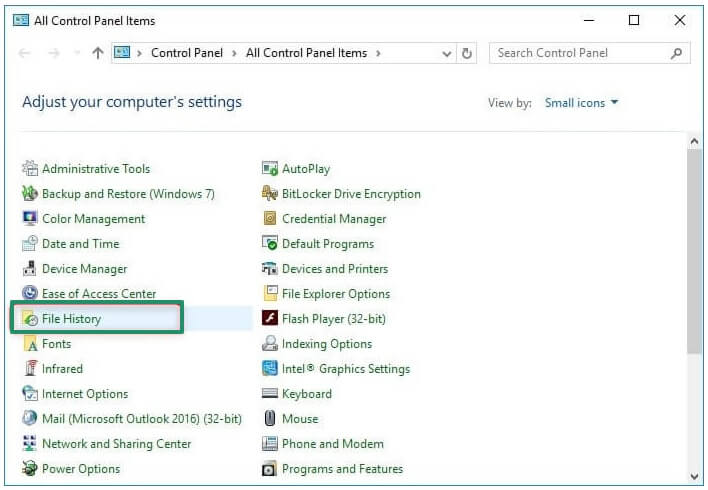
- Select File History from the All Control Panel items that appear on your screen.
- Next, select Restore personal files from the left panel of the File History.
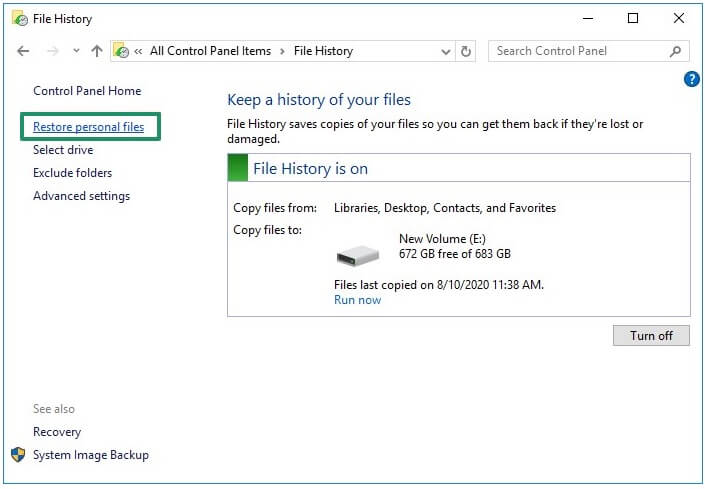
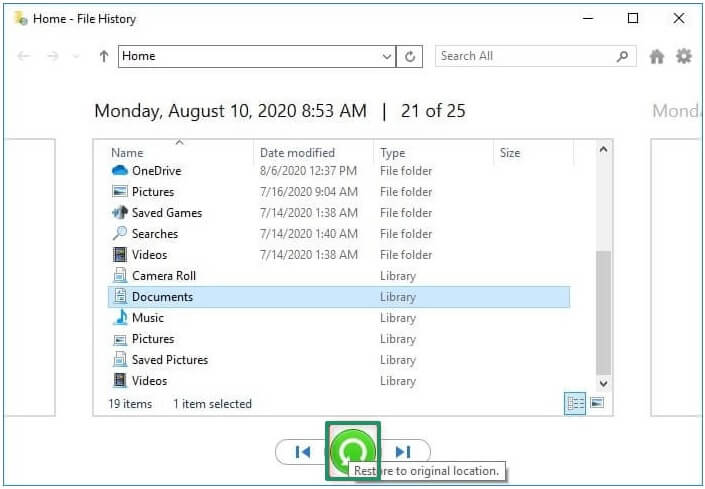
- You can now use the left and right arrows to choose the files to restore.
- Lastly, click the green button to restore the chosen files to their original location on your PC.
Method 2: Restore the previous version of the folder to undelete the Recycle Bin
You can restore the folder where the deleted files were originally stored to the previous version for undeleting the Recycle Bin. Here is how.
- To begin, right-click the Start button and select File Explorer from the menu that appears.
- Navigate to the folder where you have originally saved the files deleted from the Recycle Bin.
- Right-click the empty space in the folder and select Properties from the menu that appears.
- In the folder properties, click the Previous Versions tab and choose a version before deleting the files you want to restore.
- Lastly, click Restore to allow the file restoration to complete.
Also know: Best USB Data Recovery Software for Windows 11/10
Method 3: Use a recovery software to recover deleted files from the Recycle Bin after it is empty
While undeleting the Recycle Bin is a challenge after new data overwrites the deleted files, you can use the best data recovery software for Windows with advanced algorithms to recover the lost data.
Method 4: Recover deleted files from the Recycle Bin after it is empty using the Command Prompt
If you accidentally delete the Recycle Bin due to a system crash, you can use Command Prompt to undelete the deleted Recycle Bin files. Please note: using Command Prompt is an advanced method that may not be suitable for beginners. If you are not comfortable with technical steps, consider trying one of the other methods in this guide first. Here is the step-by-step process to do it.
- First, click the Start button, type cmd in the search bar, right-click the first search result, and then select Run as administrator from the menu that appears.
- In the Administrator Command Prompt window, type chkdsk “your drive letter” : /f. Remember to replace “your drive letter” with your actual drive letter.
- Press Enter to execute the command in the previous step.
- Next, press Y and type your drive letter.
- Lastly, press Enter and type the ATTRIB -H -R -S /S /D D:*.* in the command line and then press Enter again to get folders that may contain the deleted files.
Method 5: Recover accidentally deleted files from the Recycle Bin via a cloud backup
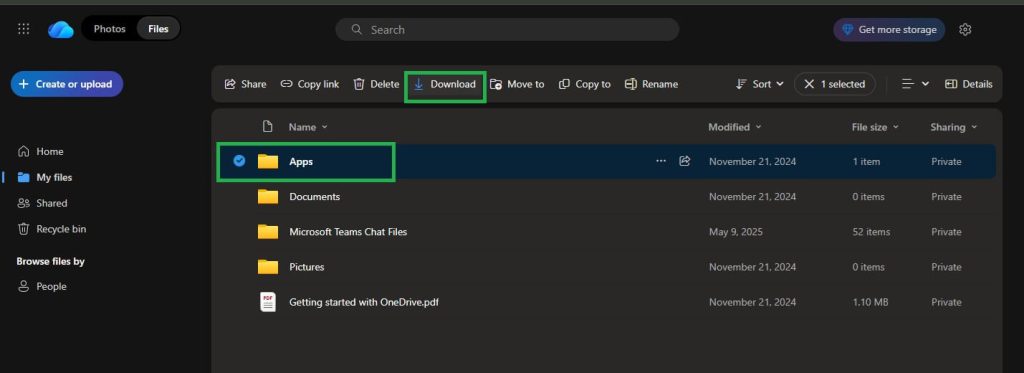
Windows offers OneDrive, a cloud storage service that, when activated, backs up all your files. You can find these file backups on the Microsoft servers to recover them whenever you want. Here is the step-by-step way to use OneDrive to recover deleted files from the Recycle Bin after it is empty.
- In the first step, navigate to the official website of OneDrive.
- Next, sign in using the credentials of your Microsoft account.
- Once you have logged in, navigate to the folder where you stored the files before deleting them.
- Select the files you want to recover and click the checkbox in the top-right corner of the OneDrive window.
- Lastly, click Download to start the file restoration and wait until the process is complete.
Also know: Best Data Transfer Tools for PC to PC Windows
Method 6: Use the Windows File Recovery tool to perform Recycle Bin recovery
Microsoft offers Windows File Recovery, a data recovery tool that you can use to recover lost data. You can download and install this tool from the Microsoft Store. After downloading and installing the Windows File Recovery tool, follow these steps to recover the accidentally deleted files from the Recycle Bin.
- First, click the Start button, type cmd in the search box, right-click Command Prompt in the search results, and then choose Run as administrator.
- In the Administrator Command Prompt, type winfr in the command line.
- Next, type the winfr C: D: /regular /n \$Recycle.Bin\%SID% command in the command line and press Enter.
- Lastly, wait for Windows File Recovery to complete the restoration of accidentally deleted Recycle Bin files to your computer’s D drive.
That’s all from our end. This article guided you through how to recover deleted files from the Recycle Bin after it is empty. You can apply the method that seems the easiest or most convenient from the guide above. However, if you have any questions or confusion, you can let us know through the comments section.
Don’t worry, many people successfully recover their files using these steps, so you are not alone. Stay calm and take your time with the methods above for the best chance of getting your files back.
Frequently Asked Questions
Q1. Can I recover permanently deleted files?
You can recover permanently deleted files if new data has not overwritten these files. However, the recovery of these files becomes challenging without a data recovery program if these files have been overwritten.
Q2. Are deleted files permanently stored in the Recycle Bin?
The Recycle Bin does not store deleted files permanently. Once deleted, these files are moved to temporary storage, where they can be restored. When files are permanently deleted by emptying the Recycle Bin or pressing Shift+Delete, these files remain on the drive until overwritten by new data.
Q3. How to recover permanently deleted files from the Recycle Bin?
You can recover files deleted from the Recycle Bin through File History backup, restoring the previous version of the original folder, using Command Prompt, cloud backup, or Windows File Recovery. The guide above explains all these methods in detail.
