

Tired of Windows managing your printer choices? Then, you are not alone; it happens with many who have multiple printers, for example, those who have both local and network printers, and those who work between home and office networks. Windows 10/11 has a “Let Windows manage my default printer” feature that automatically switches your default printer to the last one used, unless you set your preferred default Windows printer.
You can configure your default printer settings through the Settings app in Windows, Control Panel, and Command Prompt; these methods are explained step-by-step in this article.
However, before setting your preferred default printer, let’s look at what it exactly means to set a printer as the default in your printer preferences.
What Does It Mean to Set a Printer as the Default
A default printer is the printer your computer automatically selects to print anything, such as a document or photo, on your device. If you have multiple printers connected to your PC, setting one of these as your default printer means that this printer will be used for printing on your computer every time you use the print option, unless you select any other printer for a particular task.
Setting your preferred default printer saves you from the inconvenience of choosing your printer while printing. Hence, let’s proceed to configure your printer settings.
How to Set Your Preferred Printer as Default in Windows
You can configure your printer settings to set a printer as the default via the Settings app, Control Panel, and Command Prompt; all of these methods are explained below.
Method 1: Configure the default printer settings using Windows Settings
You can turn off the “Let Windows manage my default printer” feature in Settings to set your preferred printer as the default in Windows. Here is how.
- First, use the Windows+I keyboard shortcut to open Settings.
- Next, navigate to the Bluetooth & devices settings. In Windows 10, you can choose the “Devices” settings.
- Click Printers & Scanners.
- Toggle off Let Windows manage my default printer.
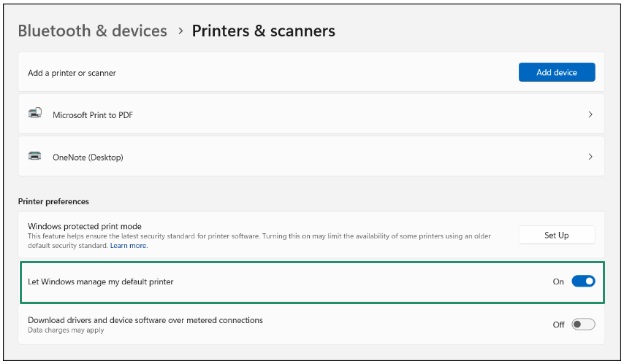
- Select the printer that you wish to set as your default printer and click the Set as Default button. Windows 10 users can select the desired printer, click “Manage,” and then click “Set as Default.”
Also know: Fix Printer Not Being Found or Detected in Windows System
Method 2: Change your printer preferences through the Control Panel
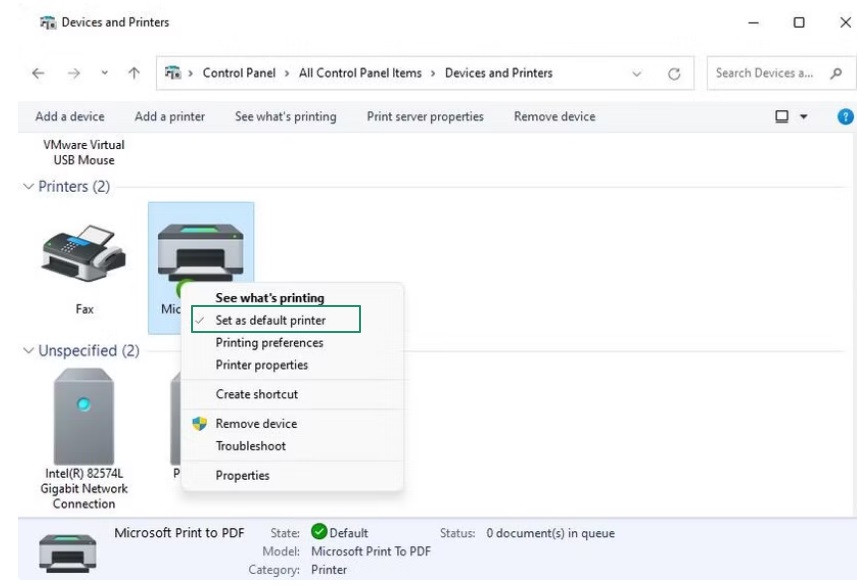
Another way to configure your default printer settings is via the Control Panel. Here’s how to change the default printer using the Control Panel.
- First, click the Start button on your Taskbar, type Control Panel in the search bar, and then click on the first search result.
- In the Control Panel window, click the View By dropdown to change the view to Category.
- Click View Devices and Printers in the Hardware and Sound category.
- Lastly, right-click your preferred printer and choose Set as default from the menu that appears.
Method 3: Use the Command Prompt to set your preferred default printer
For those comfortable with the command line interface, Command Prompt is another appropriate choice for setting your preferred default printer on Windows. Below is how to set a printer as the default using the Command Prompt.
- First, ensure you know the exact name of your preferred printer. To find the exact name of your printer, open the Control Panel, select Device and Printers, and note your printer’s name.
- After noting the name of your printer, type cmd in Windows search (use the Windows+S keyboard shortcut to access the search functionality), and click the first search result.
- In the Command Prompt window, copy and paste the following command and press Enter. Do not forget to replace the printer name with the actual name of your printer.
rundll32 printui.dll,PrintUIEntry /y /q /n “Printer name”
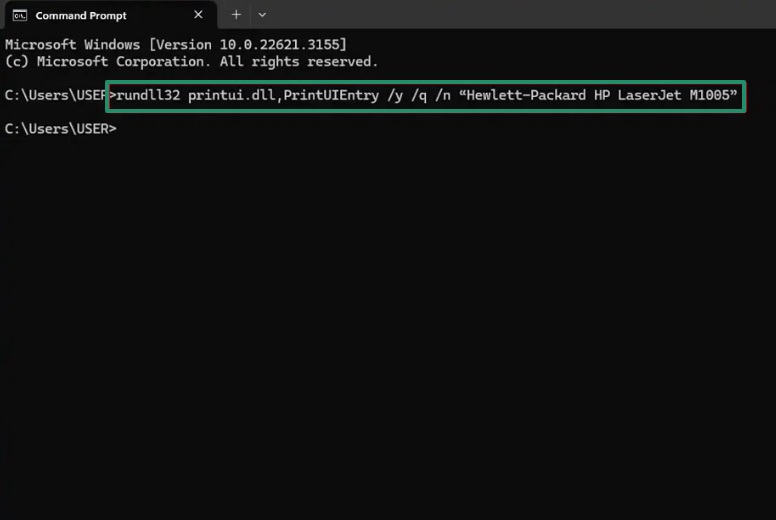
- To confirm your default printer, navigate to the Device and Printers in Settings and check if your preferred printer is set to default.
Also know: How to Reset and Clean Printer Spooler on Windows 10
If your desired printer is not set as the default printer or the default printer keeps changing, follow the path Windows+I keyboard shortcut>Bluetooth & Devices (Devices in Windows 10)>Printers & Scanners, and then turn off Let Windows manage my default printer.
That’s how to set your preferred printer as the default on Windows. Hope this helps make your printer experience smooth. However, if you have any doubts or questions, you can let us know through the comments section.
