

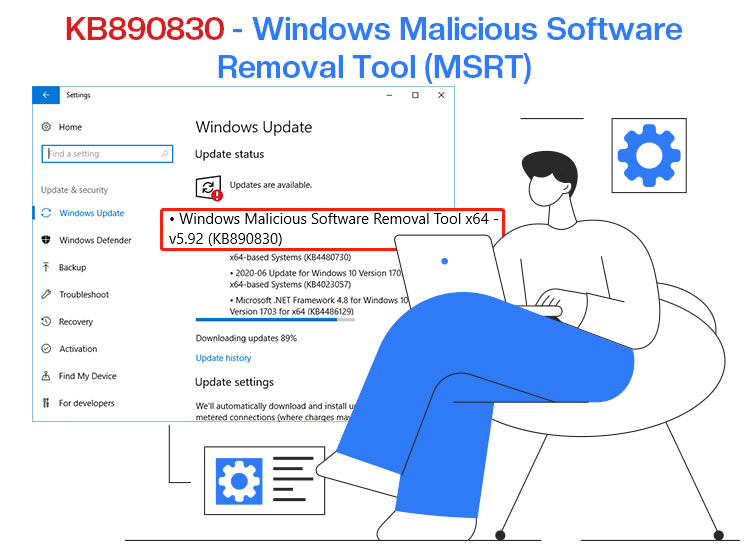
Worried about malware attacks? Then, you can download the KB890830 Windows Malicious Software Removal Tool (MSRT) to detect and eliminate specific malware from your system.
Released monthly as Windows Update or as a standalone program, MSRT complements your antivirus software to remove prevalent malware from your computer.
You can download the Microsoft Windows Malicious Software Removal Tool through Windows Update, Microsoft Update Catalog, or Microsoft’s official website. This article explains both methods. However, let’s first shed some more light on this tool.
What Is KB890830 Windows Malicious Software Removal Tool
KB890830 or MSRT is a utility that scans your computer for specific, prevalent malware or malicious software, removes them, and reverses the impact of these threats.
Generally released on the second Tuesday of each month, this tool works in the background and notifies you if an infection is found. You can also run this tool manually via mrt.exe to select from Quick, Full, or Customized scans.
However, please note that while useful, the Windows Malicious Software Removal Tool does not replace the full-time anti-malware software on your computer, as it only focuses on a limited set of active threats and not a detailed scan of all known threats.
With that in mind, let’s proceed towards the KB890830 download, first looking at its system requirements and details of the latest version.
KB890830 Windows Malicious Software Removal Tool System Requirements
Supported OS: Windows 10, Windows 10 Tech Preview, Windows 7, Windows 8.1, Windows Server 2012, Windows Server 2012 R2, Windows Server 2016, Windows Server Tech Preview
Additionally, you must have local administrator privileges to get this tool.
KB890830 Windows Malicious Software Removal Tool Latest Version
- Version: 5.139
- Release Date: 2/11/2026
- File Name: Windows-KB890830-x64-V5.139.exe
- File Size: 82.4 MB
Now that you have noted the software details, let’s help you download and use it.
How to Download the KB890830 Windows Malicious Software Removal Tool
You can download and install MSRT from Windows Update, Microsoft Update Catalog, or the official website of Microsoft. Here is how.
Method 1: Download and install KB890830 through Windows Update
The most common and easiest way to download the Windows Malicious Software Removal Tool is via Windows Update. You can follow the steps below to perform this action.
- First, click the Start button, type check for updates in the search bar, and click on the first search result.
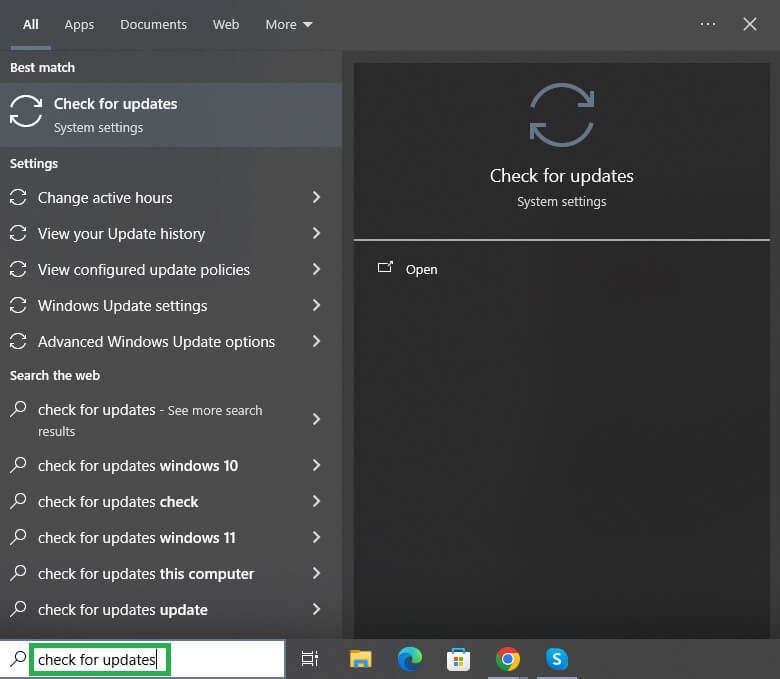
- Click on the Check for updates button to find the KB890830 update.
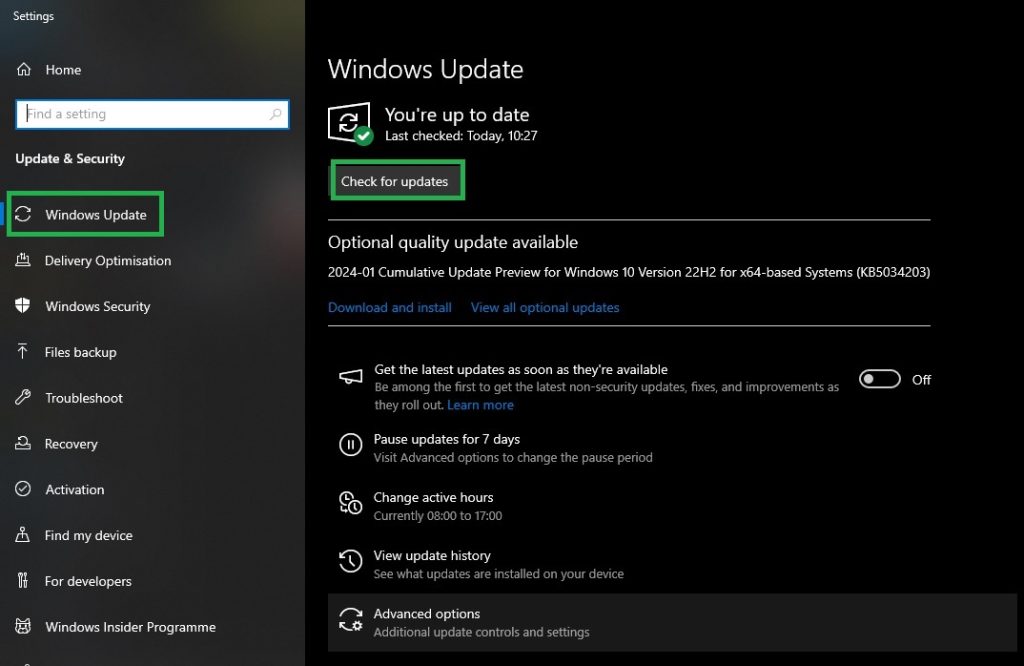
- Next, click Download & Install to get the update downloaded and installed on your computer.
- Lastly, restart your computer to complete the update process.
Also know: Best Email Security Software for Windows 11
Method 2: Get the KB890830 Windows Malicious Software Removal Tool from Microsoft Update Catalog
Microsoft provides direct download links for MSRT on the Microsoft Update Catalog. Here is how to download and install this tool from there.
- First, navigate to the Microsoft Update Catalog.
- Next, search for KB890830 on the Microsoft Update Catalog.
- In this step, click on the Download button for the latest version of the Windows Malicious Software Removal Tool.

- Next, click the link that appears on your screen.
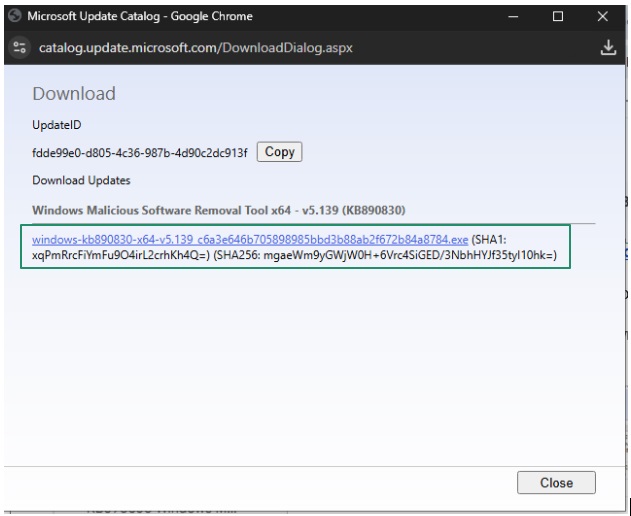
- Save the software installer to an accessible location on your computer.
- Lastly, double-click the downloaded executable file and follow the instructions to complete the installation.
Method 3: Download KB890830 from the official website of Microsoft
KB890830 or MSRT is also available on Microsoft’s official website. Below is how to download and install it from there.
- First, navigate to the official website of Microsoft.
- Next, search for the Windows Malicious Software Removal Tool.
- Click on the link to download the tool on your computer.
- Select your language and then click on the Download button.
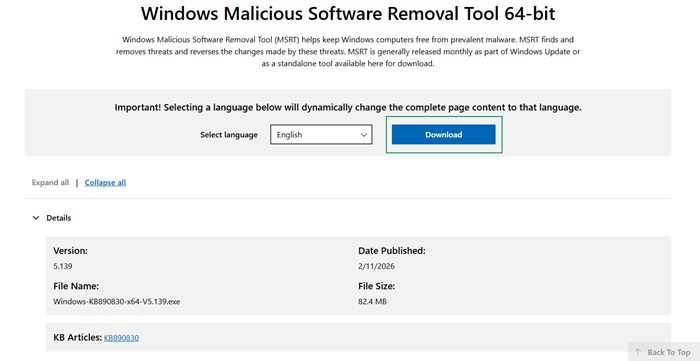
- Save the software installer to an accessible location.
- Lastly, double-click on the downloaded file and follow the instructions to complete the installation.
After installing the software, you can use it to scan your computer.
How to Use the Windows Malicious Software Removal Tool
After installation, you can follow the steps below to run the KB890830 MSRT.
- First, click the Start button, type mrt in the search box, and then click on the first search result.
- The Microsoft Windows Malicious Software Removal Tool dialog box appears. Click Next.
- Select the type of scan you want to perform and click Next. You can choose from Quick Scan to search the most likely locations for malware, Full Scan to scan the entire system, or Customized Scan to choose a specific folder or drive where you suspect the malware to be hiding.
- Wait for the scan to complete.
- Once the scan is complete, click the link to View detailed results of the scan if you wish to view the detected and removed malware.
- Lastly, click Finish to exit MSRT.
If you experience any problems with the Windows Malicious Software Removal Tool, you can check the section below.
Also know: How to Update Windows Security Signatures Manually Windows 11/10
How to Fix KB890830 Issues
Users report issues with MSRT, such as repeated appearance in updates, failed installation with error codes such as 0x8024001E, high resource usage, system slowdowns, and network or system instability. Below is what to do if you encounter such problems.
- Use the “Show or Hide Updates” option in Windows Update to hide the KB890830 update temporarily if you experience repeated appearances in Windows updates.
- Install the tool manually from the Microsoft Update Catalog.
- Use the System File Checker (SFC) tool to repair missing or corrupted system files.
- Uninstall the KB890830 update. To uninstall the update, access Settings using the Win+I shortcut, navigate to the Windows Update settings (Windows 10 users may find it in Update & Security), click Update History, view your update history, choose KB890830 from the updates, and then click Uninstall.
With that, we have come to the end of our KB890830 Windows Malicious Software Removal Tool guide. We hope it helps you keep your system malware-free and fix problems with MSRT. If you have any questions, you can leave us a comment.
