

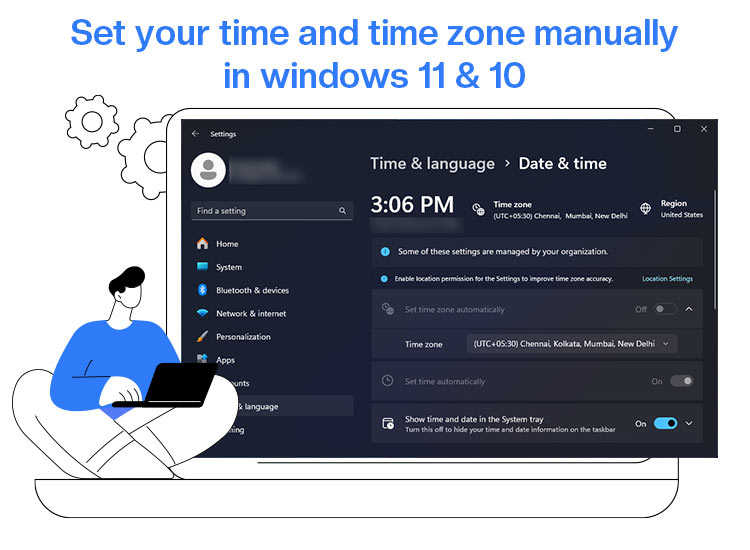
With remote setups becoming common, working in different time zones is no surprise. However, if you work across time zones, use time-sensitive apps, or Windows fails to display the correct time automatically, knowing how to set your Windows time and time zone manually helps make your experience hassle-free.
Hence, this article walks you through different ways of setting the time in Windows, including performing this action through Command Prompt, PowerShell, Settings, and Control Panel. Let’s get started.
What Are the Best Methods to Set Your Windows Time and Time Zone Manually
You can use the Command Prompt, PowerShell, Settings, or Control Panel to set the time and time zone manually. Note that both the Command Prompt and PowerShell methods require administrator privileges, while Settings and Control Panel can typically be used without admin rights.
If you are unsure whether you have administrator rights, try searching for ‘User Accounts’ in the Control Panel and check your user type, or right-click the Start button and see if ‘Run as administrator’ appears as an option.
If you do not have admin rights, you may need to request access from your IT administrator or someone who manages your device.
While the Command Prompt and PowerShell are the most recommended methods for enterprise users, individual users may find the Settings and Control Panel more convenient. Below are all the methods explained in detail.
Note: Before beginning to change the time and time zone, ensure the “Set time automatically” setting is off. If this setting is on, Windows will eventually reset the time to match the current time. Hence, you can follow these steps to turn off this setting.
- Use the Windows+I shortcut to open Settings.
- Navigate to the Time & Language settings.
- Click Date & time.
- Toggle off Set time automatically.
Once you have turned off the “Set time automatically” feature, you can set your time and time zone by following the methods below.
Method 1: Set your Windows time and time zone manually using Command Prompt
You can use the tzutil /g command in the Command Prompt to change the time zone, and the time HH:MM:SS AM/PM command to change the time. Here is how to change the time and time zone with the command line in Windows 11/10.
- First, click the Start button, type cmd in the search bar, right-click the first search result, and then choose Run as administrator from the menu that appears.
- In the Administrator Command Prompt window, copy and paste the following command and press Enter to view your current time zone.
tzutil /g
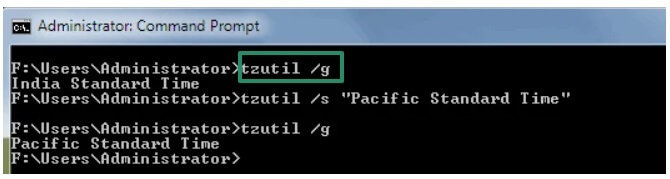
- To change the time zone, copy and paste the following command (replace “your desired time zone” with your desired time zone’s name) and press Enter. For example, you could use time zone names like “Pacific Standard Time”, “Eastern Standard Time”, or “Central European Standard Time”. If you are unsure about the available time zones, you can first run the tzutil /l command to find all available time zones.
tzutil /s “Your desired time zone”
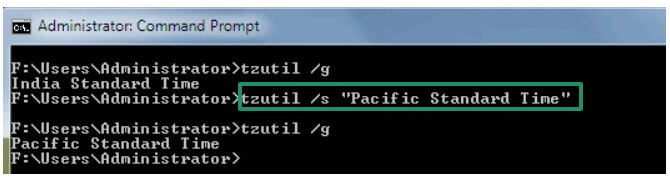
As an example, the screenshot below shows the “Pacific Standard Time” as the desired time zone.
- You can change the time in the Command Prompt by entering the command time HH:MM:SS AM/PM. In this command, “HH:MM:SS” is the hour, minute, and second, and AM/PM is morning or afternoon.
For example, to change the time to 10 AM, type time 10:00:00 AM in the Command Prompt and press Enter.
Also know: How To Adjust Display Settings in Windows 11 for Better Appearance
Method 2: Use PowerShell to set your time and time zone manually in Windows
Another way to change your time and time zone in Windows is through PowerShell. Here is how.
- First, right-click the Start button and choose Windows PowerShell (Admin) from the menu that appears.
- In the Administrator PowerShell, run the Get-TimeZone command to view your current time zone or the Get-TimeZone -ListAvailable to view all the available time zones.
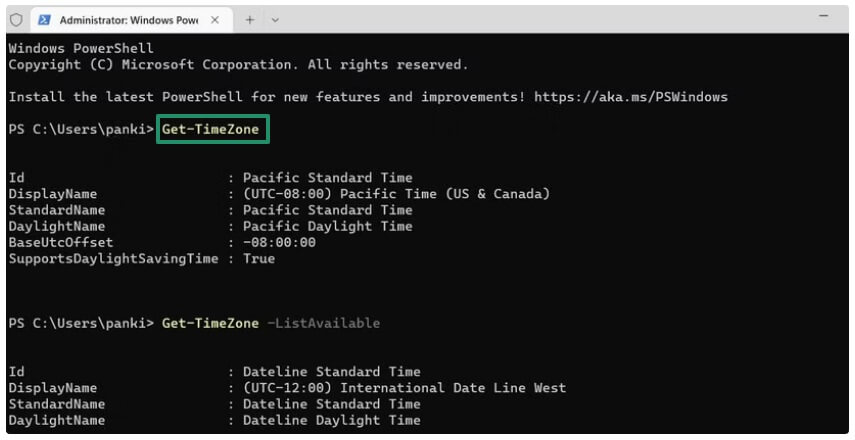
- Next, run the Set-TimeZone -Name “Your desired time zone” script. In this command, remember to replace “Your desired time zone” with the actual name of your preferred time zone.
- To set the time manually, type the following command.
Set-Date -Date “MM/DD/YYYY HH:MM”
- In the above command, replace MM/DD/YYYY with your desired date, and HH:MM with your preferred time, and press Enter. For example, use the command Set-Date -Date “18/02/2026 12:53” to set the date to 18/02/2026 and time to 12:53 PM.
Method 3: Set your time and time zone manually via Windows Settings
Windows Settings is a simple way to change the time and time zone on your computer. You can follow these steps to set the time and time zone through Settings.
- First, open Settings using the Windows+I shortcut.
- Next, click Time and Language in the Settings window.
- Navigate to the Date and Time settings.
- In this step, choose your desired Time Zone from the available drop-down menu.
- Next, click the Change button under Set the date and time manually option.
- Lastly, set your desired date and time and click the Change button.
Method 4: Use the Control Panel to set your time and time zone manually
The Control Panel in Windows lets you change the time and zone manually in Windows 11/10. Below is how to use it.
- First, click the Start button, type Control Panel in the search bar, and then click on the first search result.
- In the Control Panel window, click the View By drop-down and choose Small Icons from the available options.
- Next, click Date and Time in the Control Panel menu.
- Click Change Time Zone, choose your desired time zone from the drop-down menu, and then click OK to change the time zone.
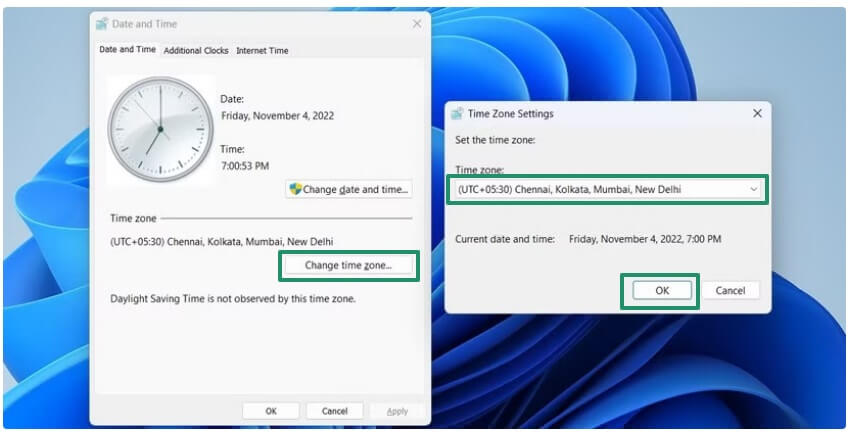
- Click Change Date and Time, set the system to your desired date and time, and then click OK to set the date and time.
However, if you experience problems with setting the date and time in Windows, you can check the section below for solutions.
Common Manual Time and Time Zone Setting Problems and Solutions
If you experience issues, such as time and time zone options grayed out, can’t change the time zone, or the time reverts, you can follow the solutions below.
If the date or time zone option is disabled or greyed out on your computer, ensure the “Set time automatically” option is off in Settings. If this option is off, follow the steps below.
- Use the Windows+R shortcut to access the Run utility.
- Type services.msc in the Run box and press Enter.
- Disable the Auto Time Zone Updater service.
Manual time change keeps reverting to the wrong time
If the time keeps reverting, ensure to disable both “Set time automatically” and “Set time zone automatically” in Settings.
Also know: How to Fix Windows Could Not Automatically Detect This Network’s Proxy Settings Error
Can’t change the time zone in Windows 11/10
If you cannot change the time zone, the Group Policy may be overriding manual time zone changes. To solve this problem, you can contact your IT administrator and request an update to the group policy settings. When reaching out for help, provide any error messages you received, describe what you have already tried, and mention whether the options are grayed out or unavailable. This information will help your IT team resolve the issue more quickly.
With that, let’s wrap up the guide to set your time and time zone manually in Windows. Hope it helps! If you have any questions or run into challenges while following these steps, feel free to leave a comment or reach out for further assistance. Your feedback and questions are always welcome.
