

“Spotify no internet connection” is a common yet frustrating error that appears unannounced, disturbing your peace. However, a few simple fixes can resolve the Spotify no connection problem, so you can listen to songs and keep up with your favorite artists’ tracks hassle-free.
This article explains all these solutions for you to fix the Spotify not connecting to the internet error. Before we begin, it is on point to answer the question, “Why does my Spotify say I have no internet connection?” Knowing the possible causes of an issue helps troubleshoot with more precision.
Why Spotify Says No Internet Connection
If your Spotify is showing no internet connection, but other websites on your browser load fine, Spotify may be unable to confirm a working path to the Spotify streaming services. This may happen due to a variety of reasons, such as a corrupted or outdated app cache, an outdated app version, restricted data usage for the application, an inactive internet connection, the firewall blocking the Spotify app, DNS issues, and VPN interference.
Now that you have an idea about what may have gone wrong with Spotify, let’s begin troubleshooting.
How to Fix the No Internet Connection Problem in Spotify
You can fix the Spotify no internet connection detected issue by closing the app and restarting your device, ensuring your device is connected to a stable network, force-stopping the Spotify app, clearing the app cache, signing out and signing in to the app, disabling VPN or proxy, checking your firewall and security settings, enabling unrestricted data usage (on Android), activating mobile data for the app (on iPhone), switching to offline mode, or updating/reinstalling the Spotify app.
However, before applying any of these solutions, it is a smart idea to check if Spotify is down. You can check for a Spotify outage on Downdetector. It is one of the best ways to see outages in real-time.
If Spotify is down, you can do nothing but wait for it to be back up. However, if nothing is wrong with Spotify, follow the solutions below sequentially until the “Spotify no internet connection available” error is fixed.
Fix 1: Close the application and restart your device
Sometimes, simple fixes like closing the app and restarting the device can fix complex problems, such as Spotify not connecting to the internet. Hence, close all the applications running on your device, restart the device, and then run only the Spotify application.
Fix 2: Ensure your device is connected to a stable network
A lack of stable internet connectivity can be another reason Spotify says no internet connection. Hence, make sure your device is connected to a stable mobile data network or WiFi. If your internet connection is not working, you can try these steps.
- Restart your router and modem.
- Disconnect your WiFi and reconnect to it.
- Press Windows + I keys, search “Network Troubleshooter,” select “Find and fix network problems,” let Windows detect the internet connection issues, and then apply the suggested solutions.
- Switch to cellular data if WiFi does not work and vice versa.
Also know: How to Find Best Google Play Store Alternative
Fix 3: Force stop the Spotify application
Force-stopping the application closes it and its background processes. You can force close Spotify to restore its functionality if you get the “Spotify no internet connection” error. Here is how.
Force stop Spotify on Android
- Long-press the Spotify app icon.
- Tap App info or the i icon.
- Tap Force Stop.
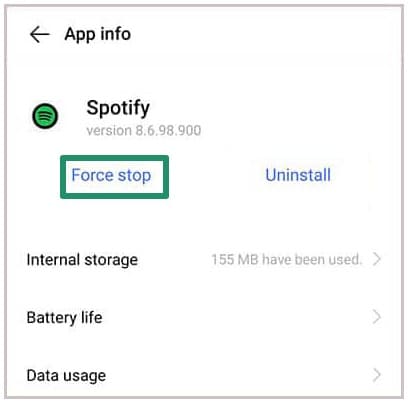
- Lastly, tap OK to confirm.
Force stop Spotify on iPhone
- Swipe up from the lower end of the screen and stop in the center.
- Find and tap Spotify in the App Switcher.
- Lastly, swipe up on the Spotify application to close it.
Force stop Spotify on Windows
- Press Ctrl + Shift + Esc to launch the Task Manager.
- Click the Processes
- Find and click
- Lastly, click the End Task
Fix 4: Clear the app cache
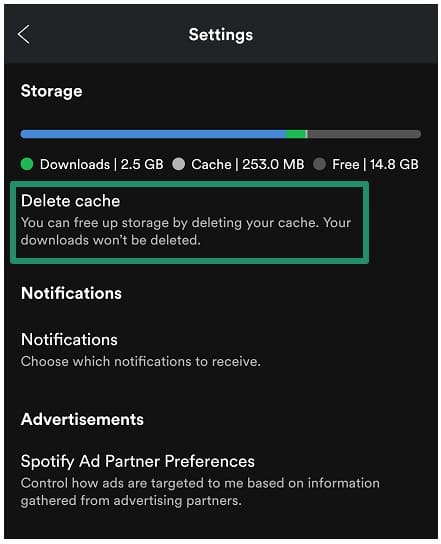
Though app cache helps the app load faster, an outdated or corrupted app cache can be why Spotify says no internet connection. Hence, you can follow the steps below to delete the app cache.
- Open the Spotify
- Click the gear-shaped Settings
- Scroll down and click
- Lastly, click Clear Cache/Delete Cache to remove the Spotify cache.
Fix 5: Sign out and sign in again to the application
Signing out and then signing in can help if Spotify is not authenticating your account. A sign-out and sign-in refreshes the server connection to fix the Spotify showing no internet connection problem. Here is how to do it.
- Visit the Spotify login and log in.
- In Security and Privacy, click Sign out everywhere.
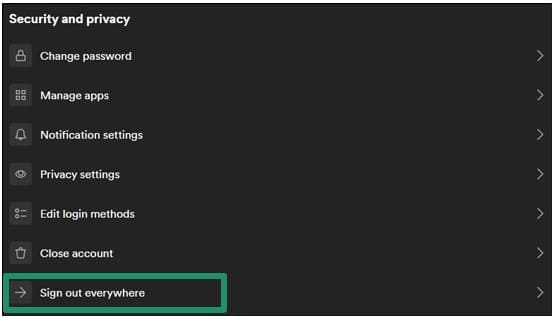
- Sign in to Spotify using your account credentials.
Also know: Best Unblocked Music Apps and Websites
Fix 6: Turn off VPN or proxy
Even the best VPNs can interfere with Spotify’s functionality. VPNs and proxies alter how the internet traffic is routed, which can sometimes slow down or block the Spotify app’s connection. When this happens, Spotify cannot reach the servers, and you get the “Spotify no internet connection” error.
If you need to keep your VPN on, try connecting to a server in your home country, as Spotify may restrict usage from certain locations. You can also look for a VPN with split tunneling features to let Spotify bypass the VPN, or whitelist the Spotify app in your VPN’s settings. If your VPN provides a list of recommended servers for streaming, select one of these options for a better experience. You can also follow the steps below to fix the error.
On Android and iOS
- Open your proxy or VPN application and turn it off.
- Relaunch the application and try connecting.
- If required, use another VPN server.
- If the issue persists, uninstall the VPN application temporarily.
On Windows
- Open your proxy or VPN and turn it off.
- Restart the application and test its connectivity.
- Add Spotify as an exception in your VPN.
- If this does not work, press Windows + I key, click Apps, find and click your VPN in the list of applications, click Uninstall, and then confirm the uninstallation. You can reinstall it once everything runs smoothly.
Fix 7: Check your firewall and security settings
On PCs, security software, such as antivirus and firewall, can prevent Spotify from functioning normally. Hence, here are the steps to allow Spotify in your firewall settings.
- Click the Start button on the taskbar.
- Type Firewall in the search bar and then click the first search result.
- Click Allow an app or feature through Windows Defender Firewall.
- If you do not find Spotify in the list of allowed apps and features, click Allow another app.
- Click Browse and then select Spotify from the available apps.
- Lastly, click on the Add
Fix 8: Turn on unrestricted data usage (Android users)
Restricted application data usage on Android degrades the app performance and can block internet availability. Thus, you can follow these steps to allow unrestricted data for Spotify on Android if Spotify says there is no internet connection.
- Long-press the Spotify icon.
- Tap the info icon.
- Next, tap Mobile data & WiFi.
- Lastly, toggle on Unrestricted data usage.
Fix 9: Activate mobile data for the app (iPhone)
For Spotify to function smoothly on your iPhone and to fix the Spotify not connecting to the internet issue, you can enable mobile data for Spotify on your iPhone. Here is how.
- Tap
- Scroll and tap
- Toggle on Mobile Data.
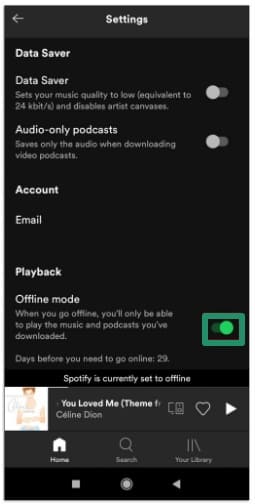
Fix 10: Switch to offline mode
The offline mode in Spotify does not need an active internet connection to play songs. Disabling the offline mode can trigger the Spotify “No internet connection available” error. Hence, here is how you can toggle offline mode to solve this problem.
- In the Spotify app, tap the gear icon in the upper-right corner.
- Scroll down to
- Toggle on the Offline Mode.
- Follow the above steps again to toggle off the Offline Mode.
Fix 11: Update Spotify or reinstall it
Updating the Spotify app fixes the bugs in the app, which may be responsible for network issues. If the application update does not solve the problem, you can reinstall Spotify. Here is how.
Update Spotify
- Navigate to the App Store (on iOS), Play Store (on Android), or Microsoft Store (on Windows).
- Search for
- Click Update.

- Lastly, install the available update.
Reinstall Spotify
- In the App Store (on iOS), Play Store (on Android), or Microsoft Store (on Windows), search for
- Click
- Reinstall the application after completing the uninstallation.
Also know: Best Ways to Protect Identity and Personal Data on the Internet
Frequently Asked Questions
Q1. How do I fix the Spotify “no internet connection available” error?
You can fix the “no internet connection detected” Spotify error by clearing the app cache, verifying your device has an active internet connection, and updating the Spotify application. The guide above explains all these solutions in detail.
Q2. Can you listen to Spotify with no internet connection?
Yes, you can listen to Spotify without an internet connection. You need a premium subscription to listen to Spotify offline. If you have a premium subscription, go to the playlist, album, or podcast you want to listen to offline, tap the download button to download the desired content for offline listening. Alternatively, you can enable the offline mode. To turn on the offline mode on mobile, follow the path Home > Settings > Playback > Offline. On the desktop, follow the path three dots in the upper-right corner > File > Offline Mode.
Q3. Why is my Spotify offline even though I have Wi-Fi?
Issues such as toggling offline mode accidentally, blocked background network access due to power-saving features, and restrictive router settings may be why Spotify is showing no internet connection. To fix this problem, you can navigate to your device’s settings, switch WiFi off, wait for 30 seconds, and then switch on the WiFi. If you are using a home WiFi, you can also restart the router.
Hope this helps you run Spotify smoothly. However, if you continue experiencing the Spotify no internet connection error, you can contact Spotify Support for assistance. For any questions, suggestions, or anything we can help with, write us a comment.
