Bose headsets are among the most sought-after devices for gaming, meetings, and recording audio. However, like other devices, Bose headsets may not connect to the PC or function smoothly without appropriate Bose headset drivers.
To ensure your headset functions error-free, you can download, install, and update the Bose headset drivers for Windows 10/11 through easy methods in this guide. Let’s get started by first understanding what a driver is and what it does before downloading and installing one.
What Are Bose Headset Drivers
A driver is software that guarantees consistent information flow between your computer and headset. In other words, it is a collection of instructional files that helps the system interact with the headset and execute your instructions.
If the driver is missing, outdated, or damaged, you may encounter several problems, such as the headset not working. Hence, you can follow the guide below to download and install the up-to-date driver for your Bose headset and Bose Bluetooth speaker drivers for Windows 10/11.
How to Download and Install Bose Headset Drivers
You can download the Bose headset drivers for Windows 11/10 and install them via the manufacturer’s official website, Windows Update, or Microsoft Update Catalog. The following sections explain how.
Method 1: Download the driver for your Bose headset from the official website
Manufacturers release drivers for their products on the official website to ensure these devices function smoothly. The official website is among the most reliable driver sources. Below is how to download and install the Bose headset drivers for Windows 10 and 11 from the official website.
- Visit the official Bose website.
- Search for your Bose headset.
- Download the required drivers.
- Complete the driver installation.
- Lastly, restart your computer.
Also know: How to Download BCM20702A0 Driver and Install in Windows
Method 2: Update Windows to download the Bose headset drivers
Updating Windows downloads and installs different drivers required on your system, in addition to fixing bugs for smooth performance. Here are the steps to update Windows to download the Windows 11/Windows 10 Bose Bluetooth speaker drivers or headset drivers.
- Click the Start button.
- Type Check for updates in the search bar and press Enter.
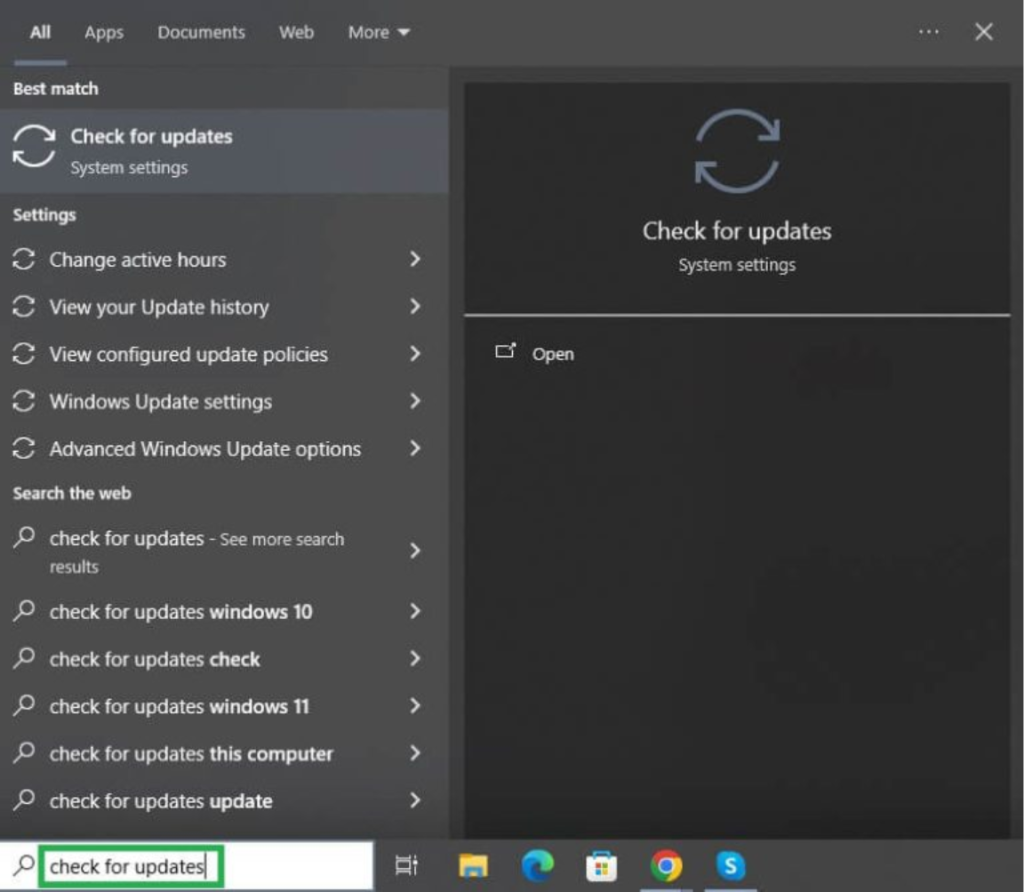
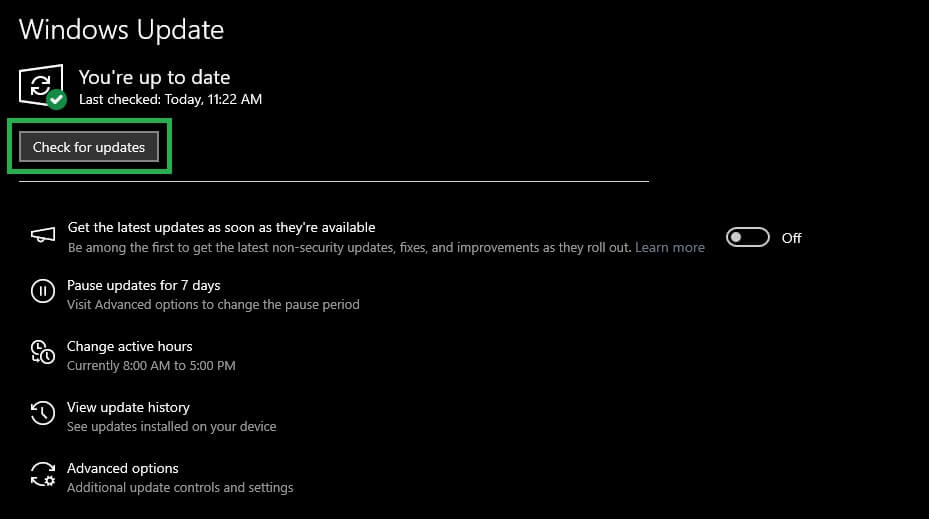
- When the Windows Update screen appears, click the Check for updates button.
- Click Download & Install to get all available updates downloaded and installed.
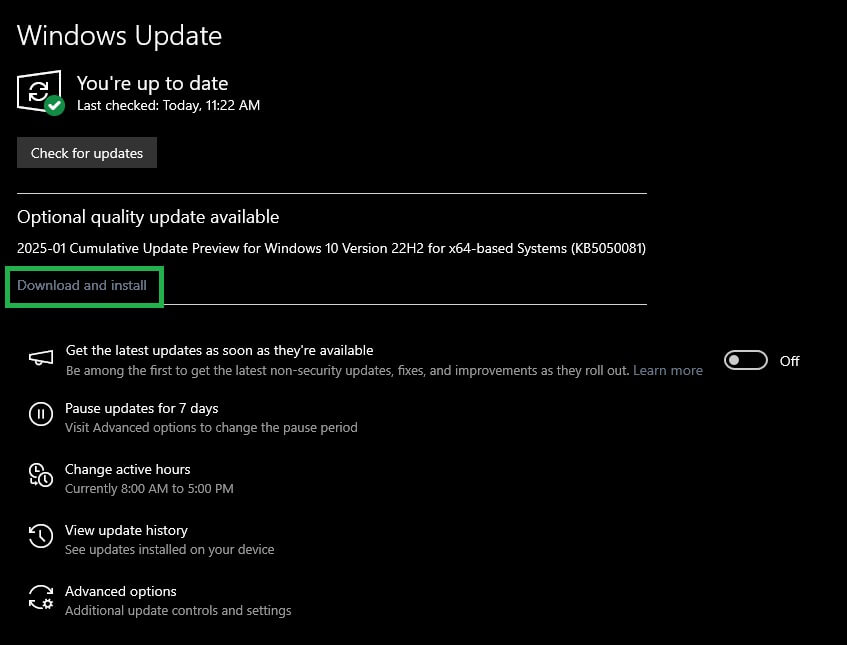
- Wait for the update to complete.
- Lastly, restart your computer after the process is complete.
Method 3: Download and install the Bose headset drivers via Microsoft Update Catalog
Microsoft Update Catalog is the official Microsoft repository for driver and software updates. Below is how to download and install the driver for your Bose headset from there.
- Navigate to the Microsoft Update Catalog.
- Type Bose Headset driver in the search bar and press Enter.
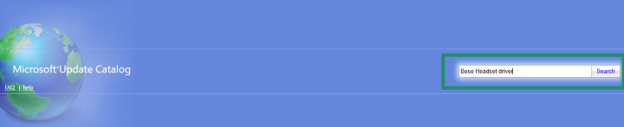
- Click the Download button corresponding to the Bose driver for your operating system.
- Click the driver link that appears on your screen.
- Next, click Save to save the driver file to an accessible location on your PC.
- Double-click the saved file and follow the on-screen instructions to install the driver.
- After the installation is complete, restart your computer.
For the headset to function correctly, the driver must also be updated regularly. Hence, you must also learn how to update the driver.
Also know: How to Fix Dolby Atmos Not Working in Windows 11 and 10
How to Update Bose Headset Drivers
You can update the driver for your Bose headset using the Device Manager, the best driver updater built into Windows. The following are the steps to perform this action.
- Right-click the Start button.
- In the menu that appears, click Device Manager.
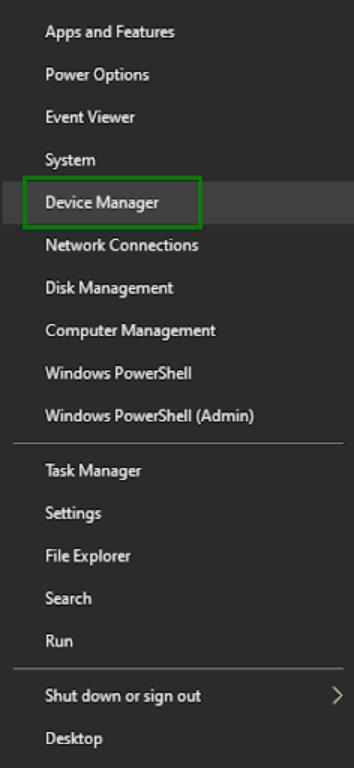
- In the Device Manager, double-click Sound, Video, and Game Controllers.
- Right-click your Bose audio device and then click Update Driver.
- Click Search automatically for drivers.
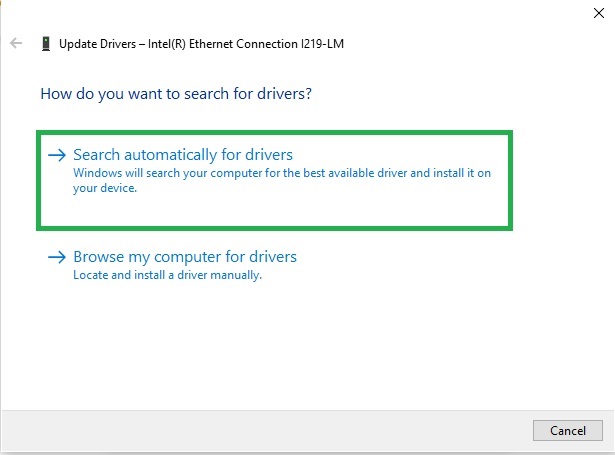
- Follow the instructions that appear to complete the driver installation.
- Lastly, restart the system to let the newly installed headset driver take effect.
The following section answers a few common questions about the Bose device drivers to clear up any confusion you may have.
Frequently Asked Questions
Q1. How to update drivers on Bose headphones?
To update drivers on your Bose headphones, right-click the Start button, click Device Manager, double-click Sound, Video, and Game Controllers, right-click your Bose headphones, click Update Driver, click Search automatically for drivers, install the driver, and restart your computer.
Q2. How do I check Bose headphones for updates?
To check your Bose headphones for updates, open the Bose Updater application and follow the Updater instructions to perform the product update.
Q3. Why are my Bose headphones suddenly not working?
An outdated driver or a faulty connection may be the reason your Bose headphones are not working. To fix this issue, update the driver as explained in the guide above.
Hopefully, this helps you download, install, and update the Bose headset drivers for Windows 11/10 easily. If you have any doubts or questions about this guide or the methods it explains, you can leave your questions in the comments section. You can also provide your valuable feedback to improve this guide in the comments.