

Dolby Atmos technology’s best quality and incredibly detailed sound make the action on your screen come alive. Hence, high-end computers have built-in Dolby Atmos surround sound support. However, several users have reported a Dolby Atmos not working issue on their computers.
If you are also struggling with problems like Dolby Atmos dropping out after the PC wakes from sleep mode or not working, you are in the right place. This is a comprehensive guide to fixing Dolby Atmos not working in Windows 11 and 10 with step-by-step, quick, and easy solutions.
However, before jumping into troubleshooting, it is pertinent to answer a burning question: what causes this issue, to help you diagnose and solve the problem smoothly.
Why Is My Dolby Atmos Not Working
Many users began experiencing Dolby Atmos problems after the recent Windows 11 update. For some users, upgrading from Windows 10 to Windows 11 messed with their audio settings. This could have happened due to incompatible hardware, incorrect audio format settings, HDMI configuration issues, incorrect HDMI setup, misconfigured HDMI settings, software glitches, and outdated audio drivers.
Now that you are familiar with what may have caused Dolby Atmos to stop working on your computer, let’s begin the troubleshooting.
How to Fix Dolby Atmos Not Working: Step-by-Step Solutions
You can fix the Dolby Atmos not working in Windows 10 and 11 issue by following a series of troubleshooting steps. For most users, it’s best to start with the most common and easiest fixes first, such as enabling Dolby Atmos for your device and checking the HDMI cable and connections. If those do not work, then proceed to update Windows and run the audio troubleshooter. More advanced solutions, like activating exclusive mode, updating audio drivers, performing a system restore, or resetting the Dolby Access application, can be tried if needed. Below, we explain each solution in detail. We recommend trying the fixes in the order listed to save time and avoid unnecessary steps.
Fix 1: Check and enable Dolby Atmos for your device
Dolby Atmos can only work if the headphones or speakers you are using support it. To check if your device is compatible, look for the Dolby Atmos logo on your headphones, speakers, or their packaging, or refer to the manufacturer’s specifications in the product manual or on the manufacturer’s website. Once you confirm your device supports Dolby Atmos, follow the steps below to check and enable it.
- Click the Start button.
- Type Sound Settings in the search bar.
- Click the first search result.
- Next, click the Sound Control Panel in the Related Settings.
- Double-click your audio device.
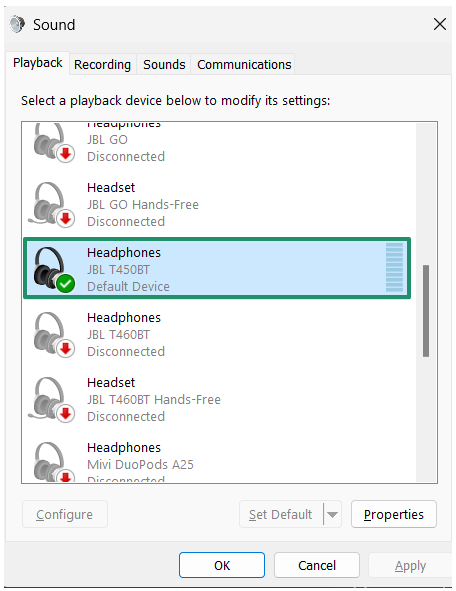
- Click the Spatial Sound
- Open the Spatial sound format dropdown to check if Dolby Atmos is available.
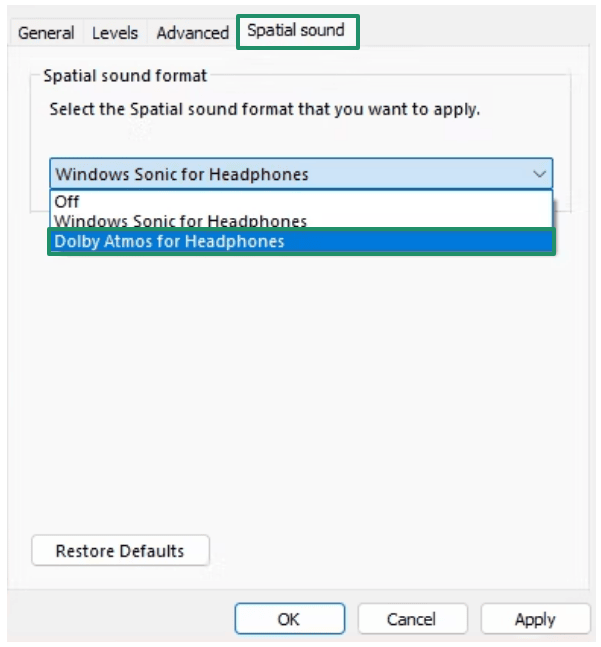
- If Dolby Atmos is available on your device, enable it. If you don’t see any option related to Dolby Atmos, your device may not support it.
- Click Apply and
Also know: Best YouTube Audio Ripper to Extract Audio from YouTube Video
Fix 2: Check the HDMI cable and connections
An improper HDMI cable and connections may be why Dolby Atmos is not working. Hence, make sure you are using a high-speed, certified HDMI cable with HDR and Dolby Atmos support. If possible, swap the cable with a new cable to see if this resolves the issue. Additionally, check the ports to ensure everything is connected to the right ports.
Fix 3: Update Windows
The spatial audio feature was unavailable in earlier updates. Hence, ensure you have the latest Windows version. In addition to the spatial audio feature, Windows updates come with bug fixes to make Dolby Atmos work properly. The following are the steps to update Windows.
- Click the Start button.
- Type check for updates.
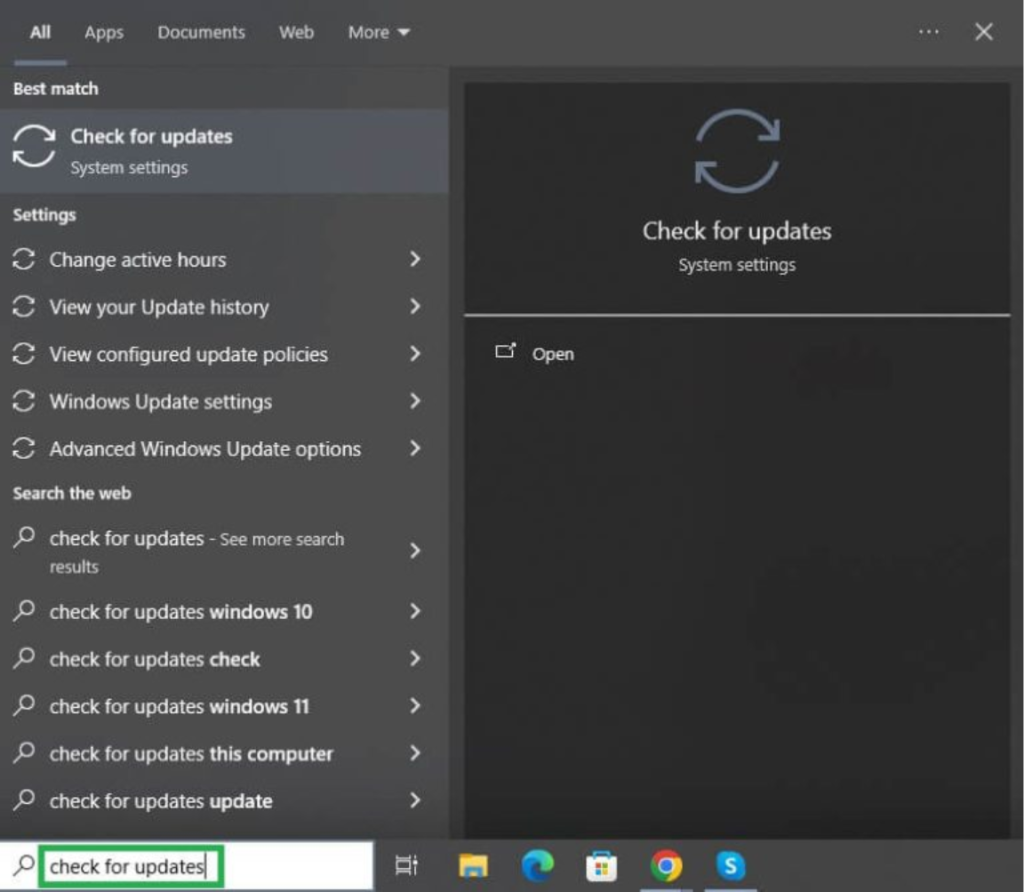
- Next, click the Check for updates
- Click Download & Install to download and install the available updates.
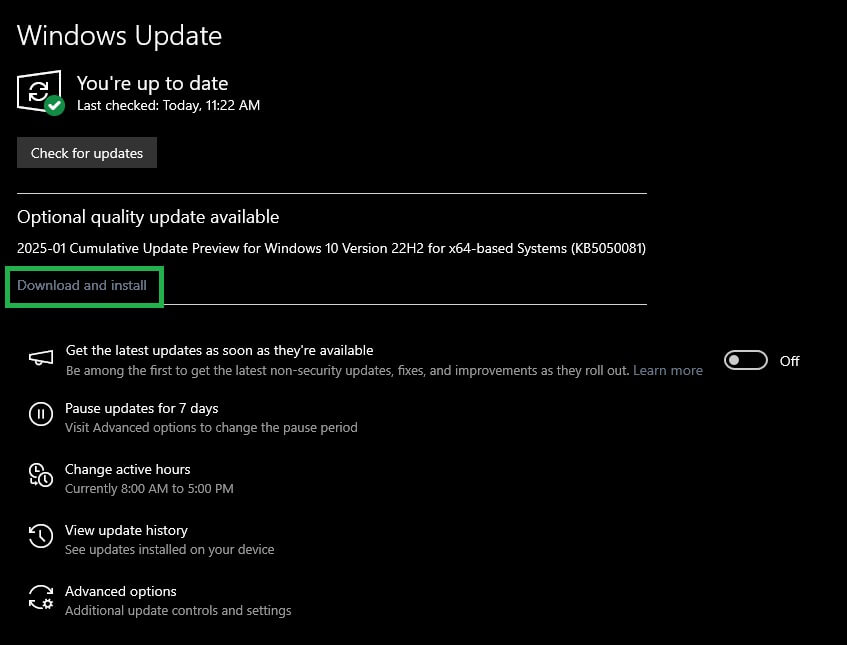
- Lastly, restart your computer after installing the updates.
Fix 4: Run the audio troubleshooter
Windows comes with a built-in tool to troubleshoot audio-related problems, called the audio troubleshooter. Below is how to use this tool to fix Dolby Atmos not working in Windows 11 and 10.
- Press Windows + I to open Settings.
- Click System in the Settings panel. Windows 10 users click Update & Security.
- Next, click Troubleshoot in the on-screen Settings menu.
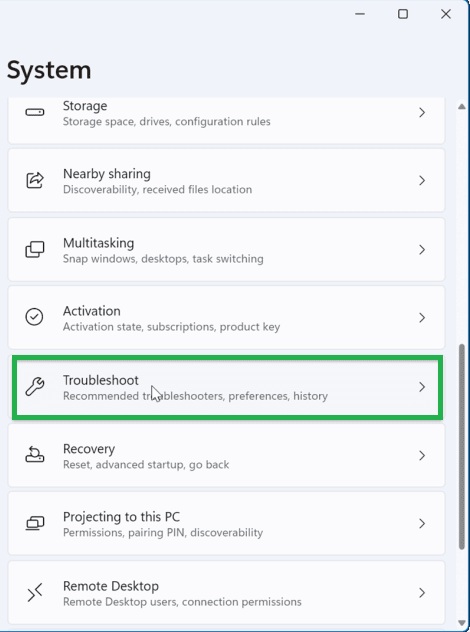
- Click Other Troubleshooters or Additional Troubleshooters.
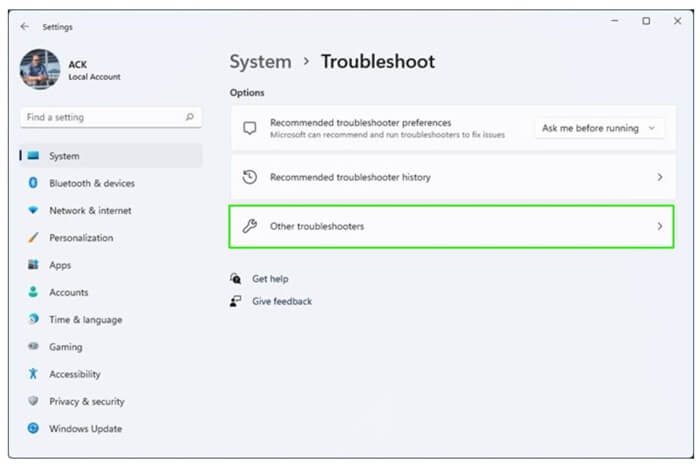
- Click the Run button under the Audio troubleshooter.
- Follow the on-screen prompts to complete the troubleshooting.
- Lastly, restart your computer to apply the changes.
Fix 5: Activate the exclusive mode
The exclusive mode prevents an audio device driver from playing sound in parallel in applications. Windows 11 has this feature enabled by default. However, if you turn it off mistakenly, you may run into the Dolby Atmos not working in Windows 10/11 issue. Hence, you can follow the steps below to activate it.
- Press Windows + I to open Settings.
- Click System in the Settings panel.
- Next, click Sound in the System menu.
- In the Advanced section, click More sound settings.
- Click Playback and then right-click your speaker.
- Next, click
- In the Speaker Properties window, click the Spatial sound
- From the Spatial sound format dropdown, choose Dolby Atmos for Headphones.
- Click
- Navigate to the Advanced
- Tick both boxes in the Exclusive Mode
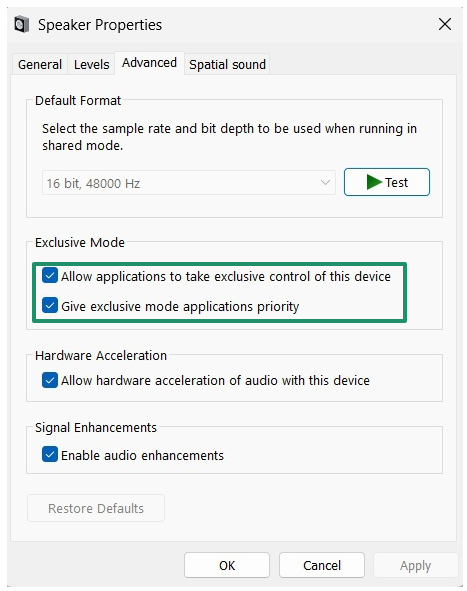
- Lastly, click Apply and OK to save the changes.
Fix 6: Update audio drivers
An audio driver is software that helps your audio device and operating system communicate with each other. Without an up-to-date sound driver, you may experience issues with Dolby Atmos. Hence, follow the steps below to update the audio drivers.
- Right-click the Start button.
- Click Device Manager.
- In the Device Manager, double-click Sound, video, and game controllers.
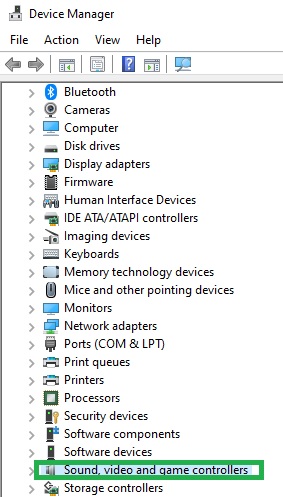
- Right-click your audio device.
- Click Update driver.
- Next, click Search automatically for drivers. Windows 10 users click Search automatically for updated driver software.
- Follow the on-screen prompts to complete the driver update.
- Lastly, restart your computer to let the update take effect.
Also know: Fix Connections to Bluetooth Audio Devices and Wireless Displays in Windows 10
Fix 7: Perform a system restore
If you noticed the Dolby Atmos not working issue only recently, a recent change in your system may have triggered it. In this case, you can restore the system to an earlier state before the problem occurred. Here is how.
Note: You must have a previously created restore point to apply this solution.
- Click the Start button.
- In the search bar, type System Restore.
- In the search results, click Create a restore point.
- Click the System Protection tab and then click System Restore.
- Click Next
- Next, click the restore point before Dolby Atmos stopped working.
- Click Next
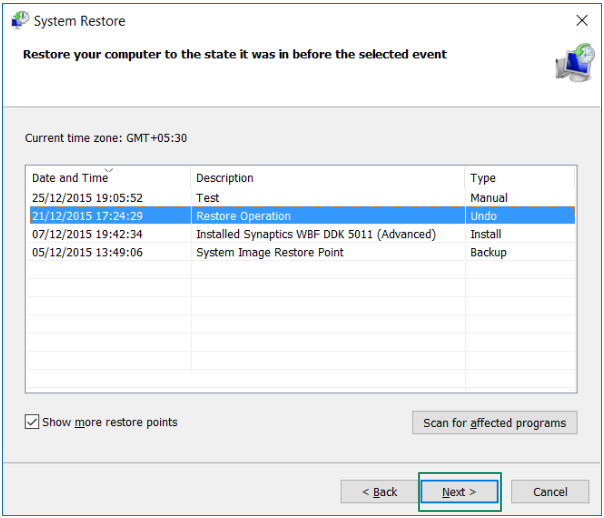
- Click Finish
- In this step, click Yes to begin the system restore process.
- Lastly, let your computer restart after completing the steps above.
Fix 8: Reset the Dolby Access application
If none of the above solutions work, you can follow the steps below to repair and reset the Dolby Access application on your computer.
- Right-click the Start button and then click Apps and Features.
- Under the App list, search for and click the three dots next to the Dolby Access
- Click Advanced Options in the menu that appears.
- In the Reset section, click on the Reset button.
- Click Reset again when a confirmation prompt appears.
- Wait for the process to complete and then restart your computer.
Hope this helps fix the Dolby Atmos not working in Windows 10/11 issue. However, if the problem persists, you can seek help through Dolby Access support or try to find solutions to your problem through Microsoft support. We also try to help you find answers to your queries by answering some of the frequently asked questions. If any of your questions remain unanswered, you can write us a comment.
Frequently Asked Questions
Q1. How to test if Dolby Atmos is working?
To check if Dolby Atmos is working on your PC, you can run the Dolby Atmos 7.1.4 Channel Check test file or a demo in your Dolby Access app. This test confirms whether the multi-channel signal processing is proper on your system.
Q2. How do I activate my Dolby Atmos?
To activate Dolby Atmos on your computer, download the Dolby Access app from the Microsoft Store, open the app, follow the on-screen setup prompts to activate either “Dolby Atmos for Headphones” or “Dolby Atmos for Home Theater,” press Windows + I, click System, click Sound, double-click on your audio device, click Spatial sound, and then click Dolby Atmos in the dropdown menu.
Q3. How to make Dolby Atmos work if it is not working?
If Dolby Atmos is not working, you can enable it for your device, ensure proper HDMI cable and connections, run the audio troubleshooter, update Windows, update audio drivers, turn on the exclusive mode, perform a system restore, or reset the Dolby Access app. For detailed solutions, you can check the guide above.
