

Commonly associated with Razer headsets managed through Razer Synapse, THX Spatial Audio is a surround-sound technology. It generates positional audio via virtual speaker placement, so you can easily hear sounds from media and games. However, the THX Spatial Audio not working problem can hamper your experience.
Razer THX Spatial Audio, with no sound or a crackling/buzzing sound, can be especially frustrating during gaming, as THX Spatial Audio enhances and controls gaming audio on your computer. However, the issue is easily fixable.
This article explains how to fix the Windows 10/Windows 11 THX Spatial Audio not working problem quickly and easily, beginning with understanding the causes of this issue to solve it better.
Why Is My Spatial Audio Not Working
Several issues, such as an unsupported THX Spatial audio headphone, an outdated OS version, THX Spatial Audio is not your default playback device, corrupted or faulty audio drivers, corrupted or incomplete app installation, corrupted app files, and PC’s internal issues, may be the reason Spatial Audio is not playing.
Now that you have a brief idea about what may have happened with Spatial Audio on your computer, let’s fix the issue.
How to Fix Razer THX Spatial Audio Not Working
You can fix the Windows 11/Windows 10 THX Spatial Audio not working problem by trying several solutions. For gamers eager to resume play quickly, the fastest and most effective fixes are to set THX Spatial Audio as your default playback device, restart the THX Spatial Audio app, and check your headphone connections. Updating audio drivers and running the Windows audio troubleshooter are also quick steps that resolve the issue for many users. More in-depth solutions, like reinstalling software or performing a system restore, are included below if these don’t work. Below is a detailed explanation of all solutions. Please note that you can start with the first solution and stop when the problem is fixed.
Fix 1: Ensure system compatibility and check the headphone
THX Spatial Audio needs Windows 10 or Windows 11 (by extension) to function smoothly. To get an error-free audio experience, your system must support THX Spatial Audio and have a functioning THX Spatial Audio interface.
In addition to checking the system compatibility, check the headphone by connecting it to another device. If the headphone is not working on your other device, the headphone may be faulty, needing a replacement with a new one that supports THX Spatial Audio. Popular Razer headset models that support THX Spatial Audio include the Razer BlackShark V2, Razer Kraken V3, Razer Nari Ultimate, Razer Barracuda X, and Razer Opus. Make sure your headset is one of these or another confirmed compatible model to ensure the best experience.
Also know: How to Show Hidden Files and Folders in Windows
Fix 2: Update Windows
Windows updates fix bugs, system instability, and system incompatibility issues, which may be the reason THX Spatial audio is not playing. Thus, you can follow the steps below to update Windows.
- First, click the Start button on the taskbar.
- Type check for updates in the search bar that appears.
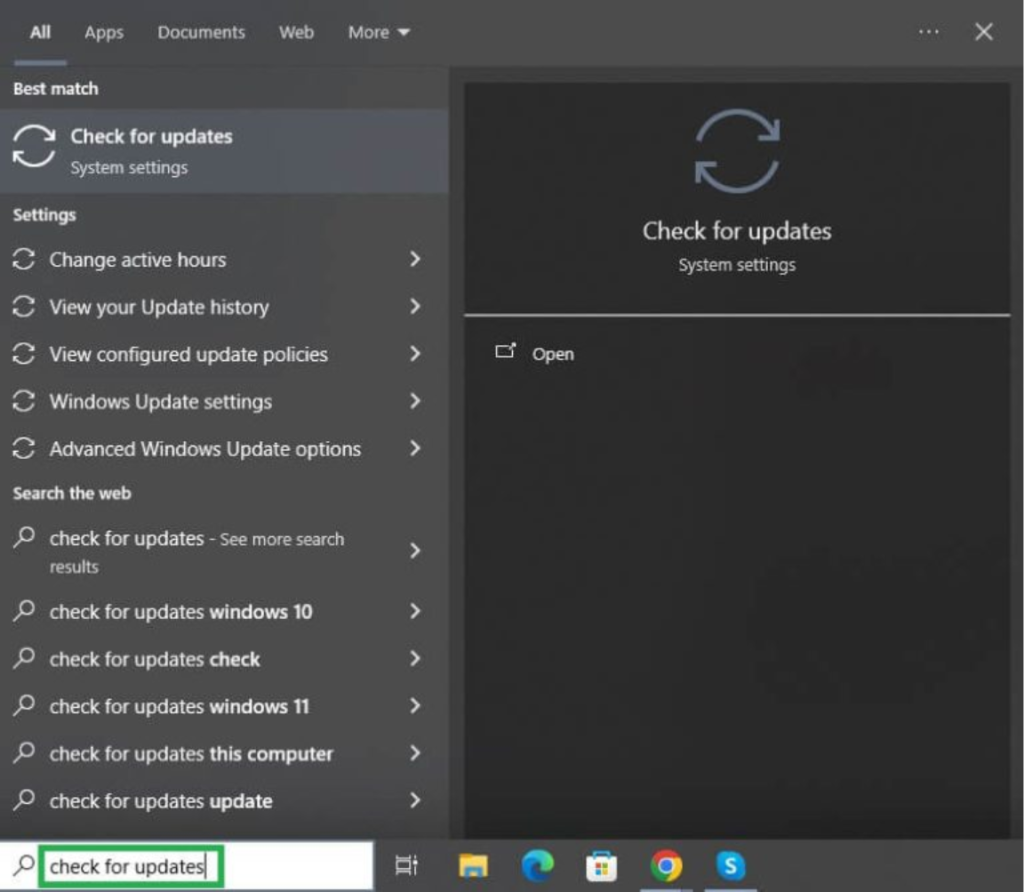
- Click the first search result.
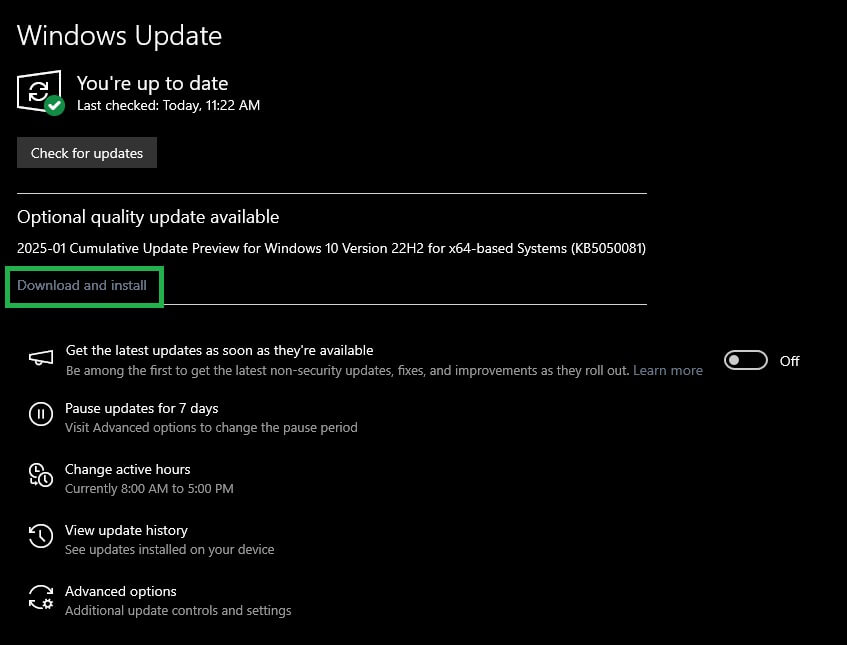
- Next, click the Check for updates button to detect all the pending Windows updates.
- Click Download & Install to download and install the pending updates.
- Lastly, restart your computer to complete the update process.
Fix 3: Set THX Spatial audio as your default audio device
If THX Spatial Audio has not been set as your default audio playback device, it may be why Razer THX Spatial Audio is not working. Hence, you can set this as your main playback device. Here is how.
- Launch your THX Spatial Audio application.
- Click the AUDIO tab and toggle on SPATIAL AUDIO.
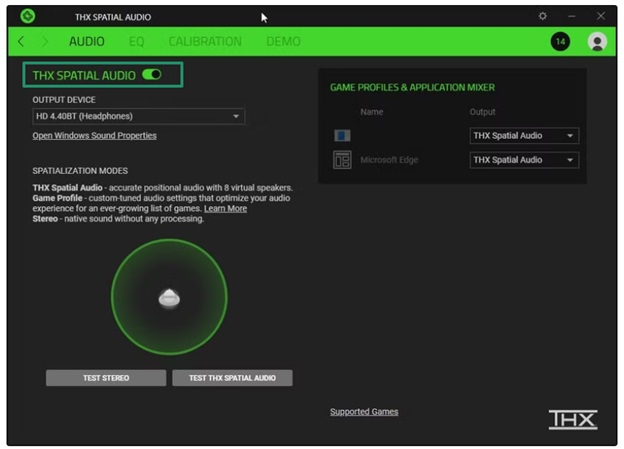
- Next, click the option to Open Windows Sound Properties.
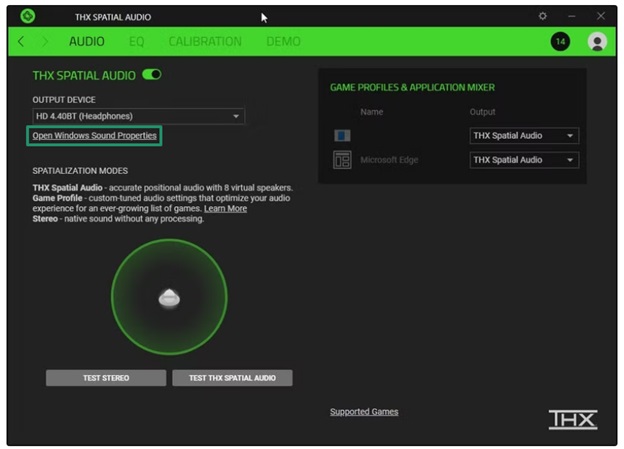
- In the Sound window, right-click THX Spatial Ready Speakers in the Playback tab and then click Set as Default Device.
- Lastly, go to the APPLICATION MIXER and choose Spatial Audio as the output.
Fix 4: Perform a system restore
Any recent change made to your system may be responsible for Razer Spatial Audio having no sound. To solve this problem, you can restore the system to the point when THX Spatial Audio was working fine, i.e., before this change. The following steps explain how to do it.
- First, click the Start button.
- Type System Restore in the search bar.
- Click Create a restore point in the search results.
- In the System Protection tab, click System Restore.
- Click the Next
- Select the restore point before the problem started.
- Click next
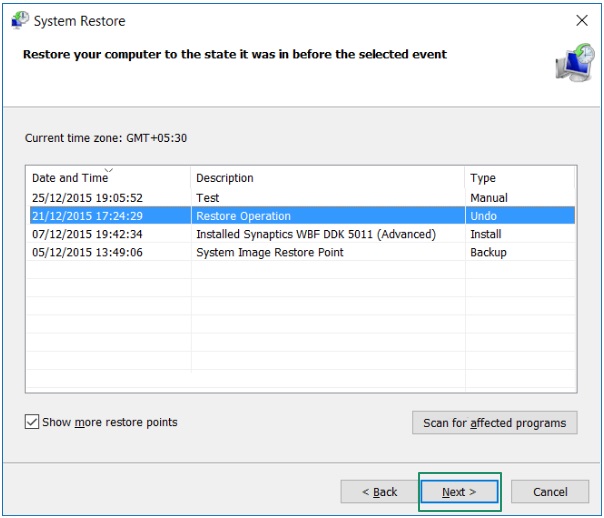
- In this step, click finish.
- Click Yes to start the system restore process.
- Lastly, allow your computer to restart after completing the above steps.
Also know: How to Export Bookmarks from Edge
Fix 5: Update audio drivers
A driver is a small piece of software that helps a hardware device and the computer system communicate with each other. If the THX Spatial audio driver is outdated or corrupted, this communication breaks, leading to issues like Razer Spatial THX audio not working. To fix this issue, you can follow the steps below to update the audio driver.
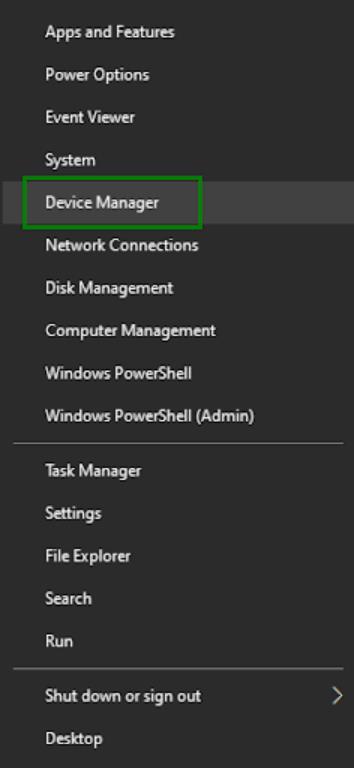
- Right-click the Start button on the taskbar.
- Next, choose Device Manager from the menu that appears.
- In the Device Manager, double-click Sound, Video, and Game Controllers.
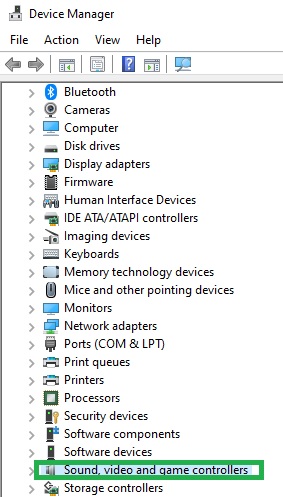
- Right-click your THX Spatial audio driver and choose Update Driver from the menu that appears.
- Next, click search automatically for drivers.
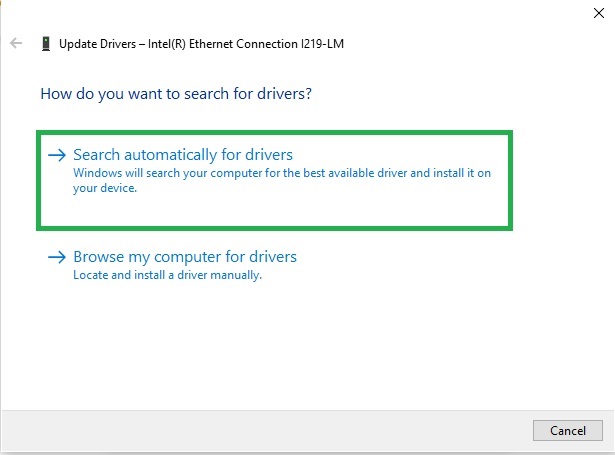
- Follow the prompts on your screen to complete the driver update.
- Repeat the above steps for all other audio drivers in the Sound, Video, and Game Controllers category of the Device Manager.
- Lastly, restart your computer to complete the driver updates.
Fix 6: Reinstall THX Spatial audio
Uninstalling and reinstalling THX Spatial Audio fixes random glitches and bugs responsible for Spatial Audio not playing. You can follow these steps to uninstall and reinstall the THX Spatial Audio.
- First, use the Win + I keyboard shortcut to open Settings.
- Next, click Apps in the on-screen Settings panel.
- Click Installed apps in the Apps menu.
- Use the Search app bar to find the THX Spatial Audio
- Click the three dots next to the THX Spatial Audio app and then click
- Next, click Uninstall to confirm the uninstallation.
- After uninstalling the THX Spatial Audio app, you can reinstall it from the official website.
Fix 7: Update Razer Synapse software
Razer Synapse with THX Spatial Audio offers better control and an optimized audio experience. However, outdated software may turn buggy and cause issues like the one you are experiencing. Thus, here is how to update your Razer Synapse software to ensure you get the best sound quality from your audio system hassle-free.
- Launch the Razer Synapse
- Click the Settings
- Go to the About
- Lastly, click Check for updates and install the available updates.
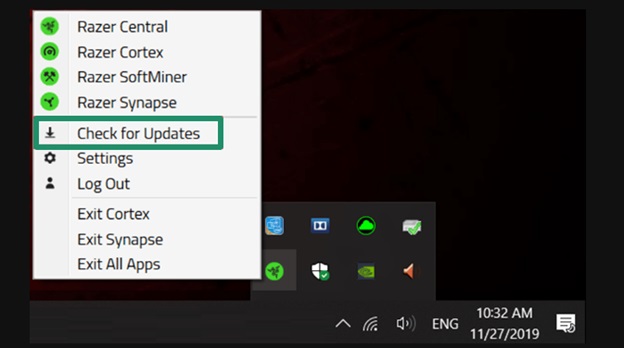
Note: The interface of the Razer Synapse app changes slightly with each update. We have Razer Synapse 3. If you have an updated version, you can find the tutorial for your exact app version.
Fix 8: Run the audio troubleshooter
Windows has a built-in troubleshooter that helps you detect and fix problems, which may have caused the Razer Spatial Audio no sound issues. The following are the steps to try this tool.
Windows 10
- Press Windows + I to access Windows Settings.
- Click Update & Security in the Settings panel.
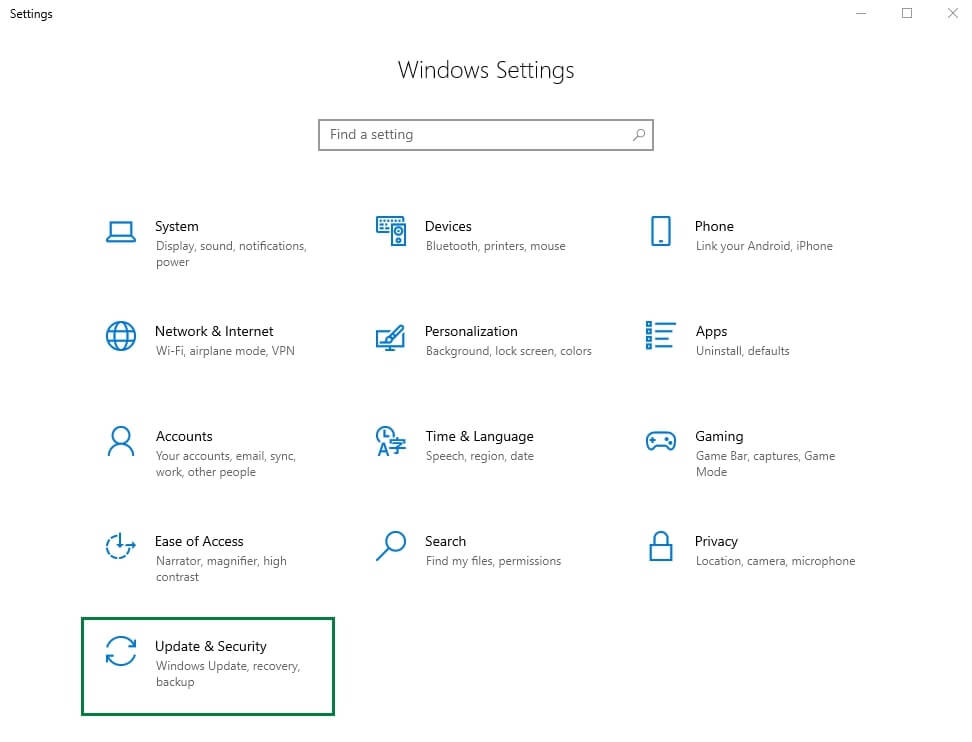
- Next, click Troubleshoot in the left panel.
- Click Playing Audio Troubleshooter in the on-screen list of troubleshooters. If you do not find the Playing Audio troubleshooter, click Additional Troubleshooters and then click Playing Audio.
- Next, click the Run button to start troubleshooting.
- After the troubleshooter finds the problem and suggests fixes, click the recommended fix and follow the prompts that appear to solve the problem.
Windows 11
- Press Windows + R to access the Run utility.
- Type control in the on-screen Run box and press
- In the Control Panel, click the View By menu and change the view to Large Icons.
- Click Troubleshooting in the Control Panel menu.
- Next, click Audio in the available troubleshooters.
- Click Run to begin troubleshooting.
- Lastly, follow the prompts that appear to solve the detected problems.
Fix 9: Adjust Razer Synapse settings
You can improve your audio experience with Razer Synapse and fix related issues by customizing a few settings. Here they are.
- Select Spatial Audio in the APPLICATION MIXER section of the audio tab. It sets Spatial Audio as the only available sound output device for each application to make the most of THX’s spatial audio.
- Enable THX SPATIAL AUDIO in the mixer tab to use this feature while selecting Surround Sound as your preferred audio output device to enhance specific apps.
In addition to the above, you can use advanced settings, such as “Bass Boost,” to increase the game sound level to suit your liking.
Fix 10: Perform an SFC scan
Windows system files may become corrupted or missing after installing a program, or they may conflict with Windows processes, triggering the THX Spatial Audio not working issue. Thus, scan and repair the system files with the SFC command. Here is how.
- First, click the Start button.
- Type cmd in the search bar.
- Right-click Command Prompt in the search results and then click Run as administrator.
- In the Administrator Command Prompt, copy and paste the sfc/scannow command and then press
- Do not perform any other task when the scan is in progress.
- After the scan completes, restart your computer.
Hope the guide above answers your question, “Why is my Spatial Audio not working?” satisfactorily, and fixes the issue to get an optimal sound experience, especially during gaming, when you need it the most. To ensure a better gaming audio, you can also consider using THX Spatial Audio-enabled headsets or gaming soundbars, spatial processing software (such as Dolby Atmos for headphones), and platform-specific solutions (such as Tempest 3D Audiotech or Windows Sonic). However, if you feel confused or have any questions, you can leave us a comment.
Also know: How to Fix the GETSOCKOPT Error in Minecraft
Frequently Asked Questions
Q1. How to activate THX Spatial audio?
To install and enable THX SPATIAL AUDIO, open the THX Spatial Audio application, go to the “AUDIO” settings, and turn on “SPATIAL AUDIO.” Next, navigate to Windows Sound Properties and choose “THX Spatial Speakers” as your default primary playback device for sound.
Q2. How to fix no spatial sound?
To fix Razer THX Spatial Audio not working or no sound, you can ensure “THX Spatial Audio” or your headset is selected in Windows Settings (Sound) or audio application settings. Also, go to the Device Manager and update audio drivers. Additionally, set the EQ to your preference in the THX Spatial Audio app and disable enhancements in Windows Sound settings.
Q3. What does THX Spatial Audio do?
THX Spatial Audio creates positional audio with virtual speaker placement so that you hear sounds from behind, above, or beside you for better immersion during tasks like gaming.
