
Is Elden Ring crashing on startup? This is a common problem for many PC gamers using Steam. Right after launching the game, Elden Ring freezes, the screen goes black or white, or the desktop crashes.
However, the good news is that the Elden Ring keeps crashing on PC issues can be fixed easily with the tried-and-tested solutions in this guide. These fixes range from no-brainers, like ensuring your PC meets the minimum game requirements, to more advanced solutions, such as installing Visual C++ Redistributables.
Before going into the details of these fixes, it is important to reflect on what may have caused the Elden Ring PC crashing to troubleshoot the right way.
Why Is Elden Ring Crashing on Startup
Weak PC specifications, outdated or damaged drivers, missing or destroyed game files, too many applications running in the background, missing or corrupted DirectX files, an unstable internet connection, interference from antivirus software, and incompatible overlays are the reasons Elden Ring crashes at startup.
Now that you are familiar with what contributes to Elden Ring lagging or crashing, let’s help make the game run smoothly.
How to Fix PC Elden Ring Crashing
To fix Elden Ring crashing on startup in Steam, you can match the PC specifications and game’s system requirements, lower the game resolution, check the network connection, disable the antivirus software temporarily, verify the game file integrity, terminate unnecessary background processes, update the graphics driver, disable the Steam overlay, reinstall DirectX, delete Temp files, install Visual C++ Redistributables, and reinstall Elden Ring. Below is a detailed explanation of these solutions. It is important to follow the steps in the order they are presented, as starting with the simpler fixes may resolve the issue quickly and save you time. Skipping ahead could mean missing an easy solution, so for the most efficient troubleshooting, go through each step in sequence and stop once Elden Ring runs smoothly.
Fix 1: Ensure the PC meets Elden Ring’s requirements
No game booster or fixes can help run the game smoothly if your computer does not meet the minimum game requirements. Hence, below are the minimum system requirements of Elden Ring and how to ensure your PC meets them.
Elden Ring system requirements (minimum)
OS: Windows 10 (64-bit)
Processor: INTEL CORE I5-8400 or AMD RYZEN 3 3300X
Memory: 12 GB RAM
DirectX: Version 12
Graphics: NVIDIA GEFORCE GTX 1060 3 GB or AMD RADEON RX 580 4 GB
Storage: 60 GB
Steps to check PC specifications
- Press Windows key + I to open Settings.
- Click System in the Settings panel.
- Click About in the System menu.
- Verify that your PC specifications meet the game requirements. If required, make the necessary changes.
Also know: How to Fix the Slow Startup of the Windows System
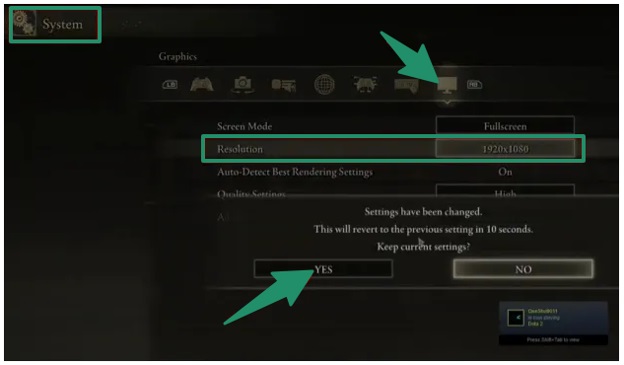
Fix 2: Lower the game’s resolution
Your system may not support overly high game resolution if Elden Ring keeps crashing after an update. Thus, here is how to lower the resolution.
- Launch the Elden Ring
- Click System from the game’s home screen.
- Next, click the Graphic icon at the top.
- Click the drop-down next to the Resolution
- Select a lower resolution value from the available options.
- Lastly, click Yes to confirm the selected resolution.
Fix 3: Check your network connection
A poor or unstable internet connection can lead to Elden Ring crashing on startup or mid-game. Hence, to check and fix your internet connection:
- Check the network speed and router.
- If using a mobile network, switch to a wired connection.
- Disable any bandwidth-hungry background applications.
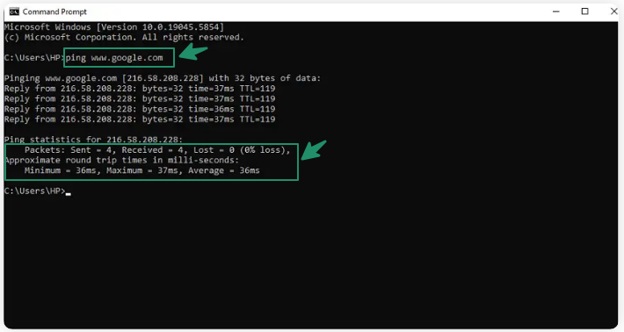
- To check your internet connection, click the Start button, type cmd, click the first search result, input the command: ping [URL], and press Enter. Your internet connection is running smoothly if the time is in milliseconds and the loss is 0%.
Fix 4: Disable your antivirus software temporarily
Your antivirus software may be mistaking the game files as a threat and preventing the game from running on your PC. Hence, deactivating the antivirus temporarily can help fix Elden Ring crashing without error. You can reactivate the antivirus after fixing the issue. However, while your antivirus is disabled, avoid downloading new files, visiting unfamiliar websites, or opening suspicious links to keep your system secure. Here is how to deactivate it.
Note: Below are the steps to deactivate built-in Windows Security. If you use a third-party antivirus, check its manual for the exact steps to disable it.
- Click the Start button.
- Type Control Panel in the search bar.
- Click Control Panel in the search results.
- In the Control Panel, click System & Security.
- Click Windows Defender Firewall in the System Security menu.
- Next, click Turn Windows Defender Firewall on or off in the left panel of the Windows Defender Firewall window.
- Click Turn off Windows Defender Firewall (not recommended) for both public and private network settings.
Fix 5: Verify the integrity of your game files
Corrupted Elden Ring files may be a reason your system is unable to read the game files, resulting in Elden Ring crashing. Hence, you can follow the steps below to verify the integrity of the game files.
- Open
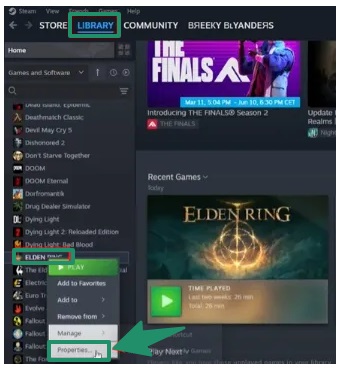
- Click Library in the Steam menu.
- Right-click Elden Ring and then click Properties.
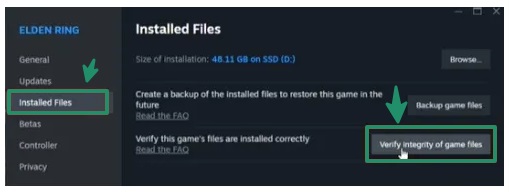
- Click Installed Files.
- Lastly, click Verify integrity of game files.
Also know: Where Are Drivers Stored in Windows 11 and 10
Fix 6: Close unnecessary background processes
Elden Ring is a resource-heavy game. If too many background processes or applications run on your computer, the game won’t get enough resources to function properly, leading to Elden Ring crashing on startup with a white screen. Thus, here are the steps to close these processes or apps.
- Right-click an empty space on the taskbar.
- Click Task Manager in the menu that appears.
- Click the Processes
- Right-click any unnecessary processes or programs and then click End Task.
Fix 7: Perform a graphics driver update
A graphics card is an essential component for games like Elden Ring to run smoothly. The graphics card and operating system communicate with each other through the driver software. If this software is outdated, this communication breaks, resulting in several gaming issues, with Elden Ring crashing after a few minutes of playing or at startup itself being one of them. Thus, the following steps explain how to update the graphics driver.
- Right-click the Start button.
- Click Device Manager.
- Double-click Display Adapters.
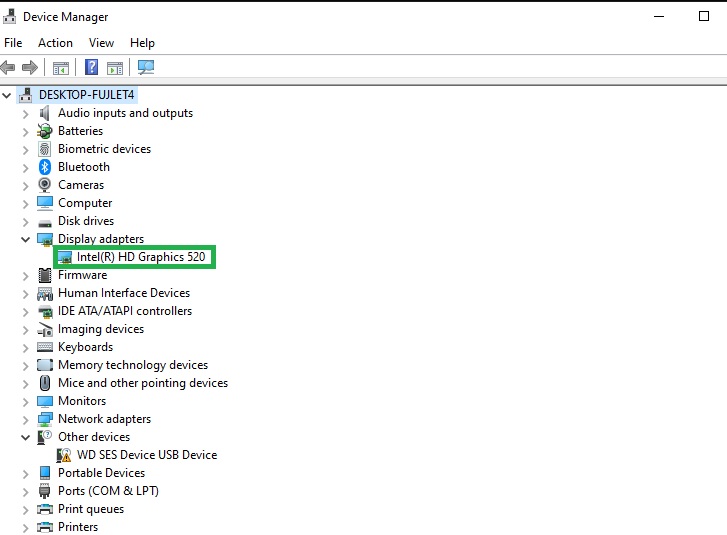
- Right-click your graphics card and then click Update Driver.
- Click Search automatically for drivers.
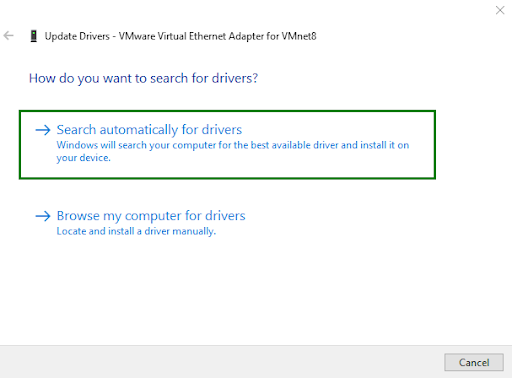
- Follow the prompts that appear to complete the driver download and installation.
- Lastly, restart your computer to complete the update process.
Fix 8: Turn off the Steam overlay
The Steam overlay needs extra resources, which may cause performance drops or instability in heavy games, such as Elden Ring. Hence, you can disable the Steam overlay to fix Elden Ring keeps crashing. Here is how.
- Launch
- Click the Steam tab.
- Choose Settings from available options.
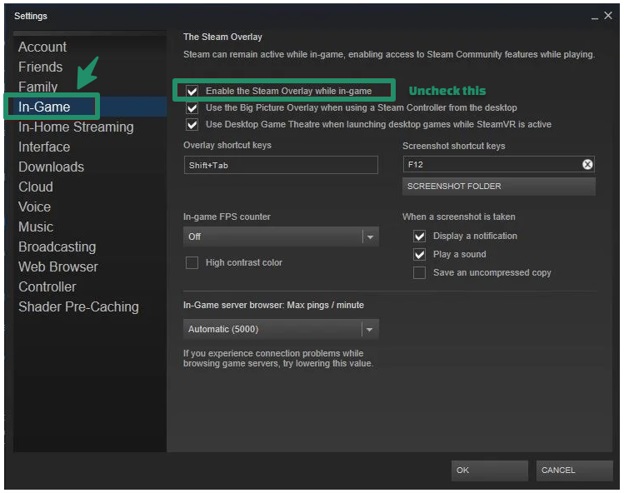
- Click In-Game in the settings menu.
- Uncheck Enable the Steam Overlay while in-game.
Fix 9: Reinstall DirectX
Missing or outdated DirectX files may be why Elden Ring is crashing when loading characters or at startup. Hence, you can follow the steps below to reinstall necessary DirectX files.
- On your browser, navigate to the official DirectX End-User Runtime Web Installer.
- Click the Download button for the DirectX End-User Runtime Web Installer.
- Let the installer run.
- Follow the on-screen prompts to complete the installation.
- Lastly, restart your PC.
Fix 10: Clear Temp files
Accumulated temporary files can become corrupted. When Elden Ring accesses these files, it may crash on the loading screen. Moreover, Temp files consume significant disk space, affecting the game’s stability and performance. Thus, follow the steps below to delete these files.
- Exit the Elden Ring game.
- Press Windows key + R to launch the Run utility.
- Type %temp% in the Run box and press
- In the Temp folder, locate and right-click files related to Elden Ring.
- Click
- Lastly, restart your computer.
Fix 11: Try installing Visual C++ Redistributables
Games like Elden Ring need Visual C++ Redistributable tools to work smoothly. Without these tools, you may encounter issues such as Elden Ring crashing on startup with a white screen. Hence, the following steps explain how to install Visual C++ Redistributables.
- Navigate to the official website to download Microsoft Visual C++ Redistributables.
- Go to the Visual Studio or Downloads
- Search for the Visual C++ Redistributable version that corresponds to your operating system’s architecture (64-bit or 32-bit).
- Click the Download link for the matching version.
- After completing the download, find and double-click the downloaded file to begin the installation.
- Follow the on-screen prompts to complete the installation.
- Restart your computer after completing the installation.
Also know: What Are WHQL Drivers: Complete Information
Fix 12: Reinstall Elden Ring
If none of the above fixes stop Elden Ring from crashing, uninstalling and reinstalling the game is a last resort. Game uninstallation and reinstallation fix incomplete, corrupted, or missing game files. Hence, uninstall the game and reinstall it.
Hopefully, you can now play Elden Ring smoothly. Below, we have also answered a few related questions to clear up the doubts you may have.
Frequently Asked Questions
Q1. Why is my Elden Ring suddenly crashing?
Missing runtime files such as Visual C++ and DirectX, unmet game requirements, unstable internet connection, too many background apps, incompatible overlays, and interference from antivirus software are the top reasons Elden Ring crashes on startup or mid-game.
Q2. How to prevent the Elden Ring from crashing?
To prevent Elden Ring from crashing on your PC, update graphics drivers, verify the integrity of game files, and disable overlays. For detailed and more effective solutions, refer to the guide above.
Q3. How do I check my Elden Ring crash log?
To check your Elden Ring crash log, go to the Elden Ring installation folder, search for the CrashReports or Logs folder, and then open the log file to see crash details and identify the problem.
Q4. Can RAM cause Elden Ring crashing issues?
Yes, RAM can cause Elden Ring crashing problems if the RAM is faulty or insufficient. If you suspect RAM-related issues, use the built-in Windows Memory Diagnostic tool to test your memory.
That’s all for the day. Hopefully, Elden Ring crashing on startup or in-game is fixed for uninterrupted gaming. If the issue persists, you can contact Steam support or official Elden Ring support for assistance. For any questions or concerns, leave us a comment.