

Are you a photographer, web designer, or anyone who is into images or photographs? Then, you must have come across JPG and JPEG file formats.
While both are common raster image formats (both use pixels as individual points to form an image), many users find them confusing. Hence, if you are also confused and looking for answers to questions like what JPG and JPEG files are in a computer, the difference between JPG and JPEG, which one is better, and how to open these files, then this article is for you.
In this article, we answer all your questions, beginning with what JPG and JPEG files are.
What Are JPG Files
JPG, short for Joint Photographic Experts Group, is a common file extension used for photos and other complex pictures on the internet and in digital photography. The JPF file structure consists of metadata headers, compressed image data, and segments for features such as thumbnails, allowing smooth storage and rendering.
It is a widely accepted format by operating systems and software applications due to its significant reduction in file size while ensuring high quality, making it an ideal format for image storing and sharing.
What Are JPEG Files
JPEG is an acronym for Joint Photographic Experts Group (the same organization that created the JPG format). It is a widely recognized image format that can display millions of colors, making it perfect for photographs and other visuals where color theory and color variety are crucial.
Like JPG, JPEG is a lossy compression file format, i.e., it removes some image data to reduce the file size, making it easy to share the image.
Does that mean JPG and JPEG are the same?
Let’s answer this question next.
Are JPG and JPEG the Same
JPG and JPEG are often considered the same and used interchangeably. This is so because they are both widely used in imaging applications, can store images in different resolutions (including high resolutions), and are encoded using Huffman or arithmetic coding, which compresses the files.
However, they have a few key differences in their metadata storage, compatibility with older systems, and compression options. Let’s look at these differences.
Key Differences between JPG and JPEG
| Basis of difference | JPG | JPEG |
| Metadata storage | It cannot store additional metadata. | It can store additional metadata, for instance, EXIF data. |
| Compatibility with old systems | Widely compatible with older systems that could only use 3-letter file format extensions (for instance, .png) | JPEG may not be compatible with older systems, as it is a 4-letter file format extension. |
| Compression options | It does not have many advanced compression options. | It has more advanced compression options. |
At this point, another question may pop up in your mind: Should I save as JPG or JPEG; which one is better?
Let’s address this query next.
Should You Save As JPG or JPEG
You should choose JPEG if you need additional metadata, such as EXIF data from digital cameras and more advanced compression options. If you do not need metadata or advanced compression, or have an older system, you are good to go with the JPG file format.
However, no matter whether you save the file as JPG or JPEG, the process to open it remains the same. Let’s look at that next.
How to Open a JPG/JPEG File in Windows
You can open a JPG or JPEG file on your computer using the “open with” option or a third-party image viewer. Both these methods are explained below.
Method 1: Use the “open with” option
You can use the “open with” option to open a JPG or JPEG file. Here is how.
- First, right-click the file you want to open.
- Next, choose Open With from the on-screen context menu.
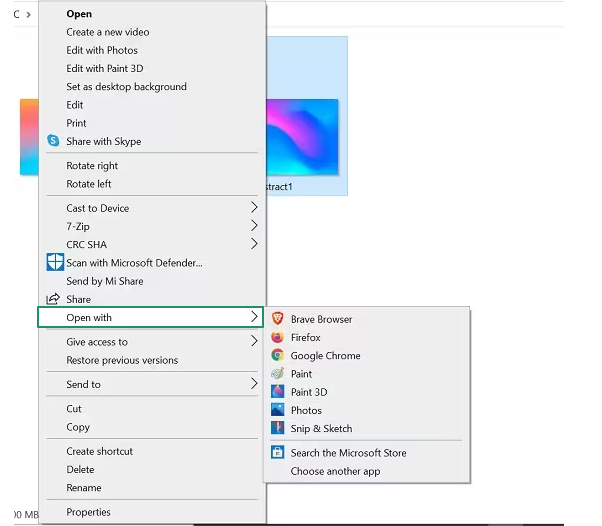
- In this step, select a program, such as Windows Photo Viewer, Paint, or Photos, or another image editing app to open a JPG file/JPEG file.
Note: If the JPG/JPEG file does not open, you can troubleshoot the issue by renaming the image, running the sfc/scannow command in the Administrator Command Prompt, performing Windows updates, and repairing and resetting the Microsoft Photos application.
Method 2: Open the JPG/JPEG file using an image viewer
Many third-party applications are available on the web to open JPG files or JPEG files if the built-in option does not appeal to you. However, ensure the app you use to open your file is reliable. Below are some trustworthy options to choose from.
- Luminar Neo: It is an AI-powered image viewer that you can use to view and sharpen, denoise, upscale, and merge exposures, or panoramic images to make your photos stand out.
- Adobe Photoshop: Adobe Photoshop is another JPG/JPEG and other file format viewer application you can use. It is a professional image viewer and editor with advanced editing capabilities.
- Photopea: If you do not want to download anything on your computer, you can choose Photopea. It is an online photo viewer and editing software for JPG/JPEG and other image formats, with a wide range of editing options.
Also know: Best Duplicate Photo Finder and Cleaner Tools for Windows
JPG and JPEG Files: The Conclusion
With that, we have come to the end of our JPG and JPEG guide. These are two similar image formats that only differ in the number of characters, system compatibility, metadata storage, and compression options.
The JPG format has 3 characters, while JPEG has 4, making JPEG potentially incompatible with older systems. JPG cannot store additional metadata (like EXIF) while JPEG can, and unlike JPG, JPEG has more advanced compression options.
You can open both these files using the built-in “open with” tool or a third-party viewer. Hopefully, you no longer feel confused between the JPG and JPEG image formats.
However, if any confusion arises, feel free to let us know through the comments section. You can also leave your feedback or suggestions about this article in the comments. And, for more free and helpful tech guides delivered right to your mailbox, subscribe to our newsletter.
